Add MobilityArena as a preferred source on Google
A factory reset allows you to experience using your iPhone as if it were for the first time, by deleting all the data on the said phone. It simply resets a smartphone to its original manufacturer settings and state. We’re going to explore how you can perform a factory reset on your iPhone.
You might ask; why would I want to factory reset my iPhone? It could be because of multiple reasons. It could be because your phone is freezing up constantly. After all, you want to sell it or wipe all data on your iPhone before taking it in for repairs, to avoid information being stolen, e.t.c.
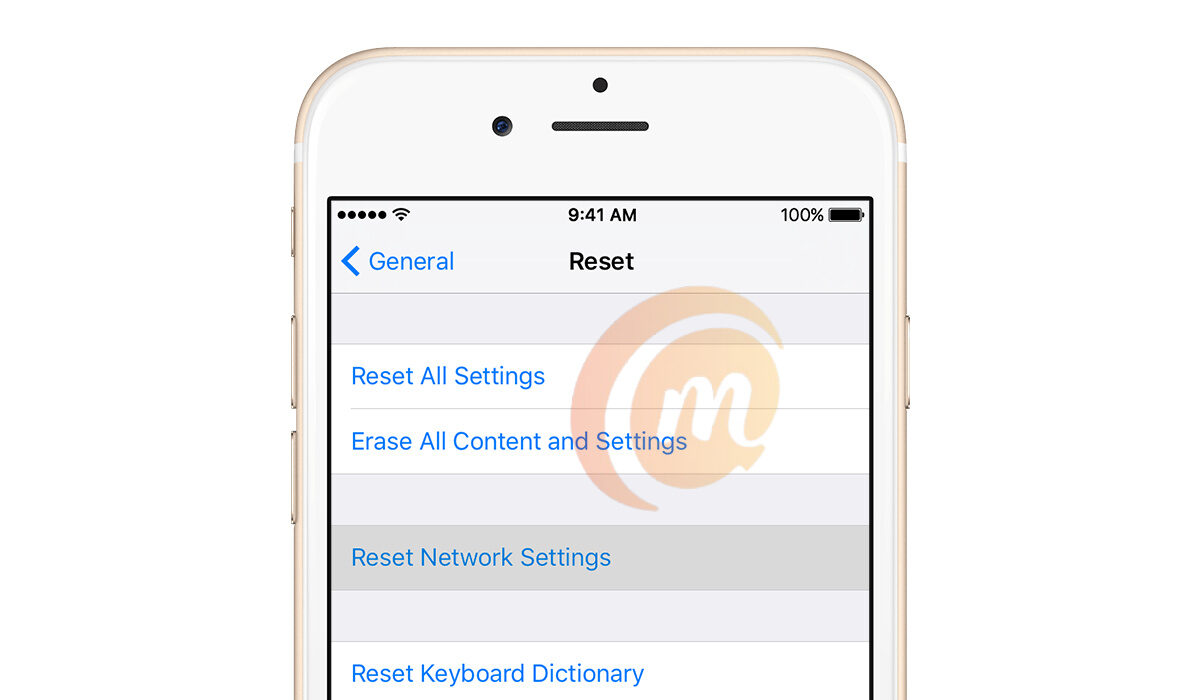
How to Soft Reset your iPhone
If you aim to simply fix malfunctioning applications or your iPhone constantly freezing, a soft reset is what you are looking for. To do this, you need to press and release the volume up button, and the volume down button, and finally, press and hold the side button until you see the Apple logo display.
How to back up your iPhone before the reset
Whatever the reason may be as to why you want to perform a factory reset, it is important to always back up the data on your iPhone. So that you can have access to it on a new iPhone or on the same one the reset was performed.
One of the best options for backing up data on your iPhone is by making use of iCloud. To do this;
•Connect your device to a Wi-Fi network.
•Go to Settings > [your name], and tap iCloud.
•iPhone showing the screen at Settings [your name]. iCloud is selected.
•Tap iCloud Backup.
•Tap Back Up Now. Stay connected to your Wi-Fi network until the process ends. Under Back Up Now, you’ll see the date and time of your last backup. If you get an alert that you don’t have enough iCloud storage space to complete the backup, follow the onscreen steps to upgrade your iCloud storage. An iPhone showing the screen at Settings > [your name] > iCloud > iCloud Backup. The iCloud Backup toggle is turned on.
Automatically back up with iCloud Backup
•Make sure that iCloud Backup is turned on in Settings > [your name] > iCloud > iCloud Backup.
•Connect your device to a power source.
•Connect your device to a Wi-Fi network.
•Make sure that your device’s screen is locked.
•If you get an alert saying that you don’t have enough iCloud storage space to complete the backup, follow the onscreen steps to buy more storage.
How to factory reset your iPhone
Head into your settings, tap “General”, and scroll down until you see ” Transfer or Reset iPhone”. Select “Erase all content and settings”. If you have a passcode or a Restriction passcode set, you will have to input that code or password to initiate the reset. If you don’t input or remember the code, you can’t reset your iPhone.
Before the iPhone is reset, a summary of all the data on your smartphone that will be deleted will appear. If you are fine with this (as you should be because you have backed up all your data), tap continues. Now, your Apple ID password will be required to continue. This is so that your account can be removed from your iPhone, and the ” find my phone” feature can be switched off. The process itself takes, give or take, two minutes. When it is done you will see the welcome screen requesting you to “swipe to continue”. You can now carry out whatever purpose you performed the factory reset for.
Author:Flamez
Flamez loves basketball, art, gadgets and cars.
Add MobilityArena as a preferred source on Google
Why would you need to restore your iPhone or iPad? If you recently purchased a new iPhone and need to switch your data from an older model, or you needed your iPhone fixed and had to factory reset, you are going to need to restore the data you backed up before switching phones or after getting it fixed.
The key here is that you must already have a backup of your iPhone somewhere. Earlier on, we showed you three different ways to backup your iPhone . If you already have a backup, you are ready to restore your iPhone. Below, I will walk you through how to do this in two different ways – you can restore your iPhone from a backup in iCloud or using iTunes, from a backup on your computer.
How to restore your iPhone from an iCloud backup
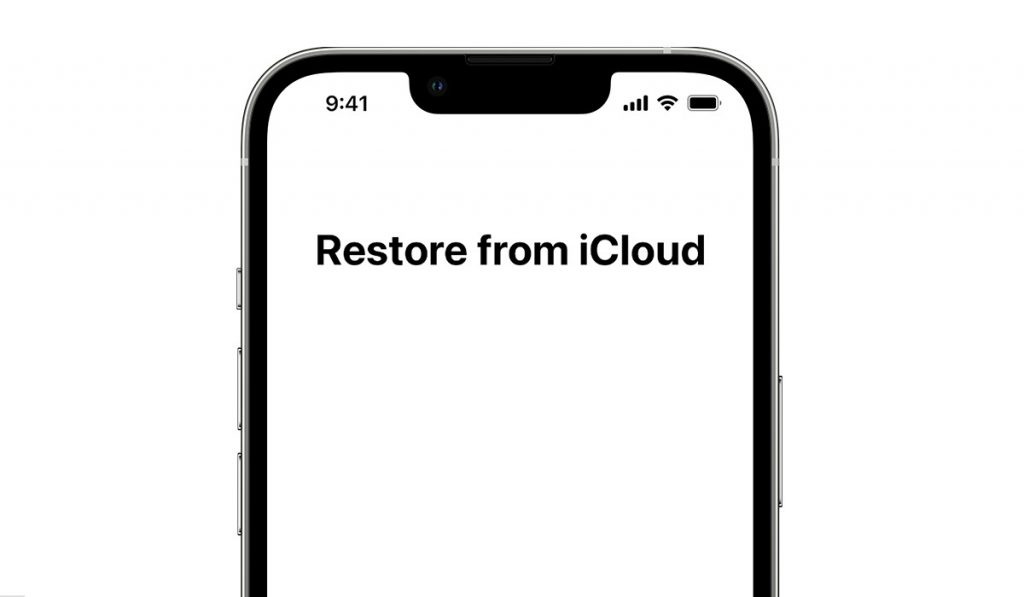
•Turn your iPhone on, and a “Hello” screen will pop up. If you already have your iPhone set up, you will need to erase all of the content you have added to your phone before you can restore it from your iCloud backup.
•Head to your settings and tap on Apps & data.
•Tap “restore from iCloud backup”
•Sign in to iCloud with your Apple ID.
•Select a backup. Check the date and size of each and pick the most relevant. After choosing a backup, the transfer will begin. A message saying that a newer version of the software is required because the one you are using is currently outdated. You need to update to the latest version.
•Keep your iPhone connected to Wi-Fi and wait for a progress bar to appear and complete. The size of the backup and the network speed will determine the amount of time the restoration will take. It could take a few minutes and last as long as an hour to finish restoring. If your Wi-Fi somehow gets disconnected it will simply pause and resume again when the connection is re-established.
•When the restoration is done, you can finally finish your setup and make proper use of your iPhone. Apps, photos, music, and information will continue to restore in the background for the next several hours or even days. Again that depends on how large the information is. It is advisable to keep your iPhone connected to Wi-Fi and power to allow the process to run smoothly.
Now, let’s look at how to restore your iPhone from a backup on your PC, using iTunes. If you have backed up your device to your PC earlier, this is the way to do a phone restore.
How to restore your iPhone from a backup on your computer
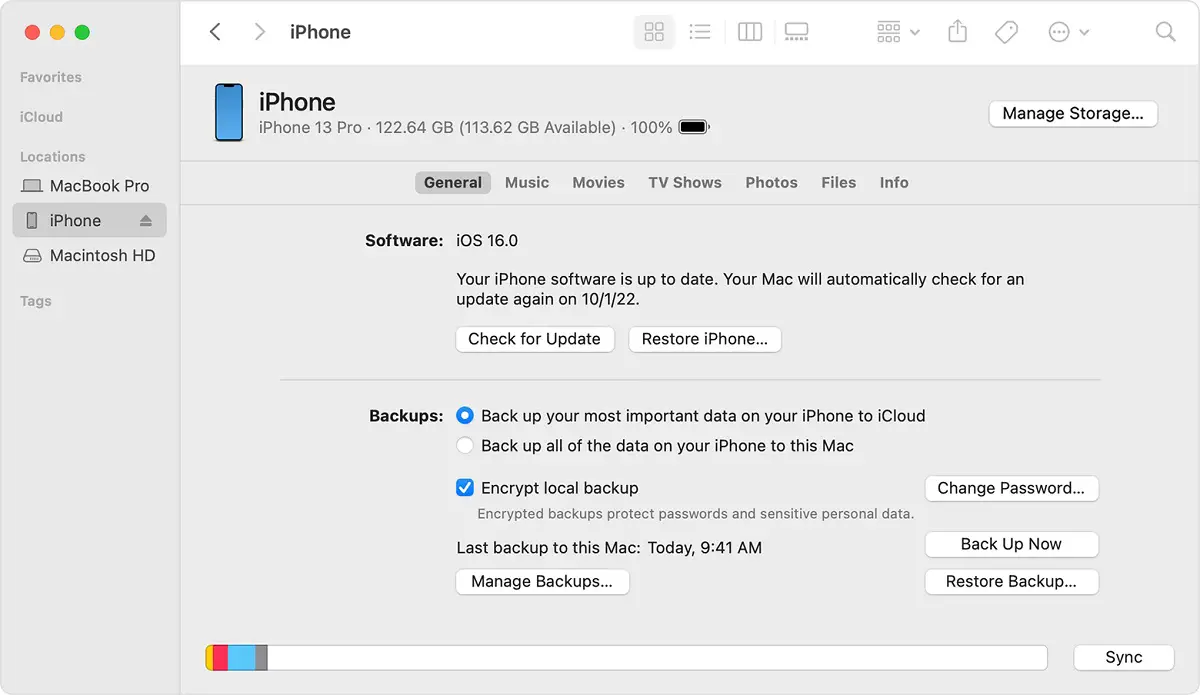
•If you have a Mac with MacOS Catalina or later, open the “Finder”. If you own a Mac with MacOS Mojave or earlier, or you own a PC, open iTunes.
•Use a USB cable to connect your iPhone to your computer. A message will pop up and ask for your passcode or to “Trust this Computer”.
•Choose your iPhone or iPad when it appears in the ” Finder Window” or iTunes.
•Select restore backup.
•Check the dates of each backup and pick the most relevant one.
•Tap “Restore” and wait for the restore to finish. If and when asked, enter your password for your encrypted backup.
•Keep your iPhone connected after it restarts and wait for it to sync with your computer. You can disconnect after the sync finishes.
Author:Flamez
Flamez loves basketball, art, gadgets and cars.
