Add MobilityArena as a preferred source on Google
It’s no longer necessary to wait for your gadget to fully recharge. Since 2018, the majority of Samsung and Android devices have become compatible with rapid charging. This simply means that Samsung devices will charge more quickly. Additionally, your gadget will be on your hand, where it belongs, rather than being continually hooked to your wall.
This is fantastic because you no longer have to endure excruciating hours hoping that your battery will be fully charged before you go out. If you don’t already know how to achieve this, we’ve created this easy guide for you. So keep reading to find out the different ways you can fast charge your Samsung device.
Turn On Airplane Mode
When it comes to sapping your battery, the network signal is usually the main offender. Your battery will discharge much more quickly if you have a weak network signal.
Even with an Android charger that offers quick charging, a bad network slows charging. You may save battery life on your device by disabling Bluetooth, Wi-Fi, location services, and your network.
Your phone will charge more quickly than previously and will take 25% less time to recharge if you use less battery. So simply swipe down your notification bar and select Airplane Mode to accomplish this. Just be sure to disable this function after charging.
Use Bixby Routines
Simply lessening the strain on your battery will enhance the charging pace, and the quickest way to achieve that is to (temporary) halt any power-consuming activities. With Bixby Routines, you can accomplish this automatically.
If you’ve never used the feature before or aren’t aware of it, start by following these steps:
● To add a routine, navigate to Settings > Advanced Features > Bixby Routines on your device.
● Click on Charging Status > Charging > Ready by pressing the if panel. This enables Bixby to recognize when your phone is charging so that it may take action automatically without your involvement.
● Select these options from the following menus after pressing the Then panel:
● Wi-Fi, Bluetooth, NFC, mobile data, and mobile hotspot should all be turned off, and airplane mode should be on.
● Display: Change the Motion Smoothness setting to Standard (60Hz), turn on Dark Mode, turn off Edge Panels, and adjust Screen Timeout to 15 seconds
● Location: Disable Location
● Accounts and backup: disable automatic synchronization
● Battery: activate Energy Saving
● Afterward, select the icon and color for this routine, then tap Next . To complete, tap Done .
Now your routine is established. Plug your phone now; once the process has run its course and you unplug the charger, Bixby will reverse all of these changes, allowing you to use your phone as usual once more.
Turn off the Energy Saver menu’s Restrict apps and home screen option. This will stop all apps other than those you’ve chosen from running in the background and increase charging speed.
To be clear, charging speed will not change dramatically with this approach. But under ideal circumstances, a full charge should occur in at least five minutes. Even if it’s not much, remember that with each charging session, the five minutes you save will mount up.
Turn Off the Device’s Screen
The screen of the gadget also has a significant impact on battery life. Depending on the size and brightness level, it might consume anywhere between 30 and 60% of your battery.
An Android tablet and other gadgets, especially those with large screens, can be quickly charged by turning off their screens.
To conserve power in your Android device, you can also utilize a black background and low brightness settings. If you don’t want to miss a notification while you are waiting for a call or message, turn your ringer volume up.
Although it is technically forbidden to use a phone while it is charging, few individuals really abide by this rule. However, it is advised to avoid using your phone while it is connected to a charger for safety reasons.
Power the Device Down
Try turning your device off if it’s still not charging as quickly as you’d want. It would be a wonderful idea to turn your smartphone off if you aren’t going to use it anyway. It is also among the greatest methods for resolving issues with Android quick charging.
The goal here, as with the earlier suggestions, is to reduce or ultimately stop battery consumption by switching off your phone. It is the finest and most recommended method to fast charge Samsung Galaxy smartphones while nothing is running and using the battery, including any apps, sensors, features, or other hardware.
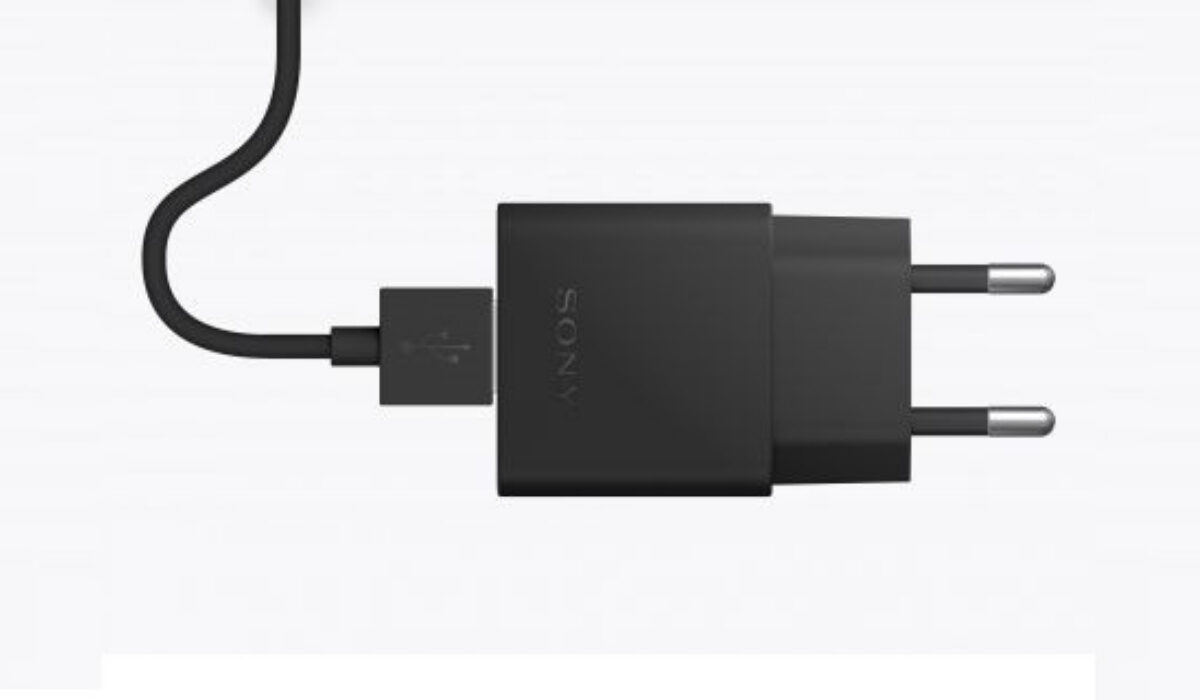
Charge Directly from a Wall Socket
By connecting your charger to a wall outlet, you may quickly charge your Android device. Your laptop, computer, and other devices’ USB ports can only provide 0.5A of power output. When using automobile chargers, don’t expect Android devices to charge quickly either.
This quantity is insufficient, especially when compared to a wall socket, which, depending on your equipment, can provide you with 1A. Simply put, wall chargers can provide you with double the amount of charging power that you require. This will lead to a two-fold increase in charging speed.
Take Off the Protective Case
Protective cases are typically made to shield your phone from nicks, bruises, and the worst-case scenario: unintentional falls.
But in some circumstances, the device’s normal heat transfer may be impeded. Your mobile device can overheat as a result of this.
Samsung smartphones are made to automatically slow down charging speed anytime your device appears to be heating up or if the ambient air temperature rises as a safety feature. Therefore, it would be beneficial to briefly remove the protective case to allow your Samsung S9 to quickly charge and cool down.
Charge with a Fast-Charge Cable
Samsung cables for rapid charging are available widely, so you’ve probably heard about them before. These cables can carry 2A and charge your phone more quickly because of their bigger gauge.
A rapid charge Android cable may significantly speed up charging compared to a regular cable, which can only deliver 0.5A. As such, you should use a magnetic fast-charging cable for your Android device as an alternative to plugging in your phone’s cord every time you need to charge it.
Summarily , achieving a fast charge on your Samsung device is not an impossible feat. Simply follow the instructions and suggestions we’ve provided in this guide and you’ll find your device charging faster than before.
- Don’t miss our mobile phone reviews .
- Follow our news on Google News .
- Join our WhatsApp Group , to be notified of the most important articles and deals,
- Follow us on Instagram , Facebook , Twitter , and YouTube .
Author:Joan Agie
Add MobilityArena as a preferred source on Google
Nowadays, life is so interconnected that there are times when we wish we could take a break and not constantly have to check our phones. This is why it’s great if you are able to set up voicemail on your Android or iPhone in certain circumstances so that you can go away for other activities or obligations without having to worry about completely missing crucial calls.
If you have your voicemail set up, you eliminate this worry because you can transfer missed calls to another number or keep recordings of missed calls for later listening.

Setting up your voicemail is pretty easy, provided that you’re equipped with the right instructions. This is why we’ve created this guide, to help you successfully set up your voicemail on iPhone and Android devices.
How Do I Set Up Voicemail on My Mobile Device?
Setting up voicemail on a mobile device is not as complicated as you may imagine. By simply following the instructions below, you may set up voicemail on an Android or iPhone within minutes. You should keep in mind, however, that the procedure may vary significantly between carriers or according to the various telephone service providers. You can confirm with your service provider if you get confused during the process.
Setting Up Voicemail on Android devices
Take note of these instructions to set up voicemail if you’re using an Android smartphone:
● Tap Settings .
● Voicemail can be chosen by tapping Call settings .
● To find the correct method to access voicemail settings, you may occasionally need to manually navigate or put “voicemail” into your Settings search box. Voicemail settings, Voicemail Setup, or simply Setup are all acceptable names for it.
● Choose your carrier under Voicemail Service when you enter the voicemail setup settings.
● Choose a Voicemail number and enter your desired voicemail recipient’s number. This can be either your own mobile number or another person’s number.
● Your Android phone will display a popup stating that the voicemail number has changed. Select OK .
● Dial 1 when your Android phone’s dialer is open. Your phone should dial the carrier’s voicemail line that you chose when setting up voicemail.
● You will be given a PIN or password over the phone via the voice command. Access it.
● When the voice commands ask you to, clearly speak your name to be recorded.
● Afterward, decide what you’d like callers to hear when they dial your number but you don’t pick up. Upon being asked by the voice command, you can select one of the pre-recorded greetings or record your own.
● Various settings, depending on the mobile service provider, can be required. To progress through those, do as the voice commands instruct.
● Once you’ve finished, your voicemail will be successfully set up on your Android phone.
Setting Up Voicemail on iPhone Devices
The following instructions should help you set up your voicemail if you’re using an iPhone device:
● To access your visual voicemail, open the Phone app on your iPhone’s home screen and click the Voicemail button in the top right corner.
● You’ll see a “Set up” button displayed on the iPhone’s screen. Enter your password if you have previously used voicemail on an iPhone. Make a new password if this is your first time using this site, then enter it. When done, click “Done.”
● Your iPhone will then display the Greeting screen, where you can record a custom voicemail greeting. Choose “Custom” and tape your own greeting if you want a personalized greeting. To verify, play it back to yourself. When you are satisfied with your recorded greeting, click “Done.”
● However, you can skip this step if you’re fine with the iPhone’s voicemail setup’s default greeting by clicking “Done.”
You now understand the entire procedure for configuring voicemail on an iPhone. You also have the option to use an iOS visual voicemail app from AT&T, Verizon, T-Mobile, or Sprint if the Apple visual voicemail falls short of your expectations. Just make sure to follow the correct instructions.
In summary , you can say goodbye to worrying about any missed calls by simply setting up your voicemail. As we’ve established in this article, it’s a pretty easy process. You just need to ensure that you’re following instructions appropriately.
- Don’t miss our mobile phone reviews .
- Follow our news on Google News .
- Join our WhatsApp Group , to be notified of the most important articles and deals,
- Follow us on Instagram , Facebook , Twitter , and YouTube .
