Add MobilityArena as a preferred source on Google
Have you ever hidden an app on your iPhone but somehow forgot where you hid it? It happens to the best of us. Perhaps you hid the app to avoid unauthorized access to it, or for any other personal reason. Whatever the case may be, using the hide applications function on iPhones can become problematic if you need the app later but somehow can’t find it. How do you find these hidden apps on your iPhone?
Not to worry, however, this guide will teach you several methods for finding those hidden apps. You’ll also learn other relevant advice for managing the apps you have downloaded and installed on your device.
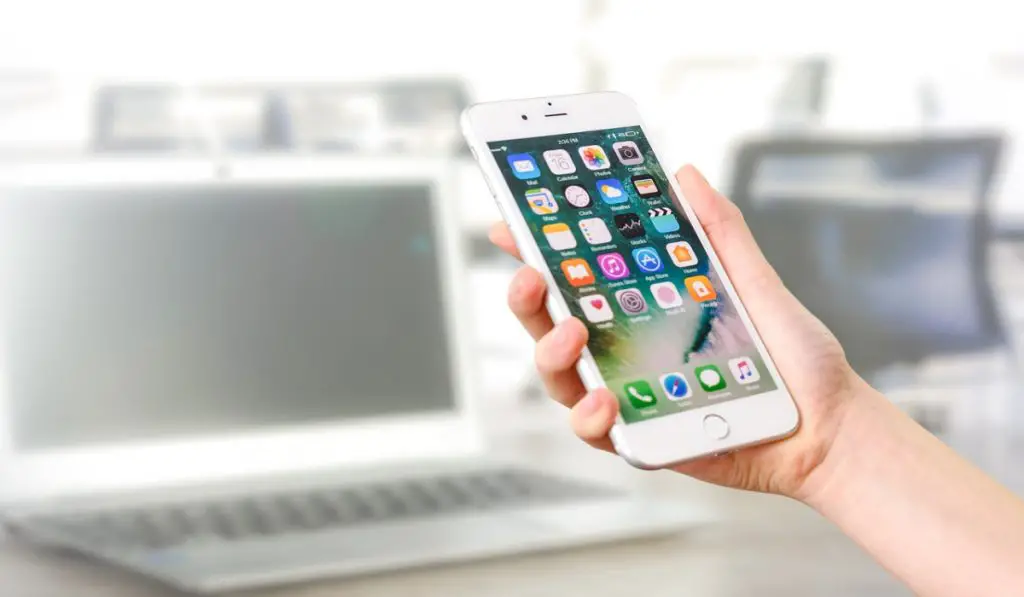
- Search for Hidden Apps on your iPhone with Spotlight Hidden Apps on your iPhone: Check the App Store’s Purchases Page Hidden Apps on your iPhone: Ask Siri for Help Hidden Apps on your iPhone: Check your Home Screen
Search for Hidden Apps on your iPhone with Spotlight
Almost anything on an Apple device can be found with the Spotlight Search feature. It is the quickest and most accessible approach to uncovering iPhone hidden apps.
Using Spotlight:
- From the center of your iPhone’s Home screen, swipe downward.
- Enter the app you’re looking for after tapping the search box. As you type, search results will immediately show.
- To display more results, press Show More .
- When the app appears in the search results, tap it to launch it.
If you use an iPhone SE, 7, 8, X, XR, 11, 12, 12 Pro Max, 13, or13 Pro Max, the instructions above should be helpful. If the search is unsuccessful, you might have restricted which programs and search results can be shown while using Spotlight.
In this case, you can also look for hidden apps on your iPhone’s App Library. This works because every iPhone app, regardless of whether you’ve hidden or removed it from your Home screen, can be found in the App Library.
- On your home screen, swipe left until you see the App Library.
- Click on the App Library’s top search box.
- Enter the search term for the desired app.
- When a menu displays, tap and hold the app icon.
- Click on the Add to Home Screen option.
The app may already on your Home screen if the menu options don’t contain the Add to Home Screen . It might be tucked away in a folder or on an obscure Home Screen page.
Hidden Apps on your iPhone:Check the App Store’s Purchases Page
When searching for hidden apps on your iPhone, another simple alternative is the App Store purchases page. Even if you’ve already uninstalled them, you can still view every app you’ve ever downloaded. This implies that you will locate an app here even if it is hidden on your Home screen.
- Launch the App Store.
- In the top-right corner, tap the image of your account profile.
- Click Purchased .
- If family sharing is enabled, tap My Purchases.
A list of all the apps you’ve ever downloaded will appear. If an app you’ve downloaded is missing from this list, it may have been hidden in order to keep it from showing up in your purchases list.
Use the instructions below to reveal the hidden apps on your iPhone in your purchases list.
- Tap your profile photo in the App Store on your iPhone.
- When prompted to sign in, choose your name or Apple ID and enter your password.
- Press Hidden Purchases as you scroll down.
- Locate the desired app and select Unhide.
- The app should now be accessible in your list of purchases.
Hidden Apps on your iPhone:Ask Siri for Help
Another simple method for locating hidden apps on your iPhone is to use Siri to find them. You can ask for it to look up the app you need. The app will thereafter be displayed by Siri even if it is hidden on your iPhone. However, this option is only functional if Siri is turned on. If you haven’t already, you must first enable it, then follow the instructions below.
- To activate the voice assistant feature, say “Hey Siri.”
- As an alternative, you can hold down the Side or Home buttons to launch Siri.
- Say “Open [app name]” after that (for instance, “Open Spotify”)
- The app will open automatically thanks to Siri.
Hidden Apps on your iPhone:Check your Home Screen
Depending on your preferences, newly installed apps may move to your Home page automatically or manually. As a result, the first place to check for hidden apps on your iPhone is on your Home pages.
From iOS 14 and later, you have the option to hide several Home screens at once to quickly conceal apps from your iPhone. So, if you discover that several apps are missing, it is possible that one of your Home pages was accidentally hidden. By verifying whether your Home screen is hidden, you’ll locate these apps.
- Long-press the backdrop of your Home screen until you see the app icons wiggle.
- At the bottom of your screen, click the Home screen dots.
- All your Home pages will be visible. Find any page where the bubble below doesn’t have a checkmark on it. Pages on the hidden Home screen will also appear a little blurry.
- To reveal a page, tap the bubble beneath it. The bubble should show a checkmark.
- In the top right corner, click Done . The hidden apps should now be visible on the enabled page.
Finally , if you think your screen’s layout may be the reason you’re missing apps, it’s a good idea to reset it to its original state. You’ll lose your previous arrangements, but you’ll be able to find all hidden apps on your iPhone.
Author:Joan Agie
Add MobilityArena as a preferred source on Google
Most people wish they could make their Android phones work faster. It doesn’t matter if you’re using an old gadget from a few years ago or one of the newest Android phones; it does not matter if you are using a Samsung Galaxy, Motorola Moto, OnePlus, or Google Pixel – more speed is always preferable.
Different people have different ideas about what to do to make Android phones work faster. Sadly, not all of them are effective. This is why we’ve created this guide, to show you genuine, tested-and-proven ways to make Android phones work faster.
How Do I Make Android Phones Work Faster?
If increasing performance and speed are important to you, maintaining Android’s default apps and settings might not be the best choice. Your cell phone might operate better if you make a few tweaks and keep it clean of junk.
We’ve described below some of the helpful actions you can take to make Android phones faster:
Clean up your Home Screen
Keeping the home screen simple can help to make Android phones work faster, especially if it has a lesser CPU or less RAM. Widgets and live wallpaper both consume resources, and the latter may even update continuously in the background.
The “home screen redraw” is where you’ll most likely notice their effects. With RAM-heavy apps, it’s normal to see a completely blank home screen and experience a waiting period after exiting. This is because such apps use up a lot of RAM, so there’ll be random waiting periods before all your app icons, widget and wallpaper reload.
To prevent this, keep your home screens as neat and uncluttered as possible. This will make Android phones work faster.
Uninstall Bad or Resource-Heavy Apps
Bad apps are frequently the blame if you’re experiencing slowness on your Android cell phone. Also, it’s not always the smaller apps. Common offenders in this regard are usually those with some of the biggest names.
On Android, Snapchat is infamous for being sluggish, whereas removing Facebook is supposed to speed up your phone by up to 15%. Instead, consider using a different Facebook app. The main Google applications also come in memory-saving, quicker lightweight versions. After uninstalling such apps, you’ll notice that it will make Android phones work faster.
Update your Device and Apps Regularly
Another way to make Android phones work faster is by installing regular updates. Every new version of Android brings performance enhancements over the previous one, so you should always apply updates if they are available for your phone. Of course, not every manufacturer updates their cell phones, so keep that in mind the next time you decide to upgrade your device.
Apps are not exempted from this rule. To obtain the most recent updates as soon as resource- and battery-hungry bugs in an app are resolved, it’s good to enable automatic updates in the Play Store. To configure it, go to Settings > Auto-update apps .
Restrict App Auto-syncing
Many different categories of apps, including social, news, weather, and many others, are enabled to automatically sync. They typically log in every 15 minutes or so. Your cell phone will start to experience performance issues if you install too many of these apps.
Create a longer schedule with once or twice each day after checking the sync times for each app. Alternatively, you may simply disable syncing and update them manually. Doing this will bring a difference and make Android phones work faster.
Get Rid of Antivirus Software
Android users, in most cases, don’t need antivirus software, despite its promise to provide them with respite from malware. Your cell phone runs more slowly due to the presence of antivirus software, and the battery life is reduced.
In summary , you’ll get the best possible user experience when you know how to make Android phones work faster. Pay attention to all the tips and suggestions we’ve provided in this guide.
