Add MobilityArena as a preferred source on Google
Our lives nowadays are primarily dependent on our smartphones. They are necessary to keep us connected, whether for business, leisure, or chatting with our loved ones. However, due to the sensitive data it contains, your phone can be considered a top target for hackers. If your Android smartphone has been compromised, it can lead to a range of consequences, including blackmail, identity theft, theft of funds in banks and investments, among others.
If hackers compromise a smartphone, it could give them access to your most private information. For this reason, cell phone security is crucial, and it’s important to be on the lookout for telltale signs that let you know if your phone has been compromised. In this guide, we’ll show you several ways that can help you figure out if your Android smartphone has been compromised. Read on to find out.
Signs your Android smartphone has been compromised
Poor Battery Life
Something bad may still be occurring in the background even if there are no overt indications of suspicious activity. Examining the battery usage on your phone is one of the easiest ways to determine if your Android smartphone has been compromised.
It is possible that something could be operating in the background when the screen is off if you find that your phone gets heated for no apparent reason. Checking the battery use menu should be your first step because even the most sophisticated spyware can still leave clues for you to find it on your phone or tablet.
Look for any unfamiliar apps or anything out of the ordinary by opening Settings > Battery > Battery usage . Even though everyone tends to use their phones in a unique way, quick battery depletion should generally be taken seriously.
You can force-close the suspicious app that is draining your battery, restart your phone, or, if it’s possible, entirely remove the program. You should absolutely do this check if your battery is depleting too quickly and you’re worried that your phone has been compromised.
Extremely High Data Usage
Since most people have unlimited data subscriptions, they rarely check the Data Usage area in settings. However, this is another simple approach to check for problems if your Android is acting up and you want to see whether your Android smartphone has been compromised.
For instructions on how to check your phone’s data usage, see below:
- Go to Network & Internet from the Settings page.
- Choose the desired SIM.
- A little farther down, select App data usage .
A lot of cellular or mobile data is often used by streaming platforms like YouTube, Spotify, and others. However, if another software is using an excessive quantity, something is amiss. Look for anything strange in this section. Remove anything that appears suspicious after making sure it is not required for your device.
Unauthorized App Installs
If you notice odd apps loaded on your phone, that may be an indication of malware or phone hacking, and might be a sign that your Android smartphone has been compromised. This is especially if the apps weren’t set up by you. A program that sends private information back to a third party might be installed on your phone via malicious apps or websites.
It is possible that this program won’t consume your data or take much battery life at all, but it might still be causing other damage or monitoring your activities. Here’s how to remove such a program if you run into it.
Go to Settings > Apps > All apps and browse your phone’s list of installed apps. Select Uninstall from the menu when you locate something you’re sure you didn’t install.
Crashing of Appsand phone
It is also likely that your Android smartphone has been compromised, if out of the blues it begins to crash (shut down, go blank, display weird characters on the screen and become unresponsive) constantly. Sudden, constant crashing of apps is another indication that it might be hacked or infected with malware. Android phones frequently begin to act weirdly, such as launching apps for no apparent reason, slowing down, or frequently crashing. These issues can sometimes be brought on by a virus.
The following are some tested fixes for Android’s crashing issues:
- Examine your device using Play Protec t: Start by employing the Play Store’s integrated Google Play Protect scanner. After accessing Google Play, tap on your profile image at the top. To begin scanning your phone and apps, go to Play Protect halfway down the screen and tap Scan .
- Use an antivirus scanner : The Google Play Store is filled with dozens of different antivirus scanners, but we advise sticking with reputable programs. Check for well-known companies that you have used before on your PCs, and use them to scan your device for any possible malware
- Update your device : If you’re still running an unsupported version of Android or an earlier Android version, this may cause apps to crash. Find out how to upgrade your Android phone to remedy this.
In summary , if you think your Android smartphone has been compromised, you can use the telltale signs we’ve described above to verify. If you notice more than one of these signs, there’s a higher chance that your smartphone has been compromised (infected with malware or hacked). You should then use the tips we’ve provided to locate the offending program and get it off your device.
Author:Joan Agie
Add MobilityArena as a preferred source on Google
Being able to back up the data you have on your phone is crucial. Especially when it comes to important information, work files, music, e.t.c. There are two broad ways you can back up your iPhone. They include using iCloud or your computer. Depending on what kind of PC you are using, we can also further break the computer option into two – Mac and Windows. That gives you three different ways you can back up your iPhone. Let’s dive in and learn how to use these two methods.
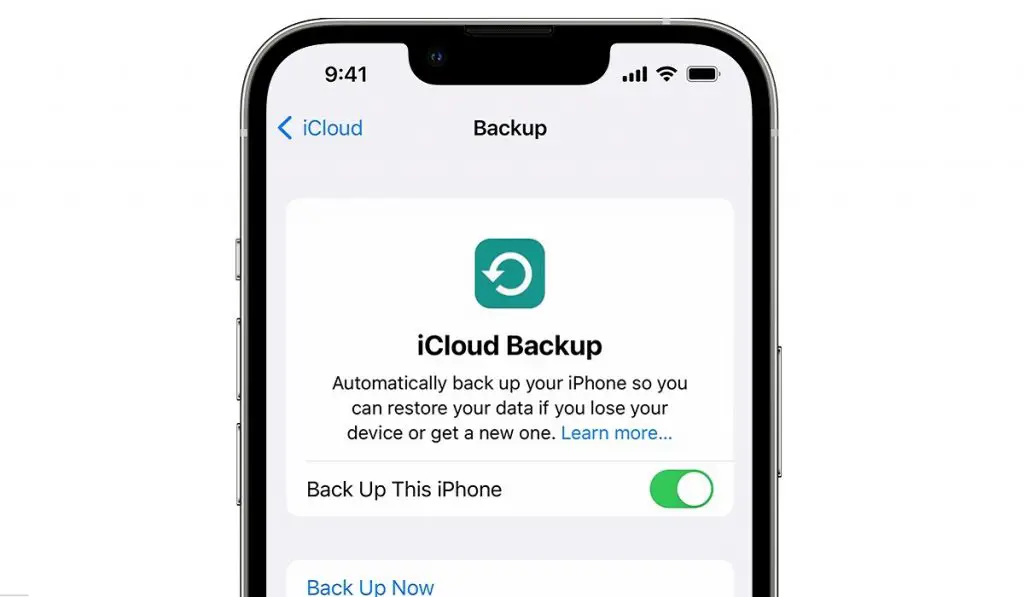
How to back up your iPhone using iCloud
Backing up your data with iCloud is relatively simple. Follow the directions below.
• Go to your Settings > your name > iCloud > iCloud backup
• Turn on iCloud to back up.
When you do this, iCloud automatically starts to back up your iPhone. This is also done daily when your iPhone is connected to power, locked, and connected to Wi-Fi.
• If you want to manually backup, tap “ Back up Now “.
To view your iCloud backups, go to Settings > [ your name ] > iCloud > Manage Account Storage > Backups . To delete a backup, choose a backup from the list, then tap Delete & Turn Off Backup .
Note: If you turn on an app or feature to use iCloud syncing (in Settings > [ your name ] > iCloud > Show All ), its information is stored in iCloud. Because the information is automatically kept up to date on all your devices, it is not included in your iCloud backup. And this is the big advantage of backing up your device with iCloud: it can be automated and it happens quietly behind the scenes.
Back up your iPhone using a MacComputer
Now for the alternative option, you can use your Mac to back up your iPhone, here’s how;
• Connect your iPhone to your computer with a cable.
• In the Finder sidebar on your Mac, select your iPhone.
To use the Finder to back up your iPhone, macOS 10.15 or later is required. With earlier versions of macOS, use iTunes to back up your iPhone.
• At the top of the Finder window, tap General.
• Select “ Back up all of the data on your iPhone to this Mac .”
• To encrypt your backup data and protect it with a password, select “ Encrypt local backup .”
• Tap Back Up Now .
Note: You can also connect your iPhone to your Mac computer wirelessly if you set up syncing over Wi-Fi.
Back up your iPhone using a Windows PC
Backing up your iPhone with a Windows PC is a little different from doing it with a Mac. But it isn’t complicated either. Here’s how to do it;
• Connect your iPhone and your computer with a supported cable.
• In the iTunes app on your PC, click the iPhone button near the top left of the iTunes window.
• Select Summary .
• Tap Back Up Now (below Backups).
• To encrypt your backups, select “ Encrypt local backup ,” type a password, then tap Set Password .
To see the backups stored on your computer, choose Edit > Preferences , then tap Devices . Encrypted backups have a lock icon in the list of backups.
Note: You can also connect your iPhone to a computer wirelessly if you set up syncing over Wi-Fi.
Back Up Your iPhone Frequently
Make it a habit to backup your device frequently. Some do it weekly, others monthly. Choose a cycle that fits your lifestyle or work schedule (if you are using an official iPhone). You can back up your iPhone with any one of these three channels and enjoy peace of mind should something go wrong with the data on your iPhone. All you have to do is restore the most recent backup to recover any lost data.
Author:Flamez
Flamez loves basketball, art, gadgets and cars.
