Add MobilityArena as a preferred source on Google
Whether you live within the United States or elsewhere in North America, the United Kingdom or elsewhere in Europe, Africa, the Middle East, Asia, or Oceania, there are easy ways to check whether your location has 5G coverage. You do not even need to have a 5G phone to do this. Any smartphone that can install mobile apps is good.
Follow the tips below to find out if your area has 5G:
- Use the Opensignal App to see if 5G is available in your area
- Use the Speedtest by Ookla App to see if your area has 5G
- Which is the better option?
Use the Opensignal App to see if 5G is available in your area
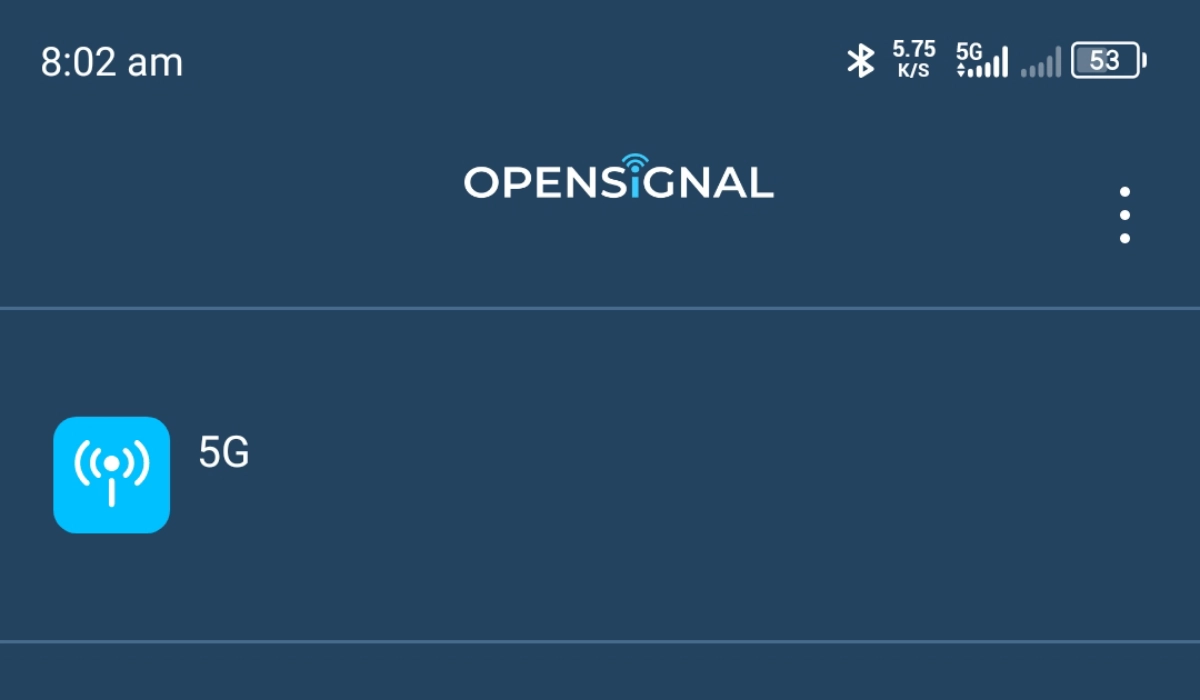
1: Install the Opensignal app from your mobile app store to your phone. It is available for both Android phones and iPhone models. 2: Launch the app; it will ask for permission to use your location; grant it access. It has to know where you are to be able to show you what networks are available there. 3: Tap on the Map icon in the bottom menu, It will load the map of your location, with all the available mobile networks available around you. 4: If you tap the “All” option at the top left section of the screen, it displays a list of all available mobile networks in your location. To narrow the information down, under Select Operator , check only your operator name, under Select Network Type , check only “5G” and tap “Apply”. Now, you can see your wireless carrier’s 5G coverage in your area, if there is any.
5: Zoom in to get a close-up view, with more details.
Use the Speedtest by Ookla App to see if your area has 5G
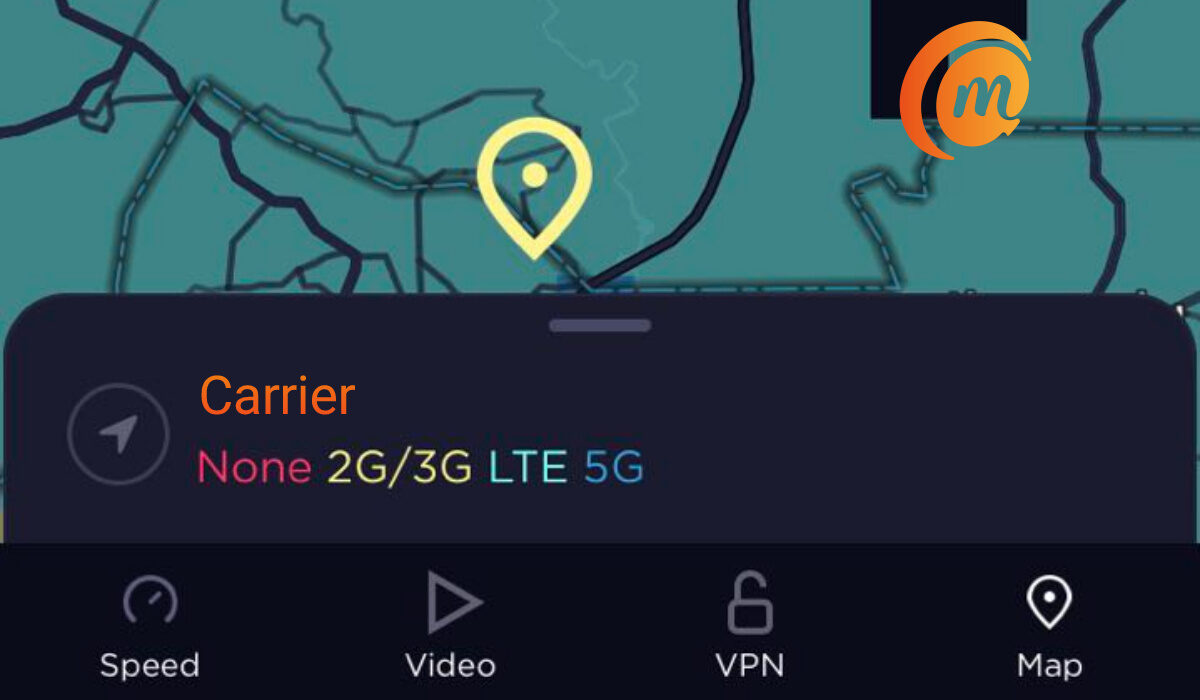
1: Install the Speedtest by Ookla app from your mobile app store to your phone. It is available for both Android phones and iPhone models. 2: Launch the app; it will ask for permission to use your location; grant it. It has to know where you are to be able to show you what networks are available there. 3: Tap on the Map icon in the bottom menu, It will load the map of your location, identify your wireless carrier or mobile network, and list under it the different wireless technologies it offers, in different colours. For example, 5G networks are displayed in a shade of blue. If you look at the map of your location, wherever you see that shade of blue applied, your network has 5G coverage there. 4: Zoom into the map to get a closer, more accurate view.
Which is the better option?
While you can use either of the two apps to check if 5G is available in your area, in my opinion, the Speedtest by Ookla app does a better job of it. The process is more direct. Also, it has more users than OpenSignal, and so tends to provide more detailed and more up-to-date information.
You can also use the Web versions of these apps to achieve the same objective. They work just as well, except that you might have to manually input your location to get the most accurate results.
Do not forget that you do not need to have a 5G smartphone to run this check using either of these two apps. Any smartphone will do. The apps work by collating coverage information from its users in every location. So, even if all you have now is a 3G or 4G smartphone, the apps will still be able to tell you if your area has 5G.
Author:Mister Mobility
Digital Skills and Communication Coach | Mobile Phone Connoisseur since 2001 | Tech Blogging since 2004
Add MobilityArena as a preferred source on Google
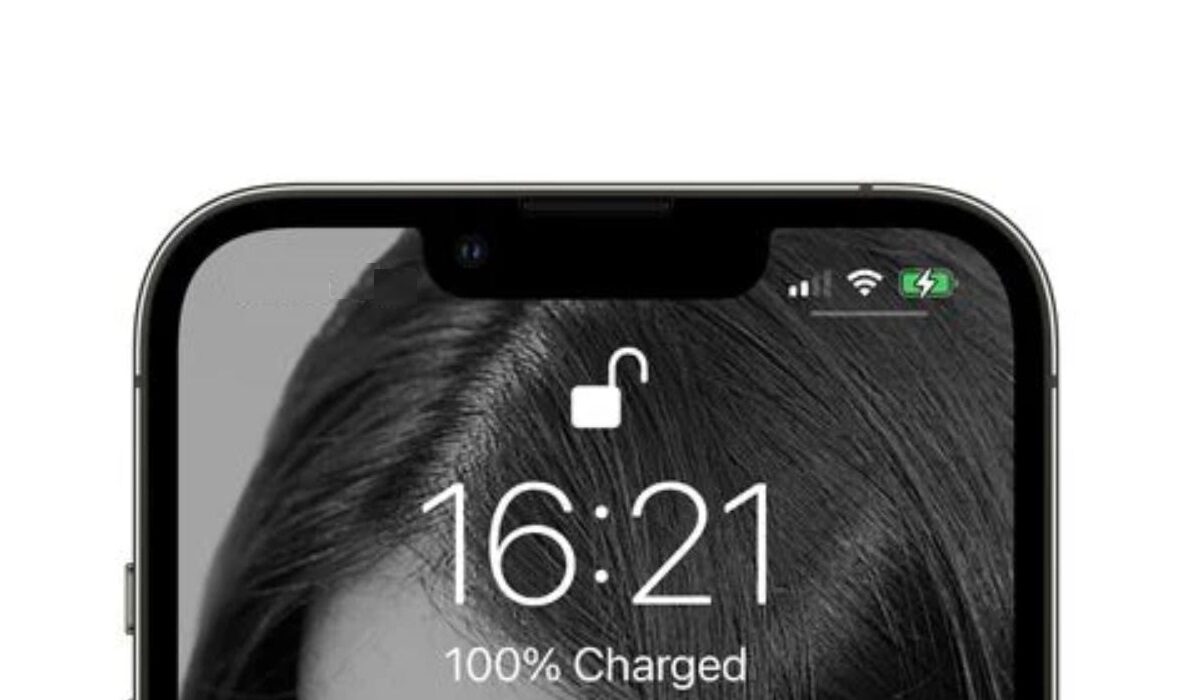
One of the iPhone’s many appealing features is its remarkable battery life, which many of its users love. However, occasionally battery issues may still occur. One such instance is when your iPhone’s battery percentage becomes stuck while the phone is charging, or if an iPhone’s battery occasionally drains quickly.
Naturally, you’ll be needing a fix if you are currently dealing with the battery indicator problem in which your iPhone’s battery percentage remains at a specific number when it is charging. Luckily for you, we’ve created this easy troubleshooting guide to help your battery work just fine again.
Why Does My iPhone Battery Indicator Get Stuck While Charging?
Imagine spending the entire night charging your iPhone, only to find that the battery level is either below 100% or remains unchanged from the previous night. It’s also possible that your battery sometimes indicates no change in the battery level even after prolonged use.
Battery indicator issues such as these typically arise due to a software bug. The good news is that it’s also pretty easy to fix, as long as you’re equipped with the right instructions.
Different Ways to Fix iPhone’s Battery Getting Stuck
We’ve provided some tested-and-proven methods below that should help you fix your iPhone’s battery if it keeps indicating the wrong battery percentage.
Restart your iPhone Device
Your iPhone can usually be fixed by restarting. Similar to this, restarting your device will immediately show the correct % if you discover that your battery percentage is stuck during charging.
Restarting an iPhone X/11/12/13 involves taking the following actions:
- As soon as the power off slider shows, long press the Volume Down and Power buttons together. Simply hit the Side/Top button on an alternative iPhone.
- Move the slider to the other end to power off your iPhone.
- To restart your iPhone, simply press and hold the Power (Top/Side) button.
The battery percentage on your iPhone will likely display the right value following a restart. Try the next set of options if the restart doesn’t work.
Carry Out a Troubleshooting Sequence
By going through the following troubleshooting steps, you can get your iPhone’s battery percentage unstuck and return it to the usual range.
What you must do is as follows:
- To ensure that your iPhone displays the correct percentage when charging, restart it just before plugging it in.
- Charge it now for a solid three hours or until it reaches 100%.
- When the battery is charging, unplug and replug it once if the charge percentage becomes stuck.
- If it doesn’t work, restart your iPhone once again. This will almost certainly resolve the problem and display 100% battery life.
Calibrate your iPhone’s Battery
A different suggestion is to calibrate your iPhone battery to see if that helps with the stuck iPhone battery percentage issue.
- Till your iPhone turns off by itself, allow the battery to drain.
- For a couple of hours, leave the power off.
- At this point, you need to use an original charger to charge your iPhone, then wait until it comes on automatically.
- Switch to Airplane mode on your iPhone and disable Bluetooth and Wi-Fi.
- Without using the phone at all, let it charge for a few hours.
- Restart it as previously described without unplugging it once it has finished charging.
- After it has restarted, remove the charger.
Toggle Battery Percentage Off and On
You might not be aware that the Settings app allows you to disable and re-enable the Battery Percentage option. If the battery percentage on your iPhone is stuck, you can turn off this feature and switch it back on later. Just adhere to these instructions:
- Select Battery under Settings.
- Switch off the Battery Percentage toggle.
- Turn it back on after a few minutes of waiting.
This will update the battery level and show the correct number. If it still doesn’t work, perhaps updating your iPhone will help.
Repair iOS System Problems
The iPhone battery indicator frequently breaks down when certain iOS system issues appear on your device. Simple tests are insufficient to fix these iOS system issues, such as an iPhone battery percentage that is stuck. You need to utilize an iOS system repair tool.
We advise using TunesKit iOS System Recovery, a well-known and skilled repairer that aids in the resolution of issues for tens of thousands of users of iPhone, iPad, iPod touch, and Apple TV. The 150+ iOS system issues that TunesKit iOS System Recovery can address include iPhones that are stuck on the charging screen, have a blank screen, are disabled screens, have failed iOS updates, and more.
For typical problems like the blocked iPhone battery indicator, TunesKit advises using its Standard mode, which won’t result in any data loss. However, customers are strongly advised to use the Advanced mode if they are experiencing major issues like a locked iPhone.
The easiest way to determine whether it can solve your issue is to download it for free and give it a try on your own by following the three steps below:
- Connect your iPhone to your computer. TunesKit iOS System Recovery should be activated by clicking the Start button. You must select the Standard option to resolve issues with an iPhone’s battery percentage or other typical problems. Activate the Next button.
- Check the details provided on this downloading page. Click the Download button if you are certain there is no error.
- Finally, select Repair from the menu and wait until the software notifies you that the repair is complete.
Afterward, the battery indicator issue on your iPhone should be resolved. Other fixes you can try include:
- Updating your iPhone (to search for new updates and upgrade your smartphone, go to Settings > General > Software Update .)
- Reaching out to Apple Support to get expert guidance on software technicalities that could be at play
- Replacing your iPhone’s battery might be more necessary if your battery health is less than 80%
Summarily , experiencing issues such as your iPhone’s battery percentage getting stuck can be frustrating, but it doesn’t have to be if you know the right fixes. Try one or more of the suggestions we’ve provided in this easy guide, and you should be just fine.
Also, don’t forget to recommend this guide to anyone you know who might be experiencing similar issues, you’d be doing them a big favor.
- Don’t miss our mobile phone reviews .
- Follow our news on Google News .
- Join our WhatsApp Group , to be notified of the most important articles and deals,
- Follow us on Instagram , Facebook , Twitter , and YouTube .
