Add MobilityArena as a preferred source on Google
Why would you ever need to find out your SIM card carrier? Most of the time, individuals don’t consider SIM card providers until they experience a problem with their phone bill or service. For instance, a need could arise to ban your phone number if you ever suspect that your SIM card has been cloned by someone.
In any case, you’ll realize in such instances that it is important to know or at least be prepared to find out your SIM card carrier. Regrettably, the carrier’s name is no longer displayed on the front page of iOS and Android smartphones. So, it’s not hard to lose sight of it.
That’s why we’ve created this guide to show you ways to find out your SIM card carrier if you ever need to. Pay attention to the instructions we’ve included in this guide to do so easily.
- How Can I Find Out My SIM Card Carrier? Check your SIM Card’s Logo Check with your Phone Number Check your Recharge Bill or Alerts Check with your Phone’s Settings
How Can I Find Out My SIM Card Carrier?
It might seem highly unlikely at the moment, but a time may come when you need information about your carrier. Below are the different ways you can find out your SIM card carrier.
Check your SIM Card’s Logo
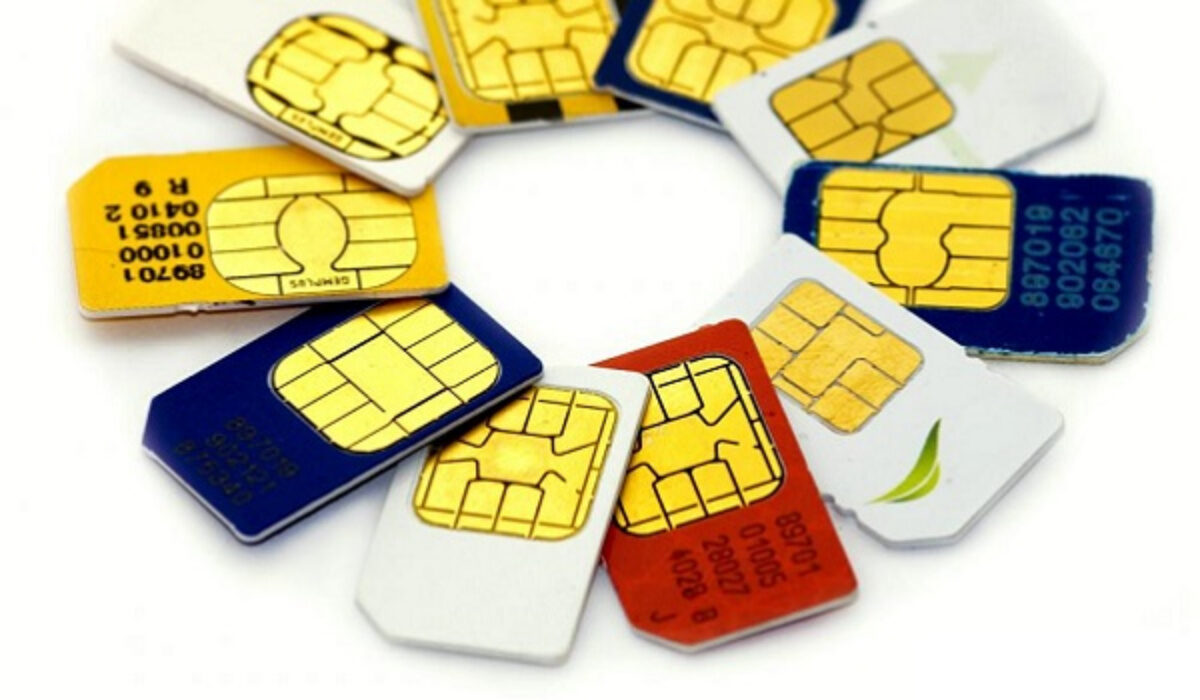
Checking its logo is one of the simplest ways to find out your SIM card carrier. Most SIM cards feature the carrier’s name or emblem so that you’re able to recognize the provider. Moreover, if you still possess the SIM cover from the time you purchased it, you’d be able to learn a little more necessary information.
However, you may need to use one of the other methods described below to find out your SIM card carrier if you misplaced the SIM package a long time ago and are unable to access any information about your SIM card on it.
Check with your Phone Number
You can also find out your SIM card carrier if you know or have your phone number with you. Every phone number contains a country code, such as +1 for the US, +44 for the UK, etc in the first two digits. The carrier’s code is represented by the next three numbers. The carrier is AT&T, for instance, if these three numbers are 150, 253, or 560.
However, instead of having to hunt up country and carrier codes, there is an easier way to find out your SIM card carrier with your phone number. There are websites for this purpose, such as FreeCarrierLookup , that help you find your carrier. You’d just have to type in or paste the phone number and press the Enter key.
Check your Recharge Bill or Alerts
Before and after recharging, it’s likely that you’ll get messages from your carrier. Typically, these messages should include your SIM card number and carrier, considering that the carrier company sent the message.
This means it may be possible to find out your SIM card carrier through these messages, just check the sender field’s name. If you often use postpaid service, you should find the name of your SIM card carrier on your statement.
Check with your Phone’s Settings
As an alternative, it’s also possible to find out your SIM card carrier solely through your phone. Below are the instructions you’ll need, depending on the device you use:
- Open Settings if you’re using an Android device, then select Connections . To check your carrier, navigate to SIM Card Manager there. You might have to fiddle with the search word or menu option because Android menus vary between manufacturers, but the SIM card carrier information should still be available there.
- Go to General in the Settings app if you’re checking with an iPhone. You’ll be able to find out your SIM card carrier by clicking About and checking under the Network section.
In summary , these are the easiest ways to find out your SIM card carrier. Make sure to follow the instructions we’ve provided to do it without stress.
Related Article : How to Transfer Your SIM Card to Another Phone or Device .
Author:Joan Agie
Add MobilityArena as a preferred source on Google
The incognito mode in Google Chrome creates a new browser window that leaves no trace. Once the session is closed, your browsing history, cookies (small text files that allow websites to track returning visitors and other information), and other activities are deleted. Also, by default, all browser extensions get disabled.
Incognito mode functions pretty great on a general level. However, there are some lesser-known tips and tricks you can use to enhance incognito mode on Chrome for Android devices.
So, if you want to get even better performance while browsing privately, this article will show you how to enhance incognito mode in Chrome on Android.
How Can I Enhance Incognito Mode in Chrome on Android?
Chrome’s incognito mode is a useful tool for protecting your privacy. But you can use it on Android in more ways than you may have thought. This is possible by making use of a few hidden Chrome flags and fiddling with other available options.
Below are some of the best ways to enhance incognito mode in Chrome on Android:
Lock Incognito Tabs
Chrome’s incognito mode allows you to browse privately without storing any of your browsing history, but until recently there was no way to shield your incognito tabs from prying eyes. In Chrome for Android, you can now use fingerprint authentication to lock incognito tabs.
To lock incognito tabs in Chrome for Android, follow these steps:
- Tap the three-dot menu in Chrome, then go to Settings > Privacy and security .
- To see the feature in action, enable the Lock incognito tabs … toggle.
If you’re working with the app’s older version, it may be necessary to activate the feature first.
- Open Chrome on your phone or tablet and type chrome:/flags into the address bar.
- Enter Authentication in the search bar below.
- Change the value of the Enable device reauthentication for incognito option to Enabled . You’ll now be able to activate the feature from the Settings menu.
This option is a great way to enhance incognito mode on Android, so try it out for even more privacy.
Allow Screenshots while in Incognito Mode
Another way to enhance incognito mode in Chrome on Android is to enable the screenshot feature. One advantage of the way Android handles private browsers and app windows is that screenshots of sensitive information are not permitted. If you try to screenshot or screen record on your Android device while using a data-sensitive app, a restricted warning will show up.
On Android, this is also the default behavior for Chrome incognito tabs. However, this quickly becomes irritating, especially if you use incognito more habitually rather than for privacy protection. Fortunately, another Chrome flag on Android allows you to bypass this security measure and freely capture screenshots.
To take screenshots in incognito mode on Android, go to chrome:/flags and enable the Incognito Screenshot option.
Quickly launch Incognito Windows
If you frequently use Chrome’s incognito mode, there is a faster and easier way to launch directly into a private tab. When an app icon is long-pressed on the home screen or in the app drawer, Quick Actions and in-app shortcuts become active.
These features were introduced with Android 8 and can significantly enhance incognito mode in Chrome on Android devices.
Simply long-press the Google Chrome app to reveal an Incognito Tab shortcut. To make this shortcut behave like a standalone app and launch faster, long-press it and drag it to your home screen.
Use Incognito Mode for Other Google Apps
Google decided to include Incognito Mode in other apps as well due to the sheer usefulness of this private browsing mode. You can take advantage of this development to enhance incognito mode in Chrome on Android.
There are switches that enable a temporary incognito mode for Google Maps and YouTube under the Accounts section. If you don’t feel comfortable adding travel history to and from specific locations, this is incredibly helpful.
YouTube’s incognito mode works similarly, temporarily disabling your watch history so you can consume any type of content without worrying about it clogging up your recommendations later.
Deactivate Incognito Mode
It is your responsibility as a parent or guardian to keep inappropriate content away from your children. It is nearly impossible to tell whether your child has accessed age-restricted or important content on your phone because it has an incognito mode.
However, another option to enhance incognito mode in Chrome on Android takes care of this easily. With the aid of a third-party app (Incoquito) that is accessible through the Play Store, Chrome’s incognito mode can be deactivated f for Android mobile devices and tablets.
The app not only blocks access to incognito mode but also lets you delete private tabs whenever your device is locked.
In conclusion , as you can see, there are several ways to enhance incognito mode in Chrome on Android. We hope that this guide has helped you figure them out and get more out of Incognito Mode on your devices.
