Add MobilityArena as a preferred source on Google
The International Mobile Equipment Identity (IMEI) number is essential on mobile devices for cellular service, support forms, warranty and registration reasons, and especially for tracking a lost device. However, despite its importance, not many people know how to find the IMEI number on their iPhones.
In this article, I will walk you through different ways to find your iPhone’s IMEI number. The tips in this guide work whether your iPhone device is locked, turned off, or not at all in your possession.
- How Can You Find Your iPhone’s IMEI Number? Use the USSD Code (Dialer Code) Check Your Device Settings Check Your Device SIM Card Tray Check the Back of Your Device Check Your Device Apple ID Menu Use Finder on Mac Use iTunes on Windows Check Your Device’s Packaging Check Your Carrier’s Website Check the Apple ID Website
How Can You Find Your iPhone’s IMEI Number?
You may need the IMEI number of your iPhone or iPad for different reasons. For instance, the IMEI number of an iPhone or iPad is an important factor to consider when buying a used Apple iPhone. It is one of the best ways to confirm its legitimacy, as it can link any history of theft, criminal conduct, or carrier blockage to the device.
Below are different ways to find your iPhone’s IMEI number.
Use the USSD Code (Dialer Code)
Dialing *#06# is a simple way to find your iPhone’s IMEI number. After you type it out and press the call button, a screen displaying device-specific details will appear.
Check Your Device Settings
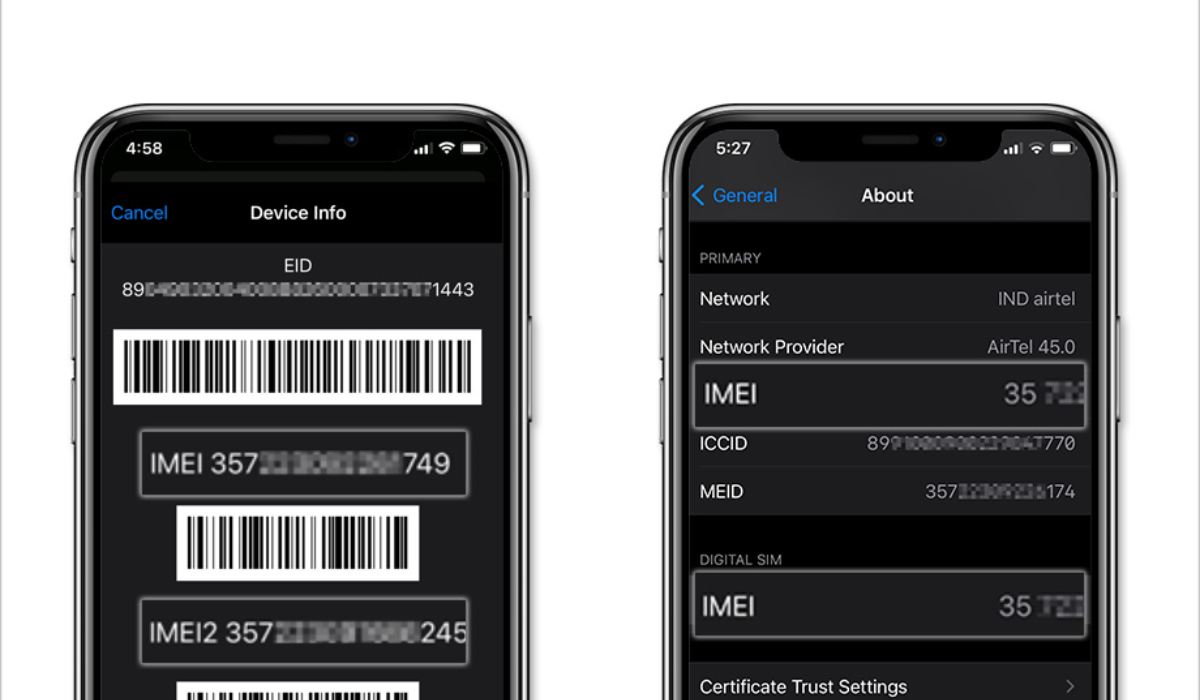
You can also easily find your iPhone’s IMEI number by using the Settings app. This information is easy to obtain on your iOS device by going to Settings > General > About and scrolling down a little.
Check Your Device SIM Card Tray
Pop out the SIM tray if you badly need your IMEI number but your smartphone won’t come on. If you have an iPhone 6s or later, the IMEI number will be printed on the SIM tray.
If you still use an older iPhone model, you can try the following procedure to find your iPhone’s IMEI number:
- Straighten a paper clip or locate a comparable-sized pin or tool. Insert it into the SIM tray and gently push it in until the SIM tray pops out.
- Look for your device’s IMEI in the SIM tray. It will be on the side where you insert the SIM card.
Check the Back of Your Device
You can also find your iPhone’s IMEI number immediately on the metal case if you’re using an iPhone 5, iPhone 5c, iPhone 5s, or iPhone 6/6 Plus. More precisely, it is printed in the lower middle area of the device.
Also, you should find the IMEI on the back if you own an iPad or iPad Pro (Wi-Fi or cellular model).
Check Your Device Apple ID Menu
The Apple ID settings menu is another place to find your iPhone’s IMEI number (or your iPad’s). Follow these steps
- Navigate to Settings and choose your Apple ID name .
- In the devices area at the bottom of the page, select your iPhone or iPad .
- Check for your device’s IMEI in the “ Device Info ” section.
Use Finder on Mac
If your iPhone is locked or you have a eSIM-only device, you may find your iPhone’s IMEI number with the Finder software on a Mac. This approach works on any Mac running macOS Catalina 10.15 or later.
- Open the Finder app and choose your iPhone or cellular iPad from the sidebar once you’ve connected your iPhone or iPad to your Mac with the included Lightning to USB cable.
- Then, navigate to the General page and continuously click the area under the device name until the IMEI number appears.
Use iTunes on Windows
If you have an older Mac that can no longer be updated, you may use iTunes to find your iPhone’s IMEI number. Also, if you’re using a Windows PC, this is your only option to find your iPhone’s IMEI number.
- Open iTunes after connecting your iPhone (or iPad) to your computer using the provided Lightning to USB cable.
- Then select Summary to view details about your Apple device, including the IMEI number.
Check Your Device’s Packaging
The sleek, white box that comes with iPhones (and iPads) is another easy way to find your iPhone’s IMEI number if you hold on to it after the purchase. The IMEI number is printed on a sticker on the box, so this is a useful way to find your iPhone’s IMEI number if you don’t have the device nearby.
Check Your Carrier’s Website
If you need to find your iPhone’s IMEI number online but don’t have your phone or another Apple device nearby, you have one more option. Through your network provider’s website, you’ll find your iPhone’s IMEI number online.
Some carriers, such as T-Mobile, display the IMEI online under your device details. Simply log in to your carrier account and look at the devices to obtain this information. Your IMEI will be listed there by most carriers. If you have a contract plan, you’ll see your IMEI number in your contract document.
Check the Apple ID Website
Even if you don’t have your iPhone or iPad with you but you need the IMEI number, there is still hope. You can find your iPhone’s IMEI number on Apple’s website as long as the device is connected to your iCloud account.
To find your iPhone’s IMEI number in this manner, follow these steps:
- Navigate to appleid.apple.com in any web browser.
- Then, login with your Apple ID and go through the device list. Forgotten your Apple ID? Check this guide to learn how to recover it.
- Once you’ve located the device for which you want information, click the device name to get the IMEI number.
To conclude , when contacting Apple Support for any form of help, the IMEI number is among the crucial details you’ll need. It’s also useful if you ever need to find your lost device. Using the tips I’ve provided in this guide, you can easily find your iPhone’s IMEI number and use it for whatever purpose.
Author:Joan Agie
Add MobilityArena as a preferred source on Google
FaceTiming on macOS makes it easy to join meetings, communicate with friends, and receive phone conversations on your Mac. All you need is a Mac with your Apple ID signed in to take advantage of the app’s numerous features.
In this article, I’ll show you how to FaceTime on your Mac in different ways. Depending on the situation, you’ll find some of the options more convenient than others.

What Are the Different Ways to FaceTime on Your Mac?
I’m sure you know how to make FaceTime calls on your Mac, but did you realize there are different ways to do so? Without further ado, here are the several ways to FaceTime on your Mac.
Make a Hands-Free FaceTime Call with Siri
You can use Siri to make FaceTime calls once you’ve figured out how to use it on your Mac. Siri provides a hands-free way to FaceTime on your Mac, eliminating the need to touch your computer or switch apps to make a FaceTime call.
To FaceTime on your Mac with Siri, follow these steps:
- To begin, make sure Ask Siri is enabled in System Settings > Siri & Spotlight by toggling the Ask Siri button and choosing Enable .
- Ensure that the “ Hey Siri ” toggle is turned on as well.
- To begin a FaceTime video call with anyone in your contacts list, simply say, “ Hey Siri, FaceTime
.” - To start a FaceTime audio call instead, say, “ Hey Siri, place a FaceTime audio call to
.”
Please take note that if your iPhone is close by, telling Siri to “ call
Use The FaceTime App
On a Mac, the FaceTime app is the default way to use FaceTime. You’ll see the icon, a white camera in a rounded green square visible on the Dock.
When you open the app, you have two options to FaceTime on your Mac: one uses a meeting link, and the other involves calling your contacts.
- To create a link for a FaceTime meeting that you may share with others, choose the Create Link option
- Choose New FaceTime to select a saved contact or type in an email or mobile number.
You can either click FaceTime to start a FaceTime video call or click the dropdown arrow next to the FaceTime button to start a FaceTime audio call after choosing your desired contact from the New FaceTime window.
Use Your iPhone
You can switch calls between your Mac and iPhone as long as they’re both logged into your Apple ID and connected to the same Wi-Fi network. As an example, you might initiate or answer a call on your phone and then transfer it to your Mac—and vice versa.
Here’s how to go about this method to FaceTime on your Mac:
- On your iPhone, set up FaceTime, then dial a number.
- During the conversation, press the audio icon (a megaphone) to bring up a pop-up menu, then choose your Mac from the list.
- You can also choose the notification to shift the call to your Mac when it shows up on your Mac.
If for some reason FaceTime doesn’t work on your iPhone, check out this guide to fix it.
During an iMessage Conversation
Through iMessage, you can also start a FaceTime call with someone you are texting. This is an excellent option to FaceTime on your Mac because you can easily switch an existing iMessage conversation into a call.
To FaceTime on your Mac in this manner, follow the instructions below:
- While in a Messages chat, move your cursor to the menu bar and select conversation.
- Depending on your preferences, choose FaceTime Video or FaceTime Audio from the drop-down panel.
Using Shortcuts
Shortcuts are an excellent method to combine multiple custom actions into a single process on your Mac. Here’s how to set up a custom shortcut to FaceTime on your Mac with your favorite contacts using a single click:
- Open Spotlight ( Cmd + Space ), type Shortcuts , then press Return key.
- To create a new shortcut, click the plus ( + ) button in the toolbar of the Shortcut app.
- In the search bar on the right, type “ FaceTime ,” and then move the result into the page.
- In the Shortcuts action, select the Contact field and select the person you want to call.
- Then, press the FaceTime field and select Ask Each Time . The command should now change to Call Type .
- By clicking the Info ( i ) button on the right, choosing Details , and turning on the Pin in Menu Bar toggle, you can add your shortcut to the menu bar.
- Rename your shortcut by highlighting the shortcut’s name at the top of the window and then entering in a new name.
- The shortcut you just created and renamed will launch when you select it after clicking the Shortcuts icon in the menu bar.
You can FaceTime on your Mac with as many FaceTime shortcuts as you want using the instructions above. Feel free to use a bit of creativity when choosing your combination.
To conclude, there are different ways to FaceTime on your Mac, and you can sort through the suggestions above to see which one works best for you. And because it’s integrated into macOS, it’s absolutely free and more optimized than any third-party choice.
