Add MobilityArena as a preferred source on Google
An IP address is a string of numbers and decimals in a particular order. Most people know how to locate the IP address on a Mac or Windows computer, but what about on a mobile device?
In this guide, we’ll teach you how to find your phone’s IP address whether you’re using an Android or iPhone device. So you’ll get a thorough understanding of what an IP address is and how to easily find it on your device.
What is an IP address?
IP stands for Internet Protocol, and an IP address is a numbered label given to each device that connects to a network. So if you’re wondering whether your phone has an IP address, it does—as long as you’re connected to the internet.
Finding out a phone’s IP address allows you to identify it on both your home network and the internet at large. In fact, every device has two IP addresses, public and private:
● A public IP address (also known as a global IP address)describes how the rest of the internet sees any device on your network. It shouldn’t matter if you’re using your phone, a different device or a desktop computer at home, your global IP won’t change because it is network-specific.
● A private IP address (also known as a local IP address) is used to identify a device on your own network. On a network, only one device can have a specific address, but that address can also be used on other private networks.
Furthermore, when you check your IP address, you will most likely see both an IPv4 and an IPv6 address. IPv4 addresses are shorter, but the world is running out of them due to the massive number of internet-connected devices. IPv6 addresses are more difficult to read, but there are plenty to go around for a long time.
In most cases, IPv4 addresses are still in use, but IPv6 will gradually phase them out.
How to Find Your Phone’s Private IP Address
As previously stated, there are two values to look for when trying to find your phone’s IP address. First, let’s look at how to find your phone’s private IP address on your home network (or any other Wi-Fi network).
How to Find Private IP Address on Android
Here are the steps you should follow to find the private IP address on an Android phone:
● Navigate to Settings.
● Then select Network & internet > Wi-Fi . If your device is running Android 12, it should be displayed under Network & internet > Internet.
● If you aren’t already connected to your Wi-Fi network, tap its name and confirm your participation.
● Tap the network’s name and, if necessary, expand the Advanced section .
● Under Network Details, you’ll find your IP address and other information. IPv6 addresses should show up at the page bottom if they are available.
Note: The preceding steps were carried out on a Pixel device running Android 11. The location of the information and the names of the menus may differ slightly depending on your Android phone.
How to Find the Private IP Address on an iPhone
Here’s how to find your iPhone’s private IP address:
● Navigate to Settings > Wi-Fi .
● If you aren’t already connected to your home network, click on it to get started.
● Tap the name of your network to open available options and view more information.
● The IP Address field will be listed under the IPv4 Address header.
You might see an IPv6 Address header below this that contains the alternative address for your device, depending on your network.
How to Find your Phone’s Public IP Address
It’s easy to find your phone’s public IP address because it can be seen by any device connected to the internet. As a result, you can visit a ton of websites that will instantly display your public IP address on your phone.
This procedure to find your phone’s public IP address is the same regardless of the carrier you use. Simply launch Chrome on an Android device or Safari on an iPhone (or any other browser you use). Then go to a public IP checker website, like one of these:
● IP.ME
● WhatIsMyIP
● What Is My IP Address
Some sites may also show your location, ISP name, and other similar details because your IP address typically contains this information.
In conclusion , you can easily find your phone’s IP address on an Android or iPhone. You just need to follow our instructions correctly for the right results.
Author:Joan Agie
Add MobilityArena as a preferred source on Google
The first time that the screen of my iPhone SE 2022 went off and wouldn’t come back on, I had to search out what to do to fix the problem. The phone was not responding to me pressing the Home and Power/Side buttons. It was completely unresponsive. I tried a soft reset by pressing and holding the Power/Side button and Home button. Nada. Nothing happened; the display stayed off.
It is tempting to panic in a situation like this, but it turned out that it wasn’t a big problem and the solution was simple, too. All I needed to do was force restart the device. Within a few minutes, I had it sorted and my beloved iPhone came back on. The first question is, What causes the screen to go off and not turn back on again? Answer: I do not know. I do hazard an educated guess that it is likely the by-product of a bug in the software (iOS).
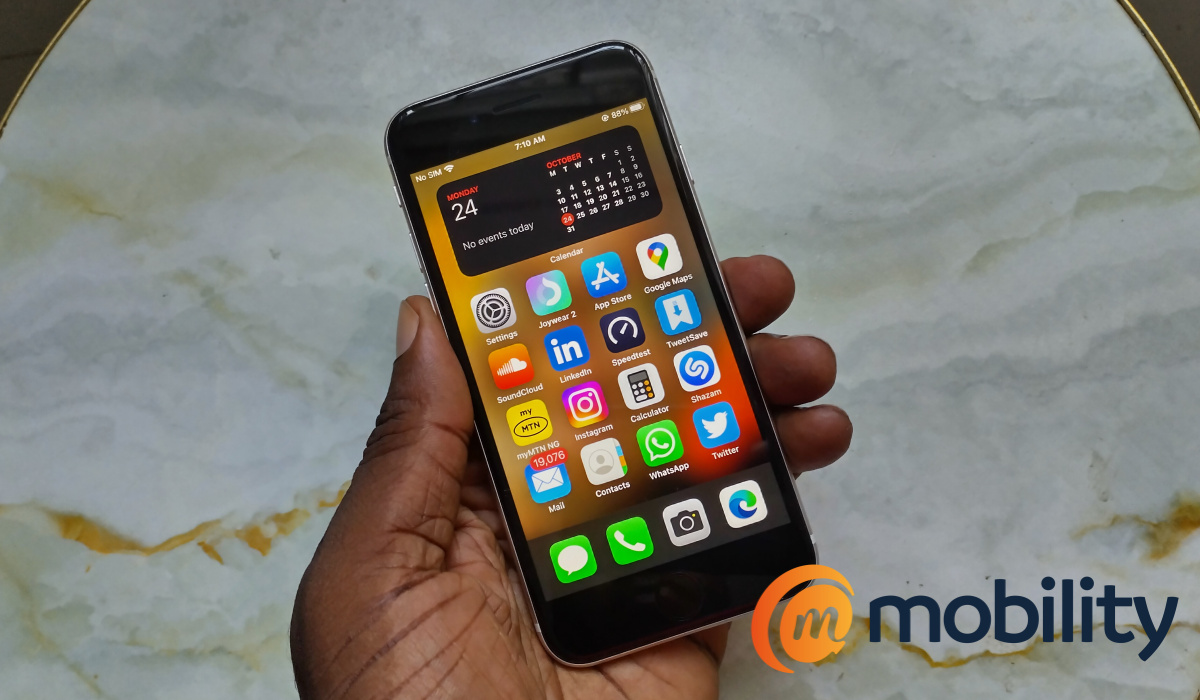
If the problem were a hardware failure, the screen, its connectors, or the board, would need to be fixed first for the phone to function properly again. But that was not the case here. A hard reset, or force restart, was all that was needed. So, don’t panic. Let me show you how I did it.
How to Force Restart Your iPhone SE 2022
To force restart your iPhone SE when it is totally unresponsive, do the following:
- Press and release the volume up button;
- Press and release the volume down button;
- Next, press and hold the Power/Side button until the apple logo appears on the screen.
Once you release the Power button, your iPhone will boot up and the problem is solved. That is all you need to do to hard reset, or force restart, your iPhone.
Author:Mister Mobility
Digital Skills and Communication Coach | Mobile Phone Connoisseur since 2001 | Tech Blogging since 2004
