Add MobilityArena as a preferred source on Google
Normally, you shouldn’t have a computer fan that is so noisy that it’s so noticeable. Not only is the sound of a loud PC fan annoying and a little distracting, when a fan is that loud, it might be an indication of a significant problem with your device.
There are several reasons a PC’s fan could start making loud buzzing or whirring noises. Some of these include the presence of debris in the vents, high internal temperatures brought on by 100% disk usage, excessive RAM usage, or a lack of airflow. Your fan can get loud at times, which is normal, but if it keeps rattling loudly for a while, you really need to look into it.
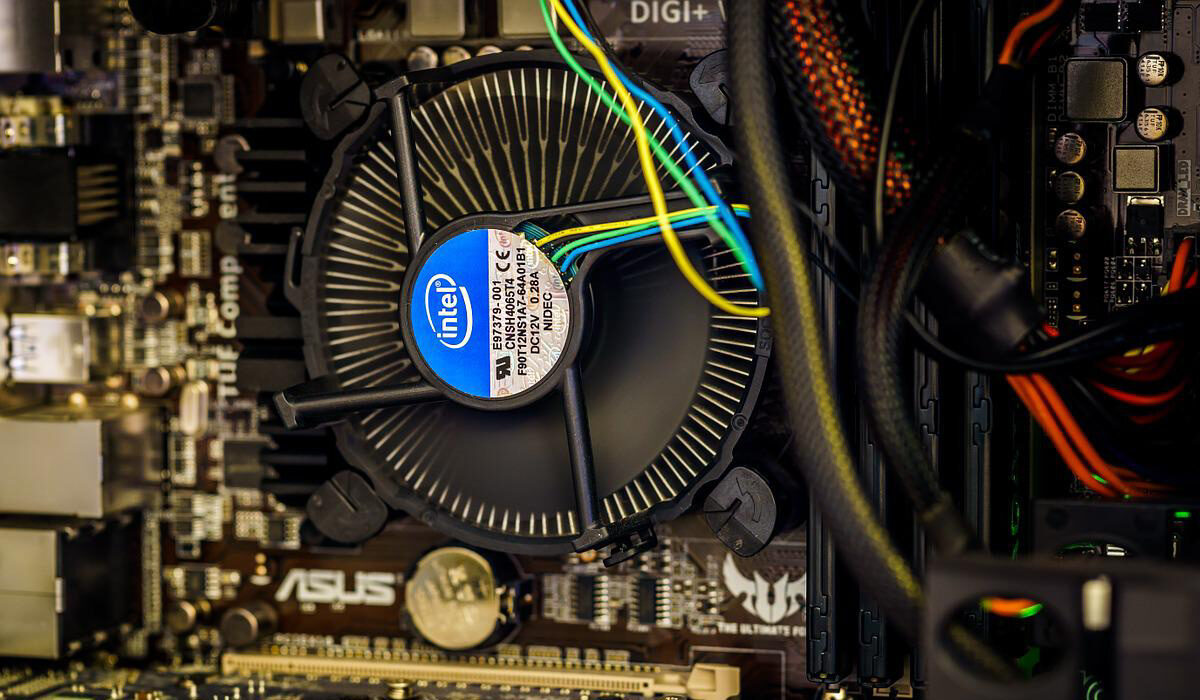
In this article, we’ll show you how to reduce loud noises from your PC’s fan, and keep your machine working smoothly and efficiently.
Check and Close Some Demanding Apps and Programs
A loud PC fan is sometimes the result of your PC attempting to keep up with demanding load. Programs, applications, and background operations can strain your PC, sometimes beyond repair, especially when there are many running at the same time. While some computer noise is typical during processing, you should close certain apps if you notice the CPU fan being excessively loud.
As a sign, your Task Manager will display high levels of activity, so using the Task Manager is the best way to see which programs are using up the majority of your CPU and then stop them. Here’s how to go about it:
- Select Task Manager; right-click on the taskbar to do this easily.
- You should be able to see which applications are consuming all of your CPU and memory on the Processes tab.
- Shut down an application by right-clicking on it and choosing End task if you notice that it’s using a lot more resources than the other programs or taking up all of your disk space.
To improve performance and get beyond the processing power restrictions imposed by manufacturers, some individuals typically overclock their CPUs and GPUs.
Those restrictions may seem understandably restrictive, but it’s important to remember that they’re there to make computers perform more efficiently and last longer. As such, keeping to them will ultimately be beneficial both to you and your PC.
Close Tabs Not in Use
Web browsers like Chrome and Safari are more likely to use more resources the more tabs you have open on them m. Your computer will also heat up as a result if you have too many open tabs on your browser.
By selecting Bookmark All Tabs from the context menu when you right-click on the gray area to the right of your open tabs, you can bookmark every tab that is open. The fan noise should then stop if you close your browser after bookmarking the tabs.
All of your former tabs will be bookmarked so you can quickly access them again when you reopen your browser. Your browser will also typically provide additional menu options when you click on a specific tab, such as Close tabs to the right. It’s practical to close certain tabs this way while keeping other ones you’re using open.
Improve Airflow around the Vents
When your PC needs the air inside to circulate, your computer’s fan can start up and begin to make noise. As such, you’ll need to make sure there is space around your device and provide it some breathing room.
Ensure that there is adequate ventilation and open airflow around your computer. Additionally, avoid closing your laptop’s case while it is on. Your computer’s hardware will remain cool and its fan will operate quietly as long as air is allowed to circulate around it. So always make sure there is constant airflow around the vents of your PC.
Switch off your PC
All running processes will end the moment your computer is turned off. Airflow issues will also end as expected, your computer’s fans will turn off, and your machine will become quiet once again if no apps or programs are active. After turning it off, leave it to rest and cool off for a while
When you turn your system back on, make sure to keep background apps to a minimum and maintain sufficient airflow so the fans don’t begin to get noisy again.
Get rid of Malware
Your computer’s fans may start to whir and rattle as a result of malware presence. If this is the case, use a reliable virus removal tool (there are several options online) to get rid of the malware if you suspect that’s what is causing the loud computer fan noise.
Install Fan Controls
The BIOS on your computer, which is the advanced settings, allows you to control the fan’s amount of operation.
If you’re checking your CPU temperature because your fan is buzzing loudly, only access your BIOS if you’re sure you know what you’re doing. However, you can adjust the fan settings in your BIOS to reduce noise. To change fan settings, you can also try SpeedFan , but only do this if you’re an expert.
In conclusion , there are many steps to take if you realize there’s a distressingly loud sound coming from your PC’s fans. In addition to the fixes for a loud PC fan that we’ve described above, also consider cleaning your fans as loud sounds are typical when debris blocks their functioning.
Make sure to pay attention to all the instructions we’ve outlined in this guide to get the best performance out of your PC. Also, we’re sure you’ve found this article helpful, so don’t forget to recommend it to your loved ones.
- Don’t miss our mobile phone reviews .
- Follow our news on Google News .
- Join our WhatsApp Group , to be notified of the most important articles and deals,
- Follow us on Instagram , Facebook , Twitter , and YouTube .
Author:Joan Agie
Add MobilityArena as a preferred source on Google
To be honest, it’s not easy to completely avoid using your smartphone in the modern world, no matter how hard you try. This is because nearly every facet of our lives—communication, work, study and relaxation —relies on our cell phones, whether directly or indirectly.
This can be quite a problem when you’re trying to take some time off using your cell phone to improve your focus and productivity. However, what if we told you there’s a way to temporarily disable some of the most distracting apps on your Android device?
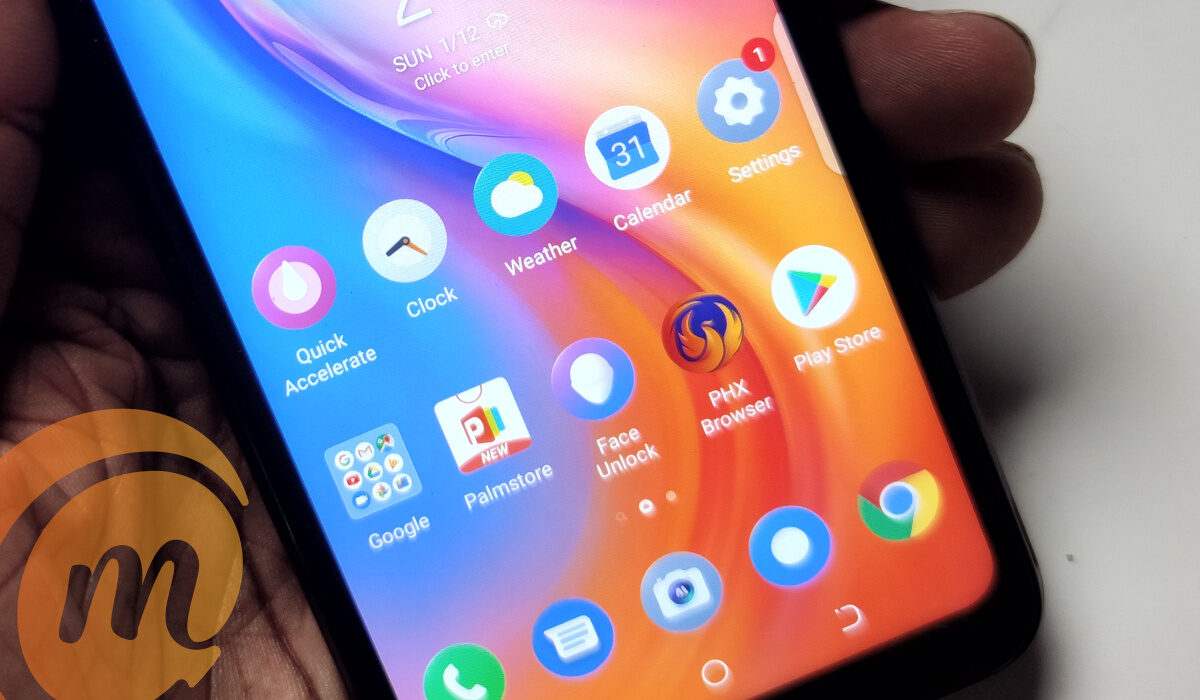
- Set App Time Limits with the Digital Well-being App
- Use Focus Mode to Block Specific Apps
Set App Time Limits with the Digital Well-being App
Google has a tool for controlling screen time which is called Digital Wellbeing. It is accessible on some select Android One phones running Android 9 Pie and higher, Google Pixel phones, and a few other specific phones. The Digital Wellbeing app will typically appear as a Settings item on your smartphone after you download it.
The Digital Wellbeing app keeps track of your smartphone usage. It displays your phone’s pick-up frequency, time spent in each app, and the number of alerts you’ve gotten today.
You can use this data to decide how much time you want to spend using your smartphone. The software also provides you with resources to limit your usage, such as an App Timer.
- Either scroll down on the notification shade or select the gear symbol to access Settings to use this tool (you can also open it from the app drawer). Click on “ Digital Wellbeing and Parental Controls ” after that.
- Set the time limit in the pop-up window, and then press “ OK .”
The app will suspend automatically after your allotted usage time expires. It won’t send you any notifications, and its symbol on the home screen will be grayed out. The timer then restarts the following day, and the app opens once more.
Naturally, you can always return to the Digital Wellbeing app and modify the timer as needed if you want more access to the app.
Use Focus Mode to Block Specific Apps
Focus mode is a built-in feature of Android 10 devices. This app blocking feature is still quite simple compared to other options. When Focus mode is enabled, all you can do is choose a number of distracting apps to suspend.
It functions as a manual switch to ban several apps at once. As at the time of this writing, it is not possible to set apps to automatically halt at specific times of the day, but some third-party apps (which we’ve discussed below) may be able to make this feasible.
Focus mode will be useful for you if all you need is a simple switch to disable specific programs. To do this, follow these steps:
- Click “ Digital Wellbeing and Parental Controls ” in the Settings app.
- Press “ Show Your Data .”
- Tap “ Focus Mode ” here.
- When you activate Focus mode, select the applications you want to pause. To turn on Focus mode, touch the “ Turn On Now ” button (you can come here to tap the same button to turn it off).
- If you don’t want to open the Settings app every time, you can simply add a “ Focus Mode ” tile to the notification panel. To do this, access the notification panel and click Edit (the icon that looks like a pencil).
- To the section of active tiles, drag the “ Focus Mode ” tile.
- Now, you only need to tap the “ Focus Mode ” tile to turn this function on or off.
Other Alternatives
As we’ve already noted, only a small number of Google Pixel, Android One, and other devices provide the Digital Wellbeing function. Focus mode on Android 10 is also fairly constrained even on these devices.
Now, if you want to use the app blocking functions on other Android phones, or you want Focus mode to automatically ban apps at specific periods using a schedule, you’ll be needing other apps. You can simply use third-party programs to perform both tasks successfully.
One such third-party program is Stay Focused, a screen time management software that demonstrates how you use your device. There are several ways this program aids you in limiting your consumption. You can establish a daily or hourly usage cap and restrict apps based on the frequency of launches or for a specified period of time.
To get the Stay Focused program set up on your Android device, follow these steps:
- The software requests permission for Usage Access when you first launch it. To do this, select “ Click to Grant .”
- Turn “ Permit Usage Access ” on next.
- You return to the app after that. Tap the Padlock symbol next to the annoying app after locating it.
- Here, you’ll be able to see every choice that is offered. Select “ Daily Usage Limit. “
- Choose the week days olon which you want to apply the limit, specify the time limit, and then click “ Save ” on this screen.
- The screen with the list of apps reappears. Tap “ Specific Time Intervals ” on the configuration screen of the app you’ve chosen.
- From this point, you can block an app for a certain period of time. Tap the addition sign (+) next to “ In Intervals ” after choosing the days of the week you want to apply the limit to.
- Choose the “ From ” and “ To ” times in the popup, and then touch “ OK .”
- Click “ Save .” The Stay Focused app now displays a splash screen stating that you are unable to access the controlled app if you attempt to open it outside of the periods you selected.
- To make numerous schedules for the same app, use the “Specific Time Intervals” function. You may, for instance, have a different schedule for the weekend than you would for Monday through Friday. To add an additional schedule, select “ Add Schedule ” from the configurations screen.
There are also other similar programs that will provide this same function on your Android device, but some of them might require you to pay a regular subscription fee.
Summarily, if you’ve been battling distractions that are affecting your productivity, you’ll benefit a lot from this article. Just make sure to follow all the simple instructions we’ve included and you’ll be just fine.
Also, don’t forget to recommend this article to your friends and loved ones so they can also benefit from it.
