Add MobilityArena as a preferred source on Google
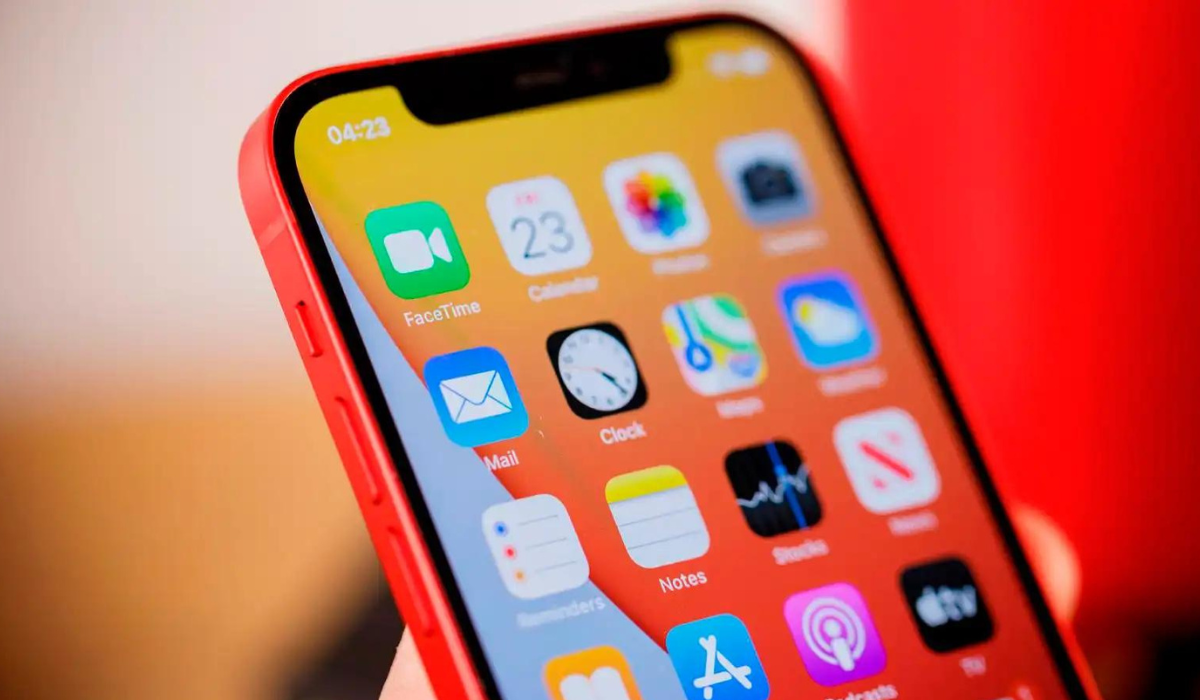
iPhones are without a doubt the most technologically advanced cell phones available. However, much like other screens, theirs can have irregularities. A yellow screen is one of these issues, so if you’ve recently noticed that your iPhone’s screen has a yellow tint, this guide is for you.
In this article, I’ll go through some of the external reasons for the yellow screen and what you can do to fix a yellow tint on an iPhone’s screen. So, let’s take a look at the settings required to do this easily.
- How Can I Fix A Yellow Tint On An iPhone’s Screen? Disable True Tone Turn off Night Shift Toggle off Auto-Brightness Turn off the Low Power Mode Adjust the Color Filters Replace your iPhone’s Screen Protector and Case Update Your iPhone
How Can I Fix A Yellow Tint On An iPhone’s Screen?
It can be pretty frustrating to see any discoloration on a smartphone’s screen. Here’s everything you can do if you ever have to fix a yellow tint on an iPhone’s screen.
Disable True Tone
True Tone works by adjusting the color and intensity of your iPhone’s screen based on the light in your environment. Sometimes, True Tone may turn the screen of your iPhone yellow in the process.
To turn this off and fix a yellow tint on an iPhone’s screen, go to the Control Center , long-press the Brightness slider , and then tap True Tone .
Turn off Night Shift
To lessen the blue light emitted by your iPhone’s screen, Night Shift warms up the display. Even when you use your iPhone right before bed, the feature seeks to enhance your quality of sleep.
However, it could give your iPhone’s screen a pronounced yellow tint. If you don’t like it, go to the Control Center , long-press the Brightness bar , then hit Night Shift to turn it off and fix a yellow tint on an iPhone’s screen.
Toggle off Auto-Brightness
Depending on the amount of light in your surroundings, Auto-Brightness adjusts the display brightness on your iPhone. This feature explains why the brightness of your iPhone’s screen automatically increases when you’re outside but decreases when you’re in a dark environment.
Auto-Brightness may also contribute to a yellow tint phenomenon on iPhone screens since it is a display-related setting. Navigate to Settings > Accessibility > Display & Text Size to turn off Auto-Brightness and fix a yellow tint on an iPhone’s screen.
Turn off the Low Power Mode
When you can’t charge your iPhone right away, Low Power Mode helps you save battery life. When the remaining battery in your iPhone is less than 20%, the Low Power Mode prompt appears automatically.
The iPhone’s display is dimmed in Low Power Mode in order to conserve battery, however this also gives the screen a yellow hue.
It’s best to temporarily put up with the yellow tint if you’re actively using your iPhone with a low battery. If not, turn off Low Power Mode to fix a yellow tint on an iPhone’s screen by going to Settings > Battery . Your iPhone’s color should revert to normal afterward.
Adjust the Color Filters
At this point, the methods listed above should have worked to fix a yellow tint on an iPhone’s screen. However, getting a pure white tone on your iPhone’s screen by default can be challenging, especially if the panel had a warmer tint from the factory. So, if you’re still not happy with the slight yellow tint on your iPhone display, you can tweak the color filters.
Navigate to Settings > Accessibility > Display & Text Size > Color Filters from the menu. Turn on Color Filters , choose Color Tint , and then move the Intensity slider all the way to the left to fix a yellow tint on an iPhone screen.
To find the Hue option that works best for your iPhone screen, you’ll need to explore a little. Use the colored pencils as a guide at the screen’s top. The Hue slider should probably be placed near the colored pencils in blue and purple in order to get rid of the yellow tint.
Replace your iPhone’s Screen Protector and Case
I’ve already gone over the numerous iOS settings you may change to fix a yellow tint on an iPhone’s screen. However, the yellow tint could also be caused by external factors, such as from your iPhone’s screen protector rather than the display.
So, if you’ve had the same screen protector for a while, replace it to see if that works to fix a yellow tint on an iPhone’s screen.
Additionally, if you have an iPhone case that is transparent or light in color, it will effectively turn yellow with time. Since the case frame contributes to the visual effect, you could notice that your iPhone’s screen appears somewhat yellow in this situation, regardless of what you do.
You can take certain precautions to protect your phone case from going yellow too rapidly, but there is no way to totally prevent it. So that you don’t have to replace it as regularly, you can think about getting a dark-colored iPhone case in the future.
Update Your iPhone
Bug fixes and performance upgrades are included in iOS updates. If you haven’t already, it’s ideal to update your iPhone to the newest iOS version.
This might be a way to fix a yellow tint on an iPhone’s screen. To check if an iOS update is available, navigate to Settings > General > Software Update .
The bottom line — the yellow tint is usually an intended effect caused by your iPhone’s settings. If, however, you don’t enjoy having a yellow screen on your iPhone, you may easily disable those functions by following the steps outlined in this guide to fix a yellow tint on an iPhone’s screen.
Author:Joan Agie
Add MobilityArena as a preferred source on Google
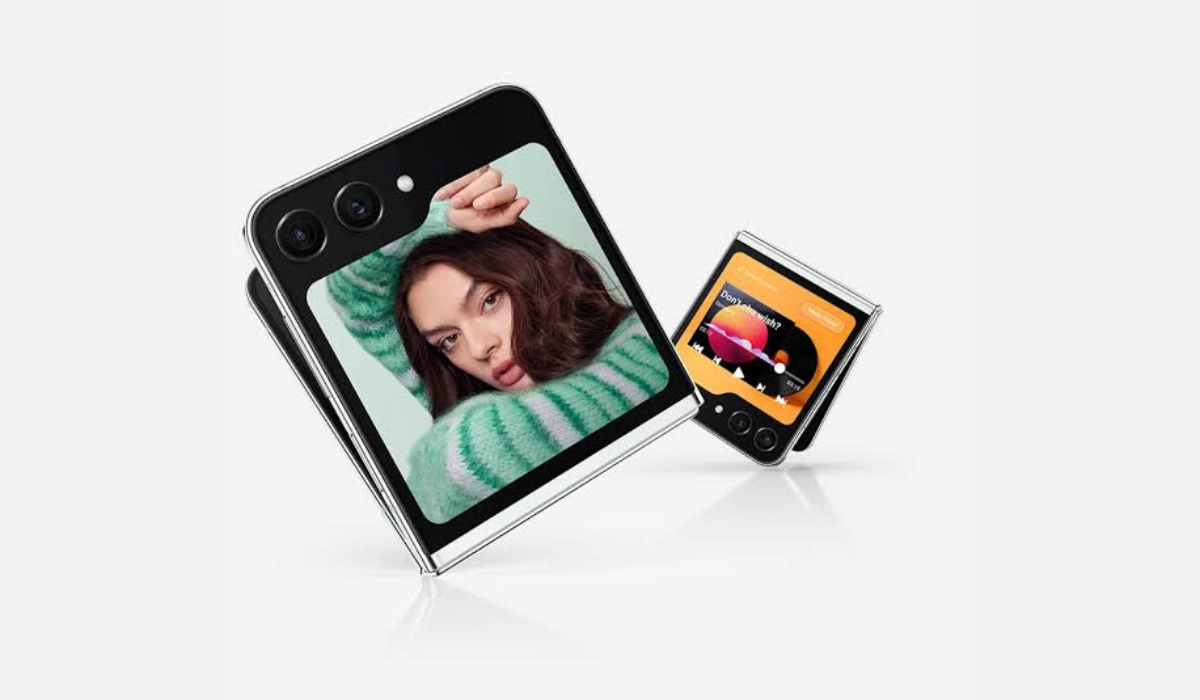
A new innovative cover display is one of the attractions of Samsung Galaxy Z Flip5.
- Phone Name: Samsung Galaxy Z Flip5 General Specs: Cover Display Specs: Camera Specs: Performance Specs: Battery Specs: Operating System: Additional Features:
- Samsung Galaxy Z Flip5 starts receiving Android 14 update
- Samsung launches the Galaxy Z Flip5 Maison Margiela Edition
Phone Name: Samsung Galaxy Z Flip5
General Specs:
- Release Date: August 2023
- Dimensions: 165.2×71.9×6.9mm
- Weight: 187g
- Build: Plastic front (unfolded), glass back (Gorilla Glass Victus 2), aluminum frame. IPX8 water resistant (up to 1.5m for 30 min). Armor aluminum frame with tougher drop and scratch resistance.
Cover Display Specs:
- Display Type: Super AMOLED, with Gorilla Glass Victus+ protection.
- Display Size: 3.4 inches
- Resolution: 720 x 748 pixels
- Refresh Rate: 60Hz
Main Display Specs:
- Display Type: Foldable Dynamic AMOLED 2X, 120Hz, HDR10+, 1750 nits (peak)
- Display Size: 6.7 inches
- Resolution: 1080 x 2460 pixels
- Refresh Rate: 120Hz
Camera Specs:
- Main Camera Photos: 12 MP, f/1.8, 24mm (wide), 1/1.76″, 1.8µm, Dual Pixel PDAF, OIS + 12 MP, f/2.2, 123˚ (ultrawide), 1.12µm. Led flash.
- Main Camera Video Recording : 4K@30/60fps, 1080p@60/240fps, 720p@960fps, HDR10+
- Front Camera: 10 MP, f/2.2, 23mm (wide), 1.22µm, 4K@30fps video recording
Performance Specs:
- Chipset: Qualcomm SM8550-AC Snapdragon 8 Gen 2 (4 nm)
- CPU: Octa-core (1×3.36 GHz Cortex-X3 & 2×2.8 GHz Cortex-A715 & 2×2.8 GHz Cortex-A710 & 3×2.0 GHz Cortex-A510)
- GPU: Adreno 740
- RAM: 8GB
- Storage: 256GB, 512GB
Battery Specs:
- Battery Capacity: 3700mAh
- Charging: 25W Charging Technology, 15W wireless, 4.5W reverse wireless
Operating System:
- OS: One UI 6, based on Android 13.
Additional Features:
- Colors: Mint, Graphite, Cream, Lavender, Gray, Blue, Green, Yellow
- Sensors: Fingerprint (side-mounted), accelerometer, gyro, proximity, compass, barometer.
The Samsung Galaxy Z Flip5 is available for purchase from major carriers in the US, including AT&T, T-Mobile, and Verizon. These carriers offer the device with various pricing options and plans to cater to different consumer preferences.
News & Updates
Samsung Galaxy Z Flip5 starts receiving Android 14 update
November 22: Galaxy Z Flip5 owners on Verizon in the US started getting the Android 14 update on their devices.
Samsung launches the Galaxy Z Flip5 Maison Margiela Edition
November 23, 2023: Samsung has has collaborated with Paris-based haute couture house, Maison Margiela, to create the Samsung Galaxy Z Flip5 Maison Margiela Edition.
The Samsung Galaxy Z Flip5 Maison Margiela Edition comes in a special white package, which reflects Maison Margiela’s “unfinished style by utilizing a distinct stitching pattern in the center of the flap”.
It will be available from November 30, 2023. Here is a teaser video .
