Add MobilityArena as a preferred source on Google
If you’ve ever found yourself in a situation where your iPhone won’t charge, you know how frustrating it can be. A malfunctioning charging port is a major cause, and it can be such an inconvenience, especially if you rely on your phone a lot for whatever purpose. However, before you take your iPhone to a repair shop, there are a few things you can try to fix the issue yourself.
In this article, I’ll describe how to fix an iPhone charging port. I’ll walk you through some of the most common solutions to help you get your iPhone charging port working again. So try one or more of these to see what helps.
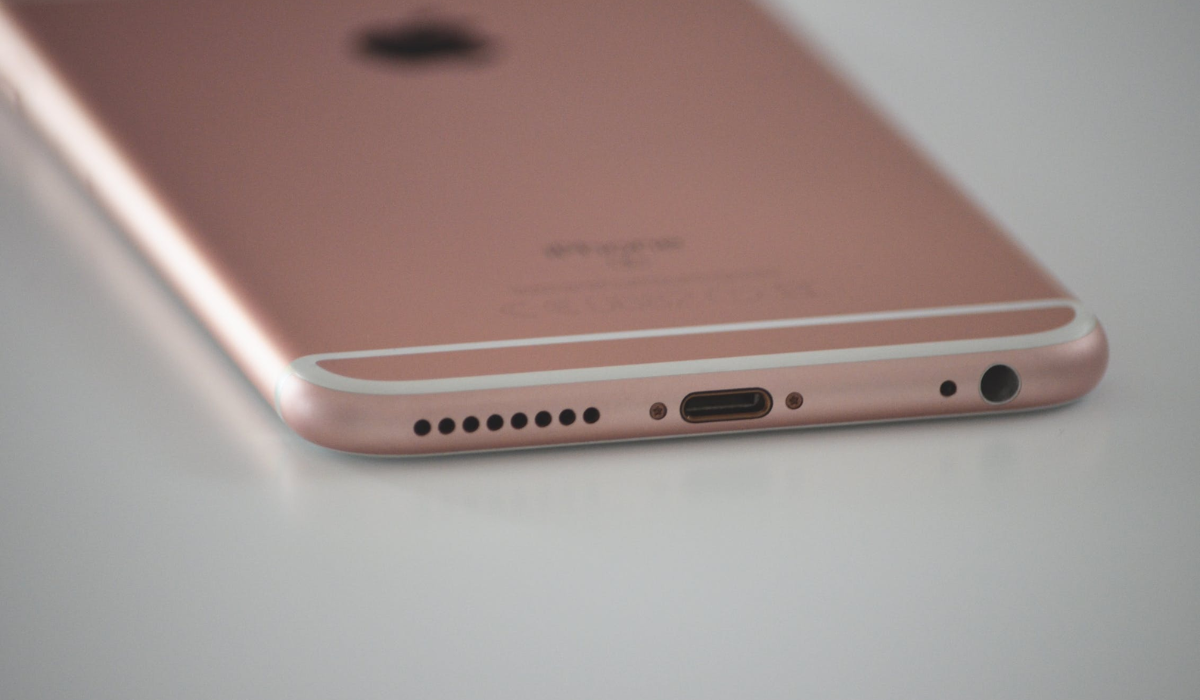
How to Fix an iPhone Charging Port Not Working
The charging port on an iPhone is designed primarily for charging the device, and iPhone users use it regularly for this purpose. However, if the charging port suddenly stops working, it hampers how much charge you can get on your device (if any), and without a charged battery, it’s not exactly possible to use your device.
A malfunctioning charging port is a common issue that many iPhone users face, but it’s great that it can be fixed by following some quick tips. Note that it’s always a good and safe option to take your phone to a recognized and authorized phone repair personnel. But if you think all the phone’s charging port needs is a little troubleshooting, then consider trying some of the following solutions to see if it fixes the issue.
Use a Different Charging Cable or Adapter
Whenever you think your iPhone charging port is not working, one of the first things you should try is using a different charging cable or adapter. This is because the cable or adapter you’re currently using may be damaged, which could be causing the charging port to seem as if malfunctioning.
To try this solution, you’ll need to have access to another charging cable or adapter that you’re sure works properly. Once you have a different charging cable or adapter, plug it into your iPhone and see if it starts charging. If it does, the issue was with your original cable or adapter. If it still doesn’t work, then you may need to try another troubleshooting step.
Remove the Phone Case
Sometimes the issue may be with your phone case, that’s if your iPhone device has a protective phone case on. If it’s too thick, it may hinder the charger from properly connecting to your smartphone. With this in mind, it’s best to take the phone case off and try plugging in the cable to your device without the case on. This should resolve your iPhone’s charging port problem, but if it doesn’t, check out any of the other fixes below.
Clean the Charging Port
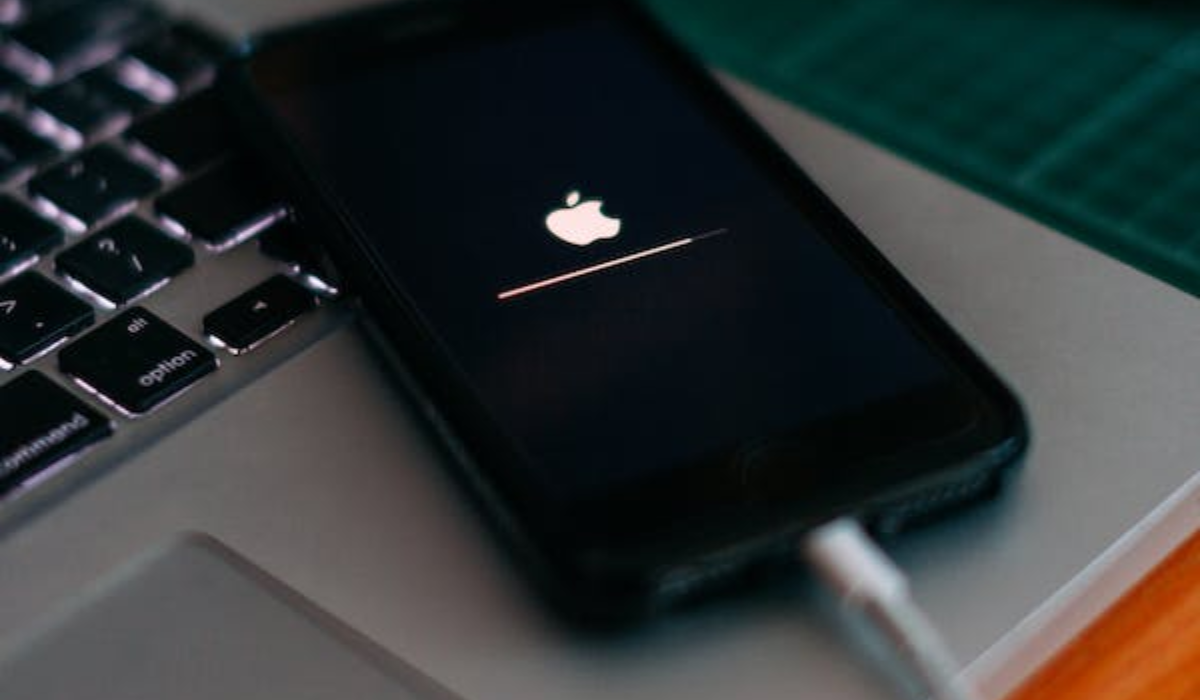
If you haven’t cleaned the port in a long time, dust and debris might build up in the charging port of your iPhone device and block it. This can make it difficult for the charger to connect to your device properly. To resolve this issue, gently clean your device’s charging port.
- To begin, switch off your phone and unplug any cables that are connected to it.
- Then, using a soft brush or a cotton swab, gently clean the inside of the charging port to remove any dust or dirt.
- Ensure that you do this as cautiously and lightly as possible, as applying too much force may further damage your iPhone’s charging port.
- After you’ve completed the cleaning process, try plugging in your charger again to see whether it works. If it does, the dust was most likely the cause of your iPhone charging port not working. If that doesn’t work, move on to the next option.
Restart the iPhone
When your iPhone charging port is not working, another solution is to restart it. This can help resolve any minor issues with the device’s software.
Follow the steps below to do this.
- Quickly press and release the volume up and down buttons.
- Then, swiftly press and hold the Power button until the Apple logo appears on your screen.
- Next, release the Power button and wait for your device to boot up.
- After restarting your iPhone, plug in the charger to see if it works normally.
Update Your iOS
If your iPhone’s charging port still doesn’t work after trying all the above tips, you can try updating your iOS as an alternative solution. Sometimes, minor technical issues on your iPhone can cause the charging port to stop working. To fix this problem, you may need to update to the latest version of iOS.
Here’s how to do this:
- Check for any available updates by going to Settings > General > Software Update .
- If there is an update available, download and install it on your device.
- After installing the update, try connecting your charger again to see if the issue has been resolved.
To summarize , if you’re experiencing any issues with your iPhone’s charging port that prevent seamless charging, there are several troubleshooting steps you can try. But if none of the above solutions work, you may need to replace the charging port or seek assistance from an authorized Apple repair store . If you need other useful troubleshooting tips for your iPhone device, take a quick look through this category .
Author:Joan Agie
Add MobilityArena as a preferred source on Google
Losing track of your belongings can be frustrating, but thankfully, technology has made it easier than ever to keep tabs on our stuff. Apple’s AirTags have been making headlines as a great solution for locating lost items. However, if you’re an Android user, you might be feeling left out.
No need to worry though, there are plenty of great alternatives that can help Android users keep track of their belongings just as well. In this article, I’ll explore some of the best AirTag alternatives for Android users, so you can find the perfect option that suits your needs.
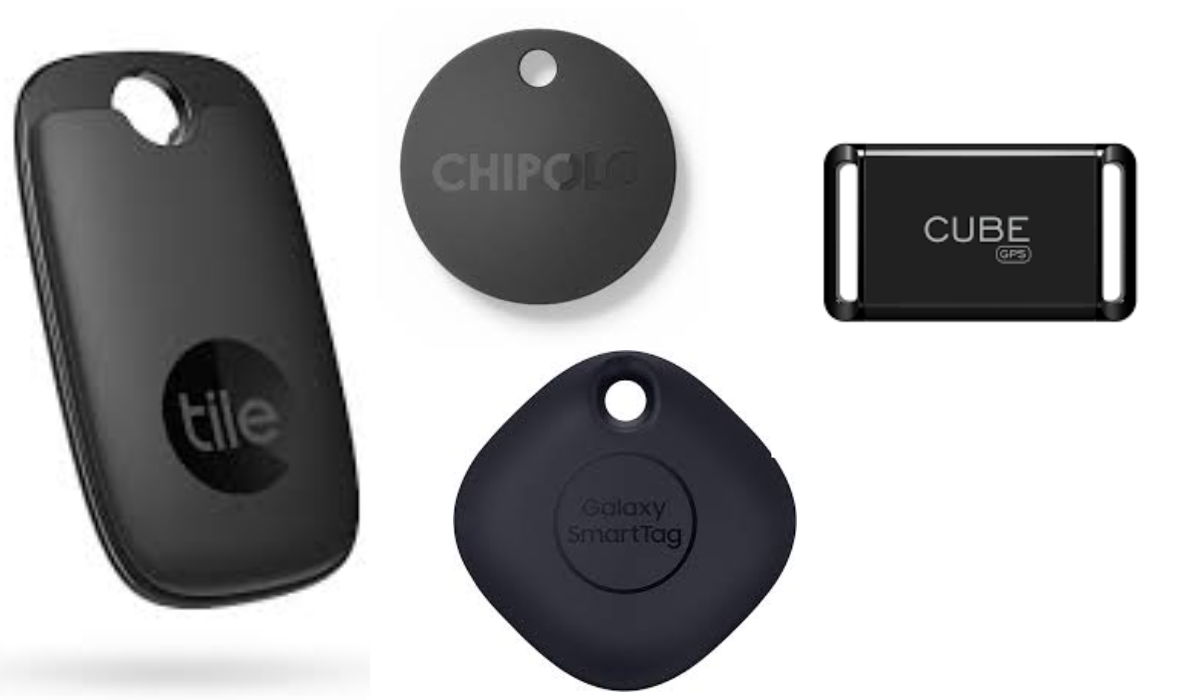
What are the Best AirTag Alternatives For Android?
An AirTag is a small, circular device created by Apple that helps you keep track of your belongings. You can attach an AirTag to your keys, backpack, purse, or any other item you want to keep tabs on. The AirTag uses Bluetooth technology to communicate with your Apple device, allowing you to locate your lost item on a map using the Find My app. It also has a built-in speaker that plays a sound to help you locate your item if it’s nearby.
Unfortunately, however, like many devices in Apple’s ecosystem, AirTags are not available for use by Android users. That’s why it’s a good thing that there are plenty of great AirTag alternatives that provide similar functionality that Android users can take advantage of. So, check out these best AirTag alternatives for Android devices.
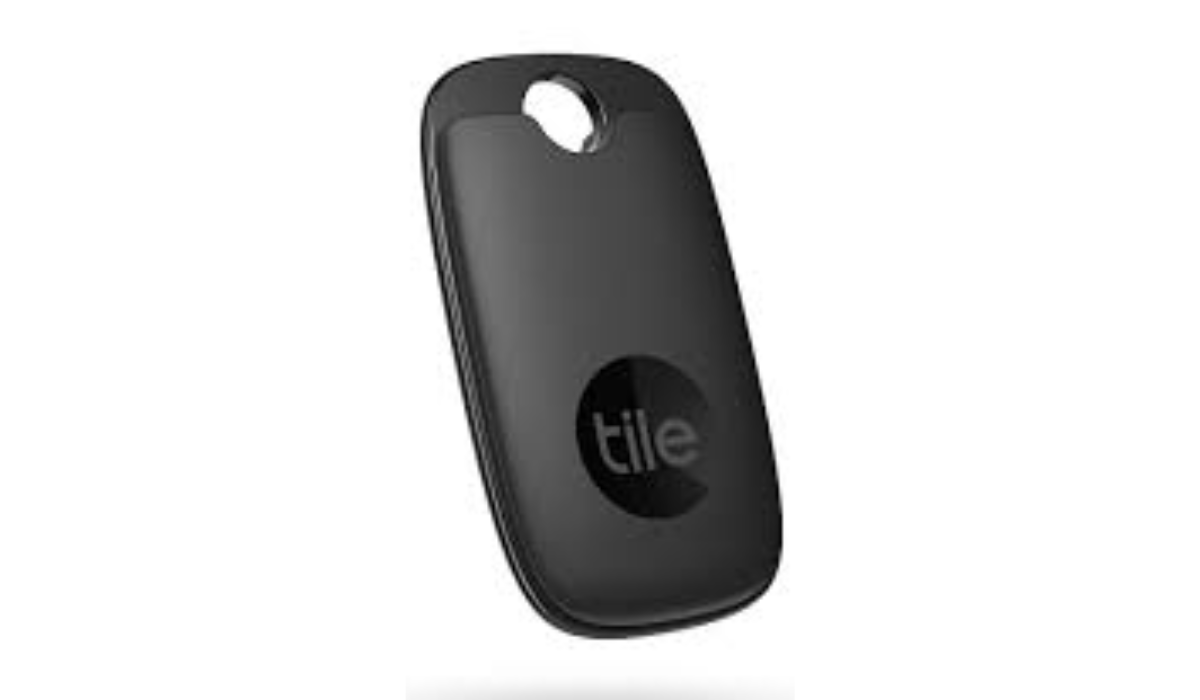
Tile Pro
Samsung Galaxy SmartTag+
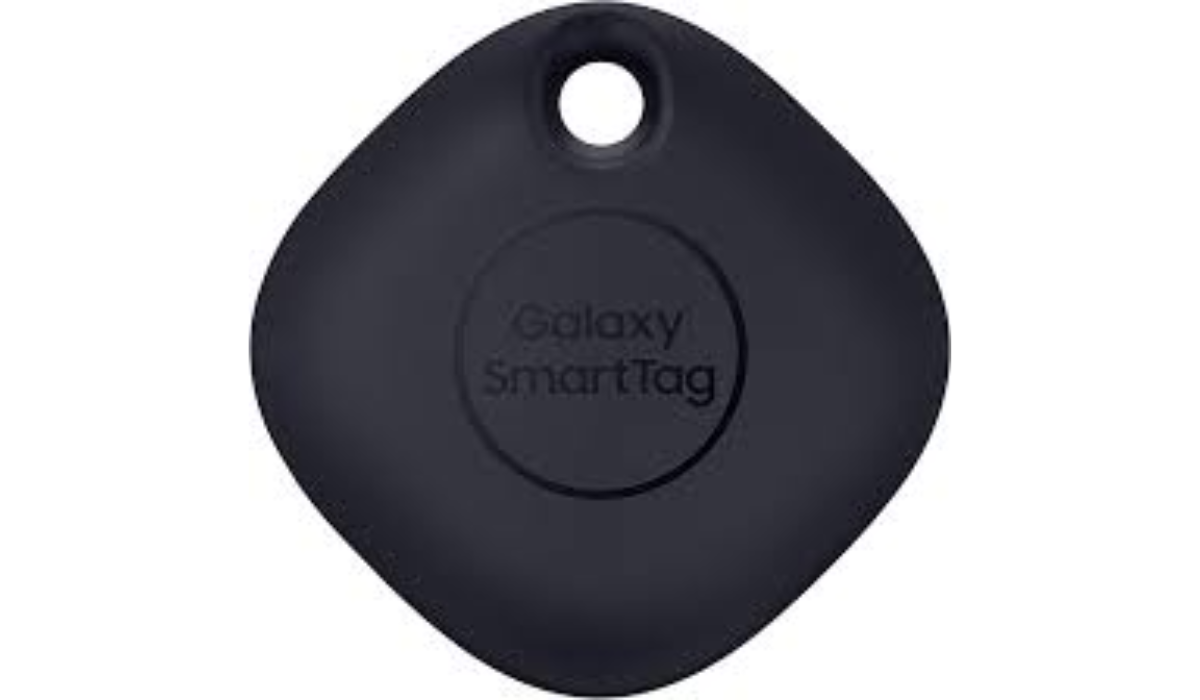
The Samsung Galaxy SmartTag+ is a tracking device that works well with the Samsung ecosystem. It connects with the Galaxy Find Network, allowing you to locate the SmartTag with any compatible Samsung phone nearby. The SmartTag can track lost items over an impressive range of 360 feet, even offline.
The SmartTag has a single tap-to-find feature paired with the SmartThings app, allowing you to control various Samsung smart products in your home. For instance, you can switch on your lights by tapping the SmartTag button. To get optimal functionality, you need a Samsung account and a UWB-enabled Galaxy smartphone running Android 11 or higher.
It also comes with a loop that makes it easy to attach to keys or bags. The battery is a replaceable CR2032 lithium coin cell with an average lifespan of up to four years. Note that it only works with Samsung devices, but still, Samsung SmartTag is one of the best AirTag alternatives on the market.
Chipolo One
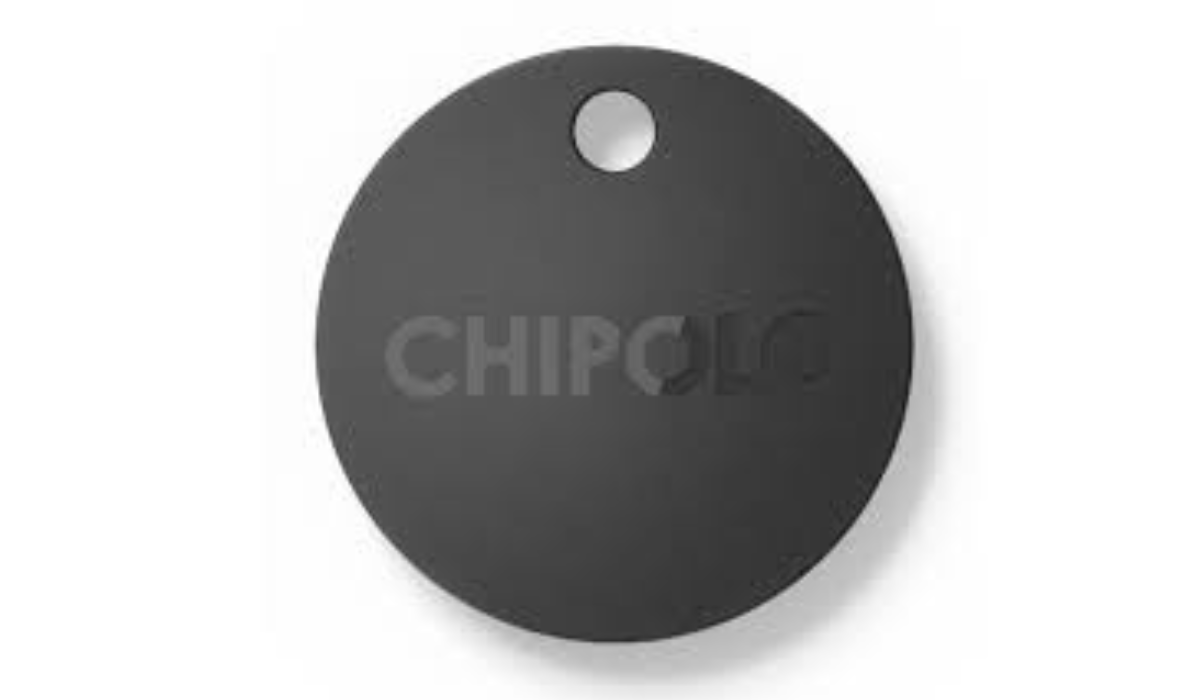
The Chipolo One is yet another exceptional tool for monitoring your possessions, such as keys and bags, and it features a 200-foot range and a loud sound. This Bluetooth tracker is compatible with both Android and iOS devices and is convenient to carry around. The Chipolo app sends a ping notification when the tracker goes out of range, which ensures that you don’t misplace your belongings. Additionally, the Chipolo community helps locate the tracker when it’s out of range, and it’s reasonably priced, water-resistant, and has a backup battery that lasts for two years.
Sadly, the Chipolo community isn’t as extensive as those of Apple, Samsung, or Tile, and this limits its usefulness beyond the 200-foot range. However, the app updates the lost device’s location and provides the last known location for easier tracking. If the tracker is within range, you can activate a loud alarm, which Tile only offers with a paid subscription. As such, Chipolo trackers can be considered a fantastic option for keeping track of your belongings in close range.
Cube
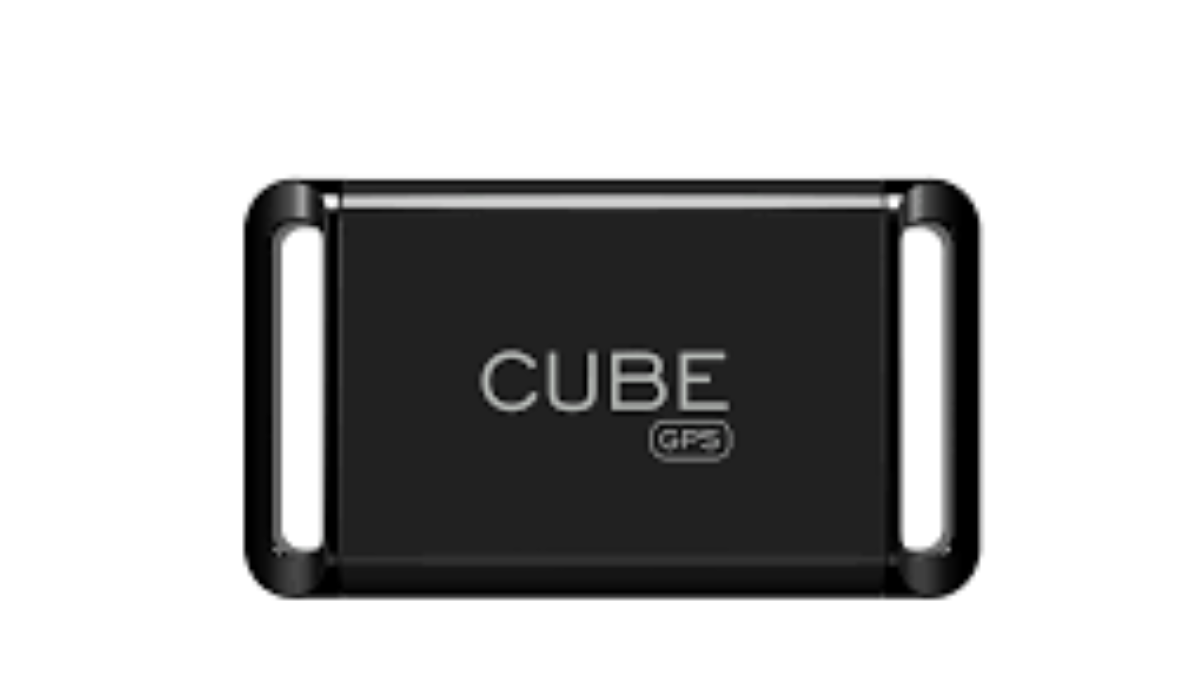
The Cube provides a distinct approach to tracking devices, offering Bluetooth trackers such as Cube Pro , Cube Shadow , and Cube Tracker with limited range. These devices function similarly to those provided by Apple, Samsung, and Tile, but Cube also provides GPS trackers for long-range applications. The Cube GPS Tracker includes built-in GPS and LTE hardware, allowing global tracking regardless of nearby networked devices. GPS eliminates blind spots when no nearby devices are available, and Wi-Fi, LTE, and Bluetooth connectivity aid in device location when GPS is unavailable.
However, a notable downside for this option is the expense — Cube’s regular trackers cost between $24.95 and $39.95, with no subscription fee. The Cube GPS Tracker costs $29.95, including the SIM card, and requires a monthly or yearly subscription at $198 per year or $19.95 per month. But despite being expensive, the Cube GPS Tracker is a great alternative to the AirTag for specific use cases and includes an SOS button for reliable tracking. However, the Cube GPS Tracker’s battery life is rated between 10-60 days, depending on usage and reporting.
To sum up, while AirTags are excellent Bluetooth trackers for Apple users, they’re not compatible with Android devices. Fortunately, the alternatives I’ve discussed above are all excellent options that offer similar features to AirTags, such as Bluetooth tracking, location tracking, and anti-loss features, and are compatible with Android devices. Make your choice depending on your specific needs, and feel free to consult other buying guides if you need further device recommendations.
