Add MobilityArena as a preferred source on Google
Our daily activities now routinely include our cell phones. Our smartphones serve a variety of functions for us and are an essential part of who we are, from helping with to-do lists to staying in touch with loved ones through social media and messaging applications to all types of virtual audio-visual entertainment.
Considering how important our smartphones are, it’s important to charge them frequently to prevent their batteries from draining and to get the most out of them. However, what happens when you plug your charger into your phone’s charging port but it doesn’t charge?
This seems scary, we know. But before you start to worry, you should first try the following fixes to get your smartphone charging fine again.
Use a Different Power Source
Your phone may be having a hard time charging not because of the phone or the charger, but rather the socket it is plugged into. As such, you should try plugging your charger into a different outlet.
You can switch to charging directly from the wall if you were previously using an extension box. Change to another wall socket if charging there. You could also try charging straight from a wall adapter if you were previously using a USB port on your computer to charge.
Once your phone starts to charge after changing the power source, it means you’ve identified the issue. To fix the broken wall adapter, simply purchase a new extension box or call an electrician.
Use a Different Charging Cable
Another of the most frequent reasons why your phone isn’t charging when plugged in is faulty charging wires. Since some of us are unable to function without carrying our chargers with us wherever we go, charging cables frequently undergo repeated wrapping, unwrapping, and twisting.
These actions tend to cause harm to the charging cord and compromise its ability to work effectively. If your phone charges after switching to a different charging cord, it means that your charging cable was defective.
Examine the Charger Adapter
If you’ve tried a different charging cable and the phone still doesn’t charge despite making sure that the cable is in perfect working order, it’s time to look at the charger adapter.
Take the charging cord off, then inspect the connected port to see whether it smells burned. Look out for signs such as the bridging port appearing rusted, or whether the charging wire jiggles or doesn’t connect properly when plugged in. In any or both cases, then the charging adapter needs to be changed.
Avoid using just any charger adapter or charging cable to charge your phone as each phone has a different voltage requirement that must be met to charge it properly. Make sure you purchase a replacement charging cable from a reputable retailer that sells authentic products.
Switch your Device Off
Sometimes, even when your charger and wall adapter are functioning properly, your phone’s software fails to recognize that it is charging, which prevents the battery status meter from changing. Your phone should be turned off to fix this.
Another option you have is to hard reset your phone by simultaneously tapping the volume and power buttons. Try charging it next; if it works, then you’ll know you’ve fixed the problem successfully.
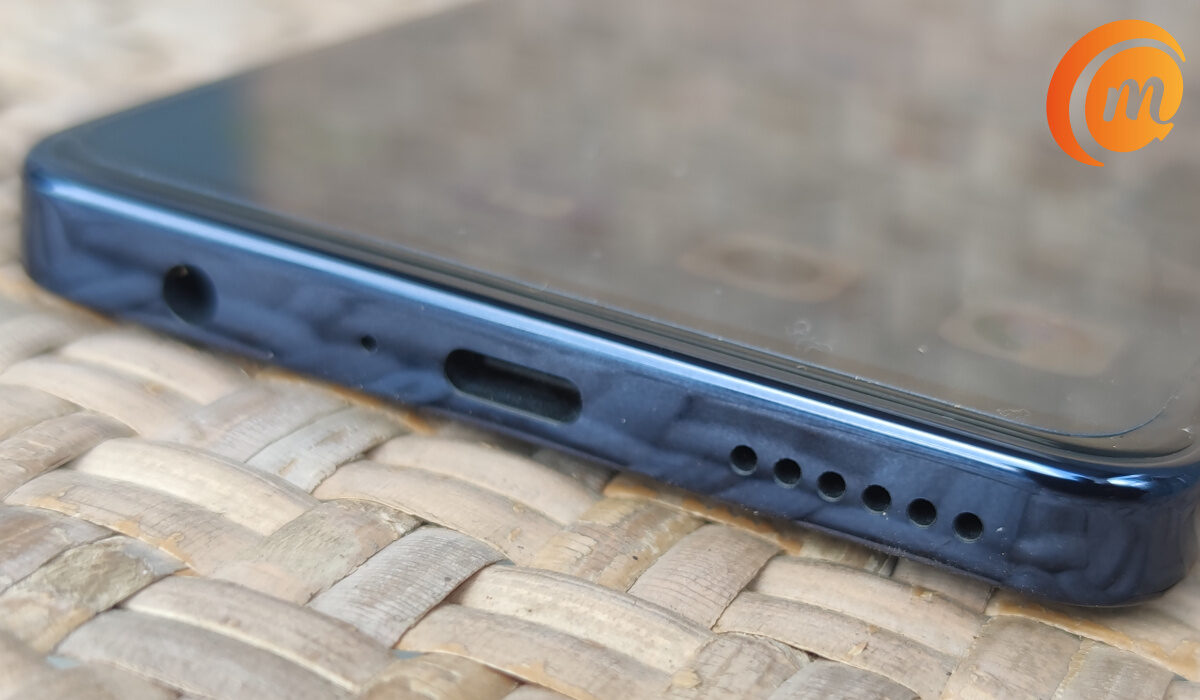
Examine the Charging Port
Many people are guilty of frequently carrying their smartphones around without a bag to cover the charging port while in their pockets or other locations. The charging port might become clogged with dirt and debris this way, which prevents the charger from fully coupling with the phone.
To check if this is the issue if your phone isn’t charging, look inside the charging port using a source of light. Get a soft toothbrush, and clean the phone charging port with it if you notice any apparent dirt or debris. A cue point can also help you do this easily.
Do not use objects like paper clips or toothpicks. Your charging port will easily get damaged by a toothpick being stuck inside of it. Also, because paper clips are made of metal, they can carry electricity. Additionally, they have a sharp edge and may cut you. After clearing away the dirt and debris, try charging; if it works, you’ve successfully found the right fix!
In summary , it can be quite distressing to realize that your phone is not charging despite being plugged in. However, the fixes we’ve suggested in this guide should help you identify the issue and fix it easily. If none of the fixes we’ve discussed work for you, consider taking your phone to a trusted repair professional for a more expert check-up.
- Don’t miss our mobile phone reviews .
- Follow our news on Google News .
- Join our WhatsApp Group , to be notified of the most important articles and deals,
- Follow us on Instagram , Facebook , Twitter , and YouTube .
Author:Joan Agie
Add MobilityArena as a preferred source on Google
It’s no longer necessary to wait for your gadget to fully recharge. Since 2018, the majority of Samsung and Android devices have become compatible with rapid charging. This simply means that Samsung devices will charge more quickly. Additionally, your gadget will be on your hand, where it belongs, rather than being continually hooked to your wall.
This is fantastic because you no longer have to endure excruciating hours hoping that your battery will be fully charged before you go out. If you don’t already know how to achieve this, we’ve created this easy guide for you. So keep reading to find out the different ways you can fast charge your Samsung device.
Turn On Airplane Mode
When it comes to sapping your battery, the network signal is usually the main offender. Your battery will discharge much more quickly if you have a weak network signal.
Even with an Android charger that offers quick charging, a bad network slows charging. You may save battery life on your device by disabling Bluetooth, Wi-Fi, location services, and your network.
Your phone will charge more quickly than previously and will take 25% less time to recharge if you use less battery. So simply swipe down your notification bar and select Airplane Mode to accomplish this. Just be sure to disable this function after charging.
Use Bixby Routines
Simply lessening the strain on your battery will enhance the charging pace, and the quickest way to achieve that is to (temporary) halt any power-consuming activities. With Bixby Routines, you can accomplish this automatically.
If you’ve never used the feature before or aren’t aware of it, start by following these steps:
● To add a routine, navigate to Settings > Advanced Features > Bixby Routines on your device.
● Click on Charging Status > Charging > Ready by pressing the if panel. This enables Bixby to recognize when your phone is charging so that it may take action automatically without your involvement.
● Select these options from the following menus after pressing the Then panel:
● Wi-Fi, Bluetooth, NFC, mobile data, and mobile hotspot should all be turned off, and airplane mode should be on.
● Display: Change the Motion Smoothness setting to Standard (60Hz), turn on Dark Mode, turn off Edge Panels, and adjust Screen Timeout to 15 seconds
● Location: Disable Location
● Accounts and backup: disable automatic synchronization
● Battery: activate Energy Saving
● Afterward, select the icon and color for this routine, then tap Next . To complete, tap Done .
Now your routine is established. Plug your phone now; once the process has run its course and you unplug the charger, Bixby will reverse all of these changes, allowing you to use your phone as usual once more.
Turn off the Energy Saver menu’s Restrict apps and home screen option. This will stop all apps other than those you’ve chosen from running in the background and increase charging speed.
To be clear, charging speed will not change dramatically with this approach. But under ideal circumstances, a full charge should occur in at least five minutes. Even if it’s not much, remember that with each charging session, the five minutes you save will mount up.
Turn Off the Device’s Screen
The screen of the gadget also has a significant impact on battery life. Depending on the size and brightness level, it might consume anywhere between 30 and 60% of your battery.
An Android tablet and other gadgets, especially those with large screens, can be quickly charged by turning off their screens.
To conserve power in your Android device, you can also utilize a black background and low brightness settings. If you don’t want to miss a notification while you are waiting for a call or message, turn your ringer volume up.
Although it is technically forbidden to use a phone while it is charging, few individuals really abide by this rule. However, it is advised to avoid using your phone while it is connected to a charger for safety reasons.
Power the Device Down
Try turning your device off if it’s still not charging as quickly as you’d want. It would be a wonderful idea to turn your smartphone off if you aren’t going to use it anyway. It is also among the greatest methods for resolving issues with Android quick charging.
The goal here, as with the earlier suggestions, is to reduce or ultimately stop battery consumption by switching off your phone. It is the finest and most recommended method to fast charge Samsung Galaxy smartphones while nothing is running and using the battery, including any apps, sensors, features, or other hardware.
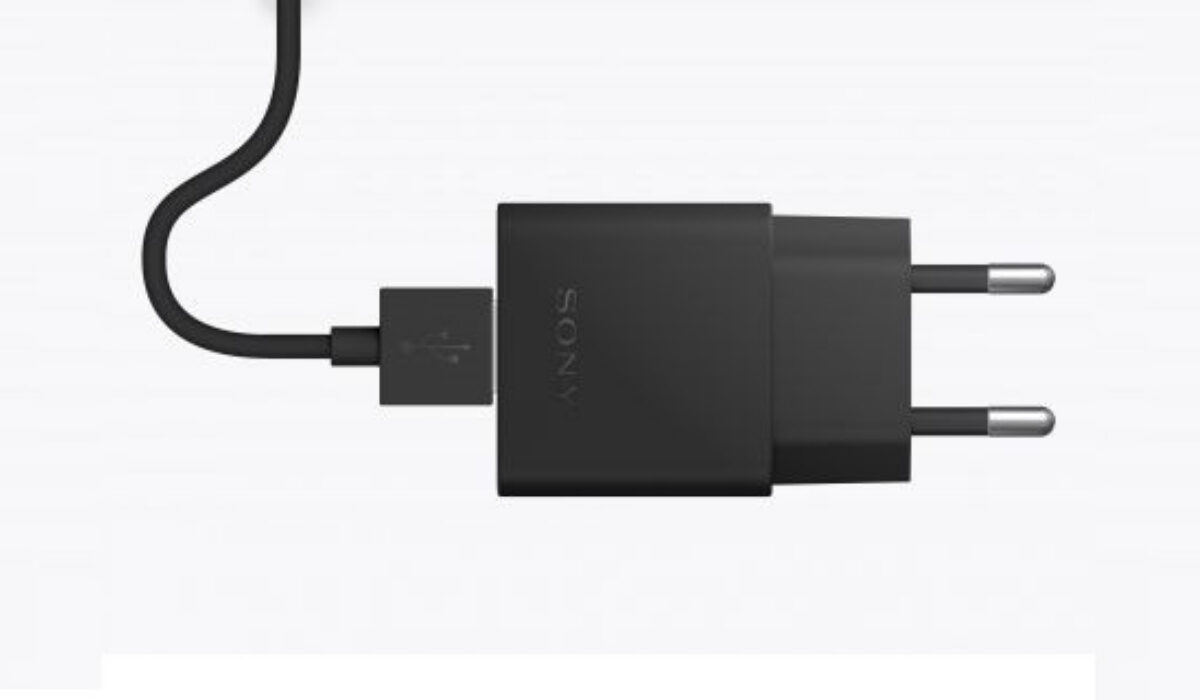
Charge Directly from a Wall Socket
By connecting your charger to a wall outlet, you may quickly charge your Android device. Your laptop, computer, and other devices’ USB ports can only provide 0.5A of power output. When using automobile chargers, don’t expect Android devices to charge quickly either.
This quantity is insufficient, especially when compared to a wall socket, which, depending on your equipment, can provide you with 1A. Simply put, wall chargers can provide you with double the amount of charging power that you require. This will lead to a two-fold increase in charging speed.
Take Off the Protective Case
Protective cases are typically made to shield your phone from nicks, bruises, and the worst-case scenario: unintentional falls.
But in some circumstances, the device’s normal heat transfer may be impeded. Your mobile device can overheat as a result of this.
Samsung smartphones are made to automatically slow down charging speed anytime your device appears to be heating up or if the ambient air temperature rises as a safety feature. Therefore, it would be beneficial to briefly remove the protective case to allow your Samsung S9 to quickly charge and cool down.
Charge with a Fast-Charge Cable
Samsung cables for rapid charging are available widely, so you’ve probably heard about them before. These cables can carry 2A and charge your phone more quickly because of their bigger gauge.
A rapid charge Android cable may significantly speed up charging compared to a regular cable, which can only deliver 0.5A. As such, you should use a magnetic fast-charging cable for your Android device as an alternative to plugging in your phone’s cord every time you need to charge it.
Summarily , achieving a fast charge on your Samsung device is not an impossible feat. Simply follow the instructions and suggestions we’ve provided in this guide and you’ll find your device charging faster than before.
- Don’t miss our mobile phone reviews .
- Follow our news on Google News .
- Join our WhatsApp Group , to be notified of the most important articles and deals,
- Follow us on Instagram , Facebook , Twitter , and YouTube .
