Add MobilityArena as a preferred source on Google
If you are not getting alerts for messages on apps like WhatsApp, Facebook, and others, you should learn how to fix app notifications not working on TECNO phones . These tips will work on smartphones running the Android OS but made by other brands.
Android’s notification system is one of the most reliable features we enjoy on the OS, but when it malfunctions, the experience could be disconcerting, to say the least. At such times, messages will remain unread on these apps for several minutes — and sometimes hours — and you will only get to find out when you open the apps.
That could be pesky, especially if the messages are important ones. Fortunately, there are simple tricks to fix this problem. And this post discusses 10 ways to address this issue about app notifications not working on TECNO phones and others.
10 Ways To Fix App Notifications Not Working on TECNO Android Phones

There are 10 ways to fix app notifications not working on your TECNO phone
Restart Your Device
Rebooting your smartphone will fix most of the simplest problems commonly encountered on Android. This is why this is the first step to take in this case as well.
Rebooting your device will stop all background processes or services that could be impeding an app’s ability to push notifications. Also, this action will refresh the core components of your smartphone, should any of them crashed when an operation is ongoing.
If the problem still persists after applying this technique, you can try the other tips below.
Turn off Software Battery Optimizations
The Android mobile platform has adopted AI-based software optimizations in a bid to enhance battery life and prevent mobile apps you don’t regularly make use of from staying active in the background.
However, the algorithms that handle these are still iffy and can cause issues when they make wrong predictions.
Unfortunately, when this happens, your notification system is among the most affected areas. If you have been grappling with this problem, you can consider disabling these features for a couple of days.
If your device runs stock Android, disable Adaptive Battery by heading to Settings -> Battery and setting it to OFF for every app.
However, this step may be an overkill. You can simply turn off battery optimizations on a per-app arrangement under Settings -> Apps & Notifications -> [App name] -> Advanced -> Battery -> Battery optimization .
Go through the App’s Notification Settings
You can review the notification settings for the specific app. Most apps Android phone owners commonly use have their own collection of proprietary preferences, allowing users to modify the frequency of push alerts, the kind of notifications they want, and other options.
For instance, Gmail allows you to completely turn sync off. Thus, you need to be sure that while browsing the app’s settings, you have not inadvertently pressed any button that shuts off that option.
If you couldn’t get the necessary settings in the app, you can check Android’s notification settings for it by heading to Settings -> Apps & Notifications -> [App name] -> Notifications .
Android 8.0 (Oreo) and newer versions come with a revised notification system, enabling you to modify settings for various kinds of alerts.
Turn Off Proprietary Power Savers
In some phone brands, you will find even more power-saving tools, which automatically block any app that they consider to be of trivial use. Thus, along with those bundled by Google, you’ll need to confirm if your device features additional in-house optimizations.
For instance, we have a pre-loaded app known as Security on Xiaomi phones that has many of such functions.
Ensure Do Not Disturb Mode Is Off

Check if Do Not Disturb mode is on
The majority of Android smartphones feature a reliable Do Not Disturb mode, offered to suppress every notification except for the few important ones you choose to allow. Software develops typically position its switch in places that can be readily accessed, such as under the Quick Settings. So, if you don’t know it is there, you might have accidentally put it on.
To review the Do Not Disturb mode, swipe down the home screen, and you will see its icon (shaped like a moon or long dash) among the array of features there. Simply tap it to switch it off, if it is on.
Alternatively, go to Settings -> Notifications or Sound (depending on your phone brand and model).
Check If Background Data Is Enabled
Android 8.0 (Oreo) and later versions allow you to stop apps’ access to your Internet data in the background. Though you might not have set this feature to ON accidentally, it is still a nice idea to check and confirm whenever there is a notification issue since if there’s no internet access, many apps will not work.
You can find this option under Settings -> Apps & Notifications -> [App name] -> Data Usage -> Background Data .
Consider Reinstalling the App or Waiting for Updates
If notifications are not showing for only one app, the developers might have mistakenly released a buggy update. In this kind of situation, there are three options to take.
You can uninstall the app and reinstall it, wait for an update to be released to tackle the problem, or downgrade the app to an older version. You can get an older version on APKMirror .
Check If the App Is Allowed to Work in the Background
If your device has Android Oreo or later versions, there is an option that allows you to completely shut off apps from working in the background when you are not using them. The feature is included for disabling apps, which consume phone’s battery life heavily.
While it is no doubt a beneficial option that preserves your phone’s battery life from getting drained by apps, it can equally cause issues when enabled for important apps. Sadly, Android normally makes changes to this setting on its own when necessary.
So, you need to go through the setting for those apps that has notification issues.
You can do this as follows: Settings -> Apps & Notifications -> [App name] -> Battery – > Background Restriction .
Be Sure Data Saver Is Off
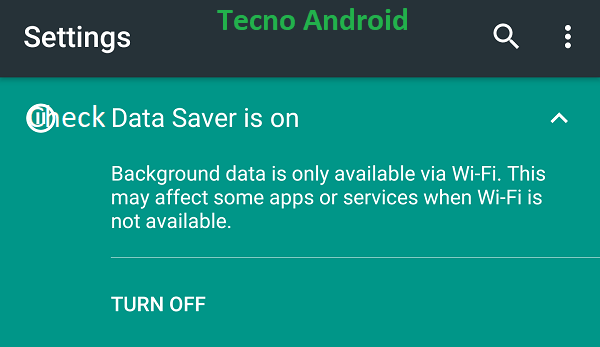
Be sure Data Saver is off
The Data Saver option enables you to limit the amount of data that apps use when you are not on a Wi-Fi connection. This helps you cut down on Internet data expenses. However, it can also make you miss out on notifications.
Here is how you can confirm the data saver mode is not the culprit: Make use of your smartphone without the option for some time (if it is currently turned on). Head to Settings -> Network & internet -> Data Usage -> Data Saver to check it.
Modify Sync Intervals Manually
Google discontinued the built-in function allowing you to tweak sync intervals on your Android device. Luckily, 3rd-party developers to have tried to fill the gaps. For example, you can use an app called Push Notification Fixer for easily adjusting sync timing.
You can choose to change the sync individually when you are on both mobile data & Wi-Fi connections. Also, you may increase it as much as 15min (Android default) and bring it down to as low as one minute.
But bear in mind that modifying these preferences will greatly affect your phone’s battery life.
You can download Push Notifications Fixer from the Play Store for free.
Wrapping up
By trying one or more of the 10 fixes outlined above, you should now be receiving notifications for apps on your device. However, if the issue still persists, that means the problem is coming from your Tecno phone itself, and not the app’s settings per se.
If that is the case, you would need the help of a technician to fix your Android. And that brings to an end this write-up on how to fix app notifications not working on Tecno phone.
Author:Tijani Mustapha
Deji is a web content developer and tech writer, who is passionate about tech-related topics and issues. A graduate of Physics from the University of Ibadan, he loves writing, conducting research, playing football, and meeting people of diverse backgrounds and interests.
Add MobilityArena as a preferred source on Google
Poco F2 Lite Quick Specs : Android 10 smartphone. Expected Q1 2020. Features a yet-to-be specified display, Qualcomm Snapdragon 765 chipset, unspecified selfie camera, 48MP rear camera, 6GB RAM, 128GB internal memory, and a 5000 mAh battery.
Phone Status : Rumoured. Pocophone recently began the transition into an independent smartphone brand separate from Xiaomi . The sequel to the Poco F1 is still being expected, but some details of a Poco F2 Lite have leaked. The leaked information position the F2 Lite as an upper mid-range smartphone powered by Qualcomm’s new Snapdragon 765 processor, which is a 5G platform.
Poco F2 Lite Specs and Features
Mobile Wireless Network and Software
- 2G mobile network bands : GSM, GPRS, EDGE 850 / 900 / 1800 / 1900 MHz.
- 3G mobile network bands : UMTS, WCDMA, HSDPA 850 / 900 / 2100 MHz
- 4G mobile network bands : LTE 1(2100) / 3(1800) / 5(850) / 8(900) / 38(2600) / 40(2300) / 41(2500)
- 5G mobile network bands : No.
- SIM Type : Nano-SIM, Dual SIM
- Software / OS : Android 10 + MIUI
Design, Form Factor, Appearance
- Dimensions : mm
- Weight : g
- Display : unknown size, pixels, 20:9 aspect ratio, IPS LCD screen
- Colours : Midnight Black. Vacation Blue. Hillier Purple.
- Physical Build :
Internal Hardware Specs
- Processor Type : 64-bit, 2.2 GHz Octa-core, Kryo 475
- Processor Name : Qualcomm Snapdragon 765
- Graphics Processor : Adreno 620
- RAM : 6GB
- Internal Storage : 128GB
- External Storage : Unknown
Photography, Video Recording
- Rear Camera : 48 MP camera, LED flash, 1080p@30fps video recording
- Front-facing Camera : unknown resolution, Face Recognition, 1080p@30fps video capture
Audio, Video Playback
- Music Support : PCM, AAC / AAC + / eAAC + / MP3 / AMR – NB / WB / APE
- Audio : 3.5 mm audio jack
- Loudspeaker : Mono speakers
- Video Support : H.264/MP4/MPEG4 player
- FM Radio : Yes.
Phone Sensors
- Digital Compass : Yes.
- Accelerometer : Yes.
- Proximity Sensor : Yes.
- Ambient Light Sensor : Yes.
- Barometer : No.
- Pedometer : No.
- Heart Rate Monitor : No.
- Gyroscope (G-Sensor) : Yes.
- Fingerprint Scanner : Yes.
- Face Unlock : Yes.
- Iris Scanner : No.
- Motion Sensing / Gesture Control : No.
- Voice Control : No.
- Intelligent Digital Assistant : Yes; Google Assistant.
- Infra-red Sensor : No.
Connectivity Options
- Bluetooth : v5.0, A2DP
- WiFi : Wi-Fi 802.11 a/b/g/n/ac, hotspot
- GPS : Yes, A-GPS, GLONASS, BDS, GALILEO
- USB : microUSB v2.0.
- NFC : Yes.
Miscellaneous Specs and Features
- Battery Type and Capacity : Non-Removable Lithium-Polymer 5000 mAh
- Battery Charging : 15W fast charging
- Wireless Charging : No.
- Reverse Charging : No.
- Model Number : N/A
Poco F2 Lite Price and Launch Date
- Announced : Q1 2020
- Release Date : Expected Q1 2020
- Country Availability : India.
- Price : To be announced.
When Will Poco F2 Lite Be Launched?
There isn’t any official date yet for the launch of the F2 Lite, and there is no official information about when exactly it will show up in the market yet. But you can expect it anytime in the first half of 2020.
Is Poco F2 Lite a 5G Phone?
Poco F2 Lite is powered by a Snapdragon 765 chipset, which is a 5G platform, so it is likely that it will be a 5G smartphone.
MobilityArena Buyer’s Guide Verdict
Not available.
Our Buyer’s Guide Verdict is recommendation that we make based on our evaluation the specs of the device. It is a general guide designed to help you understand how much value a smartphone offers for its price. It is not a stamp of quality assessment or an endorsement of the device or of the manufacturers. Be sure to ask questions and use your judgement when buying any device, as MobilityArena may not be held responsible for your buying decisions .
Poco F2 Lite Review Rating
We are yet to review the Poco F2 Lite and so do not have a review rating for it yet. This section will be updated with our review rating and a link to the review page, as soon as we have a review ready.
Follow MobilityArena on social media!
