Add MobilityArena as a preferred source on Google
In today’s digital world, we rely on applications for various reasons. I totally understand how frustrating it can be when apps won’t open on your iPhone. It’s definitely not a pleasant experience, especially if you use specific apps for work or communication. But don’t worry, because this guide is here to help.
In this article, I’ll walk you through some simple steps you can take to troubleshoot the problem and get your apps to open again in no time. Whether you’re having trouble with outdated software, or problems with the app itself, I’ve got you covered.
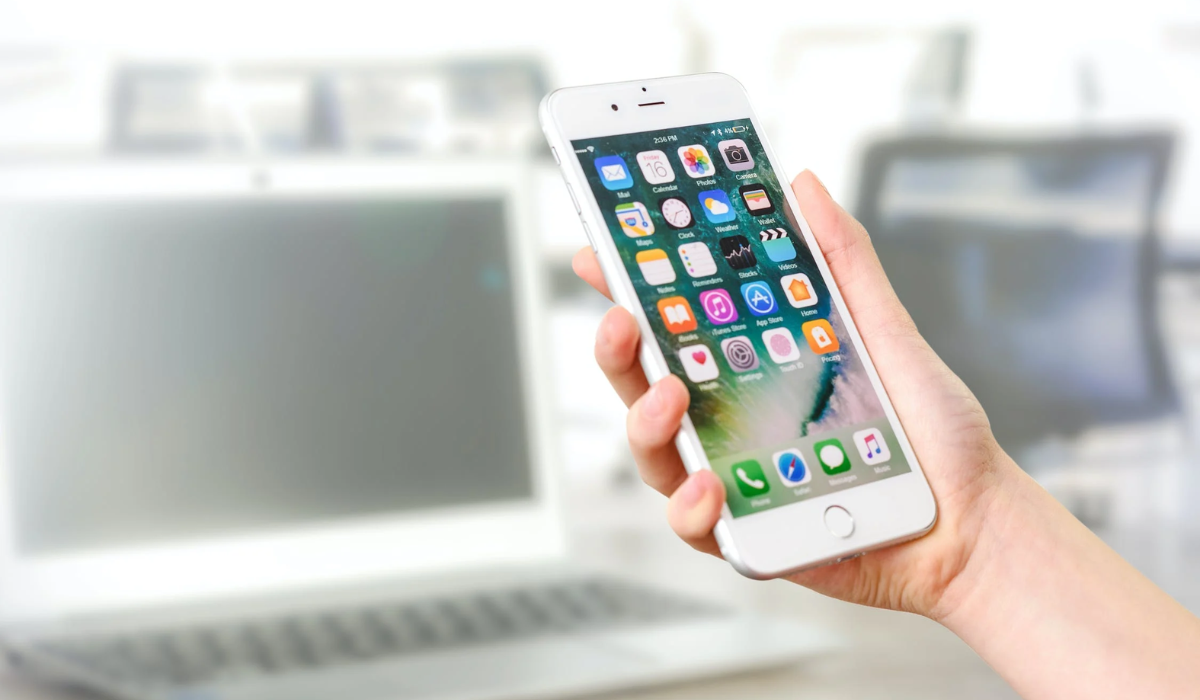
- How to Fix Apps Not Opening on iPhone Force-Quit the App Restart Your iPhone Update the App Check the Internet Connection of the App Examine the App Restrictions Settings Uninstall then Reinstall the App Check Your iPhone’s Storage Update Your iPhone Reset All Settings
How to Fix Apps Not Opening on iPhone
There are several reasons why some apps won’t open on an iPhone such as outdated software, connectivity issues, background updates, screen time limits, or problems with the app itself. Here’s how to troubleshoot and fix any app that won’t open on your iPhone.
Force-Quit the App
When an app refuses to open after multiple attempts, one of the first things you can try is to force-quit the application. An unresponsive app might be annoying because it can interfere with the device’s overall performance.
To force-quit a troublesome app:
- Launch the App Switcher . If you have an iPhone with Face ID , you can access this by swiping from the bottom. On earlier models, double-tap the Home Button .
- Select the non-working app and drag it up to force-quit it.
- Wait around 15 seconds and see if the app now works.
Restart Your iPhone
Most technical issues, such as apps not opening, can be resolved by restarting your iPhone. The steps to restart an iPhone are simple. Simply press the physical buttons on the side of your device or by going to Settings > General > Shut Down . I’ve found that Siri is also a fast alternative; simply use the command, “Hey Siri, restart my iPhone”. After one minute, turn on your iPhone and launch the app that was not working before. It should open easily after the restart, but if it doesn’t check out the other fixes below.
Update the App
It’s possible that the app is out of date if you can’t open it. As such, updating the app is another easy you can fix this problem. Secure applications like bank and carrier apps are particularly prone to this. Check the App Store to see if there are any updates available if you discover that an app won’t open.
To update the app in question from an older version to a newer version:
- Long-press on the App Store icon in the App Library or Home Screen , and then select Updates from the action menu that displays.
- You will see all the available updates once the page has loaded.
- To complete the update process, select “ Update ” from the menu next to the app that won’t open.
- You can also choose Update All to get all of the most recent versions of your apps.
Check the Internet Connection of the App
When you connect your iPhone to Wi-Fi, all apps can connect to the internet. However, with cellular data, you can disable internet connection for specific apps. This may be the issue causing the app not to open, so follow the steps below to fix it.
- Open the iPhone Settings app and select Cellular .
- Scroll down the list of apps and check if the toggle next to the non-working app is green.
Examine the App Restrictions Settings
You may have restricted an app using Screen Time, most likely to control how long your child spends on your phone while using it. If you have problems opening an app, check the Screen Time Limits settings on your iPhone. Here are some suggestions for getting around this app restriction:
- Launch the Settings App.
- Select Screen Time .
- Click App Limits and deactivate the feature by swiping right and clicking “ Delete ” to remove the app from the list.
- Then, open Content & Privacy Restrictions to ensure that no service or app is disabled by turning it off.
- When you try to launch the app again, it should open.
Uninstall then Reinstall the App
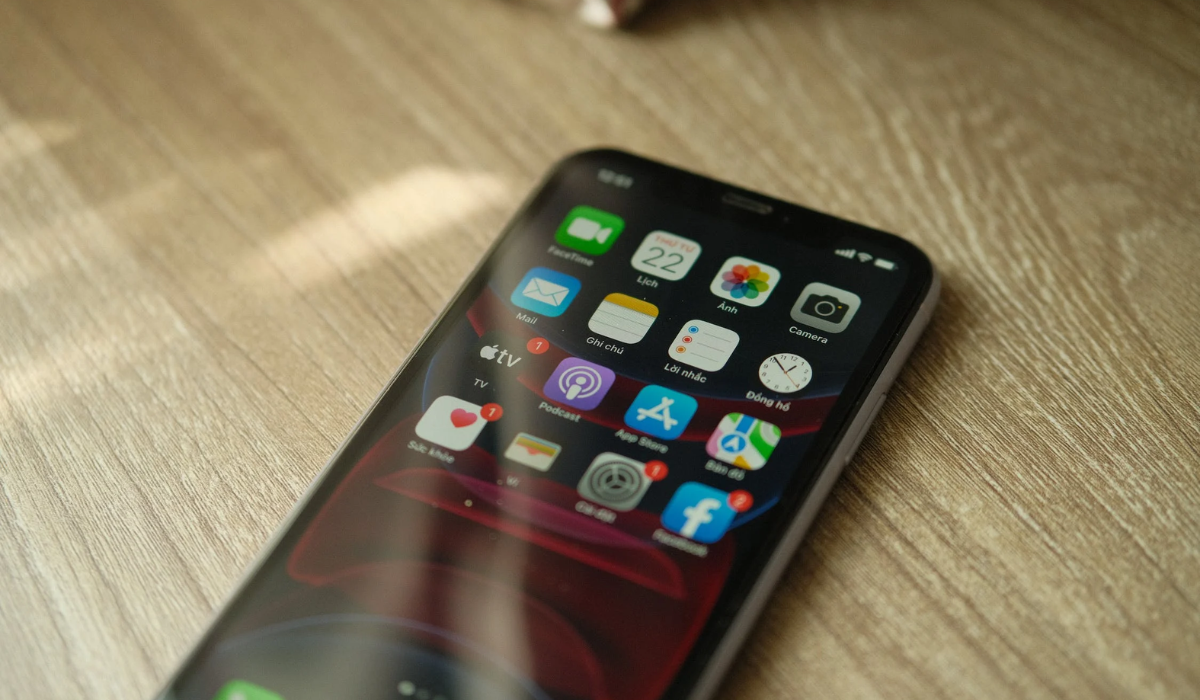
When apps won’t open, another sure option is to uninstall and reinstall them. It works by removing any potential software bugs. However, removing the app will occasionally wipe all existing data. Therefore, before doing so, make sure to back up the app’s internal data.
Here’s how to delete and reinstall apps on your iPhone:
- Begin by accessing the Home Screen and long-pressing the app until all app icons begin to shake.
- Select the “ Minus ” option.
- To confirm the uninstallation, press the “ Delete ” button.
- After deleting the app, restart the device.
- To install the app, go to the App Store and search for it.
- Try launching it again to see if it works now.
Check Your iPhone’s Storage
When your phone’s storage reaches a certain limit, you’ll find that some iPhone apps begin to malfunction and close abruptly when you click on them. Having a lot of open iPhone apps will cause issues with your device due to insufficient memory space as apps require memory space to operate at their optimum functionality.
To check your current storage status, navigate to Settings > General > iPhone Storage to see which apps are consuming the most space. Also, To free up space, remove any apps, files, or personal data that you are no longer using, and delete any media files that are taking up unnecessary space in the internal storage.
Update Your iPhone
When apps won’t launch, updating your phone’s iOS can be a useful fix because it solves different compatibility issues. The functionality of newer updates of your phone’s apps will be affected if you are using an outdated iPhone operating system. For smooth operation, both your phone and its apps must be compatible and current, and installing software updates is the best way to ensure this.
To check if an update is available for your device, navigate to Settings > General > Software Update . Press Download and Install to begin the process, if there’s the latest version available,
Reset All Settings
One of the last options to fix apps not opening is to reset all of your iPhone’s settings. This operation resets all of your iPhone’s settings to their factory defaults. Navigate to Settings > General , scroll to the bottom, and select Transfer or Reset iPhone . Choose Reset and then Reset All Settings.
As long as you don’t choose to Erase All Content and Settings by accident, your iPhone will not delete any data.
To sum up, by following the above instructions, you should be able to fix apps not opening on your iPhone. If you’re still having trouble, you can contact Apple Support for further assistance. If you’d also like other useful iPhone tips, be sure to check out this category .
Author:Joan Agie
Add MobilityArena as a preferred source on Google
Proximity sensors in smartphones and IR radiation from IR LEDs used for remote controls or TV remotes are related because they both use infrared technology to detect objects.
Proximity sensors in smartphones detect when an object is nearby, and when it detects a nearby surface (usually your face), it shuts off the screen and touch sensitivity so that the phone pressing against your ear or cheek doesn’t register any actions.
- How does the proximity sensor work in a smartphone?
- How infra-red TV remote controls work
- Infra-red is the common ground
How does the proximity sensor work in a smartphone?
The sensor emits an infrared beam, and when an object is close enough to reflect the beam back to the sensor, the sensor detects the object and triggers a response, such as turning off the screen during a phone call to prevent accidental touches.
How infra-red TV remote controls work
Similarly, IR LEDs used for remote controls or TV remotes also emit infrared radiation to communicate with the device they are controlling. When a button is pressed on the remote, the IR LED emits a signal that is picked up by a receiver on the device, which then interprets the signal and performs the corresponding action. This is the same technology and process in all IR blasters .
Infra-red is the common ground
In both cases, infrared technology is used to detect objects and trigger a response. While the specific applications of IR technology in proximity sensors and remote controls are different, they both rely on the same basic principles of infrared radiation and reflection.
This revelation about proximity sensors may come as a surprise to you. Apparently, infra-red technology is not as dead in cell phones as we suppose; it is just used differently from how it used to be applied decades ago.
Author:Mister Mobility
Digital Skills and Communication Coach | Mobile Phone Connoisseur since 2001 | Tech Blogging since 2004
