Add MobilityArena as a preferred source on Google
Microsoft has delivered the Windows 11 upgrade to its users, and it comes with a modern design aesthetic and a wealth of incredible new features. However, there are still a few basic Windows issues with Windows 11.
For instance, after updating to Windows 11, some users have reported experiencing a dark screen. Some claim that this dark screen shows up after logging in, and occasionally even before logging in, Windows 11 displays a dark screen with a cursor.
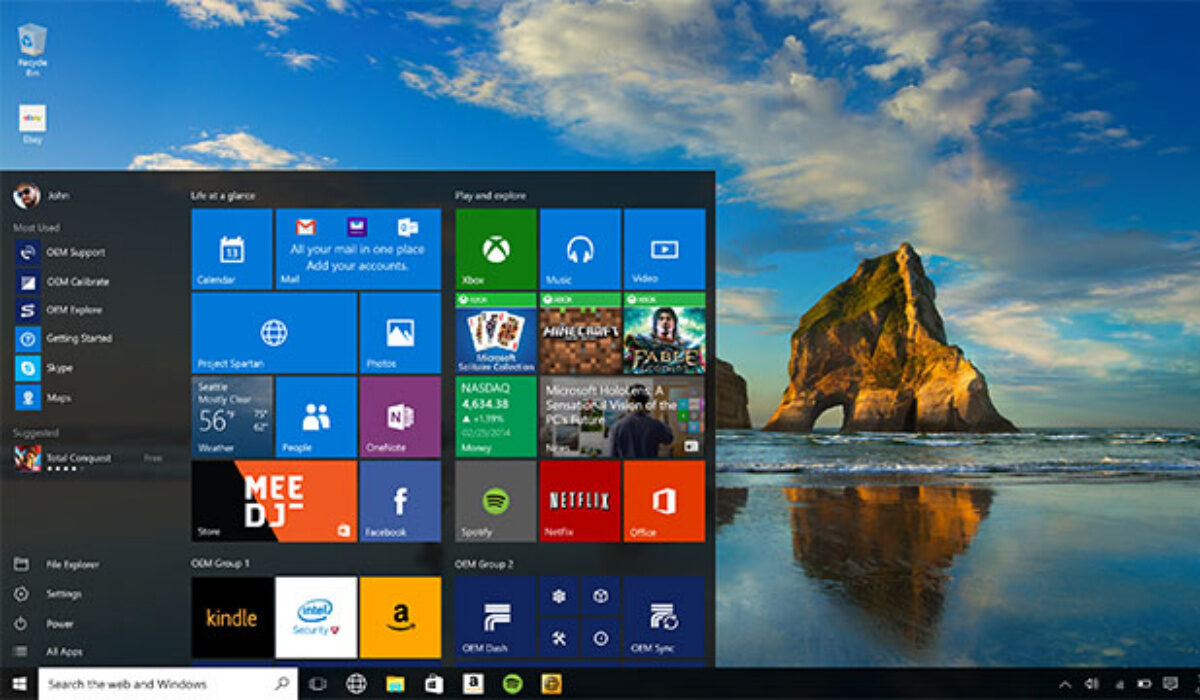
If you’ve been facing similar issues while using Windows 11, we’ve created this guide for you. To address the issue, we have compiled the best fixes for the Windows 11 black screen problem. So, keep reading to find the solution that works best for you.
Restart your computer
If Windows 11 shows a dark screen after an update or perhaps after you log in, there’s no need to become alarmed. Windows often needs a while to load all the required system files after a large feature upgrade.
In this case, it means that you should restart your Windows 11 computer and wait for at least 30 minutes before attempting any repairs. If the black screen issue still exists after the restart, move on to the next step.
Restart Explorer
Users of Windows 11 who arrive at a blank screen with a cursor after login in would particularly benefit from this fix. It means that while everything on your computer is working fine, Windows 11 is unable to show the desktop shell due to an Explorer or graphics issue. Here is what you should do in this situation:
● To get the advanced menu panel in Windows 11, simply press the “Ctrl + Alt + Delete” keyboard shortcut. Click “Task Manager” here.
● To proceed, right-click “File” and select “Run new task.”
● After that, enter explorer.exe into the textbox. As soon as the dark screen is gone, the Explorer shell will restart.
Try the next fix if this one doesn’t work as anticipated.
Restart Graphics Driver
A secret keyboard shortcut in Windows 11 enables you to reboot the graphics driver without visiting any settings. If your computer has any issues with the graphics driver, doing this will immediately fix the black screen on Windows 11.
Windows 11 will typically restart the graphics driver if you simply press the “Windows + Ctrl + Shift + B” keys at the same time. Give your Windows 11 computer a minute, and the black screen ought to disappear.
Modify Explorer Shell Registry
Whenever the settings of the Explorer shell’s registry are modified, Windows 11 often shows a dark screen. You can reverse these modifications by doing the steps listed below. This will repair your computer’s black screen problem and properly load the Explorer shell.
● Press “Ctrl + Alt + Delete” and open “Task Manager” if you’re a Windows 11 user who has a blank screen with a cursor after logging in.
● Run a new task by opening “File”. You can do this by clicking on it in the top menu bar.
● Activate the “Create this task with administrator credentials” checkbox and type “regedit” into the textbox. Now press Enter.
● Now the Registry Editor will launch. Follow this path here: Winlogon is located in HKEY LOCAL MACHINE > SOFTWARE > MICROSOFT > Windows NT > CurrentVersion .
● You’ll be able to find “Shell” on the right pane. Before you double-click it to open it, verify that explorer.exe is shown under “Value data.” If the text is missing, type it in and then select “OK.”
● Restarting your computer at this point will now resolve the Windows 11 black screen problem.
Perform Startup Repair
On Windows 11, some users get a dark screen prior to the login screen. It suggests that Windows is not opening properly and that the core operating system might be having issues. In such cases, you won’t be able to restart Explorer or use the Task Manager. You need to start Windows 11’s troubleshooting function in order to fix the problem. To complete it, follow these steps:
● First, turn off your computer. Turn it on again afterward, then shut it down after Windows starts loading.
● Now start your computer, then switch it off once more.
● Repeat this cycle two or three times to compel Windows to load its recovery screen. You can also try these keys on some computers: pressing F2, F8, or F12 during boot also displays the Startup recovery screen.
● As soon as you access the recovery screen, select “Advanced options” by clicking.
● Open “Troubleshoot” after that.
● Then re-access “Advanced Options” and choose “Startup Repair.”
● Windows will restart your computer and try to fix the black screen issue on its own.
Other fixes you can try to stop the black screen from showing include:
● Uninstalling the last update
● Booting into safe mode
● Performing a system restore
● Resetting the entire PC
It’s also a good idea to take your PC to a trusted expert that will be better equipped to fix the issue. You can just do this if you think the procedures we’ve described above are too complicated, but you should normally be able to navigate the repair by yourself.
In summary , there’s no need to worry if you see a black screen after updating your PC to Windows 11. Simply try any of our suggested fixes, and your system should work just fine again.
Also, don’t forget to recommend this article to anyone you know that might be facing a similar issue, they’ll thank you!
- Don’t miss our mobile phone reviews .
- Follow our news on Google News .
- Join our WhatsApp Group , to be notified of the most important articles and deals,
- Follow us on Instagram , Facebook , Twitter , and YouTube .
Author:Joan Agie
Add MobilityArena as a preferred source on Google
This is the Apple iPhone XR vs Apple iPhone SE 2022 comparison you’ve been looking for. In fairness, these phones were released about four years apart, and it should be easy to tell which is the better of them. But things are not always that straightforward, and since you are reading this, chances are that you are interested in the outcome of our comparison.
Why is anyone interested in comparing these two devices? Budget. Price. If you are looking at these two iPhones, it must be that you want an affordable iPhone. You do not want to spend top dollar on any of the more expensive models, and that is a valid desire. We are here to provide you with useful information to help you make your decision. By the end of this Apple iPhone XR vs Apple iPhone SE 2022 comparison, you will be able to decide which of the two devices is better for you. Let’s kick things off with the comparison table.
| Apple iPhone XR | Apple iPhone SE 2022 |
|---|---|
| 6.1 inches, 828×1792 pixels, IPS LCD | 4.7 inches, 750×1334 pixels, IPS LCD |
| launched with iOS 12 | launched with iOS 15.4 |
| Apple 12 Bionic | Apple A15 Bionic |
| 3 GB RAM | 4 GB RAM |
| 64 GB / 128 GB / 256 GB storage | 64 GB / 128 GB / 256 GB storage |
| 12 MP rear camera | 12 MP rear camera |
| 7 MP selfie camera | 7 MP selfie camera |
| 2G, 3G, 4G | 2G, 3G, 4G, 5G |
| NO fingerprint scanner | Fingerprint scanner in Home button |
| 2942 mAh, non-removable battery | 2018 mAh, non-removable battery |
| 15W fast charging | 20W fast charging |
| Difficult to find new ones in the market now | From $360 |
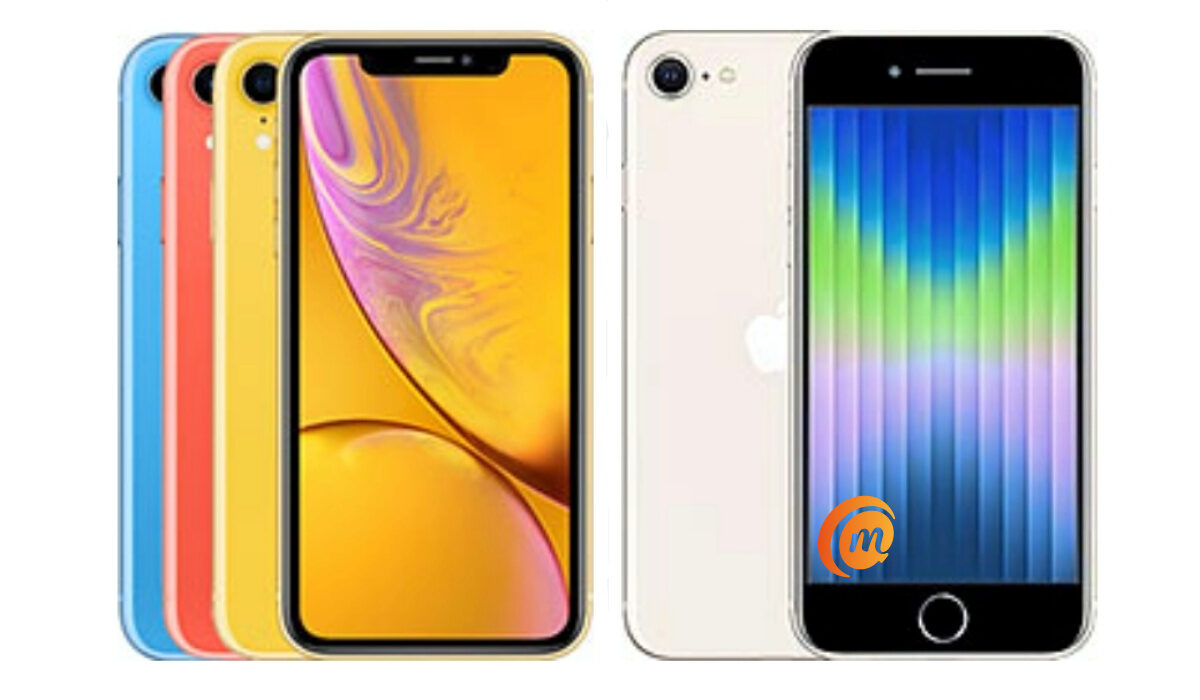
Apple iPhone XR vs Apple iPhone SE 2022 comparison
- Apple iPhone XR vs Apple iPhone SE 2022: The comparison Where Apple iPhone XR has the edge Where Apple iPhone SE (2022) has the edge
- Apple iPhone XR vs Apple iPhone SE 2022: Verdict
Apple iPhone XR vs Apple iPhone SE 2022: The comparison
Let’s look at the features and specs where each of the two phones is better than the other.
Where Apple iPhone XR has the edge
- Has a bigger screen size
- Has thinner bezels
- Has a larger battery capacity and longer battery life
Where Apple iPhone SE (2022) has the edge
- It is compact and handier to use
- Fingerprint support
- Has 5G support
- Better processor and performance
- Has more RAM
- Better camera quality
- Faster battery charging
- Wi-Fi 6 support
Apple iPhone XR vs Apple iPhone SE 2022: Verdict
The iPhone SE 2022 is unarguably the more powerful and more capable of these two phones. It packs the same power as the iPhone 13 series and the iPhone 14 and 14 Plus . It also supports both 5G and WiFi 6, and so is more up to date in terms of wireless communications. In addition, it is very compact and handy. However, you might prefer the iPhone XR for its design and bigger display. Perhaps even for the better battery life.
Lastly, if software updates are important to you, note that support for the iPhone XR will end three years earlier than for the SE 2022, so you might also want to bear that in mind. The SE 2022 is fresh out of the factory and so has years of software updates ahead of it.
At the end of the day, the choice is yours. Having seen what they each have to offer, which will be your choice if you were shopping for an iPhone? If you cannot get past the design of the iPhone SE 2022, the choice is easy for you: pick the iPhone XR. otherwise, the iPhone SE 2022 is the overall superior device and better value for money.
Author:Mister Mobility
Digital Skills and Communication Coach | Mobile Phone Connoisseur since 2001 | Tech Blogging since 2004
