Add MobilityArena as a preferred source on Google
If you regularly use navigational apps like Google Maps, you will know why geolocation on your smartphone is important. You could get lost if the location services on your device are not properly set up. This could be caused by faulty GPS signal reception on your smartphone. Also, Pokémon Go fans know all about the importance of GPS signal; it is the most significant factor of the game.
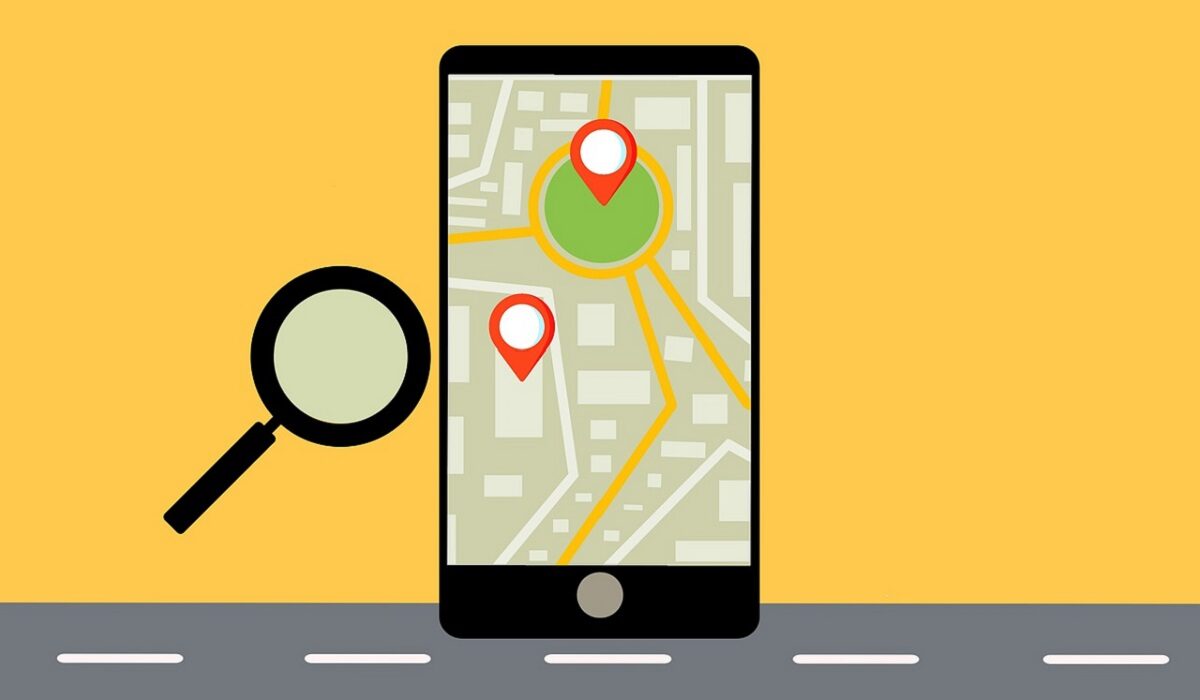
First of all, you need to know what GPS is. The acronym stands for Global Positioning System. It provides geolocation and time information to a GPS receiver anywhere on the planet. Your smartphone has a built-in GPS receiver, which is connected to your phone software through a driver. Now, three things can cause a faulty GPS signal in your device. They are:
- The number of GPS satellites in your location. You have to be in the line of sight of at least four satellites for you to get a correct signal.
- The quality of your smartphone’s GPS receiver.
- The implementation of the driver in your device’s operating system.
How to improve the GPS signal on your Android smartphone
If you happen to have any of these problems, you might get faulty GPS signals. Now, there are some things you can do to improve the GPS signal on your Android smartphone. Check these out:
- Switch on High Accuracy Mode. This would drain your battery faster, but it would help pinpoint your location better through use of your Wi-Fi and mobile networks. To enable High Accuracy Mode, go to Settings>Location, and make sure that your location services are on. Now, under Location, tap on Mode and set it to High accuracy.
- Your GPS could be turning off when you switch from app to app. To forestall that, you might need to install a GPS app. Note that this could drain your battery.
- Find out if the GPS issues on your device are caused by hardware issues or software issues. Download and install GPS Essentials . On the app, tap Satellites, and watch your device connect to the nearest satellites around the earth. If it doesn’t connect, then there is a hardware issue. Perhaps you have a metallic object somewhere around, or your phone case is interfering with the signal. If satellites appear, but your device still cannot connect, it is a software issue.
- Sometimes your device sticks to certain GPS satellites, even when they are out of range. To correct this, refresh your GPS data. Download and install GPS Status & Toolbox. In the app, go to Menu>manage A-GPS State>Reset. After that, go to Manage A-GPS State>Download. This would refresh your data and fix the faulty GPS signal.
- If all else fails, you can get an external GPS receiver. You can connect this to your phone through Bluetooth.
- Don’t miss our reviews .
- Join our WhatsApp Group , to be notified of the most important articles and deals,
- Follow us on Instagram , Facebook , Twitter , and YouTube .
Author:Mister Mobility
Digital Skills and Communication Coach | Mobile Phone Connoisseur since 2001 | Tech Blogging since 2004
Add MobilityArena as a preferred source on Google
WiFi has become indispensable in today’s mobile, always-connected world. A smartphone with malfunctioning WiFi is the last thing you want to deal with on a busy day.
But what do you do when that happens and your phone’s WiFi doesn’t work? There are a lot of things that could bring about a malfunctioning WiFi connection on your smartphone. However, there are just as many ways to fix this problem when it happens. Explained below are some things you can do to troubleshoot and fix it.
Fixing Malfunctioning WiFi On Your Phone

The method to activate Wi-Fi is similar in almost all Android phones
- Try to switch off your WiFi and switch it back on. Do the same for your router, then check your connection again. Also, you could turn on Airplane Mode for a little moment and then turn it off.
- If that doesn’t work, try to restart your phone. If possible, restart it in Safe Mode. Here’s how: press down the power button, hold down the Power Off option for a few seconds, then select OK when asked if you want to reboot in Safe Mode. After that, you can restart your device.
- If your WiFi disconnects on is own, it might be because you have not enabled the Keep WiFI on during Sleep option. This would disconnect your device automatically o save battery. Here’s how to change it: Go to Settings>WiFi, then tap the three dots on the top right corner of the screen. Select Advanced, then tap on Keep WiFI on During Sleep, and select Yes or Always.
- Perhaps your device cannot connect to the WiFi network because of a problem with IP authentication. In this case, try to restart your router. If it still doesn’t work, carry out a factory reset. Also, there’s an app on Google Play Store called WiFi Fixer. This app restores system files and essential services for your WiFi network to work well.
- Well, your device might connect to the network, but the browsing speed will be frustrating. This you can blame on network congestion. This means that too many people are using the same connection at once. But then, if you have a fully functional router, and thee I no interference of any sort yet you still have this problem, try installing Speedtest on you device. This will how you your actual download and upload speed and tell you what is the problem with your internet connection.
There you have it. These solutions should get your malfunctioning WiFi connection to work properly.
- Don’t miss our reviews .
- Join our WhatsApp Group , to be notified of the most important articles and deals,
- Follow us on Instagram , Facebook , Twitter , and YouTube .
