Add MobilityArena as a preferred source on Google
Some Apple iPhone users are experiencing flickering or blinking video when recording or shooting video on their devices. If you have experienced this, I provide helpful information on how to fix the problem of flickering video on iPhone models, especially iPhone 12, 12 Pro, and iPhone 12 Pro Max which seem to be especially plagued by this issue. Users report that their screens blink and flicker in videos. Mister Mobility has not reported experiencing it on his iPhone SE 2022 , though, so it does not seem to be a problem across the board.
What exactly is the flickering video on iPhone about? Flickering, shimmering, or blinking on electronic displays is often a result of a lack of synchronization between the shutter speed/frame rate of the camera and the frequency of the AC power that the lights are plugged in to. This is known as the strobe effect. To prevent shimmering, the video frequency should synchronise with the frequency of the electric current. There are a few easy options to go about this.
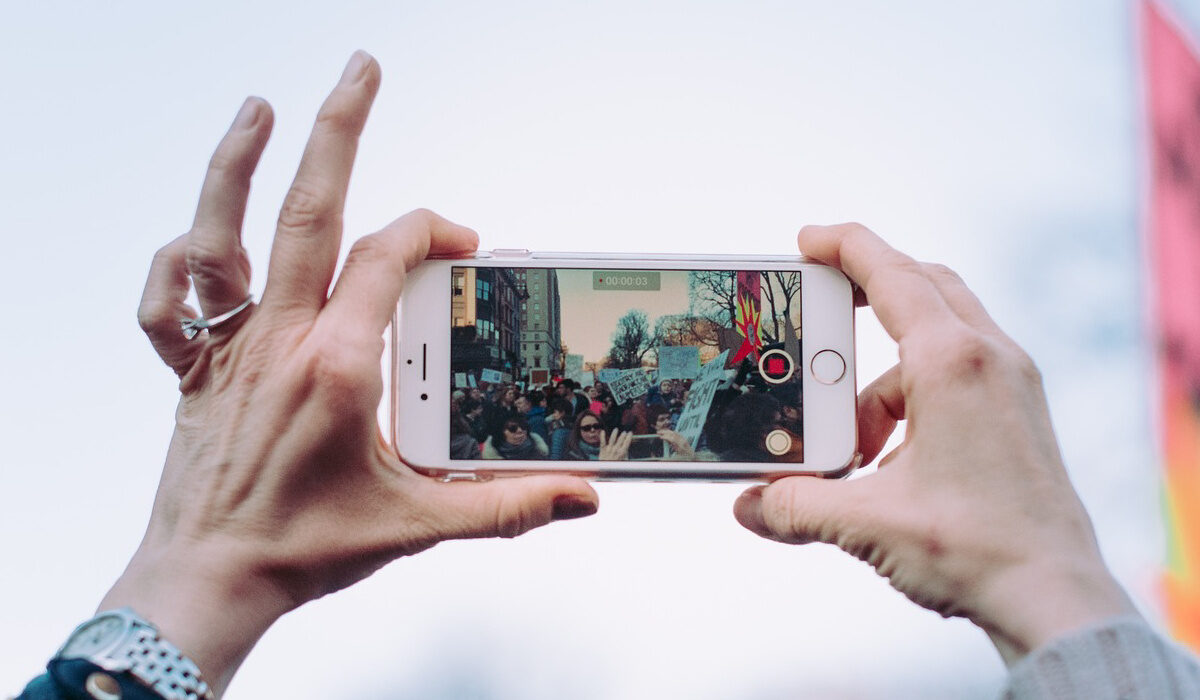
There are a number of ways to fix the issue of flickering video on iPhone
- Change to a lower frame rate
- Change the shutter speed to match your country’s power mains
- Shoot or record in PAL format
- Adjust the exposure
- Disable auto-brightness
- Lastly
Change to a lower frame rate
The first solution to the problem of blinking or flickering video on iPhone is to use a shutter speed/frame rate that is slower than the frequency of the AC power. For example, in countries like the United States, Canada, and Mexico, the AC mains power runs at 60 cycles per second, so try shooting at frame rate that is lower than that but that syncs with 60Hz. For example, try 30 fps (frames per second).
This is especially a good solution if you are shooting indoors under artificial lighting. If you are unable to do this in the default camera of your iPhone, download and install a 3rd party camera app, like Moment or Filmic Pro. These apps give you more control over frame rates and shutter speed.
Change the shutter speed to match your country’s power mains
If you are not in the US, Canada, Mexico, or any other country using 60Hz current, your country’s mains power likely runs at 50Hz. Simply use shutter speeds of 1/25, 1/50, 1/100 or any factor of 50. These synchronise well with 50Hz current and can help fix the flickering video on iPhone.
Shoot or record in PAL format
If you are located outside of North America where your mains current is 50Hz, another way to eliminate the flickering video on iPhone is to do your video recording in PAL (Phase Alternating Line) format, which is widely used in most of the rest of the world. PAL shoots videos at 25 fps, which should eliminate the flickering when recording video with your iPhone.
To change the video recording format to PAL on your iPhone, open Settings , go to Camera, and select Record Video. From the options listed, select any with PAL in it. One option allows you to shoot in PAL format at 1080p quality, and another at 4K quality. Both record at 25 fps. Select one and you are ready to start shooting your flicker-free videos.
Adjust the exposure
Another way to fix the flickering video on iPhone issue is to adjust the exposure: Tap on the area of the screen where the lighting is flickering. This will adjust the exposure and focus settings specifically for that area. The camera will try to balance the exposure and reduce the flickering effect.
Disable auto-brightness
You can disable auto-brightness on your iPhone to stop the flickering video issue. Sometimes, the auto-brightness feature can cause flickering issues, especially when there are rapid changes in lighting conditions. To turn off auto-brightness, go to “Settings,” then “Display & Brightness,” and toggle off the “Auto-Brightness” option.
Lastly
Occasionally, software glitches or temporary issues may cause this flickering video on iPhone problem. Restarting your iPhone can help resolve such issues. Press and hold the power button until the “slide to power off” option appears, then slide to turn off your device. Wait a few seconds, then press and hold the power button again to turn it back on.
These are the three ways to get rid of the flickering you see when recording a video with your Apple iPhone. If the problem persists after trying these steps, it’s advisable to contact Apple Support or visit an authorized service center for further assistance, as there could be a hardware issue with your iPhone’s camera.
Author:MobileChic
That motivated, gadget-loving geeky chic who tries to stay on top of things. Unapologetic iFan.
Add MobilityArena as a preferred source on Google
With Windows 10 or 11 devices, a need occasionally arises to uninstall a few programs and/or applications for several reasons. It’s possible that you need to clear up some space, or you’re trying to get rid of a program you don’t use anymore; whatever the reason may be, you’ll find that this need arises from time to time.
Depending on the program you want to uninstall, there are a few different ways to do so, you just need to try a different approach if one fails. In this article, we’ll guide you through the different methods of uninstalling programs or applications on your Windows 10 or 11 devices.
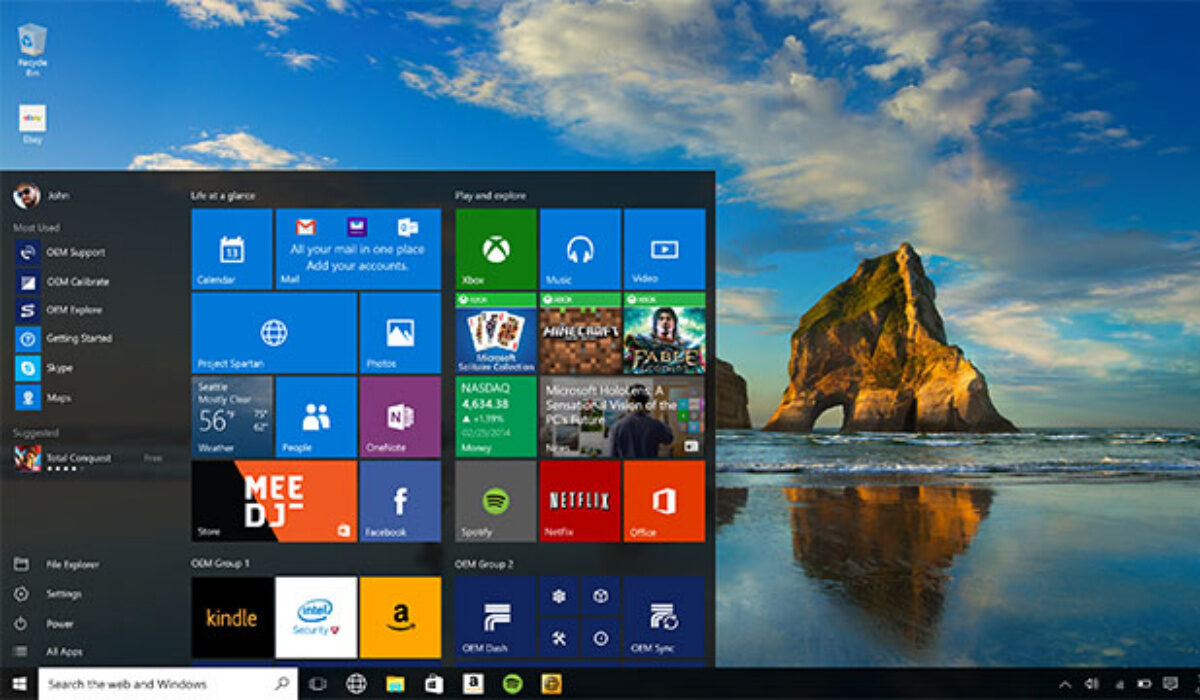
Keep in mind that not all apps can be deleted using the techniques we’ve described in this article. Some built-in applications, like Microsoft Edge, can only be uninstalled using a program with a command-line interface, such as Windows PowerShell. They will typically require more work, but the uninstalling procedure is pretty easy for most apps if you follow our guidelines below.
Uninstalling Apps from the Start Menu
Simple applications, including those downloaded through the Microsoft Store, are easy to delete from the Start menu. You might need to do a more formal removal for more prominent apps and programs that might keep settings in the Windows Registry and other locations on your device.
It’s vital to completely remove applications rather than just deleting them since Windows may retain little portions of the program in several system locations.
To uninstall an app from the Start menu:
- In Windows 10 devices, press the Start button and browse the All Apps list on the left or the tiled area on the right for the program you want to uninstall. Right-click on the program, and you’ll notice an Uninstall option in the pop-up menu if you’re able to delete it in this manner. Once you click it and verify that you want to remove it, it disappears.
- For a Windows 11 device, click on the Start button. Search for any pinned applications you want to uninstall. To view all the installed programs on your computer, click the All apps entry in the menu’s upper right corner. You can uninstall an app by selecting the option from the context menu when you right-click on the app.
Uninstalling Apps from the Control Panel
If you prefer this method, you can also remove a program by searching for “Control Panel” in the search bar, and then selecting “Uninstall a Program” from the Programs subheading.
- To find the program you wish to uninstall, scroll down.
- When you’ve located the program, select it and then click the “Uninstall” or “Uninstall/Change” button at the top of the page. You can either double-click the application or choose “Uninstall” or “Uninstall/Change” from the context menu when you right-click on it.
- The next steps vary according to the program you wish to delete. Sometimes the application will be deleted and you won’t need to take any further action. A pop-up window may appear asking you to verify. If so, select “Uninstall.” Do you want to allow this app to make changes to your device? may also appear in a window. Choose “Yes.” if that happens. If an uninstall window appears, click “Next” or “Continue” and then adhere to the instructions in the window to remove the application.
- When you’re done, click “Finish.”
Uninstalling Apps Using App Settings
To access all the programs on your computer more quickly, you can navigate to Settings > Apps > Apps & features. You should be able to find every program installed on your computer on this screen, which displays both Windows Universal and traditional desktop programs.
Locate the program you want to uninstall by scrolling down the list, clicking it directly in Windows 10 or the three-dot icon in Windows 11, and then choose the Uninstall option.
In summary, there’s no need to feel frustrated when it seems like your Windows device is full of unwanted programs, you can very easily uninstall them and make space for your preferred apps. Pay attention to the different methods we’ve described above to make this possible. Note that you may also be needing some third-party apps if the steps above don’t work for the programs you intend to delete.
Make sure to recommend this article to your friends and loved ones, you have no idea how helpful they might find it.
- Don’t miss our reviews .
- Follow our news on Google News .
- Join our WhatsApp Group , to be notified of the most important articles and deals,
- Follow us on Instagram , Facebook , Twitter , and YouTube .
