Add MobilityArena as a preferred source on Google
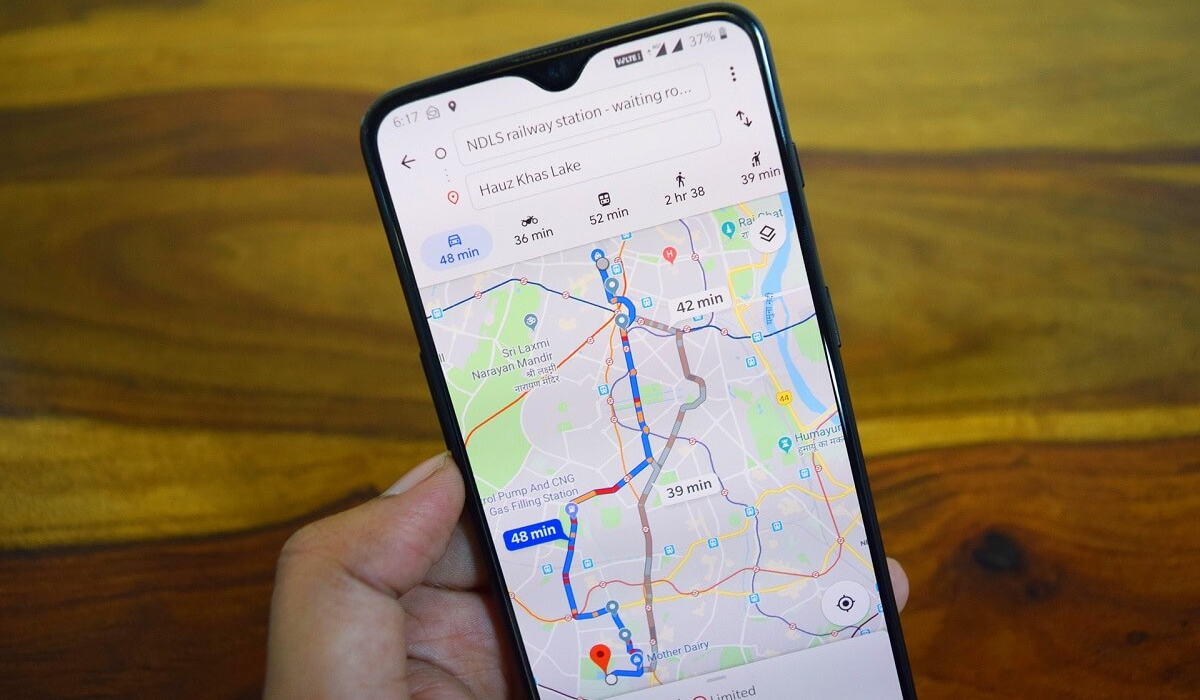
Even in unfamiliar places, my family still feels so safe when we drive using Google Maps. The voice guide makes navigation even better since you can hear the directions and not get distracted by looking at the device to check your location.
In this guide, I’ll show you how to fix Google Maps Voice Navigation not working on Android. There’s no need to get upset if the voice function stops working all of a sudden. By trying the potential fixes, you can quickly resolve this problem and get voice navigation to work again.
- How Can You Fix Google Maps Voice Navigation Not Working on Android? Examine Your Google Maps Navigation Settings Check the Settings and Connections on Your Phone Check the Battery Optimization Settings Clear the App’s Cache Update Google Maps or Google Play Services in the Play Store Restart Your Device
How Can You Fix Google Maps Voice Navigation Not Working on Android?
Several problems could cause Google Maps voice navigation to stop working, but there are several ways to fix the issue.
Here are some troubleshooting solutions to fix Google Maps Voice Navigation not working on Android phones.
Examine Your Google Maps Navigation Settings
It’s possible that you accidentally disabled the voice option, which is a regular issue. So, to fix Google Maps Voice Navigation not working on Android, check if the voice navigation feature is activated. Follow the instructions below:
- On your device, open the Google Maps app and start your trip. Click on the sound/speaker icon and confirm that it’s not muted. Also make sure that your volume is turned up.
- If you still get no sound feedback, press the Google Account profile symbol in the app’s top right corner, then select Settings > Navigation Settings > Sound & Voice .
- Toggle on all the switches you see under the Sound and voice area, tap Unmuted to make sure the sound is activated, then select and tap Normal or Louder to use as a volume guide.
- While under the navigation settings, you can also adjust the voice assistant’s language and change the speaking voice, speaking tempo, and loudness.
Afterward, restart the app and trip to check if you’ve been able to successfully fix Google Maps Voice Navigation not working on Android .
Check the Settings and Connections on Your Phone
If your phone is in silent mode or Do Not Disturb (DND) is on, you may not hear Google Maps’ voice navigation. So, to fix Google Maps Voice Navigation not working on Android, disable DND mode and make sure your phone’s volume is turned up.
For smooth operation, Google Maps also needs an internet connection. A slow internet connection or a total network outage may cause problems with the voice feature. Reset your Wi-Fi or mobile data connection to see if it helps to fix Google Maps Voice Navigation not working on Android, or ensure that Google Maps is configured to work offline.
Check your Sound Output Device
Make sure Play Voice over Bluetooth is turned on in the Google Maps settings if you have a wireless audio device connected to your phone. You can also attempt to resolve any Bluetooth issues, or you can unpair and re-pair the Bluetooth in your car to fix Google Maps Voice Navigation not working on Android.
Make sure that your phone is sending audio output to the appropriate speaker or device because there might be a problem with the earbuds you’re using, the device’s speaker, or the BT audio system in your car. If you have many audio devices connected to your phone, disconnect them all and make sure your chosen device is turned on.
Check the Battery Optimization Settings
The battery in your phone can establish priorities to maintain its longevity and good health. The background activities and data usage of some apps get restricted when you turn on battery optimization. This could impair the performance of the Google Maps app.
As such, to fix Google Maps Voice Navigation not working on Android, it’s a good idea to modify the battery optimization settings for Google Maps to ensure optimal performance. This is how you do it:
- Access the Settings on your device.
- Find and click on Apps by scrolling down.
- In the top right corner of your screen, click the vertical three dots . Select Special Access , then select Optimize Battery Usage or something like.
- Locate the Google Maps app and turn optimization off.
If the above suggestions do not help to fix Google Maps Voice Navigation not working on Android, you can attempt some common Android troubleshooting techniques to get voice navigation working again.
Clear the App’s Cache
If everything else fails, clearing the cache from the Google Maps app can help the app get off to a fresh start and fix Google Maps Voice Navigation not working on Android. The cache stores some temporary data that facilitates the app’s seamless operation. However, this data might become old or damaged, which would affect how well the app functions.
Then you can also decide whether to opt for the clear data option. Before proceeding, you should be aware that clearing the data will remove all previously saved settings, downloaded maps, and route selections. Go to Settings > Apps > Google Maps > Storage > Clear Cache or Clear Data .
Update Google Maps or Google Play Services in the Play Store
Google will probably learn about a problem and release a fix if there is a bug that prevents voice navigation from working or a more general problem in the app’s code. As soon as a new version of your app is released, make sure to update it on the Play Store to fix Google Maps Voice Navigation not working on Android.
Google Play Services is the engine that powers several apps, including Google Maps. By updating Google Play Services, you grant the app access to the most recent features and enhancements, which can help resolve any problems with the voice feature.
Restart Your Device
Any electronic device can be fixed quickly with a reset. Thus, restarting your phone can eliminate technical glitches that may interfere with Google Maps’ voice. The restart will free up RAM, increase app performance, and possibly help to fix Google Maps Voice Navigation not working on Android.
All in all, Google Maps is one of the most popular GPS apps, due in part to its voice functionality. Hopefully, one of the troubleshooting techniques outlined above will help you fix Google Maps Voice Navigation not working on Android.
But if not, there may be further underlying factors, so your best course of action may be to get in touch with Google service support or your device’s manufacturer.
Author:Joan Agie
Add MobilityArena as a preferred source on Google
If you are hunting for the latest Samsung galaxy phones with heart rate monitor, you are not alone. Many other Samsung lovers are doing the same thing. Why? Some years back, Samsung garnered significant attention by including a heart rate monitor in their high-end or premium flagship smartphones.
From tracking fitness goals to monitoring stress levels, Samsung Galaxy phones with heart rate monitors have revolutionized personal health management, empowering individuals to take charge of their well-being like never before.
- Benefits of having a heart rate monitor in a smartphone
- List Of Samsung Galaxy Phones With Heart Rate Monitor
- Why Samsung Stopped Including Heart rate Monitor in their smartphones
Benefits of having a heart rate monitor in a smartphone
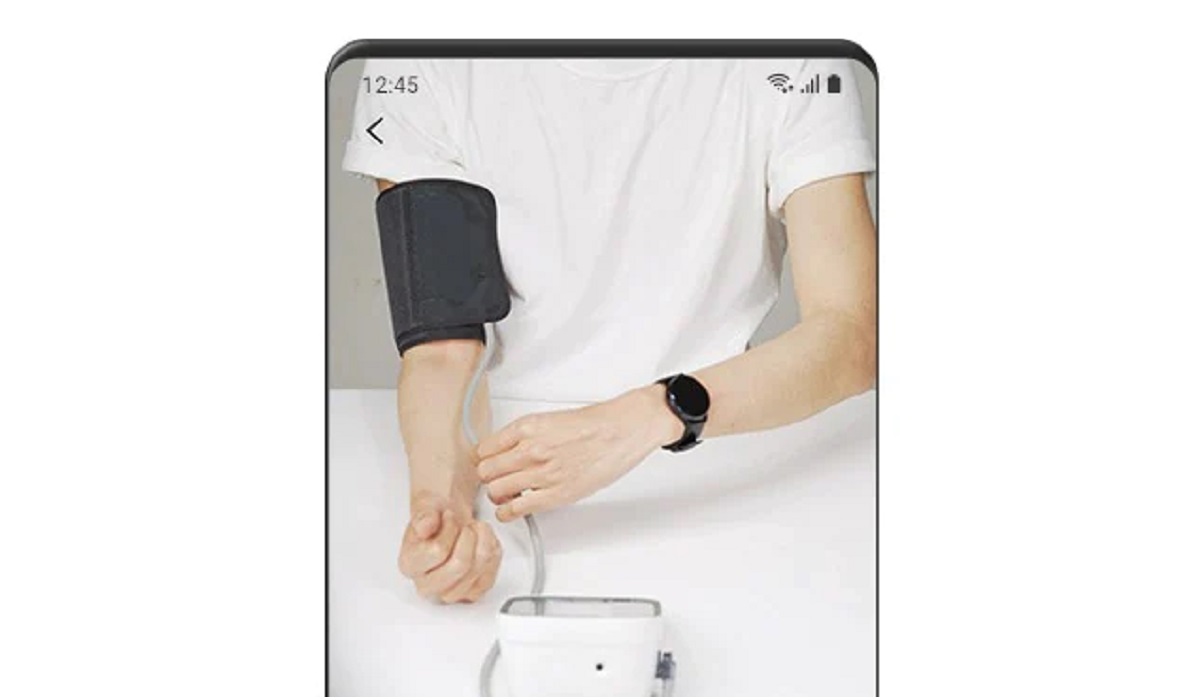
Having a heart rate monitor in a smartphone can offer several benefits that include:
- Health and Fitness Tracking : With a heart rate monitor, you can track your heart rate during exercise or physical activity. It provides real-time data that helps you monitor your cardiovascular health and gauge the intensity of your workouts. This information can be valuable for assessing your fitness level, setting goals, and tracking your progress over time.
- Stress and Relaxation Management : Monitoring your heart rate can help you identify moments of stress and tension. By tracking changes in your heart rate patterns, you can learn to recognize when you’re experiencing heightened stress levels and take steps to manage it effectively. Additionally, certain apps and features might provide relaxation techniques or breathing exercises tailored to your heart rate data.
- Sleep Monitoring : Some heart rate monitor apps can track your heart rate while you sleep. By analyzing your heart rate patterns during different sleep stages, you can gain insights into the quality of your sleep. This information can help you identify factors that affect your sleep patterns and make adjustments to improve your overall sleep health.
- Early Detection of Health Issues : A heart rate monitor can provide indications of abnormal heart rhythms or irregularities. While it’s not a substitute for professional medical advice, it can serve as an early warning system, alerting you to potential health issues. By sharing this data with your healthcare provider, they can better assess your condition and recommend appropriate steps for further evaluation or treatment if necessary.
- Convenience and Accessibility : Integrating a heart rate monitor into your phone eliminates the need for a separate device or wearable solely for heart rate tracking. It offers convenience and accessibility since most people carry their phones with them at all times. This makes it easier to monitor your heart rate regularly without additional equipment.
- Personalized Health Insights : Many heart rate monitor apps provide detailed analytics and personalized insights based on your heart rate data. These insights can include exercise recommendations, calorie burn estimates, recovery time suggestions, and overall cardiovascular health assessments. Such information can help you make informed decisions regarding your fitness routine and overall well-being.
List Of Samsung Galaxy Phones With Heart Rate Monitor
Samsung incorporated heart rate monitors in some of its smartphones, but has since stopped. The last set of galaxy smartphones with heart rate monitor were released in 2019. They are:
- Samsung Galaxy S10 Plus.
- Samsung Galaxy S10.
- Samsung Galaxy Note9.
- Samsung Galaxy S9 Plus.
- Samsung Galaxy S9.
After the release of the S10 series, the heart rate monitor disappeared completely from Samsung’s phones. As such, none of the Galaxy S20 series, S21 series, S22 series , and the Galaxy S23 series has this feature. If you want a Samsung smartphone with heart rate monitor, you have to pick one from the past – from 2019 backwards.
Why Samsung Stopped Including Heart rate Monitor in their smartphones
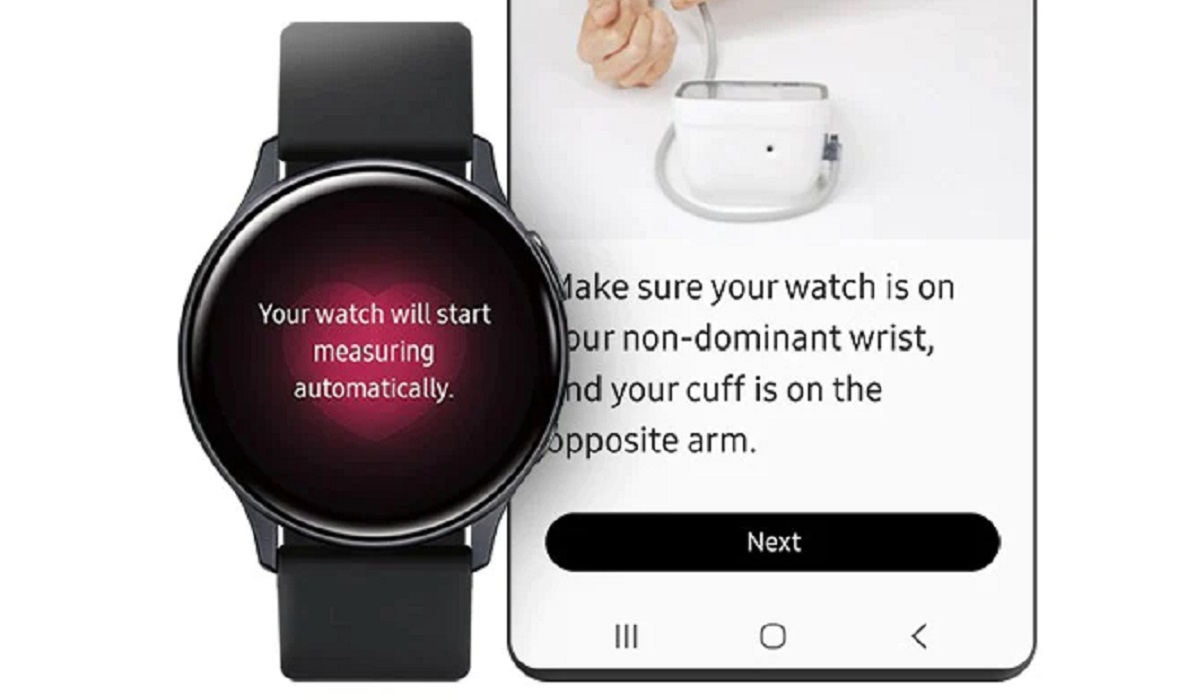
Samsung Galaxy Watch is the reason why we no longer have Samsung Galaxy phones with Heart Rate Monitor
Think about it: why should Samsung continue to include heart rate sensors in their smartphones when the Samsung Galaxy Watch Active now has it built in? That would be wasteful duplication, no doubt. If you need the heart rate monitor feature, Samsung says you need to buy a Samsung Galaxy Watch. All the Watch models from the original to the latest have the feature built in.
If you do not want a Galaxy Watch or cannot afford one, almost every smartwatch and fitness tracker out there (even the low-cost models) has a heart rate monitor. Simply buy one and pair it with your Samsung smartphone. Problem solved. I doubt we will ever see a return of Samsung Galaxy phones with Heart Rate Monitor, but do you really need one anymore?
Author:Mister Mobility
Digital Skills and Communication Coach | Mobile Phone Connoisseur since 2001 | Tech Blogging since 2004
