Add MobilityArena as a preferred source on Google
Anyone who routinely uses their computer to input text in a language other than English needs to have the language bar available in the Taskbar. The language bar allows you to change the input language on your device with a few simple tweaks from the Taskbar.
However, occasionally you might find that there’s no Language bar in the taskbar. On all Windows versions, the “language bar missing from taskbar” problem is a frequent one. In the majority of situations, a Windows update or an upgrade to a newer version of Windows probably caused the language bar to vanish from the taskbar. This could also happen because of registry mistakes or damaged files on your system.
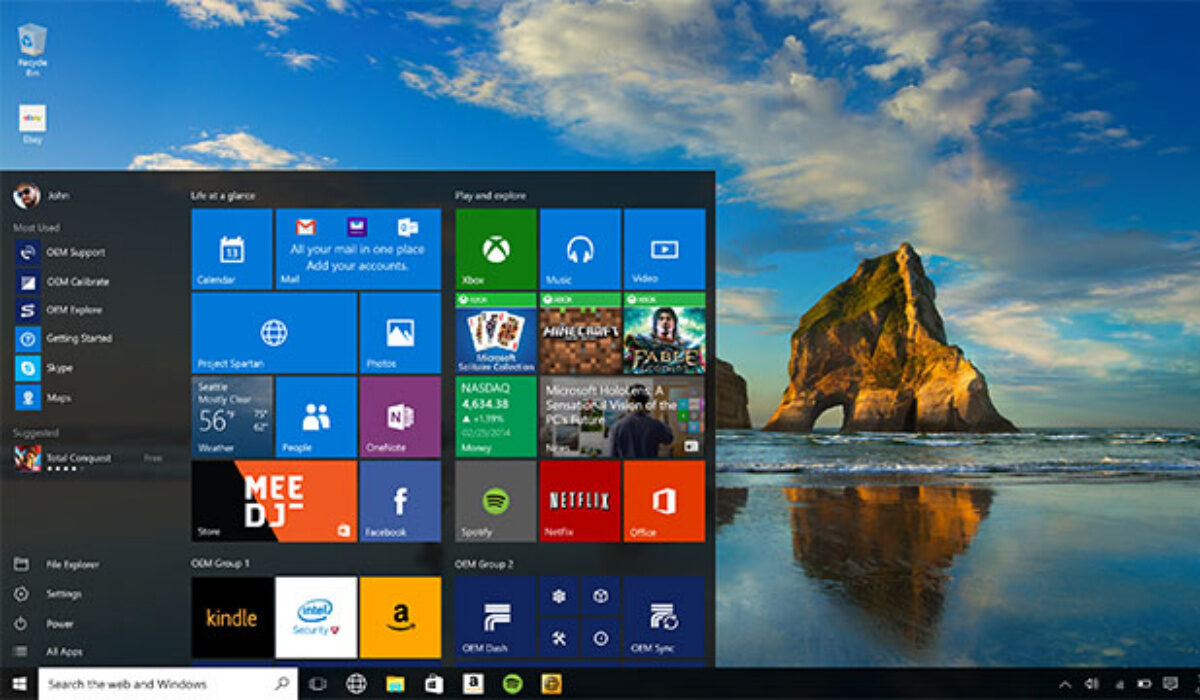
However, there’s no need to worry if you’re having trouble using the language bar on your Windows device. We have several solutions for you that will fix the issue. First, we’ve highlighted some initial workarounds you should try that might help you, then you can go on to the main fixes for this issue if the workarounds don’t help.
First Things to Try
If this is the first time you’re encountering this issue with your device, then do the following:
● Restart it and then check to see if the issue reappears.
● Verify if your device has any pending Windows 10 updates. Update Windows if any updates are still pending.
● To make a tick appear, right-click the Taskbar and choose the Show Touch Keyboard option. Right-click the Taskbar in Windows 11 and then select Taskbar , Taskbar options , and Turn on Touch keyboard .
If you’ve done the abovementioned steps and you’re still unable to locate the Language bar in the Taskbar, then it’s time to move on to the fixes we’ve described below.
Enable Language Bar from Settings
Sometimes, it’s possible that you accidentally disabled the language bar in your settings. Not to worry though, the language bar is simple to re-add. Take these actions to get it done:
● To access Settings , first, select Start Menu .
● Select Time & Language , and then from the list on the left, select Region & Language .
● Selecting Additional date, time, and regional settings is the next step, this can be found under Related Settings .
● Once you’ve done that, go to Language > Advanced settings in the right pane. There, you’ll also see the Switching input method option and the option to Use the language bar when it’s available underneath. Click Options next to this after selecting it.
● A window will then pop up. Your language bar is set to disappear if you see that Hidden is selected.
● Therefore, adjust it to Docked in the Taskbar or Floating on Desktop .
● Following that, the language bar will show up on the desktop or on the taskbar’s right side.
As described in the steps above, changing the language bar’s configuration to Floating on Desktop or Docked in the Taskbar should easily help you resolve the missing language bar on your device.
However, there’s a possibility that it won’t work, in which case you need to try the second method we’ve described below.
Restore Language Bar by Hacking your Registry
For storing system and application setting data, the Microsoft Windows registry is a crucial database. When all of your settings are right, using this approach will enable the starting service needed for the language bar. Keep in mind that you’ll need to use the registry editor with caution.
The following are specific steps you need to restore the language bar using this method:
● Enter “regedit” in the search field after clicking the Cortana icon. To let it run, choose Yes .
● You must move from Computer to Run in the left window.
● Run under SOFTWARE > Microsoft > Windows > CurrentVersion in HKEY_LOCAL_MACHINE .
● Select New > String Value by performing a right-click in an empty area of the right pane.
● Rename it to CTFMON using the right-click menu.
● Once more, right-click the new value CTFMON and select Modify .
● In Value Data , enter “ctfmon”=”CTFMON.EXE”. then press OK .
● Reboot after closing the Registry Editor.
● When you’re done, the Language Bar ought to reappear in the system tray.
Summarily , to get the language bar to appear again on your Windows device, use the two techniques mentioned above. After that, change the preferred language and input method to your liking.
- Don’t miss our mobile phone reviews .
- Follow our news on Google News .
- Join our WhatsApp Group , to be notified of the most important articles and deals,
- Follow us on Instagram , Facebook , Twitter , and YouTube .
Author:Joan Agie
Add MobilityArena as a preferred source on Google
The iPhone 14 models are here, and all four of them come with some exciting new features that you should know about and put to use. These cool iPhone 14 features are also available on older iPhone models that get the iOS 16 update, so you can enjoy them even if you are not buying an iPhone 14, 14 Plus, 14 Pro, or 14 Pro Max.
If you own an iPhone 8, iPhone 8 Plus, iPhone X, iPhone XR, iPhone XS, iPhone XS Max, iPhone 11, iPhone 11 Pro, iPhone 11 Pro Max, iPhone SE 2020, iPhone 12 Mini, iPhone 12, iPhone 12 Pro, iPhone 12 Pro Max, iPhone 13 mini, iPhone 13, iPhone 13 Pro, iPhone 13 Pro Max , or iPhone SE 5G , you can install iOS 16 and begin to use the new iPhone 14 features highlighted below.
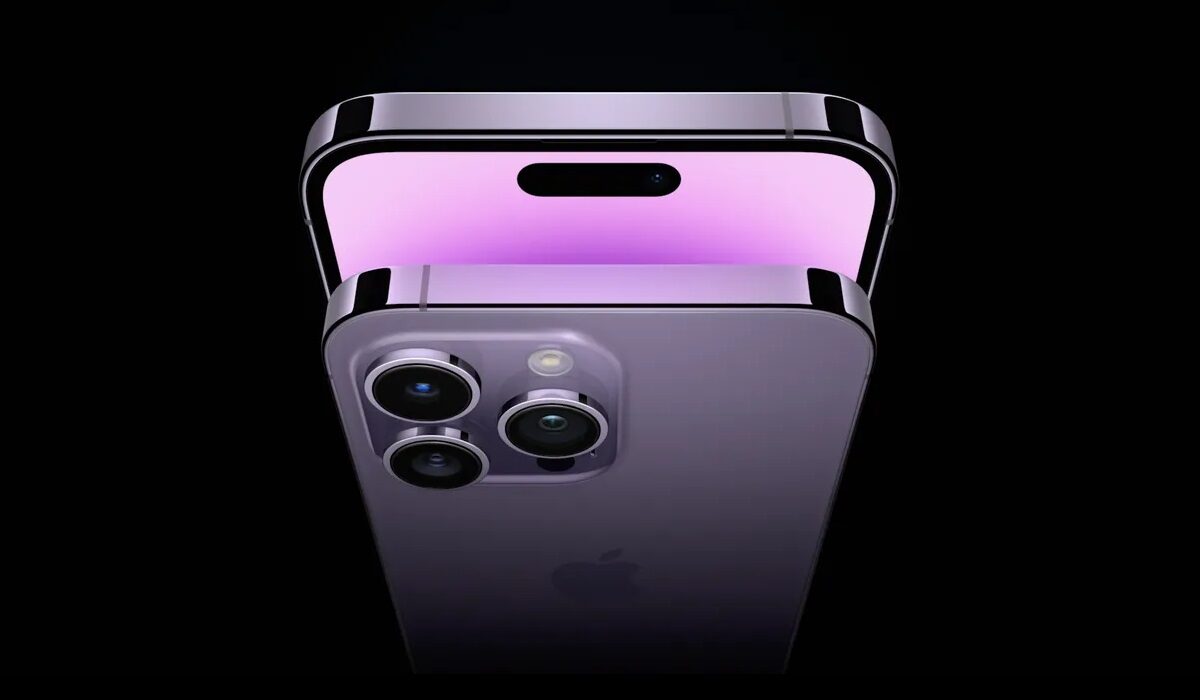
The New iPhone 14 Features
- Mark messages as unread
This cool feature that has been available for email is now available for messages. To mark a message in your Inbox as unread, swipe right on it, or press and hold on it, then select “Mark as Unread” from the list of options that pop up.
- Show battery percentage in the status bar
Since the introduction of the wide notch, iPhones with that feature have not been able to display battery percentage in the status bar, because of lack of space. Apple has finally solved that. Go to Settings > Battery > Battery Percentage. Toggle it on. This is one of the most sought after iPhone 14 features.
- Hide search on the Home Screen
If you find a search bar displayed on your home screen and wish to remove it, so you have more space for your apps, go to Settings > Home screen > Search: Show on Home Screen and turn it off.
- Enable haptic feedback for the keyboard
It is ridiculous that it has taken Apple this long to introduce haptic feedback to the iPhone, but better late than never; right? Keyboard haptic feedback gives you a subtle vibration each time you press a key while typing. To enable haptic feedback, open Settings > Sounds & Haptics > Keyboard Feedback, and enable the toggle, so it turns green.
- Convert Units from anywhere
One really useful iPhone 14 feature that you can also enjoy on your older iPhone model is the ability to do conversions from anywhere on your phone. Wherever you see a measurement, you can long-tap on the text and click on the right arrow, then select your preferred conversion from the greyed-out, options on display. This supports temperatures, currencies, time zones and more. This one is really cool. Death to conversion apps.
- Pin tabs in Safari
You can now pin a tab in Safari Web browser. To do this, long-press in the address bar and select “Pin”. This will turn the selected tab into a semi-permanent item pinned at the very top of your tab overview.
- Remove duplicate photos
Duplicate photos in photo albums are a waste of space. You can now get rid of them. Go to Photos > Albums > Scroll to the bottom and select Duplicates > Tap on Merge and the duplicates are removed.
- Paste edits between photos
If you have edited an image and want to duplicate those edits in other photos, find the “Copy Edits” option in the context menu, then go to any image you want to apply the same edits to, and choose “Paste Edits” in the context menu. Voila!
- Make music player album art display fullscreen on your lockscreen
Sometimes, you just want the album art bigger – as big as possible on your lockscreen. To make it display fullscreen, tap the small artwork to swap your Lock Screen wallpaper and widgets with a fullscreen version of the artwork of the song you’re listening to. To return it back to its original size, simply tap on it again.
How to get these cool iPhone 14 features in your older iPhone
These new features are part of the iOS 16 software update that ships with the iPhone 14 series, and iOS 16 is also available for older iPhone models from iPhone 8.
To get iOS 16 and these new features on your eligible older iPhone model, go to Settings > General > Software Update > Download and Install. Insta the update and after your phone restarts, you can begin to use them.
- Don’t miss our mobile phone reviews .
- Follow our news on Google News .
- Join our WhatsApp Group , to be notified of the most important articles and deals,
- Follow us on Instagram , Facebook , Twitter , and YouTube .
Author:MobileChic
That motivated, gadget-loving geeky chic who tries to stay on top of things. Unapologetic iFan.
