Add MobilityArena as a preferred source on Google
Fast charging is one of the most useful features found in most Samsung phones, and it’s really great if you’re the type that doesn’t like waiting long for phones to charge. With Samsung’s Fast Charging feature, just a few minutes of charging gets you through the day.
However, as useful as fast charging is, there may be times when it stops working on your Samsung phone. So, in this article, we will show you how to fix Samsung fast charging not working.
How Can You Fix Samsung Fast Charging Not Working?
While fast charging is an important selling point for Samsung, it can be problematic at times. If your Galaxy phone’s fast charging isn’t working, try the following fixes.
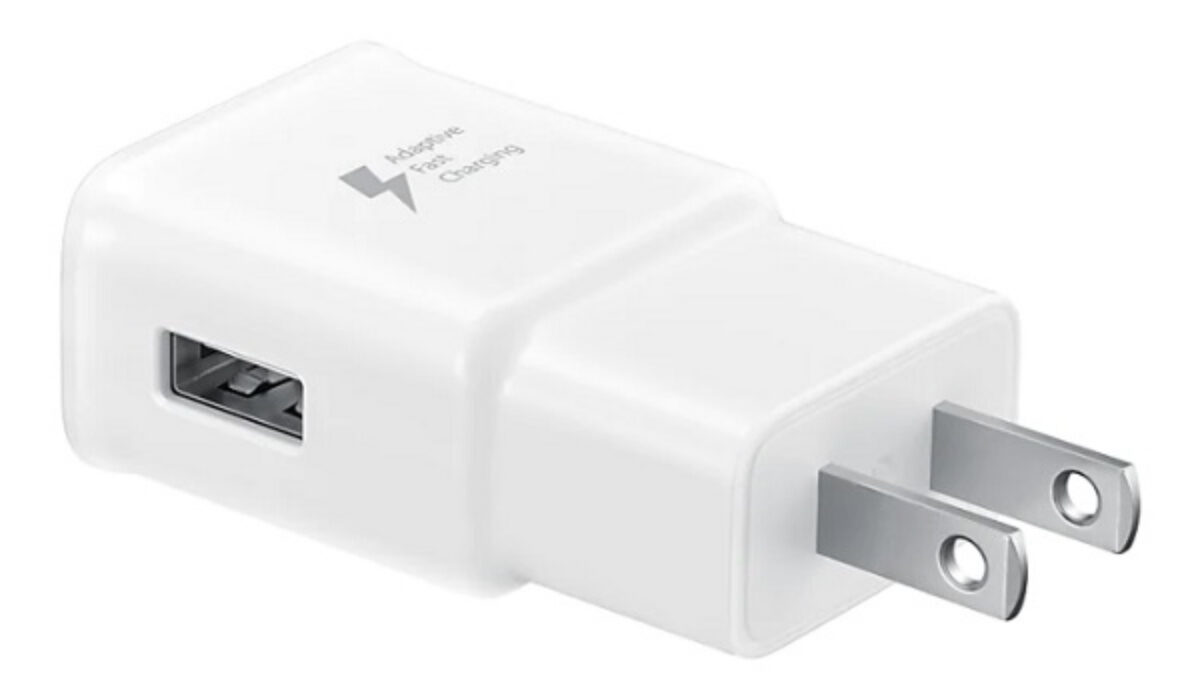
Check If your Charger Supports Fast Charging
Your phone charger needs to support fast charging for it to work. Your phone probably already has a charger, but some flagship devices, like the Samsung S21 and S22, may require you to purchase one separately.
A charger is not compatible with fast charging if it doesn’t have a label that says Quick Charging , Adaptive Fast Charging , or something similar. This will cause your phone to charge much more slowly. The USB cable included with these chargers is also quite fragile, which can have an impact on their performance.
So before trying other ways to fix Samsung fast charging not working, first make sure you’re using the right charger.
Enable Fast Charging
Another way to fix Samsung fast charging not working is to enable fast charging in your phone’s settings. It will not function if it is disabled in the settings. To see if this option is enabled, follow the steps below:
● Navigate to Settings .
● Select Battery and device care > Battery from the menu.
● Select More battery settings .
● Check that all of the toggles under Charging are turned on.
Check for Software Updates
If your phone’s software is out of date, fast charging may not work. If you haven’t updated your phone since purchasing it, you’ll need an update to fix Samsung fast charging not working. Here’s how to update your phone:
● Navigate to the Settings menu on your phone.
● Select Software update .
● Select Download and Install .
If you notice a new update, you can install it right away or schedule it for a later time. You will see a message that reads, “Your software is up to date,” when your system is up to date.
Clean the Charging Port
The buildup of grime or residue in the charging port is another potential cause of fast charging not working. If your charger is clogged with dirt or lint, it won’t work properly or at all.
So, to fix Samsung fast charging not working, try removing any grime, residue, or dirt from the charging port with a toothpick or needle. Additionally, you can gently scrub the charging port with a cotton swab and rubbing alcohol.
After that, place it in a cool, dry location for at least an hour. Don’t be concerned about the liquid in the dock; it will evaporate naturally. Alternatively, try using a can of compressed air.
Charge in Power Saving Mode
Every Galaxy phone now has a power-saving mode. It can significantly reduce the number of background apps and processes that consume system resources, allowing your phone’s battery to last longer.
With less battery drain, it may also speed up the charging process. So, you might want to think about charging your smartphone in power-saving mode to fix Samsung fast charging not working. You can do this through Settings > Battery and device care > Battery > Power saving mode.
Reset to Factory Settings
You can attempt a factory reset if none of the solution above help to fix your Samsung’s fast charging not working. A factory reset will restore your phone’s default settings. This restarts your phone and could fix the issue with the fast charging not working.
Before you reset your Samsung phone, make a backup of your data because the reset process typically causes data loss.
Examine the Battery Status
If, at this point, nothing has fixed your Samsung’s fast charging not working, your phone’s battery may be to blame. It has either degraded to the point where a new one is required, or it’s too old and has lost its overall capacity. You can check your battery’s status with these easy steps:
● Navigate to the Settings app and select Battery and device care .
● Choose Diagnostics . (You’ll be asked to launch the Samsung Members app; if it hasn’t been installed already, do it now.)
● Select the Battery Status option .
If the life indicator in the battery status shows “good” , your battery is fine. Otherwise, you should think about getting a new battery.
In conclusion , you can fix fast charging on your Samsung phone using one of the solutions listed above. If none of them work, consider speaking to a skilled professional.
Author:Joan Agie
Add MobilityArena as a preferred source on Google
Apple Pay is great for making seamless payments for whatever you need online or in physical stores. It is now accepted at the checkout pages of many online stores, and it is great because you can pay without having to provide your card number.
However, before you can use this contactless payment method, you must first add a credit or debit card to Apple Pay on your Apple device. If you’re not sure how to do this, we’ve created this guide for you. Keep reading to find out how to add a card to Apple Pay on any Apple device you own.

- How to Add a Card to Apple Pay on iPhones
- How to Add a Card to Apple Pay on Macs or iPads
- How to Add a Card to Apple Pay on Apple Watch
How to Add a Card to Apple Pay on iPhones
iPhones are among the best Apple devices for using the Apple Pay service. After unlocking your iPhone, all you have to do to make a payment is tap the smartphone to the payment terminal.
Here’s how to add a card to Apple Pay on your iPhone:
● Open the Wallet app and select the + app button in the top right corner.
● Choose between the Debit Card and Credit Card options on the following page.
● The card information, including the number and expiration date, can then be manually entered or scanned using your iPhone’s camera.
After you enter that, Apple will instantly establish a connection with your bank to check whether your card is legitimate and eligible for Apple Pay. Check out this list from Apple to discover if your bank accepts Apple Pay.
How to Add a Card to Apple Pay on Macs or iPads
An iPad or Mac device can also be upgraded to support Apple Pay, so you can also use Apple Pay online with these devices. Apple Pay online allows you to rapidly import all your data, including credit card information so that you can complete transactions with just a few taps.
Note that your Mac has to have an in-built Touch ID before you can add a card to Apple Pay on it. Without it, you’ll have to make a purchase using Apple Pay on an Apple Watch or compatible phone. On your iPhone, navigate to Settings > Wallet & Apple Pay and select the Allow Payments on Mac option.
If, on the other hand, your Mac device is compatible, navigate to System Preferences > Wallet & Apple Pay . Then, click on Add Card and manually type or scan the information using your Mac’s webcam.
Go to Settings > Wallet & Apple Pay if you’re trying to add a card to Apple Pay on an iPad. Next, select Add Card .
How to Add a Card to Apple Pay on Apple Watch
Apple Pay is also accessible to anyone who owns an Apple Watch, just like it is on an iPhone, iPad, or Mac device. The tap-to-pay feature is shared by the wearable gadget and the handset. So, you can employ this entirely secure payment method and leave your credit and debit cards at home.
You can add a card to Apple Pay on your Apple Watch through two different methods.
First, you can just use the Apple Watch device itself:
● Click on the Wallet app by pressing the Digital Crown, then go down the page and click Add Card .
● Next, choose a credit or debit card. Afterward, Apple will determine whether the card is eligible for Apple Pay, just like on an iPhone.
● You will then need to type in the card information manually.
Alternatively, you can add a card to Apple Pay via your iPhone’s companion Watch app:
● Choose the My Watch tab after launching the app, then go down to Wallet & Apple Pay . You’ll have the option of adding a card or importing previously existing credit or debit cards on your iPhone.
● There’ll be two options when using a new card: you can manually enter the data or use your iPhone’s camera to scan the card.
In summary , adding a card to Apple Pay is a great option for making seamless payments. So, follow our helpful instructions to do so easily on whichever Apple device you own.
