Add MobilityArena as a preferred source on Google
In case you see this error message “Unfortunately Google Play Services Has Stopped” on your Android device, you do not need to fear. We have the easiest and quickest ways of fixing the problem.
What makes you see the error “Unfortunately, Google Play Services Has Stopped”? Just about every stoppage of the Play Store is as a result of your network issue or bad software. Nevertheless, there’s an exception. There are specific devices that the Play Store is hard-wired for, so there’s sometimes an accidental roll out of the wrong version of Google Play by Google to your device.
Fixes for Unfortunately Google Play Service Has Stopped Issue
Let us begin with the methods which are easiest and most common for fixing this issue before we go over to steps that are more complicated.
1. Restart your Android Device
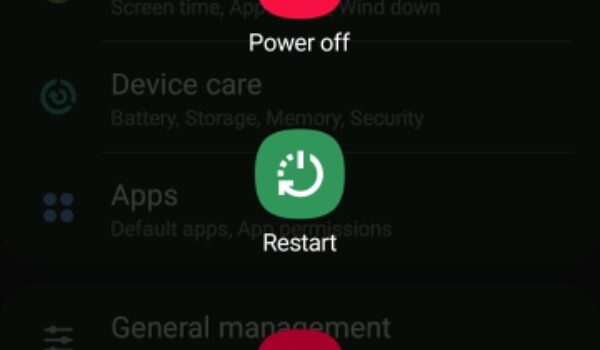
This is actually an obvious step, although we aren’t attempting to insult you. Switching your phone or tablet off and then back on again can solve almost all Play Store issues.
To restart your device:
- Press and hold down the power button until you see the shutdown menu.
- Touch the restart button.
- Then tap the button again to restart your device.
- If your phone doesn’t have the restart button, you can simply switch it off and turn it back on manually.
- After you’ve turned it on, just open the Play Store them check if the problem has been resolved.
2. Update the Google Services and Play Store
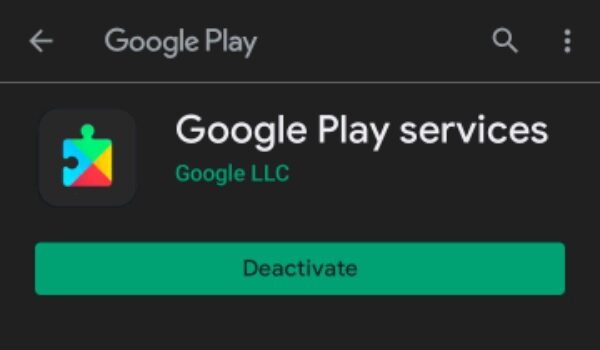
An outdated version of the Google Service Framework or Google Play can sometimes result in issues. Anytime you run into an issue; you can simply check for updates for these two.
- Launch your Google Play Store.
- Click on the Menu button that can be seen at the top left corner of the Play Store. It is displayed as an icon which has three horizontal lines.
- Click on My apps & games, and you will see a number of updates that are pending.
- Search and download the most recent version of the Google Services Framework if it’s available.
- Open the left menu again, then tap on Settings. Scroll down to the last of the page then tap on the Play Store version to check for any updates to the Google Play Store application.
- After doing these, restart your phone or tablet and relaunch the Play Store.
3. Change from Wi-Fi to Mobile Data (or Vice-Versa)
If you have a poor internet connection, you will likely see the error “Unfortunately, the Play Store has stopped working.” In a number of instances, you’d not see this error message. Some other times, your Play Store can just fall in the middle while downloading an app or refuse to start the apps altogether.
Irrespective of the case, it’s quite easy to fix these. If you are presently online via your Mobile Data, change to Wi-Fi, or try any other wireless network. If you’re on Wi-Fi, try to change to your Mobile Data, then check if it solves the issue.
4. Change the Date and Time of your Device
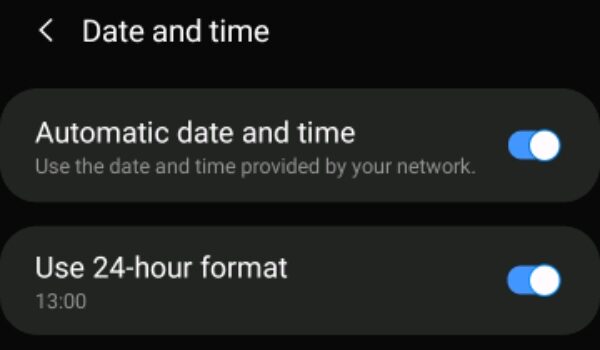
If you have an incorrect date and time, your Google Play Services would most likely not work. It is effortless to correct these:
- Launch Settings, then click on general management.
- Click on date and time from the displayed menu.
- If you haven’t enabled Automatic date and time, click on it. Ensure your phone or tablet picks the correct time.
- If you’re still having trouble, you can just update the date and time manually by unchecking the auto function then tapping the “set time” option.
- After doing these, just restart your phone or tablet then retry the Google Play Store.
5. Clear the Cache and Data of Google Play Services
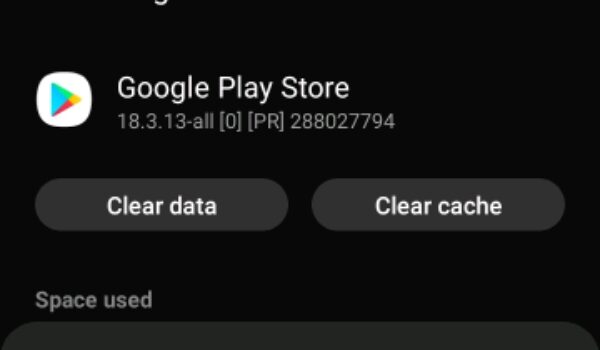
Google Play Services and Google Play Store application both support the apps of Google. If there is an issue with Google Play, we recommend you wipe off the data and cache on the two services then restart your device.
Be aware that the Clear Data option also clears the cache. Follow the steps below to do this:
- Launch the Settings
- Click on Apps
- Look for the Google Play Services then click on it
- On the page of the application, click on storage then Clear Data or Clear Storage Also, follow this process for the Google Play Store.
- After doing these, restart your device.
6. Roll Back to an Older Google Play Store Version
Rolling back or reverting to an older Google Play Store version that arrived with your device can solve issues you get when you use another version. Follow the steps below to do this:
- Navigate to Settings then click on Apps.
- Look for the Google Play Store App then click on it.
- From the menu that follows, click on Disable. When you disable a system app, it doesn’t uninstall it but rather replaces these apps with the version which came with your device.
- After doing these, restart your phone or tablet.
7. Sign Out of Your Google Account
Sometimes, phone or tablet would not correctly add the account of a user. If this is the issue, signing out then signing in to the account will likely resolve your Google Play Problem. Follow these steps:
- Launch the Settings
- Click on Accounts
- Click on the Google account that you’d like to remove, then click on remove account. Ensure you have backed-up all things you synchronized to the account so that you won’t lose it.
- Sign in to that account again, then check if the Play Store has started working again.
8. Install a 3rd Party Copy of the Play Store
If none of the steps stated above seems to have worked for you, it is worth it if you download the Play Store app from 3rd party apk sites. This can give you the chance to update the Google Play Store if several methods don’t work.
You’re required to have a file manager installed on your device for easy installation of the downloaded apk. Es File Explorer is a great option if you don’t have a file manager yet.
You will also be required to enable sideloading of applications on your phone or tablet, which is slightly different on Android 8 Oreo and newer versions. Go to the internet on your phone, then download the apks on your phone. Open the apps from the download section from your browser, or search for them in your file manager application. They will be installed like other apps on Android, and this includes updating them if they are stuck.
9. Factory Reset Your Device
When you do a factory reset on your device, it would be restored to its original state. This denotes that it’ll roll back to the original version of Google Play Store and other applications, which will almost definitely resolve this problem.
It is quite unfortunate that a factory reset on your device will make you lose every data on your phone, and this includes texts, photos, applications, and other things on your phone. If you opt for this option, we’d advise you initially back up everything on your device.
To factory reset your device, follow these steps below:
- Navigate to Settings
- Click on System > Advanced > Reset options.
- Click on reset on the next menu.
- After doing these, all data from your phone will be wiped, and your phone will restart itself.
Does the Play Store seem not to be working?
If the methods here do not work, then it is very difficult to fix the “Unfortunately Google Play Service has stopped” error message.
A number of individuals have successfully fixed this issue by rooting their phones and sideloading their Play Store. But for most individuals (especially those who don’t want to root their devices), it is better to install a Google Play Store alternative simply.
Author:Victor Ehijiator
Add MobilityArena as a preferred source on Google
Some years ago, Apple started offering unlocked iPhones for sale in its own stores. But due to the presence of an additional level of security, iPhone owners cannot use mobile apps that are not on the App Store. Solving this problem, some users only regard an iPhone as fully unlocked when it no longer has this restriction, and the process of getting rid of this restriction is called “ jailbreaking “.
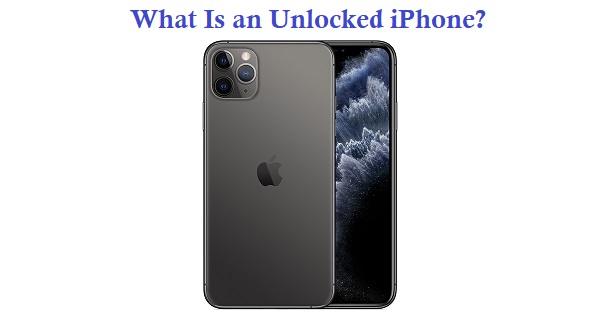
An RSIM is a chip used to unlock a locked iPhone
But jailbreaking an iPhone is not the same as unlocking it. Unlocking an iPhone allows it to be used with a different carrier, while jailbreaking it involves modifying the operating system to allow for the installation of unauthorized or unsupported software. Jailbreaking may void the phone’s warranty and could potentially compromise the security of the device.
If you’re looking to buy a new or used iPhone, you would want to know what a chip-unlocked iPhone is and the differences between purchasing a locked iPhone, a network-unlocked iPhone, or factory-unlocked iPhone. Today’s post takes a look at these issues and also sheds light on the disadvantages of buying a chip-unlocked iPhone.
- Understanding a Chip-Unlocked iPhone
- What Are the Differences between Unlocked & Locked iPhones?
- Why Are iPhones Typically Sold Locked?
- Will an Unlocked iPhone Contain a SIM Card?
- Is It Possible to Use the iPhone with More Than One Carrier at Once?
- Will an Unlocked iPhone Work with Any Phone Company?
- Is It Okay to Buy an Unlocked Phone with the Dual SIM Models?
- Unlocking an Existing iPhone – Is That Even Possible?
- What Are the Disadvantages of Chip-Unlocked iPhone?
- Any Advantages of Chip-Unlocked iPhone?
- In a Nutshell
Understanding a Chip-Unlocked iPhone
A locked iPhone can be unlocked with the use of a chip known as RSIM, which could be GEVEY, TPSIM, and other similar products depending on the chipmaker. The resulting device becomes a chip-unlocked iPhone. The unlocking procedure goes as follows: Put your SIM (Vodafone, Airtel, GLO, or any other networks) on the chip, and insert the two together into your phone. You will now see your network.
When you have carried out this process, your device will work like a factory-unlocked iPhone, so long your SIM card is on the RSIM. Like the majority of cellphones sold on the US markets, an iPhone is usually locked to one mobile network. As of now, you can purchase it via carriers like Verizon Wireless and AT&T.
One of the common reasons cellphone users will opt for an unlocked phone is that they will be able to use it on other network carriers. An unlocked iOS-powered device is usable on all GSM networks, including T-Mobile, AT&T, along with several foreign cellphone networks.
Also, by unlocking your iPhone, when on a trip to a foreign country, you will be able to buy a SIM card for your destination country and connect your mobile device to a GSM network in the country. This will help cut down on roaming fees and also gives you a local number in that country that you will find really useful if you are a business traveller.
What Are the Differences between Unlocked & Locked iPhones?
Before Apple began selling factory-unlocked iPhones (meaning that you bought the phone from the manufacturer directly in an unlocked state), every iPhone sold on the US markets were “locked to” their original carriers. And this condition was applicable whether the user paid full price or purchased the device under contract.
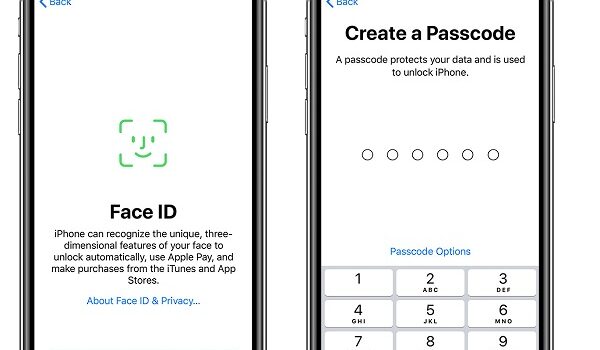
With the aid of a passcode, the phones are locked. And this passcode is known as a service programming code or master subsidy lock.
A passcode is used to lock an iPhone
It prevents the user from gaining access to the programming menu of the iPhone and also making use of the handset on a different carrier’s network.
While factory-unlocked iPhones have always been sold in Europe, they only got introduced in 2011 in the US.
Why Are iPhones Typically Sold Locked?
When the iPhone first launched on June 29, 2007, in the United States, Apple and AT&T made an exclusive deal. While a user could still activate the device on another GSM carrier, this only becomes possible by hacking (jailbreaking) the iPhone.
Will an Unlocked iPhone Contain a SIM Card?
No, an unlocked iPhone you buy directly from Apple will not include a SIM. But no need to worry as when you choose the cellphone company to use, you can get a SIM card from that company on signing up.
Is It Possible to Use the iPhone with More Than One Carrier at Once?
Yes. You need two things for this: active service as well as an active SIM card from the two companies. To switch the company (in addition to the phone number assigned to your mobile device) that you are using, simply swap the SIM cards in your iPhone. What about those iPhone models with dual-SIM support? We will discuss this shortly.
Will an Unlocked iPhone Work with Any Phone Company?
Yes, every modern iPhone works with any of the popular mobile phone companies, such as the big carriers in the United States (T-Mobile, Verizon, AT&T, and Sprint).
This is owing to the fact that they provide support for both GSM phone networks (that are used by T-Mobile and AT&T) and CDMA (that are used by Verizon and Sprint). On switching from one company to the other, you may have to buy a new SIM card for the new cellphone company; if not, your device will stay the same.
Is It Okay to Buy an Unlocked Phone with the Dual SIM Models?
The iPhone models that come with Dual-SIM support include the XS, the XS Max, the XR, the iPhone 11, and the 11 Pro. On any of these devices, you can use two SIM cards at once. The 1st SIM is a physical card and the second a software-based eSIM. Since two SIMs are available here, there is no need to get an unlocked phone.
You may choose to have the primary SIM card tied to a specific company and make use of the 2nd only for short-term situations, such as overseas travel. Alternatively, you may choose to keep the two SIMs unlocked to enjoy optimum flexibility.
The choice you make will depend on the way you want to make use of the iPhone. While some users go for unlocked phones on principle, others find the flexibility of the dual SIM configuration enough.
Unlocking an Existing iPhone – Is That Even Possible?
Yes, it is quite possible to unlock the majority of iPhones, even if they were originally locked when you got them. To be eligible for this, you shouldn’t be under contract with a cellphone company and must have paid off all your remaining installments on the device.
You won’t be able to do the unlocking yourself, so you are to request the service from your phone company.
What Are the Disadvantages of Chip-Unlocked iPhone?
There are a few disadvantages of chip-unlocked iPhones
One major disadvantage of a chip-unlocked iPhone is that you will always require the chip for your SIM to work in the device. Your SIM card has to be inserted into the phone with the RSIM, without which you will not be able to obtain a network signal. As such, if for any reason, the RSIM is damaged or goes missing, your SIM is useless.
Chip-unlocked iPhones are also more expensive, and that is their primary disadvantage. As the cost of locked phones is subsidized by the carrier, you will find locked iPhones cheaper to purchase upfront. If you intend using the original carrier for as long as you’ve the device and wouldn’t travel abroad, you might not really be gung-ho about getting an unlocked phone.
Any Advantages of Chip-Unlocked iPhone?
The main advantage you will get in an unlocked iPhone is that you will be able to transfer the service to another network carrier without the need to jailbreak. The jailbreaking process is replete with complicated steps and invalidates the manufacturer’s warranty on your device.
To activate a factory-unlocked GSM iPhone on a carrier, you can simply switch your SIM, enabling you to make use of your device on foreign network carriers when on a trip to a foreign country.
However, activating a CDMA iPhone will require slightly more work since you are required to utilize special software for changing your iPhone’s network settings. You can activate a CDMA phone on any network carrier, which accepts the procedure.
In a Nutshell
A chip-unlocked iPhone is a device unlocked with the use of a chip known as RSIM, which could be GEVEY, TPSIM, and other similar products depending on the chipmaker.
Understanding what a chip-unlocked iPhone is and what the disadvantages they offer are, will help you make a smart buying decision if you are looking to get a new phone or make the most of your existing iOS device.
Author:Tijani Mustapha
Deji is a web content developer and tech writer, who is passionate about tech-related topics and issues. A graduate of Physics from the University of Ibadan, he loves writing, conducting research, playing football, and meeting people of diverse backgrounds and interests.
