Add MobilityArena as a preferred source on Google
If you are unable to connect to certain websites on your device, they have probably been blocked by your device administrator or internet service provider. If a website is not prohibited but still refuses to open, it could be due to an IP address blocking, incorrect proxy settings, a delayed DNS answer, or another browser-specific issue.
If you need a way to fix website connection issues in Windows, this guide is for you. Many factors can prevent websites from loading the way they should. However, to help you browse your favorite websites once more, this guide contains several solutions to fix website connection issues in Windows.

- How Can You Fix Website Connection Issues in Windows? Perform Some Preliminary Checks Use a Different Internet Connection Try a Different Device Run a Netsh Command from the Windows Command Prompt Make Sure Your Website Isn’t Blocked in the Windows Hosts File Change Your DNS Server
How Can You Fix Website Connection Issues in Windows?
Some websites may not open on your device for a variety of reasons, which can be frustrating. Follow the helpful troubleshooting steps described below to fix website connection issues in Windows website, whatever the root cause may be.
Perform Some Preliminary Checks
Before you start trying different solutions to fix website connection issues in Windows, first perform the following preliminary checks. They could be helpful to identify anything you might have overlooked, and thus help fix the issue quickly:
- Restart both your device and your browser.
- Verify that your device is connected to the internet and that the connection is stable.
- Restart your router once to clear the router’s temporary memory and reload the firmware.
- Websites that are not loading may be undergoing routine maintenance. Check for announcements on the official Twitter accounts of those websites to be sure that’s not the case.
- Make sure your Windows device’s time and date are set correctly.
You can now start trying the remaining fixes if none of the above help you fix website connection issues in Windows, and certain websites keep refusing to load.
Use a Different Internet Connection
You’ll also need to make sure that the websites are not restricted by your ISP, which is more likely if you are connected to a managed network connection. Connect your device to another internet connection and see if this works to fix website connection issues in Windows. If no alternative internet connection is available, you can temporarily use your mobile hotspot to connect to the internet.
If websites open successfully on another connection, you can tell that your ISP or network administrator has restricted them. Request that your internet service provider unblock these websites or change your internet service provider if you like.
However, your ISP is not at fault and the websites still don’t load, the issue could be with your device. You may also need to ensure that your browser is not the problem before you begin debugging your device.
Try a Different Device
Your device administrator may have restricted access to some websites if you are using a managed device, possibly at work or school. Certain websites won’t open on such devices, so this is a crucial scenario you’ll need to rule out.
Connect any other device, such as your personal smartphone, to the same internet connection as your managed device and try visiting the same websites. If this works to fix website connection problems in Windows, your administrator has disabled access to these websites.
In this instance, you can request that your administrator unblock such websites. However, if the same websites do not open on your other device, or if you are encountering this issue on a personal device, your ISP may have blacklisted those sites.
Run a Netsh Command from the Windows Command Prompt
If none of the aforementioned fixes have helped you fix website connection issues in Windows, you may need to reset the corrupt Winsock catalog, delete the accumulated DNS cache, and uninstall and reinstall the TCP/IP stack.
You’ll have to perform a few straightforward commands on the Windows Command Prompt to do all of this. Here’s how:
- Enter “ Command Prompt ” into Windows Search to launch the Command Prompt apps.
- Press Enter after each entry as you enter the following commands one at a time:
“netsh winsock resetnetsh int ip resetipconfig /releaseipconfig /renewipconfig /flushdns”
You should modify your DNS server if the issue still exists after running the above commands.
Make Sure Your Website Isn’t Blocked in the Windows Hosts File
By editing the Windows Hosts file, Windows users can restrict access to specific websites. When a URL is blocked, no user on the same device can access it from any browser. If you share your computer, another user may have blocked some websites in the Hosts file. Follow these instructions to change this and fix website connection issues in Windows:
- Go to the following path: C:\Windows\system32\drivers\etc
- Select Open with from the context menu when you right-click the Hosts file .
- Then, to open the Hosts file , choose Notepad .
- If websites were blocked using the Hosts file, their domain names would be added at the end of this file.
- If you find any of those websites listed here, remove them all.
- Finally, press CTRL + S to save the document.
Following these steps correctly should help you easily fix website connection issues in Windows.
Change Your DNS Server
Human-readable domain names are translated into IP addresses by the Domain Name System (DNS) — that’s how web pages are loaded in your browser. If your ISP blocks certain domains, your browser will be unable to translate them into the required IP address. Therefore, they won’t load.
The best way to rule out this possibility is to update your Windows DNS server, especially if you haven’t done so since purchasing your current device. Changing the DNS bypasses your ISP’s restrictions, and this could help fix website connection issues in Windows.
Now, there’s no need to fret anymore when you encounter issues with loading websites. You’ll find the solutions above useful to fix website connection issues in Windows. It’s also a good idea to disable any VPN or proxy servers in use, in case the website restricts users from certain locations from viewing its contents.
Author:Joan Agie
Add MobilityArena as a preferred source on Google
The iPhone is certainly one of the most sought-after devices, and as we all know, a brand new iPhone may be pricey, with several checklists required before purchase. However, if you are on a limited budget, you can buy a used iPhone at a substantially reduced price.
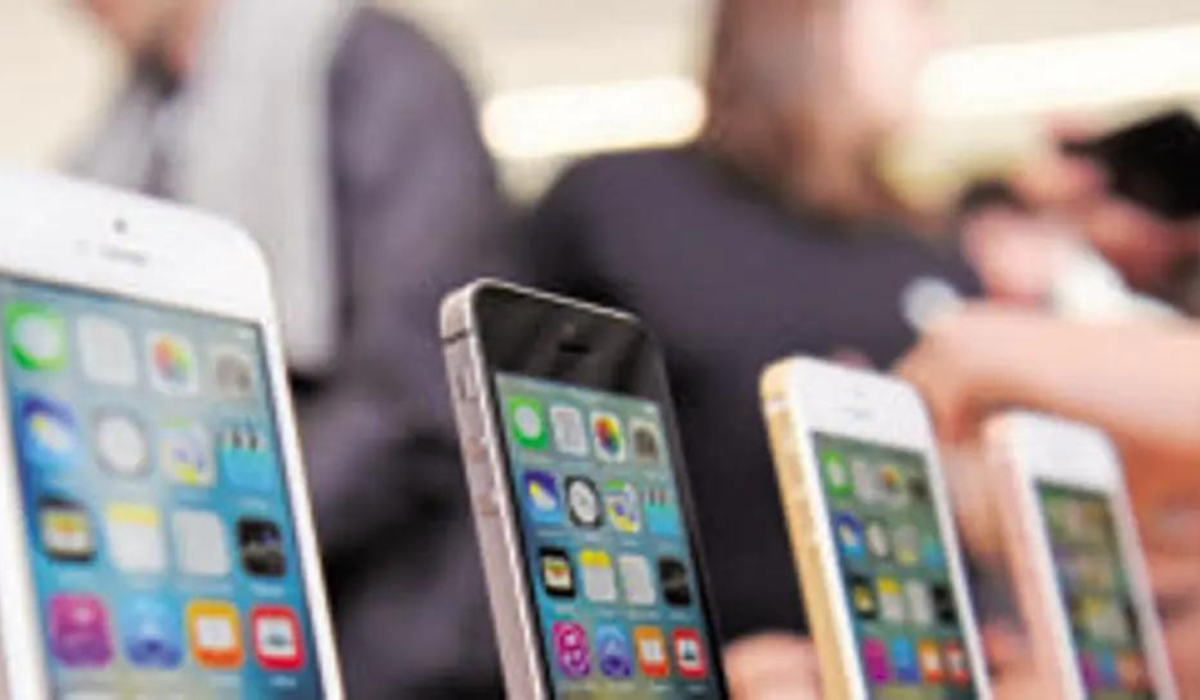
- What Are the Things to Check Before Buying a Used iPhone Online? Request a Purchase Receipt Wear and Tear Check the IMEI Number Check Serial Number Check the Camera Check Battery Health Check the Microphone and Speaker Authenticity of Device Parts
What Are the Things to Check Before Buying a Used iPhone Online?
Second-hand iPhones are constantly in high demand, and they’re an excellent alternative if you’d like to save money on an Apple smartphone. As with any second hand purchase, there are some things you should check before handing over your cash. Below is a simple checklist that’ll help you out when buying a used iPhone online.
Request a Purchase Receipt
Before buying a used iPhone online, demand that the seller supply you with a soft or hard copy of the original receipt. The receipt will reveal two important details: previous ownership and warranty status. Check the iPhone receipt to determine if the recipient and the purchase date match the seller’s name or ID.
This helps you determine whether the seller was the first owner and whether the iPhone is still under warranty. If the seller is unable to provide a receipt, consider whether you are willing to accept not being able to trace device ownership.
Wear and Tear
Another thing to do before buying a used iPhone online is to get a photo of the device from every angle possible, including close-up macro pictures if possible. This allows you to take a look for large scratches, dents, discoloration, and markings. Examine the camera lens for any scratches that can affect the quality of the pictures and confirm that wireless charging is still functional.
In addition, request that the vendor test the ports by charging with a cord and, if applicable, plugging in wired headphones via the headphone jack. Although the iPhone should be water and dust resistant, this protection does not last forever.
Check the IMEI Number
Ask the seller to go to Settings > General > About and check the IMEI (International Mobile Equipment Identity) number. Do this before buying a used iPhone online to see if the device’s characteristics match those on the certified receipt. Alternatively, instruct the seller to dial *#06# to obtain the unique IMEI number.
When the IMEI number of the iPhone is displayed, you can compare it to the receipt the seller gave you to verify the purchase. You should also use IMEI.info to check the network, country, warranty, system version, and other specifications of your mobile device. The IMEI number can also be found on the back of the original box.
Check Serial Number
Apple assigns serial numbers to all of its devices in addition to the IMEI number for warranty validation. This is another thing to check for before buying a used iPhone online. To check the serial number of an iPhone, have the seller navigate to Settings > General > About .
The serial number can reveal information such as when and where the iPhone was made. On Apple’s coverage page, you can also verify the device specifications provided by the vendor and check the service and support coverage.
Check the Camera
Along with making sure the iPhone’s camera is unbroken, it’s crucial to ensure that it functions properly. In some cases, third-party repair shops have been known to replace genuine iPhone camera parts with unauthorized ones.
So, before buying a used iPhone online, ask the seller to take pictures with the phone’s camera, then ask to see the pictures right away. Next, request that they take photos with both the front and back cameras. Then, check to see if the image is clear to ensure that the iPhone’s camera hardware is still operational.
Check Battery Health
Batteries are among the most commonly damaged parts of electronic devices. Poor battery life can be caused by both normal usage and poor charging habits. As such, before buying a used iPhone online, ask the used iPhone seller to open Settings > Battery > Battery Health to check the iPhone battery status.
Recognizing that all rechargeable batteries have a finite shelf life is essential. It’s best to keep your expectations for battery life in check when purchasing a used iPhone or any phone in general.
After 500 full charge cycles, iPhone batteries should still have up to 80% of their original capacity, according to Apple. Any battery health that is less than 80% will cause iPhones to perform poorly and may require immediate replacement. Damaged batteries are replaceable for free if the iPhone is still under warranty. Alternatively, Apple provides a paid battery repair service for iPhones that are out of warranty.
Check the Microphone and Speaker
Some of the most common signs of a water-damaged iPhone are faulty speakers. Since this damage is often hidden inside the device, it is one of the most important things to look for before buying a used iPhone online.
Make sure the online seller turns the iPhone to maximum volume to test the speaker’s health. Afterward, make a quick outbound call or text to see if the sound is static-free, or ask them to record a specific phrase and play it back to you using its microphone. Alternately, you could request that they play music while testing the device, adjusting the volume as necessary.
Authenticity of Device Parts
Inquire with the seller about previous repairs to the device and whether they were completed by an Apple-authorized service provider. Repairs performed in unauthorized centers may result in the device’s parts no longer being authentic. So, before buying a used iPhone online, check to see if the iPhone has any fake parts. It’s much simpler to check this in person of course, but as an online buyer, you can still inquire about this with the seller.
Ultimately, used iPhones can come with certain dangers, especially if you’re buying them online. However, you can minimize these risks if you follow the guidelines mentioned above before buying a used iPhone online.
