Add MobilityArena as a preferred source on Google
In Windows and macOS computers, forcing a frozen program to quit is oftentimes the only way to exit a non-responsive program. It sounds pretty straightforward when it is done on mobile devices, but force-quitting apps on computers might be a bit more complicated.
If you’re not already familiar with how to force quit an app when you run into an unresponsive program on your PC, this guide is for you. Pay attention to the instructions and helpful tips we’ve provided in this guide, and you’re good to go!
First things First…
Even if forcing oneself to stop may be the simplest course of action, it may have unintended repercussions. If you choose to close an application in the usual manner, you might be prompted to save your work first. We’ve all encountered this, but when you force quit, you could lose data or files.
As a result, it’s crucial to remember to save your work regularly and only turn to this force-quitting technique as a last resort for fixing unresponsive programs. With that being said, we’ve described in the next section a few ways to force quit on Windows and macOS, respectively.
Force Quitting Apps on WindowsComputers
The following are different methods you can try to force quit an unresponsive program on a Windows device:
Using the Keyboard
Using the keyboard shortcut Alt + F4 to close a non-responsive Windows application is the most typical method. This key combination instructs the operating system to close the open window, so just click on it and the program in question will force quit.
Using the Task Manager
The Windows Task Manager typically shows all the Windows applications that are currently running. One of the numerous functions of the Task Manager is the ability to view the system resource utilization of an active program. When an application uses 100% of the CPU, it is operating very quickly and is probably eating a lot of memory, and sometimes this could be what’s causing the program to freeze. Additionally, you can force unresponsive applications to close using Task Manager.
- Right-click the Taskbar and select the Task Manager option to launch it.
- Locate the app that isn’t responding by perusing the list of running applications.
- Select the End Task option by right-clicking the non-responsive app. This will prompt the application to close.
After force quitting the apps via any of the methods described above, you can relaunch it to see if the program functions properly.
Force Quitting Apps on MacOS Computers
As with Windows PCs, there are also different methods by which you can force quit unresponsive programs on Mac computers.
Note that you can simply close a program from the Dock if it merely hangs when you try to interact with it or close it out. To bring up a menu, control-click the program’s icon to reveal the Quit option. The program should close normally, even if it takes a few seconds. If not, then you can try force quitting via the methods we’ve described below.:
Using the Apple Menu or Keyboard Shortcut
This is the quickest and easiest way to restart frozen Mac programs. Follow the easy steps we’ve outlined below:
- In the top-left corner, click the Apple icon.
- Select “Force Quit” in the drop-down menu.
- You should see an option to “Force Quit Application” open.
- After selecting the unresponsive program, click “Force Quit.”
If Finder is giving you trouble, select it in the Force Quit Applications box and hit the Relaunch button to start over.
For those who enjoy using the keyboard shortcuts on their Macs, you can also use this to force quit an unresponsive app. Option + Command + Esc is the equivalent of Window’s Control – Alt – Delete shortcut on the macOS operating system. You can use this command to display a list of all the open apps in the Force Quit Applications window. Note that the Esc key is situated on the left side of the Touch Bar on Mac computers that have one.
Using the Activity Monitor
The macOS Activity Monitor provides views of energy usage, CPU status, and other things, so you can try this as a force-quitting option if you need a solution that is more feature-rich and similar to the Windows Task Manager.
Follow these easy steps to force quit from your Mac’s Activity Monitor:
- Select Activity Monitor from the Other folder in Launchpad after opening it.
- Keep in mind that there isn’t a direct keyboard shortcut. However, you’ll typically be able to pick Activity Monitor from the Utility folder by pressing Command + Shift + U after the Utility folder has opened.
- Select the program that is acting strangely and hit the Stop button located at the top of the window; it resembles a stop sign while the Activity Monitor is active.
- The application has two options at this point: Quit and Force Quit . Click on the Force Quit option.
In summary , force quitting a problematic program is not as hard as it seems, just a bunch of shortcuts and easy steps as you have noticed from this guide. So, just follow the instructions correctly and you should be able to get it done without hassles.
Don’t hesitate to share or recommend this guide to other PC users; you never know who you might be helping!
- Don’t miss our mobile phone reviews .
- Follow our news on Google News .
- Join our WhatsApp Group , to be notified of the most important articles and deals,
- Follow us on Instagram , Facebook , Twitter , and YouTube .
Author:Joan Agie
Add MobilityArena as a preferred source on Google
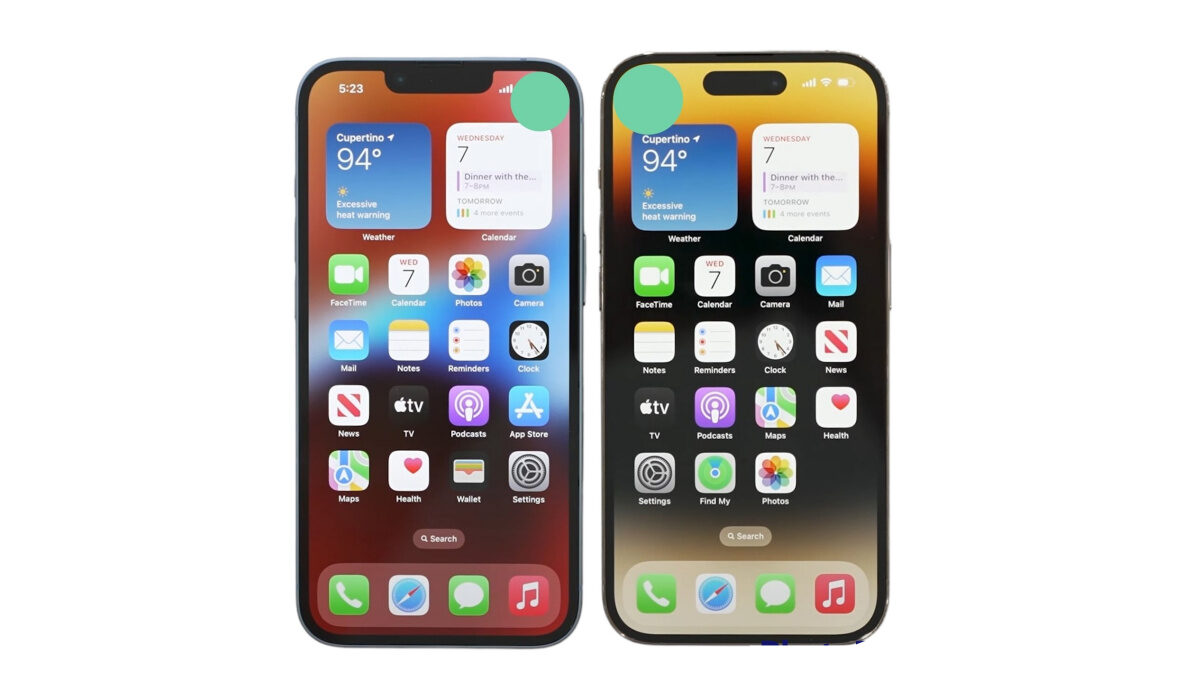
Since iOS 14 was introduced, the iPhone’s home screen unlocked new exciting levels and is finally starting to match Android’s functionalities in terms of home screen customization. Some of the new features since this upgrade include three different-sized widgets, a new, searchable App Library, and—most significantly—the option to conceal entire home screen pages.
If you’re not already familiar with how to take advantage of this upgrade and hide entire pages on your iPhone’s home screen, this guide is for you. Here, you’ll find the necessary instructions and helpful tips to get it done easily and introduce a simpler layout to your device’s home screen.
Why Would I Need to Hide App Pages on iPhone?
Having different folders for social media, mobile games, and other categories tends to muddle the layout of the home screen, although folders generally work well to manage a disorganized home page. However, when you have scores of third-party apps installed, the situation gets worse. There is less of a need for a large number of app icons on the home screen with the introduction of the new App Library, which allows you to search your apps via automatically formed directories and explore via vertical lists.
In order to allow you to conceal a full page of apps you barely use without having to delete each icon one by one, iOS 14 now lets you hide app pages on iPhone, in addition to just individual apps. The App Library still allows you to access hidden apps, and you can even restore previously-hidden home screen pages in their original form.
How To Hide App Pages on iPhone?
You’ll have to access the home screen editor on your iPhone running iOS 14 in order to conceal a whole home screen page. Previously, you could accomplish this by holding down on an app or folder for a lengthy period of time until the quick actions menu appears and disappears, or you could choose “Edit Home Screen” from any application or folder’s quick actions.
In iOS 14, those still hold true, but you may also long-press your wallpaper to enter the editor immediately. A widget or widget stack can also be long-pressed until the editor shakes everything else, or you can select “Edit Home Screen” out of its quick actions.
In iOS 14’s home screen editor, a number of new options will be visible on the screen, including the plus (+) symbol at the top (which is for widgets). There are dots for each page you have above the dock at the screen’s bottom. Previously, you could switch pages while in edit mode by tapping a dot or by swiping left or right across them all. Now, a button with a gray background appears out of those dots. To view and customize your home screen pages, tap that.
Your screen will show previews of your home pages; you might have to scroll to see all of them. Click on the checked circle beneath the preview to uncheck one home page and make it hidden. Although you can’t make all of them invisible because at least one page must be checked, it’s quite close.
To leave the page editor after unchecking the home page or pages you want to conceal, hit “Done” (on Face ID models), the backdrop, or your Home button (on Touch ID models). Do the same to exit the home screen editor after that. Now, the hidden home page or pages won’t show up as you swipe across your home screen. You will still remain able to gain access to the apps though.
Keep in mind that the first time you hide a page from your home screen, iOS will assume that you wish to conceal all subsequently installed iPhone apps from the home screen as well. As a result, only the App Library will receive any recently installed apps. You can disable the option in your Settings menu to fix this.
How Do I Access Apps from Hidden Pages?
We mentioned earlier that concealing a home page on your device’s screen does not erase its apps; rather, it simply stores them away from view. Fortunately, any apps that are on a home screen page you’ve previously hidden can be accessed very quickly.
Swipe left from any home screen page to access your App Library. If you’re looking for a certain app, you can browse through the list of categories, type the name of the app into the search bar at the screen’s top, or swipe down on the App Library to reveal the list of apps.
How Do I Bring Back Hidden Home Screen Pages?
In the event that you forget which apps are on a particular hidden home page, you can always restore the page to your screen. iOS preserves the layout of a hidden home screen page, so when you bring it back, the apps will still be there.
A hidden home screen page is just as simple to reveal as it is to conceal. Return to the home screen editor, select the page dots button to modify pages, select the circle beneath the grayed-out page to verify it, and then select the Exit button to leave the editor. Your page and all of its applications will then return to its previous location on your home screen.
In summary , it’s pretty easy to hide (and reveal previously hidden) home screen pages on an iPhone. The instructions we’ve provided in this guide are easy to follow and should help you achieve these easily. As always, we encourage you to recommend this guide to other iPhone users you know so that they can benefit from these helpful tips and instructions.
- Don’t miss our mobile phone reviews .
- Follow our news on Google News .
- Join our WhatsApp Group , to be notified of the most important articles and deals,
- Follow us on Instagram , Facebook , Twitter , and YouTube .
