Add MobilityArena as a preferred source on Google
As you constantly use your desktop or laptop computer, you’ll notice that its performance can deteriorate significantly if there is too much clutter stored on it. It might be time for thorough cleaning of your computer’s hard disk if you suddenly notice a slowdown in your device, frequently freezing programs, or if you sometimes have trouble finding important data.
It is easy to get so carried away with work every day that you forget to declutter and clean up your hard drive. It’s also possible that you’ve never attempted to free up space on your hard drive because you just don’t know how to go about it.
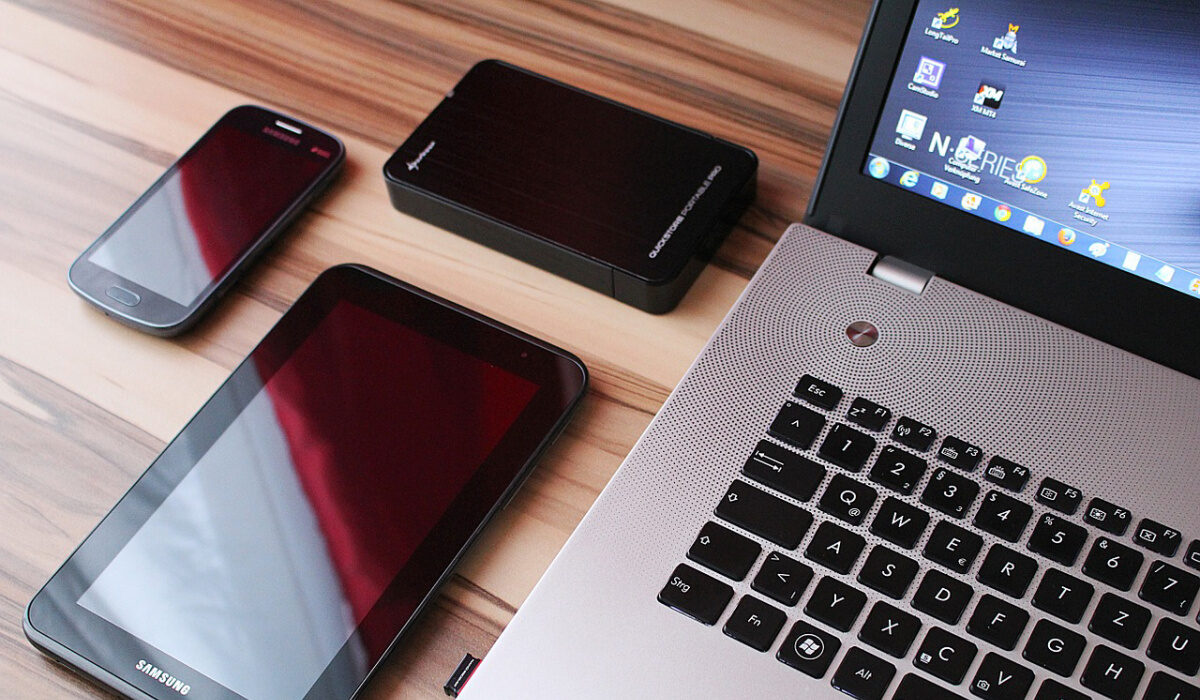
If you’re one of the people in this situation, you’re in luck! We’ve compiled this easy guide for you to follow whenever you decide to free up precious space on your laptop’s hard drive. Simply follow the instructions we’ve provided and you’re good to go!
Uninstall Irrelevant Programs
One thing you should probably keep in mind is that, the fact that you don’t use an outdated program anymore doesn’t mean the program isn’t still lying around somewhere. You always need to delete unused applications if you want to regain control over your storage space.
For this to be done effectively, follow these steps:
- Access the desktop on your computer, then click the Start button.
- Choose Apps .
- Select Apps and Features afterward.
- To determine which programs are consuming the most space, sort them by size.
- Click Uninstall after you’ve found the programs you don’t use anymore, this will help get rid of them.
Sort the Files and Programs on your Desktop
Even though we’re all aware there is a better option, many of us still tend to store all our files on the desktop automatically. Your computer will run more slowly if your desktop is cluttered, as these files require operational memory to display continuously.
Instead, move files that don’t need to be on the desktop to the Documents , Videos , and Photos folders, and think about eliminating any documents you don’t need. When you get rid of them, your hard drive will have a little more room, and the ones you keep on the desktop won’t make your computer run slower.
Delete Temporary Files
Whenever you visit a website, a trail of files that includes text, image, and cookie files is left behind, and this trail speeds up your return visit. There’s no need to keep these temporary files around if privacy is a concern or if you require additional disk space.
For the best results, consult your browser manual as each type of browser has a unique method for deleting these files. The Windows tool can also be used to deal with temporary files. Also, take advantage of this chance to clear your cache, erase temporary files, and delete cookies to improve your surfing instantly.
Sort your Downloads
One of the simplest ways to free up space on a laptop’s hard drive is to go through the lengthy list of downloads you probably have there.
Even the best of us have at one point or the other downloaded PDF papers, music, images, and videos that we might never use again. However, some downloads are crucial, so spend some time going through your downloads folder and transferring crucial data to the proper permanent locations.
Once you’re done, click on All, then select Delete to get rid of the remaining downloaded files.
Save your Files to the Cloud
Lastly, a time might come when your desktop or laptop just won’t be able to accommodate all of your storage needs. This is one of the explanations given by professionals for why you should frequently back up crucial files to the cloud storage provider of your choosing. Not only will doing this free up valuable disk space, but you’ll also be covered if your hard drive fails, you misplace your device, or something else happens to harm your data.
It can be challenging to always remind oneself to make backups, though. Large volumes of data can get transferred all at once if you don’t back up consistently, thus putting your data at risk.
Select the utilities included with the majority of PCs and laptops that are meant to automate this procedure to divide the effort into manageable portions and ensure that you don’t fall behind on your backups.
Also, consider transferring data to an external storage device if you need to transfer data fast or you only have access to metered internet service. These are a safe, cost-effective, plug-and-play option for keeping crucial files accessible when you need them.
In summary , although it can take some time, making room on your hard drive is a necessary element of a normal PC maintenance schedule for both laptops and desktop computers. The more frequently you can complete these procedures, the quicker they will all go and the more effectively your device will operate. A few extra duties, such as routinely eliminating blurry or redundant photos, can also prove helpful.
Also, don’t forget to permanently remove all the files and applications you’ve deleted from your hard disk. To ensure that the trash is permanently removed, the Recycle Bin needs to be emptied once more.
We hope you’ve found this article helpful, and so we encourage you to recommend it to your loved ones.
- Don’t miss our reviews .
- Follow our news on Google News .
- Join our WhatsApp Group , to be notified of the most important articles and deals,
- Follow us on Instagram , Facebook , Twitter , and YouTube .
Author:Joan Agie
Add MobilityArena as a preferred source on Google
Samsung Galaxy A12 has proven popular for a good reason – it is affordable and generally gets the job done without much fuss. But it isn’t the most powerful smartphone on the block. Because it is a mid-range cellphone, sometimes its resources are stretched thin and it begins to run slower than usual, maybe even enough to annoy you, which is why you are reading this article. Below, I share a few things you can do to make your Samsung A12 faster.
The key thing you need to know are the two factors affecting your phone’s performance: the processor and RAM. The processor determines how powerful your device is, while the RAM determines how smoothly apps launch and run on the phone. RAM (Random Access Memory) is a temporary storage for running apps. We can’t do anything about the processor, but RAM usage can be managed. Bear this in mind, as we provide ways to make your Samsung A12 faster.

How to make your Samsung A12 faster
Make your Samsung A12 faster by not using many apps at the same time
Whether you own the vanilla version, the Nacho variant, or the Indian variant, your Galaxy A12 is equipped with 2 GB, 3 GB, or 4 GB RAM, depending on the variant you purchased. The lower the RAM, the easier you need to go on your phone. This is because it has less resources for apps to run with. If you switch between a lot of apps on it, the RAM gets used up and the phone begins to slow down.
The same way you shouldn’t attempt to drive a city car like a Formula 1 race car, don’t push your Samsung A12 too hard. It isn’t designed to handle the heaviest pressure. Switching lots of apps means they keep running in the background, using up precious resources. If you have used a lot of apps on the phone, you need to shut down those apps to keep things running smoothly. To do this, open the running apps menu, then slide up on the app you want to close. Repeat this for as many apps as you need to shut down.
Make your Samsung A12 faster by using Device Care auto-optimisation
Device Care is a feature that you can use to auto-optimise your Samsung A12 for better performance. How it works is that when you are not using your phone and the screen is off, the feature closes any background apps (it doesn’t touch your most recently used apps). It is a good idea to set Device Care to auto-optimise your Samsung A12 at night when you are asleep.
- To do this, go to Settings > Battery and Device Care .
- Tap the Options icon.
- Tap Automation .
- Tap Auto optimise daily .
- Tap Time .
- Set the clock to the time you would like Auto optimise to run, e.g. 2am
- Tap Done .
- Tap the switch next to Close apps to free up memory .
That is it; you now have auto-optimisation helping you to free up memory while you sleep. You wake up to your Samsung A12 ready to perform at its best for the day.
Make your Samsung A12 faster by restarting your phone
Restarting your cellphone on a regular basis, say weekly, is an easy way of clearing its memory of junk. This is low hanging fruit. You will be amazed how much smoother or faster your Samsung A12 runs just because you do this. Restart your Samsung A12 at least once a week to make it faster.
Make your Samsung A12 faster by not clogging it up with app updates
Every time you run app updates, your cellphone storage gets clogged up with extra baggage. Each updated app takes up more system space – even those apps that you do not use, especially those pre-installed by Samsung. What to do? Do not turn on automatic app updates. Instead, make it a duty to manually update only the apps that you use or need.
Make your Samsung A12 faster by keeping it from getting hot
You already know that overheating is a bad thing for any kind of electronic or machinery. If your phone heats up significantly, that impacts its performance, and it will slow down if you do not let it cool off. Keep your cellphone away from hot environments. If while using your Samsung A12, it begins to heat up, put it down and let it cool off for a while. It will serve you better if you treat it right this way.
With these few tips, you should see your Samsung A12 perform better, and run faster and smoother. All the best.
- Don’t miss our reviews .
- Follow our news on Google News .
- Join our WhatsApp Group , to be notified of the most important articles and deals,
- Follow us on Instagram , Facebook , Twitter , and YouTube .
Author:Mister Mobility
Digital Skills and Communication Coach | Mobile Phone Connoisseur since 2001 | Tech Blogging since 2004
