Add MobilityArena as a preferred source on Google
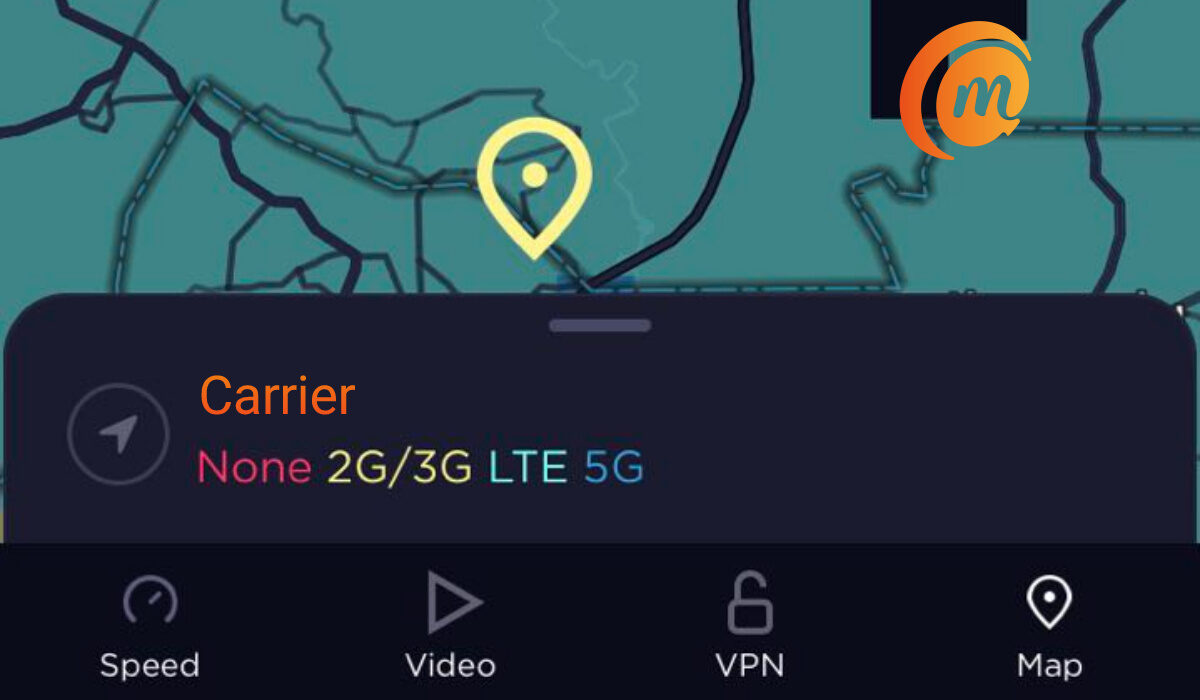
How to know if your location has 5G:
- Why your 5G signal is poor
- What to do to get better 5G signal on your phone or router
- Bonus Info: Not all 5G smartphones are the same
Why your 5G signal is poor
This is not rocket science. Wireless radio signals are an established science. You are getting poor network signal for a number of possible reasons. For one, it can be that your location is on the fringe of your carrier’s coverage – just within range of the cell tower enough to get a weak signal.
Another reason can be that there is some obstruction between you and your carrier’s nearest cell tower. The obstruction can be buildings, trees, a hill, or some other structure made up of materials that reflect or block out wireless radio signals.
What to do to get better 5G signal on your phone or router
Of course, it is rarely ever practical that you will be able to move your residence because of a network signal issues, but if it is, you should consider that option too to get better 5G signal.
Call Your Carrier’s Customer care . If you have done what you can to find a better position and still failed to get better 5G signal, it is probably time to talk to your carrier and lay a complaint. User feedback on network strength often helps carriers to plan properly for new towers. By letting them know what is happening at your location, they may be able to make plans to cover that place better. Also, sometimes, the problem of a weak signal can be solved by some network optimisations at the carrier’s end. Give them a call: provide as many details about your location as possible, and include what you have done to try to solve the problem.
Bonus Info: Not all 5G smartphones are the same
To help you understand this easily, consider cars: not all car engines are the same. Some are more powerful than others and will accelerate faster, achieve higher top speeds, and even brake faster. 5G smartphones are like that too. Some have more powerful 5G modems in them and will get stronger signals than the less powerful ones. How can you tell? A general rule is that the more high-end the smartphone, the more powerful its network radios and modems.
This is a rule, and you will run into exceptions, because modems and radios are not the only factors in determining how well a phone can latch on to the network. For example, the antenna is another factor. A smartphone might have a powerful 5G modem and radio but perform less than optimally if the antenna is not properly placed or implemented. But as a rule, to get better 5G signal, buy a more premium 5G smartphone or router. Bear that in mind when shopping for a 5G smartphone.
Lastly, if experiencing weak signals occasionally, to get better 5G signal on your 5G phone or router, do not forget to try a simple restart/reset. Power the device off and then power it back on after a few moments and see if that helps. Sometimes, your device is just overworked and needs a break, in which case a simple restart sometimes works wonders.
Related Article: How to upgrade from 4G to 5G .
Author:Mister Mobility
Digital Skills and Communication Coach | Mobile Phone Connoisseur since 2001 | Tech Blogging since 2004
Add MobilityArena as a preferred source on Google
iPhones are commended for their dependability and high performance levels, but sometimes something as simple as sending text messages can be a problem. When your messages don’t get through, it can be annoying and you risk missing vital communications.
I’ll show you in this guide how to fix an iPhone not sending text messages. This issue could arise due to several factors, but regardless, there are several simple techniques to troubleshoot and fix the issue.
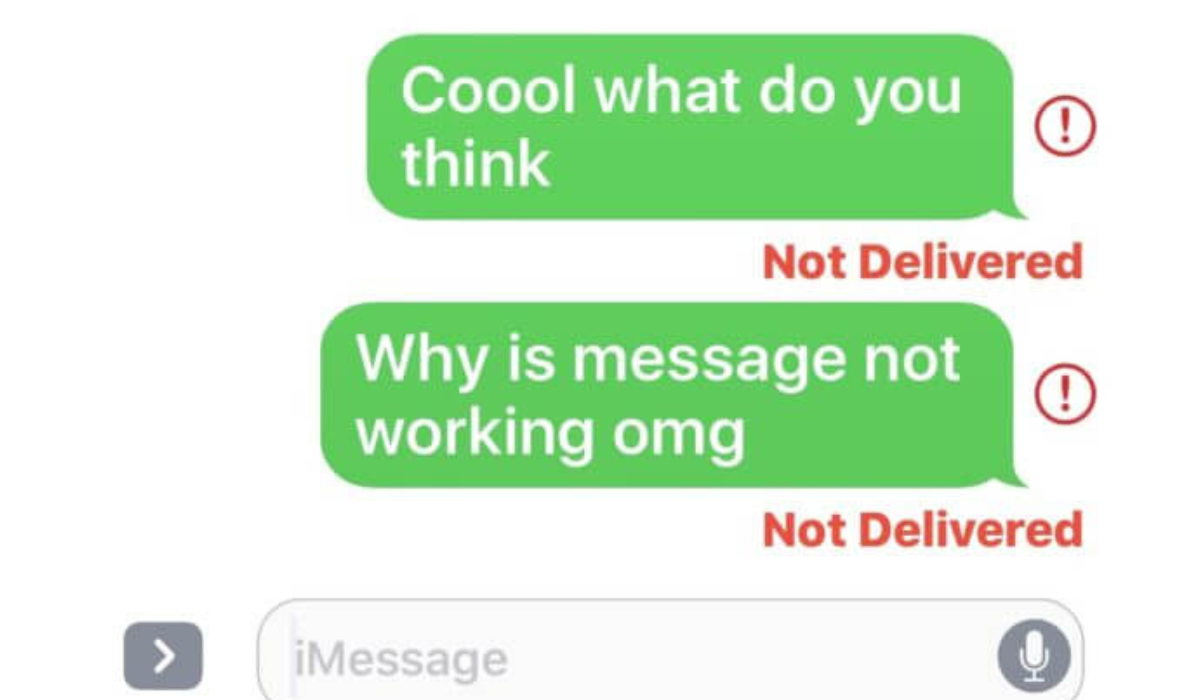
- How Can I Fix an iPhone Not Sending Text Messages? Examine Your Network Signal Ensure MMS and SMS are enabled Check Your Message Recipients Refresh and Delete Your Messages Check Your Carrier Plan Restart Your iPhone Update Your iPhone Reset Your Network Settings
How Can I Fix an iPhone Not Sending Text Messages?
There are several reasons why your iPhone isn’t sending text messages. It could be an unstable network connection, an expired carrier plan, an incorrect network setting, or a problem with your local carrier.
Below are some things you can try to fix an iPhone not sending text messages. And if the issue is that your iPhone doesn’t receive text messages from Android, check out this guide .
Examine Your Network Signal
SMS and MMS send in green text bubbles, whereas iMessages send in blue text bubbles on the iPhone. To send a text message, SMS and MMS require a cell phone network and enough airtime remaining in your cell phone plan, whereas iMessage requires an internet connection via data or Wi-Fi.
As such, to fix an iPhone not sending text messages, first make sure it’s the right type of message you’re sending. If it’s an SMS or MMS, check the number of network bars in the top-right corner of your iPhone’s status bar, next to the battery icon, to see if your cell signal is weak. Contact your mobile network operator if you are in an area that usually has a good signal. For iMessages, confirm that your internet connection works well.
Ensure MMS and SMS are enabled
Your iPhone automatically sends messages via iMessage if the person you’re sending a message to is using an Apple device.
However, since iMessage texts can fail sometimes even if you’re sending them to other iPhone users, your iPhone can send SMS (Short Message Service) messages instead. To use this feature to fix an iPhone not sending text messages, however, you must enable it in Settings .
- Navigate to the Settings menu
- Scroll down and select Messages
- Turn on the Send as SMS slider
Also you can send MMS (Multimedia Messaging Service) messages using your iPhone. These are text messages with media attached, such as images or video clips. Before you can send these messages, you may need to enable them in Settings .
Here’s how to enable MMS messages to fix an iPhone not sending text messages:
- Navigate to the Settings menu.
- Scroll down and click on Messages .
- Toggle the MMS Messaging toggle to the green “ on ” position.
Please keep in mind that your personal cell plan may not cover MMS messaging. Any text message sent with multimedia will fail to send in this case.
Check Your Message Recipients
When you’re trying to fix an iPhone not sending text messages, make sure you’re entering the correct number when sending the message.
When messaging a contact stored on your iPhone, this should be no problem, but you need to be more careful if you’re entering a new number. Always take your time to type in the correct details.
If the problem persists, contact your intended recipient through some other method (if possible) to confirm the number.
Refresh and Delete Your Messages
Another way to fix an iPhone not sending text messages is to try closing and reopening the Messages app. Although this approach isn’t the most logical, some users claim it works. Often, refreshing the app will clear out the action, allowing the app to function normally again.
Additionally, you might try deleting any Message conversations with failed texts. To see if this helps to fix an iPhone not sending messages, do the following:
- Open Messages .
- Swipe to the left on the conversation you want to delete.
- To confirm, tap the Delete icon and then Delete from the pop-up menu.
- Finally, click the Compose icon to try again in the top-right corner of the Messages screen.
If a message tries to send but is unsuccessful several times, this method can be very helpful.
Check Your Carrier Plan
To fix an iPhone not sending text messages, also check to see if you currently have an active mobile service plan. You won’t be able to send texts, especially SMS and MMS messages, if you don’t have one.
While the vast majority of phone plans include standard unlimited texting, you may have exceeded your monthly text message limit if you have a limited plan. This is something to verify when looking to fix an iPhone now sending text messages.
You should also contact your network provider to ensure that there are no problems with your account services.
Restart Your iPhone
You can restart your iPhone after attempting everything provided above to fix an iPhone not sending text messages. Restarts clear temporary memory, so they can be a good way to fix any problems that are preventing your iPhone from functioning properly.
Restart the iPhone X and later by holding down the Side button and one of the Volume buttons. Next, you move the slider to turn off the device to the right. To bring up the shutdown screen on earlier iPhone models, hold either the Top or Sleep/Wake button.
Alternatively, you can completely shut down your phone and restart it manually by following the steps below:
- Open Settings > General > Shut Down .
- Swipe to the right on the button.
- Wait one minute for the phone to completely shut down.
- Simply press and hold the Side button to turn on your iPhone.
You should be able to enter Messages and easily resend the problematic text when the phone turns back on.
Update Your iPhone
The most recent iOS update for your iPhone should always be installed. iOS updates can help to resolve software issues and bugs. Therefore, an update is a good idea to fix an iPhone not sending text messages.
To update, you must have your iPhone connected to a Wi-Fi network and plugged into a power source. Then you should do the following:
- Navigate to the Settings menu.
- Proceed to General .
- Select Software Update .
- If a pending update is available, you’ll see a Download and Install button. Select it to download and install the most recent version on your iPhone.
When your iPhone displays the message “ iOS is up to date ,” it means you already have the most recent version installed and don’t need to do anything else.
Reset Your Network Settings
Resetting the network settings on your iPhone is not something you should do casually. Network settings save data such as Wi-Fi networks and passwords, so deleting them is not recommended.
However, if you’ve tried everything else and your iPhone still won’t send text messages, it’s worth a shot. Before trying a reset, make a backup of your data.
Network settings can be cleared to fix an iPhone not sending text messages as follows:
- Navigate to the Settings menu.
- Go to General .
- Scroll to the bottom and select Transfer or Reset iPhone > Reset .
- Select Reset Network Settings.
- Enter your passcode.
- To confirm, tap Reset Network Settings .
The solutions I’ve suggested above are the most effective ways to fix an iPhone not sending text messages. If your iPhone still can’t send messages after attempting all of the above options, contact your mobile operator. If they’re unable to assist you, it is most likely a hardware issue, and you should contact Apple or an authorized service provider for expert assistance.
