Add MobilityArena as a preferred source on Google
What is IR blaster in mobile? IR blaster means Infrared blaster. The IR stands for Infrared or infra-red. An Infrared blaster or IR blaster allows you to use your Android phone or tablet as a remote control, which you can use to control your TV or other devices that supports IR, such as audio receivers, air conditioners, CD players, among others.
Before you can start using Infra-Red blaster on your Android device, you need to first check your device to know if it supports IR blaster or not. In other words, you need to know if it has the IR hardware component built-in or not.
- Does your phone have a IR blaster?
- List of old phones with IR
- Why phones do not have IR blasters anymore
- How to know if your phone has an IR blaster
- Can you install IR blaster in your phone? How to use IR Blaster on your Android device How to use IR Blaster For iPhone, iPad To Remote Control TV, AC, etc
- List of Phones with IR Blaster
Does your phone have a IR blaster?
Most Android phones nowadays are not designed with an IR hardware component. Not even the most expensive Samsung Galaxy phone and Apple iPhone premium flagships costing thousands of dollars have it. You will find this feature on old model phones, and just a few new models. If you happen to have an old model cell phone, you still need to check if it actually comes with an IR blaster. Some modern Xiaomi and Unihertz smartphones come with an infrared port built in, too.
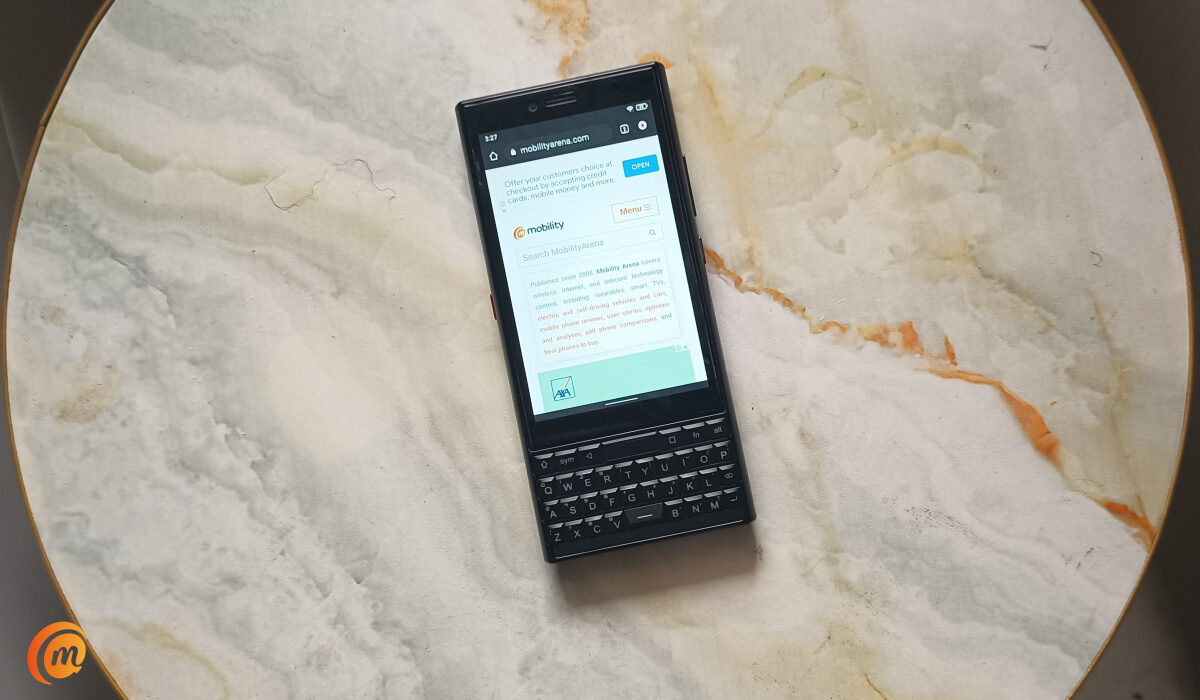
The Unihertz Titan Slim has an infrared blaster and app built in.
List of old phones with IR
Some old phones with IR blaster included the Ericsson R380 , Ericsson R320, Motorola A008 Accompli , Nokia 9210 Communicator , Nokia 9500 Communicator, and Nokia E90 Communicator, among others.
Why phones do not have IR blasters anymore
As soon as faster and more capable means of short-range wireless data transmission were developed, infrared was no longer needed in phones and manufacturers dumped it. The reason why infrared is seeing a resurgence today is because it is in use for controlling many home appliances, like TV, air conditioner, fridge, microwave, home theatre systems, etc. This is a new use case that does not involve heavy file/data transfer. Having an IR blaster in a phone is now a huge convenience: you will not have to drop your phone to use the remote controller.
How to know if your phone has an IR blaster
Before you start downloading the app that will let you make use of it, you have to first check your phone to ascertain if it has an IR hardware component built-in. This is what makes IR blaster work. There are two ways to know if it supports it or not.
• Check the top edge of your phone. If you see a black circle or rectangle plastic or indent, then it means your phone has an IR blaster.
• If the method above is somewhat confusing since some cell phones can have a different design, you can install a tester app that will let you know if you have an IR blaster or not. Download Phone Tester (hardware info) for Android devices. Go to the “Communication peripherals” tab. You’ll see an IR section indicating if it is supported or not.
• You can make a quick search online to know if IR blaster is supported on your phone or not. If it is an old design, you might get a more accurate answer on online forums.
• You can check your phone’s user manual, but I consider this to be a long process because you’ll have to be turning pages after pages, and you will be squinting your eyes to see the tiny texts used in writing cell phone manuals.
Can you install IR blaster in your phone?
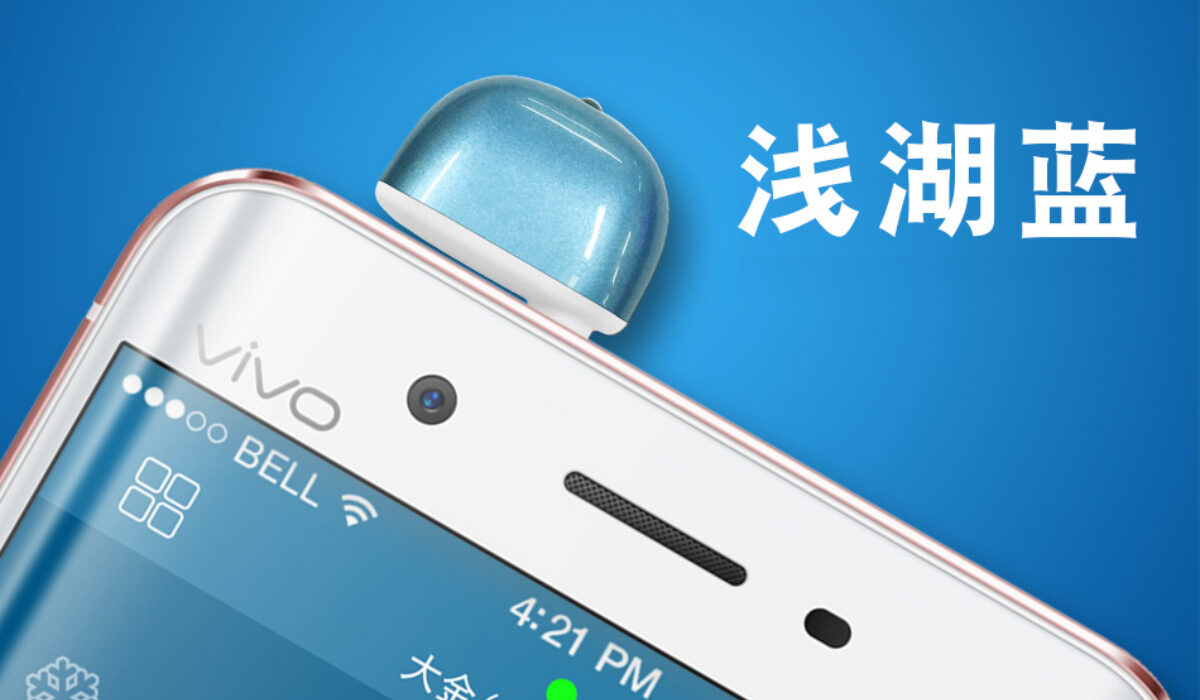
If your smartphone does not have an IR hardware component built-in, you can add an IR blaster to it by buying any of the available portable, universal infra-red adaptors or dongles in the market. They come with a 3.5mm audio jack to plug into your Android smartphone, or a lightning port connector for iPhone. So, yes; you can add an IR blaster to your Samsung, Motorola, Nokia, or Apple iPhone cell phone.
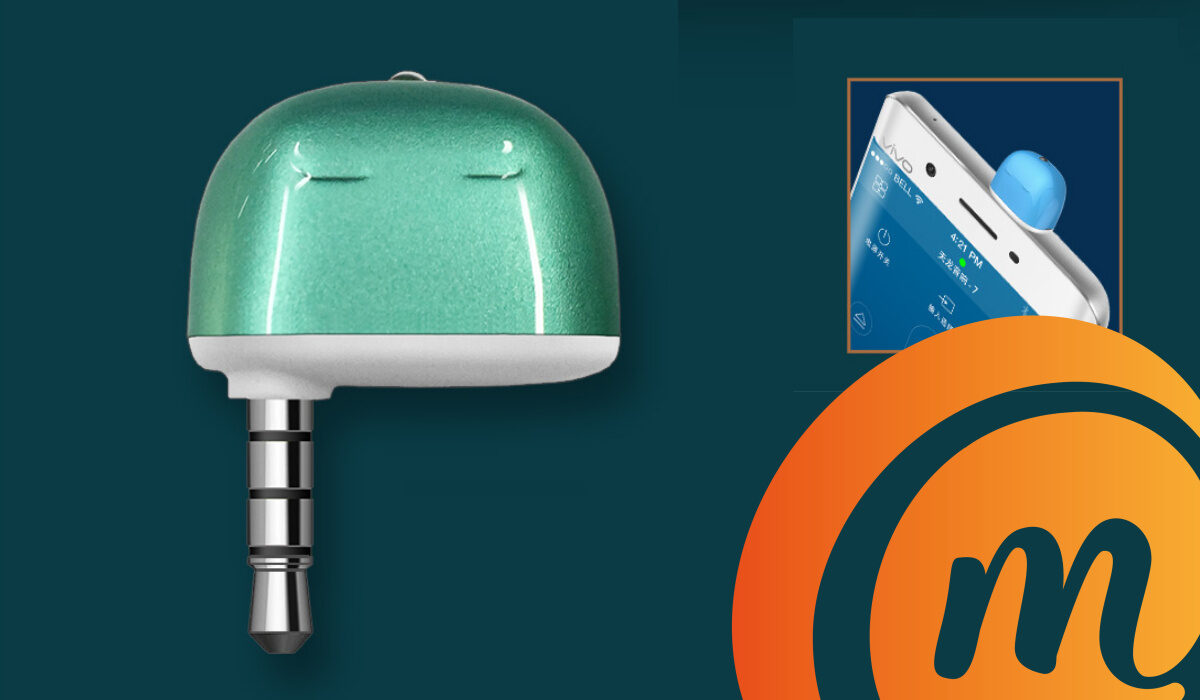
If your phone does not have an IR hardware component built-in, you can buy an IR dongle on the Amazon US and UK websites.
How to use IR Blaster on your Android device
Once you’re certain that your cell phone has an IR blaster, or you have bought and plugged in a portable infra-red controller, you can now proceed to set it up and start using it to control devices that support IR Blaster. Here is a step by step process on how to set it up —
- Install IR Universal Remote app
Before downloading any app, you can check the list of apps on your phone to see if you have a built-in app named IR blaster or Remote Control, if you don’t find any, then you can proceed to download the app.
You will see different apps on the Google Play Store that allow you to use your phone as a remote control. You can opt for Mi Remote Controller for Xiaomi phones (download here ) or Universal Remote Controller; they are some of the widely used ones. Some apps are for specific brands, so make sure you check their description before downloading them.
- Launch the app
After launching it, follow the on-screen instructions on how to select the right IR blaster for you. The app will also request to be granted permission to certain functions of your cell phone; you’ll have to grant it permission for it to work well.
- Select the device
You will also have to select the device you want to control. There is a list of different video and audio devices that are supported. Depending on the app, you might have to choose the manufacturer of the device then the model so it can connect.
- Enter Universal code
The app might also request that you input the universal code for the component. These codes can be found on the internet. Just input your device model and “remote control code”, and you’ll see the code among the search results. To find your code, you could also go to a website like codesforuniversalremotes.com as an alternative.
- Follow the on-screen instructions
After choosing your phone manufacturer and model, as well as inputting the code, a set of instructions will be given to you so you can successfully set up the app. Different apps and devices require different methods to set up certain functions of the app. Just make sure to follow and do everything in the instructions correctly.
- Add multiple devices
Most apps allow you to add multiple devices. However, this feature isn’t usually available for free apps. Free apps that have this feature have a limited number of devices that can be added. To be able to add more devices, you’ll have to switch to a paid app.
- Start using it
Once you have successfully set it up, your phone can now start working as a remote control. Point it at your TV or other devices if you want to change channels, increase or decrease the volume, and so on.
Make sure you always point the IR blaster to the device or else it might not work. You’ll find the IR blaster at the top of your cell phone. So you’ll be pointing the top of your phone to the device you want to control, and then press the keys on your phone screen to perform the action you want.
- Test the app keys
You have to test all the keys of the app to ascertain that they are all working. If one of the keys isn’t working, this indicates that the app isn’t fully compatible with your cell phone, so you’ll have to download another app and try that one.
The best thing to do is to download an IR blaster app specifically made for your phone if you can see such an app. Also, make sure the app has all the functions that an actual remote will have.
How to use IR Blaster For iPhone, iPad To Remote Control TV, AC, etc
To use your iPhone as a TV remote, buy an infrared dongle with Lightning Port support and plug it to the Lightning port of your iPhone or iPad. Download and install the dongle’s app, pair the IR dongle with your iPhone by going to Settings > Bluetooth. Launch the app and you are good to go.
List of Phones with IR Blaster
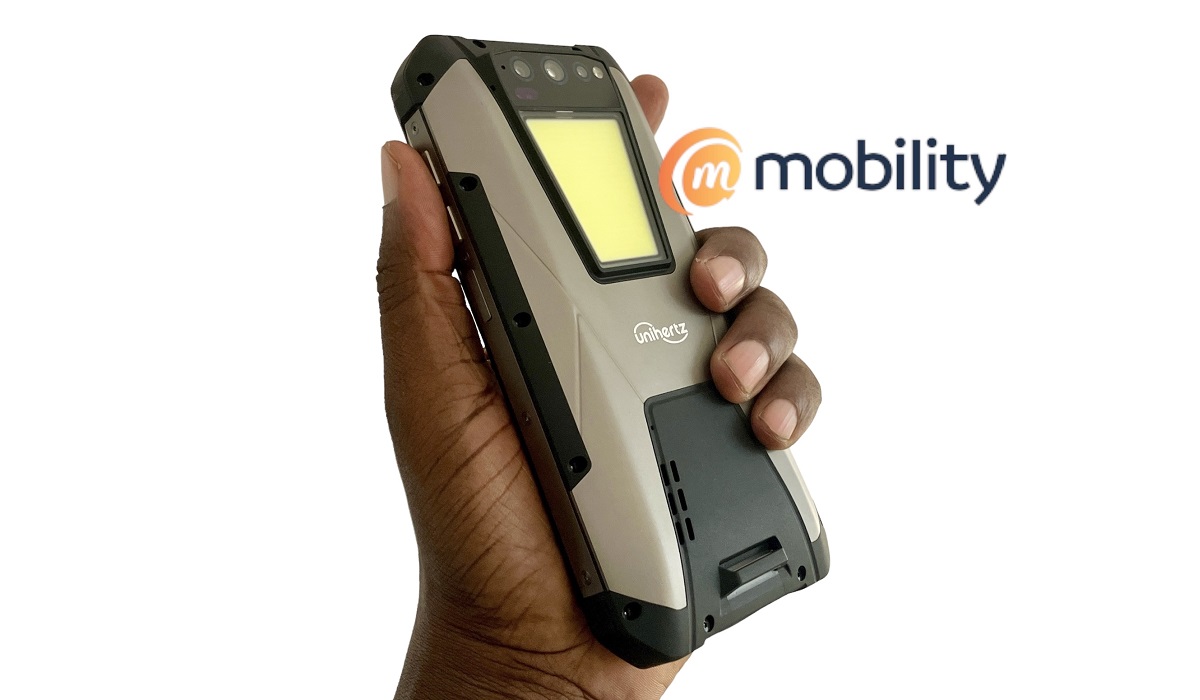
Unihertz Tank
The list of phones with IR blaster include Unihertz smartphones and high-end smartphones by Xiaomi. These two brands are your best bet if you want an infra-red blaster on your phone. Phones like Unihertz Titan Slim and Unihertz Tank have infrared blaster and app built in.
- Xiaomi and Redmi smartphones (excluding the entry-level models)
- Unihertz smartphones
- Newer TECNO Camon devices e.g. Camon 30 series
As at the time of writing (and updating this article in 2023), there are no Samsung phones with IR blaster in 2023.
Author:Mukhtar Sadiq
Add MobilityArena as a preferred source on Google
With the wide adoption of digital technology in today’s world, smartphones are much more than a tool to make and receive calls. Smartphones today now do sophisticated things that could only be done on desktops some years back. Some of these important things are professional writing, editing, and publishing. In this post, you’ll know the best apps for blogging on a smartphone.
Below are some of the apps.
Google Docs
Google Docs is one of the best apps for blogging but many bloggers do not even know how useful it can be. The best part is that it is free to use.
On Google Docs, you can easily write blog posts on your smartphone, edit, and add internal or external links.
The best part is that you can also optimize your content for SEO using Google Docs . After optimizing your content with relevant keywords, you can easily copy this content and paste it into your CMS (like WordPress).
Copying (optimized) content from Google Docs to your CMS is super effective because it retains all the SEO features (including the HTML header tags).
One interesting feature of Google Docs is that you can collaborate with more than one writer or editor to work on the same content before you send the final draft to your CMS for publishing. This is literally not possible on Microsoft Word.
WordPress
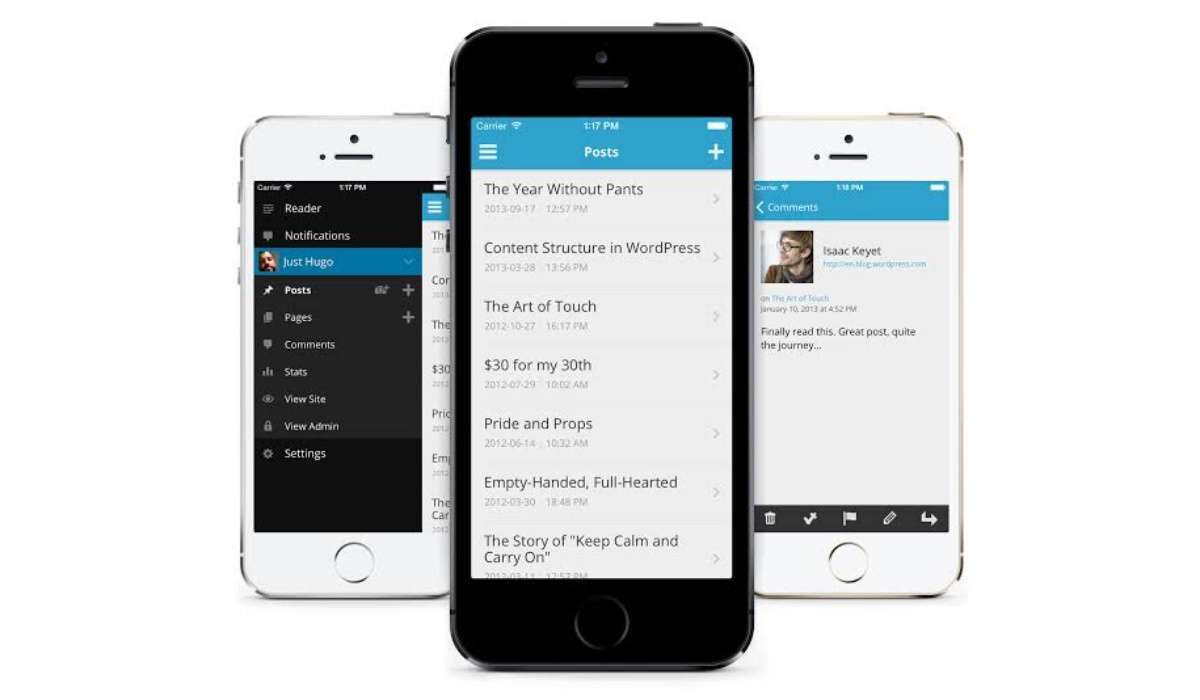
If you use WordPress as your Content Management System, it is only a good idea to download the WordPress App on your Smartphone. Why is it any useful?
On the WordPress app , you can easily manage your WordPress site. Many users prefer managing their WordPress site on the WordPress App to doing it on the mobile web.
There is this natural feeling of aura when using a mobile app that you do not get when surfing on (the mobile) web.
On the WordPress app, you can do literally almost everything you can on the web.
It is important to note that the WordPress mobile app is more compatible if your site is hosted on WordPress.com as opposed to 3rd party WordPress hosting.
Blogger
For some reason, a few publishers prefer to use Blogger instead of WordPress as their Content Management System. If you are one of these then you need to download the Blogger app on your smartphone.
Just like the WordPress App, you can write, edit and publish a blog post or page on the Blogger app.
In a nutshell, you can pretty much manage your blog on the go with the Blogger mobile app especially when your laptop is not available.
Grammarly
Of course, almost every content writer knows Grammarly. It is a software that improves your writing and makes it as professional as possible.
The mobile version of Grammarly is not a typical app though. It is a keyboard that ensures that your writing follows all rules of Grammar.
Although the free version of Grammarly offers a lot, subscribing to a paid plan is worth every penny.
So, if you’re looking to write blog posts frequently on the mobile app, it is very much advisable to install the Grammarly keyboard. It is indeed one of the best apps for blogging on a smartphone.
Google Analytics
Numbers never lie. The value of metrics and reports to any business cannot be overstated. Google analytics, as you may know, provides all relevant reports (in numbers) about your website.
You cannot always be with your laptop but most likely going to be with your smartphone for the most part of the day. Therefore, it is important to download the mobile version of Google Analytics so you can get live reports about your website on the go.
Moreover, it’ll be easier to make sound decisions faster when you can see reports faster on the go.
Google Authenticator
Google Authenticator is a powerful app that enhances the security of your Blog.
Ideally,everyone knows the importance of having a strong and unique log in password to your blog. But these days, having a strong password is not just enough to secure your website from a hacker.
Thus, there is a need for a Two-Factor Authentication (2FA). 2FA provides a second layer of securing your Blog beyond just password. Hence, it makes it harder for anyone to forcibly login to your blog.
Although there are many methods of using Google Authenticator for your blog, I recommend using it via Wordfence (plugin) if you’re using WordPress. If you are in doubt, follow these steps to activate 2FA on your WordPress site via WordFence . If you are not using WordPress, find out other methods to use Google Authenticator to secure your site.
To be candid, Google Authenticator app is one of the best apps for blogging since it can protect your cherished blog.
Hootsuite
After working so hard to publish your blog post, it is a smart idea to share the post with as many people as possible. That is the essence of publishing in the first place – get people to read them. One of the best places to share your content is on Social Media.
Also, it is just important to have an official profile on more than one Social Media platform.
So, now let’s assume that your blog has an official page on Twitter, Facebook and Instagram only. Hootsuite helps you to automate publishing on Twitter, facebook and Instagram at the same time.
In short, Hootsuite makes life easy for you if you have to post on multiple social media accounts representing your blog.
Final Thought
As you may know, blogging on the smartphone has never been easier. But the question is: do you take the most advantage of the best apps for blogging on a smartphone?
If you’re not, it is best to download these apps and make the best use of them.
Author:Stephen Oyelabi
“We really cannot live a smarter life without our Smartphones…” - Stephen Oyelabi, A Smartphone lover, an avid football fan and the founder of Soofootball.com
