Add MobilityArena as a preferred source on Google
If you do not own a smart TV, you can still get Netflix on a non smart TV : So, you are tired of watching Netflix on the tiny screen of a smartphone and want to go big. You have a regular TV and know that people watch Netflix on their Smart TVs. But you are not ready to replace your regular TV with a smart one. How can you watch Netflix on a regular TV?
In the guide below, I share a few tips including how I got Netflix on a non Smart TV, without a fuss.
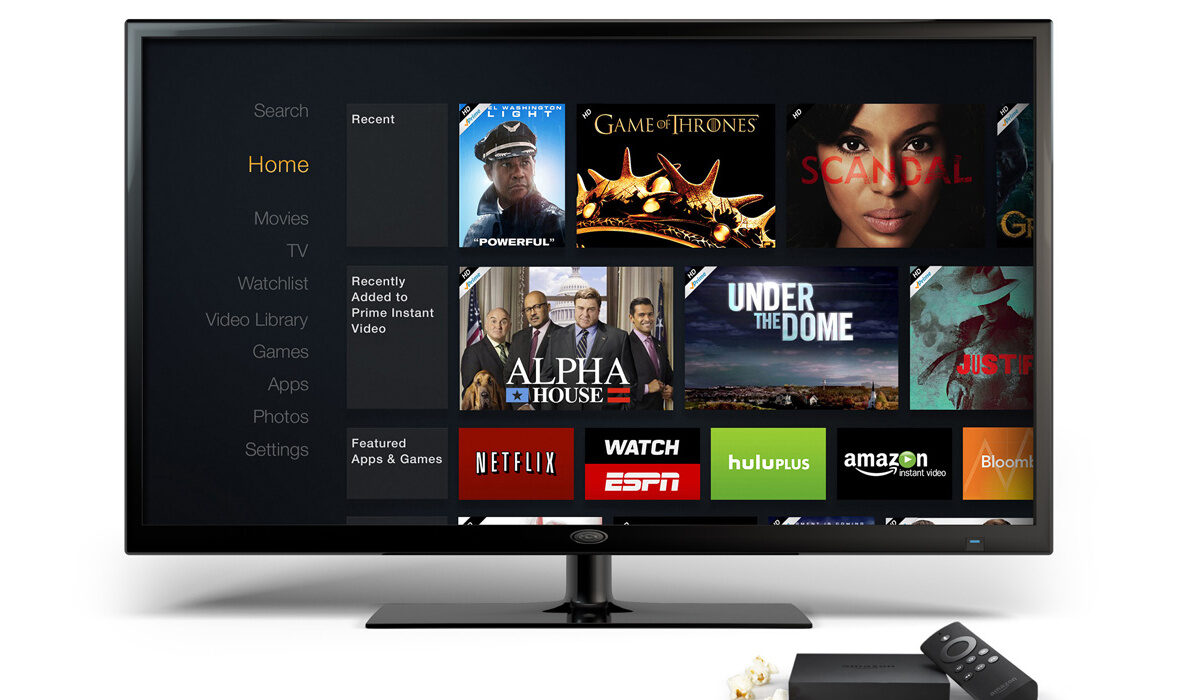
How To Get Netflix On A Non Smart TV
- To Get Netflix On A Non Smart TV, You Need A Dongle
- How to get Netflix on a non Smart TV with Amazon Fire Stick
- Setup
- How to watch Netflix on a regular TV with Chromecast With Google TV
- Summary and Final Words
To Get Netflix On A Non Smart TV, You Need A Dongle
Because regular television sets do not come with certain features, they require an external device to enable them to connect and interact with a service like Netflix. That external device is called a dongle.
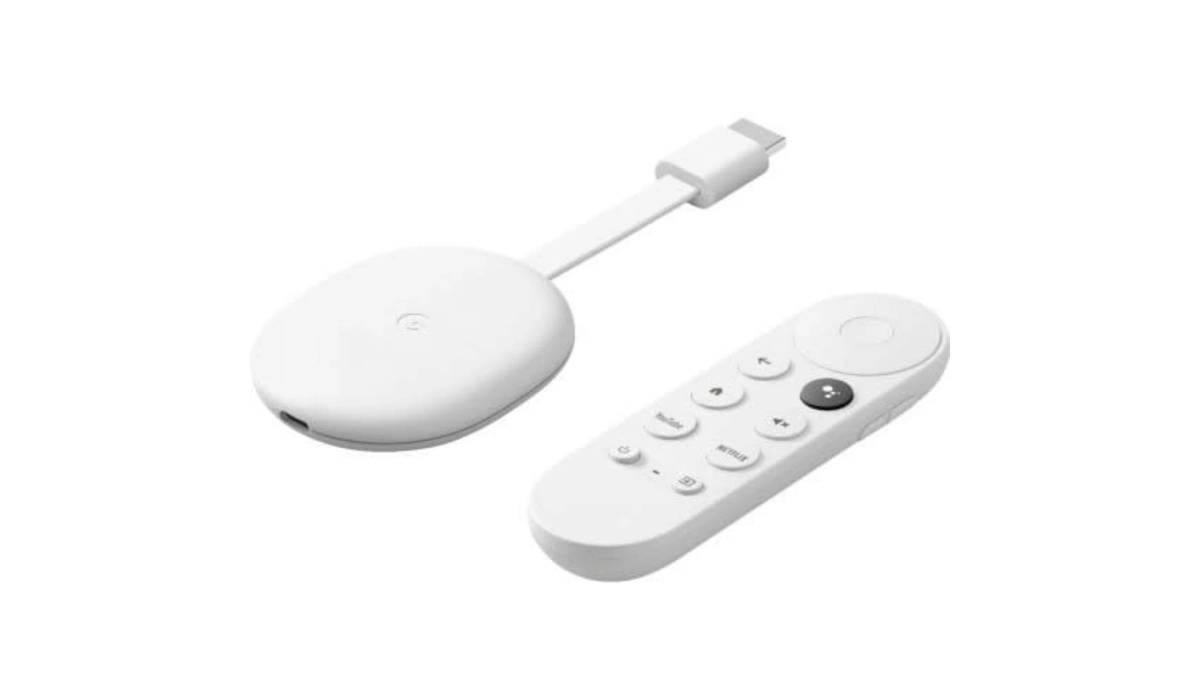
Chromecast with Google TV looks quite differently from Fire Stick, but it also comes with a remote controller. See the below image.
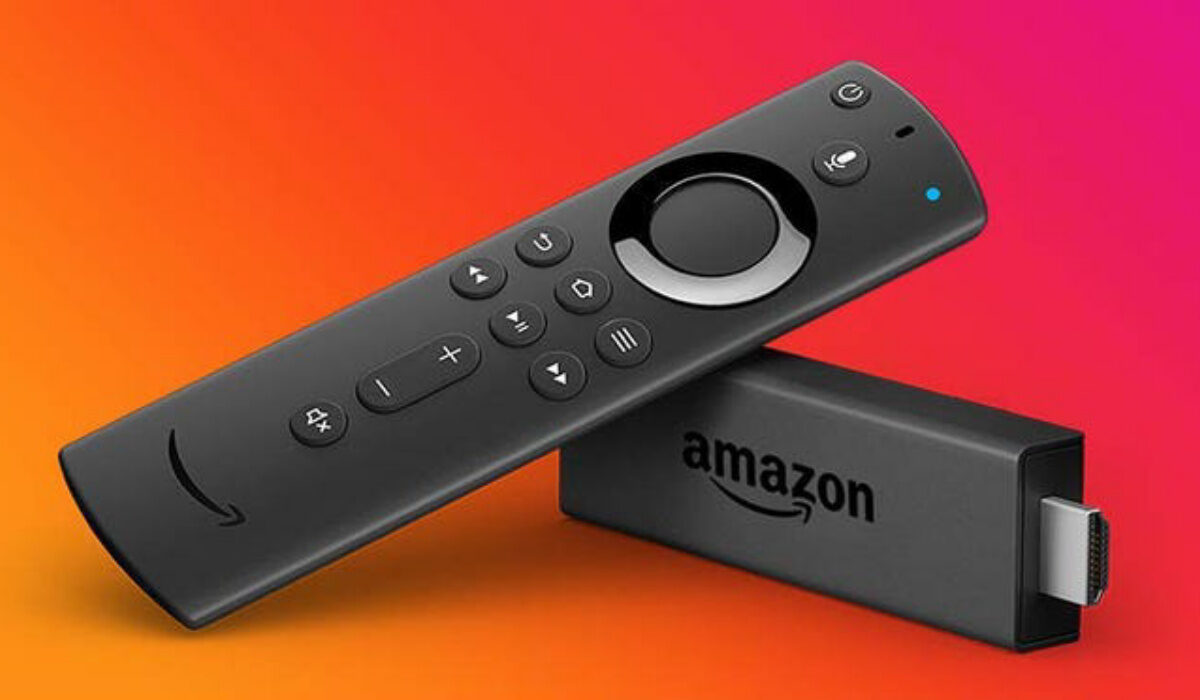
There are three models of Fire Stick. They differ in price and performance. Which means that the higher priced ones offer you better performance. Let’s look at each type.
- Fire Stick Lite: Costing only $29.99, this is the most affordable option to get and watch Netflix on a non Smart TV. You get the full functionality to stream from Netflix and other services like Hulu, Amazon Prime, etc.
- The 1080p Fire Stick costs $39.99, for the benefit of having a slightly faster processor and the new Fire Remote controller. The new controller provides voice commands and volume and power controls for your television.
- Lastly, the 4K Fire Stick, as the name suggests, supports 4k resolution, in addition to the extras that the 1080l version already provide. It costs $49.99.
Setup
- Buy your preferred Fire Stick. As already mentioned, it costs anything between $20 and $50 and can be found on Amazon, AliExpress, Jumia, and many other online stores.
- Plug it into your regular TV via the HDMI port. If your regular TV does not have an HDMI port, you will need an HDMI to AV (RGB) converter/adapter, or HDMI to component adapter. These are available for as low as $15. Connect the Fire Stick to the adapter and then that to your TV’s AV port.
- Make sure your Home Internet WiFi is up and running.
- Plug your Fire Stick into a power outlet. It should indicate that it is powering on.
- Use your television’s remote controller to select the input that matches the port you plugged the Fire Stick into. That should be HDMI. Once you pick the correct port, your Fire Stick boot up screen will appear on the TV display.
- Your remote should auto-pair with the Fire Stick. If it doesn’t, hold the “Home” button for about “fifteen seconds” to force it to happen.
- Next, follow the instructions on the TV screen to connect your Fire Stick to your Home Internet Wi-Fi network.
- Once connected, navigate to the app store to download the Netflix app. Don’t get scared; if you know how to install apps on a phone, it is the same process.
- Login to your Netflix account and begin to stream and watch your favourite movies and TV shows.
How to watch Netflix on a regular TV with Chromecast With Google TV
Note: What you need to get Netflix on a non smart TV is “Chromecast with Google TV”, not the older and less capable models that are called simply, “Chromecast”. Either the HD or 4K variant of Chromecast with Google TV will do. The 4K variant is the more advanced of the two, and also the more expensive, but you really should not bother with it if you do not own a 4K television set.
- Buy your Chromecast With Google dongle.
- Plug it into your regular TV via the HDMI port. If your television set does not have an HDMI port, try one of the alternatives mentioned above already.
- Make sure your home router is on and there is an active ainterbet connection.
- Plug your Chromecast device into a wall power outlet and it will power on.
- Download and install the Google Home app on your smartphone. This is important, as it is used for setting up your Chromecast.
- On the app, set up a Home and add your Chromecast a device on the Home app. Your Chromecast device will connect to your WiFi and then to TV, after which you can install all the apps you want on your TV.
- Now, it is time to login to your Netflix account and start watching your favourite shows and movies.
Summary and Final Words
Personally, I use Chromecast with Google TV and setting up was smooth and easy. It has served me well till date without issues.
Is there any way to get Netflix on a non Smart TV without connecting an external device? Unfortunately, there is not. It is the external device that puts the “smart” in your regular TV. What other external devices can you use to get Netflix on your non Smart TV? Options include Chromecast with Google TV ($30-50), Roku ($30-39), and Apple TV ($150).
Author:Mister Mobility
Digital Skills and Communication Coach | Mobile Phone Connoisseur since 2001 | Tech Blogging since 2004
Add MobilityArena as a preferred source on Google
Motorola has not been great with Android updates in recent years. The company’s security updates page, however, points to a number of Motorla phones that will be getting the Android 13 update.
Unsurprisingly, there is no mention of a rollout calendar – no dates and commitments. Motorola users will just have to sit back and wait for whenever the Motorola Android 13 update begins to roll out
The first batch of phones to get the Motorola Android 13 Update
- Motorola Edge (2022)
- Motorola Edge Plus (2022)
- Motorola Edge 30
- Motorola Edge 30 Pro
- Motorola Moto G Stylus 5G 2022
- Motorola Moto G 5G 2022
- Motorola Moto G82 5G
- Motorola Moto G62 5G
- Motorola Moto G42
- Motorola Moto G32
When will the software update start rolling out to these phones? Nobody knows. You will have to wait.
- Don’t miss our mobile phone reviews .
- Follow our news on Google News .
- Join our WhatsApp Group , to be notified of the most important articles and deals,
- Follow us on Instagram , Facebook , Twitter , and YouTube .
Author:Mister Mobility
Digital Skills and Communication Coach | Mobile Phone Connoisseur since 2001 | Tech Blogging since 2004
