Add MobilityArena as a preferred source on Google
Widgets for the home screen of iPhones are now available after more than ten years. With their homogeneous, squircle appearance, they even possess the Apple aesthetic that many users typically yearn for.
If these widgets are something you’d like to replicate on your Android device, there’s no need to worry. You can get similar functionality on Android with a little bit of work, just like you can with pretty much any iOS feature.

In this guide, we’ll show you an easy way to achieve this, but make sure to follow the instructions we’ve provided in this guide carefully to get it done.
How Do I Get iOS 14 Widgets on my Android Smartphone?
You may create your own widgets on the Play Store using apps, customizing their size, colors, buttons, and functionality. Keep in mind that if you want to follow this tutorial, you don’t have to start from scratch with the iOS 14 widgets. You may easily import a set created by Reddit user “dontbeaboot” into one of the most well-liked custom widget programs.
Here’s how to get it done:
Step 1: You must get dontbeaboot’s presets in order to spare yourself the trouble of creating the widgets from scratch. Open the following link in Google Drive on your phone, then long-press any file to begin batch-selecting all of the widgets you want to add. Pick the desired files, then select “Download” from the menu that appears when you hit the top-right menu button.
Download dontbeaboot’s iOS 14 Widget Presets from Google Drive
Step 2: Installing KWGT and purchasing the Pro Version come next. You will require the custom widget app KWGT. Additionally, you will also need to download the $4.49 pro version unlocker key. Using the links below, download both apps on your phone:
KWGT Kustom Widget Maker
KWGT Pro Key
Step 3 : The next step is to select the folder icon in the top-right area of KWGT after opening it. Select one of the presets you’ve previously downloaded by going to your Download folder. The widget will be included in KWGT’s Exported tab. If it takes a while, switch tabs, then switch them back if necessary. This technique adds each preset you downloaded.
Keep in mind that ten presets are available for addition:
Weather (Small)
Weather (Large)
Google Search (Small)
Google Search (Large)
Media Controls (Small)
Media Controls (Large)
Agenda (Small)
Agenda (Large)
Clock (Light)
Clock (Dark)
Step 4 : The next line of action is to include a bare KWGT widget template. You must first introduce a blank widget template to your home screen before you can install a custom KWGT widget.
Select “Widgets” by long pressing any empty spot on the home screen. Go to the KWGT area and select any template larger than 1 x 1 from the list. Use 2 × 2 (Small) or 4 x 2 (Large) as these are what the widgets are intended for; but, if you like, you get to choose up to 4 x 4 and then shrink the widget later.
The template needs to be added to your home screen. It is advised that you long-press the widget and adjust the width of both side edges. It’s much easier to change a larger space if it doesn’t appear just right.
Step 5 : Next, tap the newly-added empty template widget. By doing this, you can access the editor page of the KWGT and change the widget’s appearance and behavior as desired. However, there isn’t much that has to be done. If necessary, you can resize the widget by navigating to the Layer tab and clicking the arrow next to “Scale.”
A prompt will display above the editor controls close to the bottom of the page to address the issue if the widget requires any permissions, such as the “Calendar” widget requiring access to your calendar. When prompted, choose “Fix” and grant it permission.
The default location setting for the weather app is to use GPS. Use the three horizontal lines in the top-left corner to access the side menu, then select “Setting” to set it to a fixed position. Select “Primary Location” under Location as you scroll down. Enter the desired location and click “Search.” You can select “Save” once it confirms the location with the name and coordinates.
No matter what changes you made, click the save icon in the editor’s upper-right corner. Simply go back to the home screen at this point and just keep enjoying your new widget!
In summary , with the instructions we’ve provided in this guide, you can very easily set up iOS 14’s widgets on your Android smartphone. Just pay attention and follow them closely.
If you also know anyone else who might benefit from the instructions in this guide, feel free to recommend or share it with them.
- Don’t miss our mobile phone reviews .
- Follow our news on Google News .
- Join our WhatsApp Group , to be notified of the most important articles and deals,
- Follow us on Instagram , Facebook , Twitter , and YouTube .
Author:Joan Agie
Add MobilityArena as a preferred source on Google
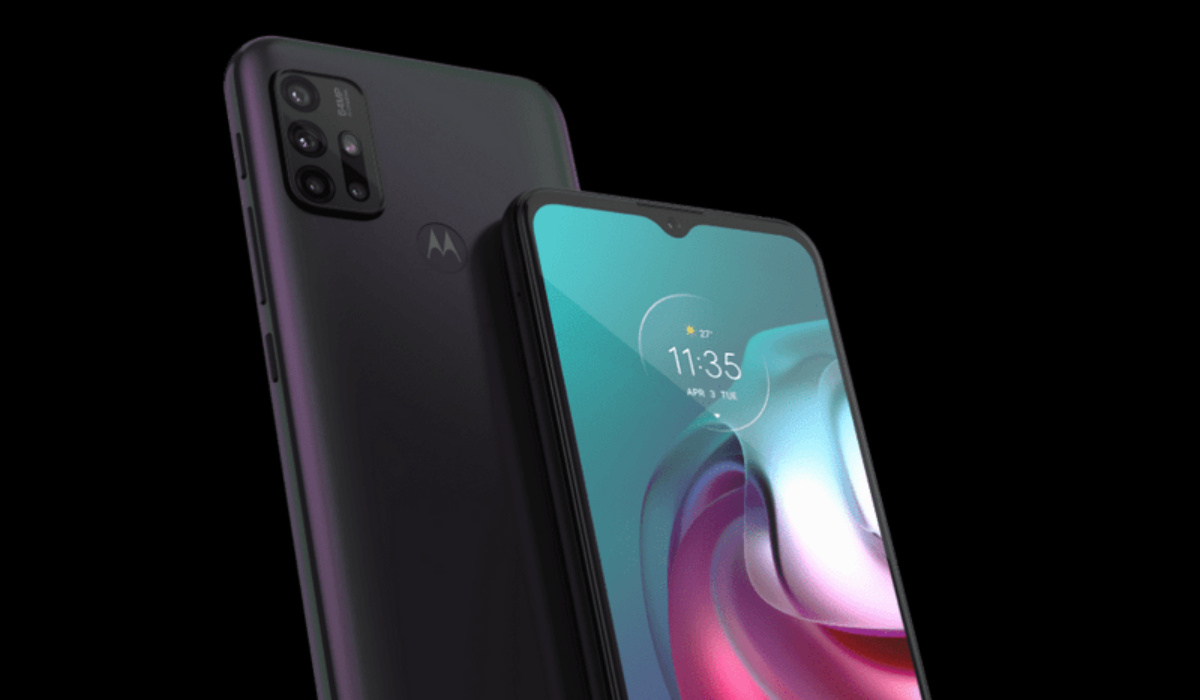
The Motorola Moto G30 is a budget Motorola smartphone aimed at users who do not want to spend a fortune on much more expensive models. The device has a 6.5″ Full HD+ Ultra Wide screen. It has a 64, 8, 2, and 2 MP main camera setup, a 13 MP selfie camera, and a large 5,000mAh battery that gives you over 2 days of battery life. The processor on the Moto G30 is the Qualcomm Snapdragon 662. It also has 4GB/6GB RAM and 64/128GB of internal storage. The Moto G30 also has a 90 Hz display rate as well as a Water-repellent design and build.
If, for some time, you have been looking to make your Moto G30 run faster and smoother than it has, or you are having problems with your device lagging, here are some easy steps you can follow to make that possible.
- Make Motorola Moto G30 faster: Delete Unused apps
- Make Motorola Moto G30 faster: Clear App Cache
- Make Motorola Moto G30 faster by keeping it updated
- Make Moto G30 faster by restarting your device
- Make Moto G30 faster by using the Lite Version of apps
- Make Moto G30 faster by performing a Hard Reset
Make Motorola Moto G30 faster: Delete Unused apps
Any smartphone user would love to have all their desired apps installed. This might lead to large amounts of apps piling up on the device, over time. It is important to form a habit of uninstalling unused apps and games. Having lots of these apps will hinder and slow down the performance of your Moto G30.
Especially when you have some of them running in the background. They also become so many and have so much data on each one of them, that there is barely any storage space left for your device to run as smoothly as you may have liked.
Make Motorola Moto G30 faster: Clear App Cache
Cleaning the cache of the app on your Moto G30 is important in terms of sending up your phone. Clearing the cache of an app can make that particular app run faster and smoother than it did before, and reduce possible lag. Clearing cache is also very important for entry-level devices too to help them improve their performance. As they are not as powerful as high-end devices. You can clear the cache of any app by long pressing the app icon, selecting App info , and then Storage . There will be an option to Clear the cache . Select that and you’re good to go.
Make Motorola Moto G30 faster by keeping it updated
It is important to keep your Moto G30 up to date. This is because, with every new update, there might be security enhancements (which are crucial) but there might also be performance improvements added to the update that can make your overall experience, and device speed, better.
Make Moto G30 faster by restarting your device
It is well known that any device can perform faster and better simply off of a restart. The same holds for the Moto G30. Doing this should address most of the performance issues, as it deletes temporary files to speed up the phone and clears the phone’s memory.
Make Moto G30 faster by using the Lite Version of apps
Lite versions of apps are the shortened versions of these said apps. Apps Tit Tok, Facebook, e.t.c. The lite versions are usually limited in comparison to the actual applications and don’t offer as many features. These lightweight apps, that do not work your device as hard as the main ones, are designed for entry-level smartphones and designed for users who want to keep their apps simple or use something simple. They help boost the performance of your device and lower your data and charges.
Make Moto G30 faster by performing a Hard Reset
If you are looking for a simple method that will help you to make your Moto G30 run faster, it may be the most effective. If you do a hard reset on your Moto G30, then all the phone data will be deleted, and the phone’s storage will be clean. At the same time, the random-access memory of your Moto G30 will start working like new again. However, you need to back up all the data before performing a hard reset.
Follow every one of these steps and you just might get the kind of performance from your smartphone that you desire.
- Don’t miss our mobile phone reviews .
- Follow our news on Google News .
- Join our WhatsApp Group , to be notified of the most important articles and deals,
- Follow us on Instagram , Facebook , Twitter , and YouTube .
Author:Flamez
Flamez loves basketball, art, gadgets and cars.
