Add MobilityArena as a preferred source on Google
Whether you own a Samsung, a BLU, a Nokia, or a OnePlus Android phone, you might have a collection of photos or videos you want to keep private. It is very likely that you have researched on ways to do this. There is a saying, “Everything is possible on Android with apps”, so hiding files is not an exclusion. Here’s a quick tip on how to hide photos or videos on Android without any app.
- 1st Method To Hide Photos/Videos On Your Android Phone
- 2nd Method To Hide Photos/Videos On Your Android Phone
- Other Ways To Hide Apps And Files On Your Android Smartphone
1st Method To Hide Photos/Videos On Your Android Phone
- First you need a good file manager app. We used ES File Explorer for this experiment.
- Move all the photos or videos you want to hide inside one folder. We’re hiding the whole folder. In the screenshot below, we are hiding the thumbnails folder.
- Rename the folder, and add a dot(.) in front of it. The folder “thumbnails” is renamed to “.thumbnails”. See screenshot below
That’s all. The folder will no longer show in the gallery. In our case, the “thumbnail” folder disappears from the gallery.
To unhide the folder and its contents, follow these steps:
- Go to Settings in ES File Explorer and enable the “Show hidden files” option
- The hidden folder will now be visible in transparent mode
- Rename it to remove the dot you added to the front of the name, and it becomes fully visible and accessible again.
2nd Method To Hide Photos/Videos On Your Android Phone
You can also hide the contents of a folder from the Gallery app and other apps that display media files by creating a file named “,nomedia” in the specific folder. Here is how to go about doing that:
- Move all the media items you want to hide into one folder
- Open the folder from which you want to hide files from
- Create a file inside the folder and name it “.nomedia”
To unhide the contents of the folder, delete the .nomedia file.
Other Ways To Hide Apps And Files On Your Android Smartphone
Besides the above methods, there are a number of other ways to hide apps and files on your phone.
- Some 3rd party Android launchers allow you to hide apps and files. Lawnchair Launcher is one of the. Nova launcher is another one, though to hide apps, you must upgrade to the pro version. You should have a look at Apex Launcher too: it hides your apps for free.
- You may want to try the option of securing your apps instead of hiding them, especially for apps that you can’t do without. There are several third-party apps that prevent people from opening your apps. One of the most popular of these apps is AppLock. This app also works for images and videos, so you don’t even need to hide them; you just lock them. But Android OS now includes the option to secure individual apps with a PIN/password or even your fingerprint.
- Lastly, there are also apps that hide files for you on your smartphone by pretending to be something else. Hide It Pro is one such app. It masquerades as an audio manager, but if you hold down the logo for a few seconds, it brings out all your hidden files. Run a search in Google Play Store and you will come up with several other options you can try out.
In conclusion, if you ever feel mad at people who go through your phone without permission or need to secure files on your phone, there are enough options for you to use to hide photos, videos, and apps, regardless of the Android smartphone brand you are using, so give it a try and let us know how it goes.
Author:InfoDesk
Add MobilityArena as a preferred source on Google
It is very frustrating when a phone dances around network modes. The phone is browsing smoothly, and in a split second, it stalls. You check the notification bar and see that the 4G icon has switched to 3G, or the 3G icon down to EDGE. Then it switches back to 4G, then 3G again. You get the picture. This merry-go-round continues, which can be very annoying. Today we look at a working tip on how to peg Android phone to 3G or 4G.
Phones running stock (or close-to-stock) versions of Android always have this issue. You can’t fully peg to a particular network mode. The incessant flipping through networks also takes a toll on your phones’ battery life. For a while now I’ve been with the Bluboo Maya Max ( review and specs ) and this same issue is prevalent on the phone. GLO network was just bouncing around 3G and 2G (it doesn’t support Glo’s 4G network). Here’s how to stop this.
How to peg Android phone to 3G or 4G
- Download and Install MTK Engineering Mode APK HERE .
- Open the app and select “MTK Settings” .
- Scroll down and click on “Network Selection” .
- Next, you select the SIM you want to peg its network. That is, pick the SIM you use for data .
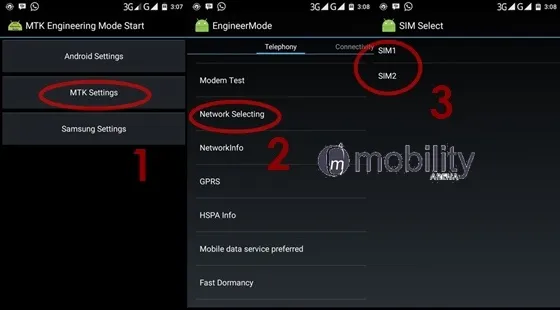
- Set your preferred network type. This is where you actually peg the phone to whatever network mode you want.
Note that this tip works for only Androids running a MediaTek chip. You can use it to peg your Android phone to 3G or 4G, depending on what networks it supports. You cannot peg to 4G if your phone does not support 4G.
Do you have an alternative method of pegging an Android device to a particular network type? Please do share.
- Don’t miss our reviews .
- Follow our news on Google News .
- Join our WhatsApp Group , to be notified of the most important articles and deals,
- Follow us on Instagram , Facebook , Twitter , and YouTube .
Author:Etoniru Chibueze
Chibueze is an award-winning gadget reviewer and geek. He loves research, while living and breathing tech. You can reach him on Facebook, Twitter ,OR LinkedIn
