Add MobilityArena as a preferred source on Google
Sometimes, I am typing on my phone and need a bigger view of the phone screen. Which means that I need a way to hide the keyboard. I did find a solution. I am sure you will find it helpful, too.
The solution I found is based on Gboard which is my favourite smartphone keyboard. I also tried it with Samsung keyboard on the Samsung S23 and it worked as well. Chances are that this solution works on all types of keyboards on Android smartphones.
- Steps to hide the keyboard when typing on Android phones and tablets
- How to hide the keyboard when typing on iPhone
Steps to hide the keyboard when typing on Android phones and tablets
On your Android smartphone, go to the Settings > Display > Navigation bar > Show button to hide keyboard. Tap the toggle to enable it.
That’s it. You can now go type something, and you will see a downward pointing arrow at the bottom of your keyboard (circled in orange color in the image below).
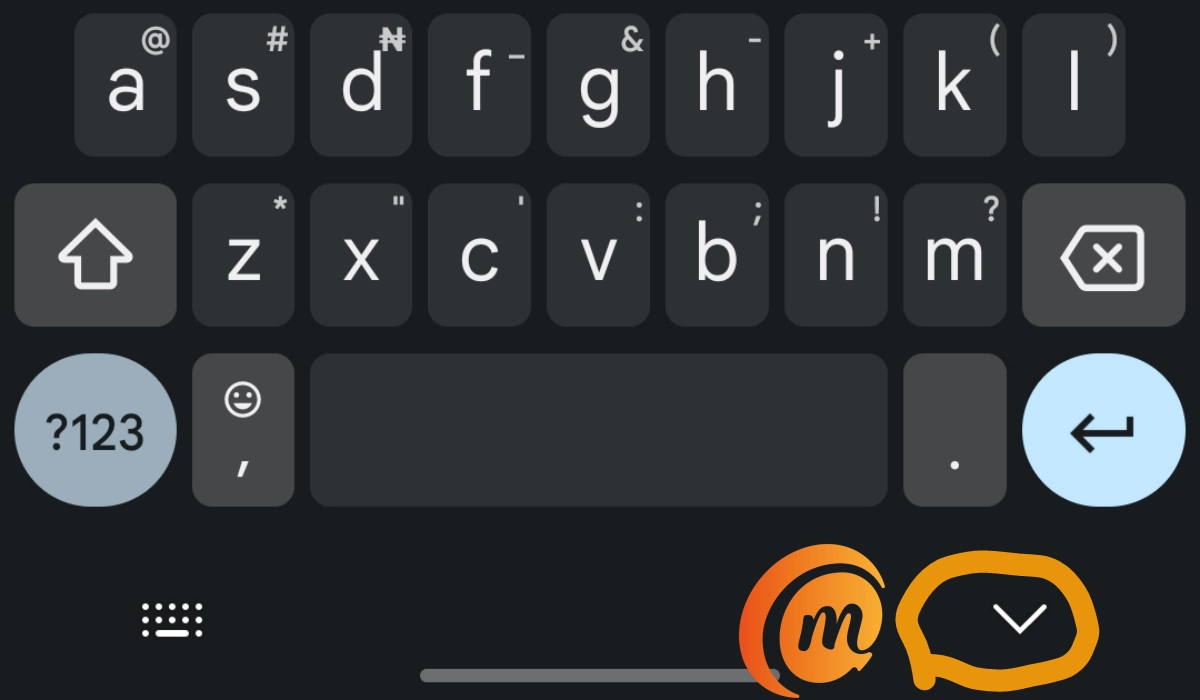
Tap on it to make the keyboard go away at any time. To display the keyboard again, tap anywhere on the screen where you want to insert text and it will pop right up.
How to hide the keyboard when typing on iPhone
As a bonus for iPhone users, iOS also has a feature built into the operating system to enable you hide the keyboard when typing. If you start typing on your iPhone, you will see a “Done” in blue at the top-right corner of the keyboard. Tap on it to make the keyboard disappear. To show the keyboard again, tap where you want to enter text and you are good to go.
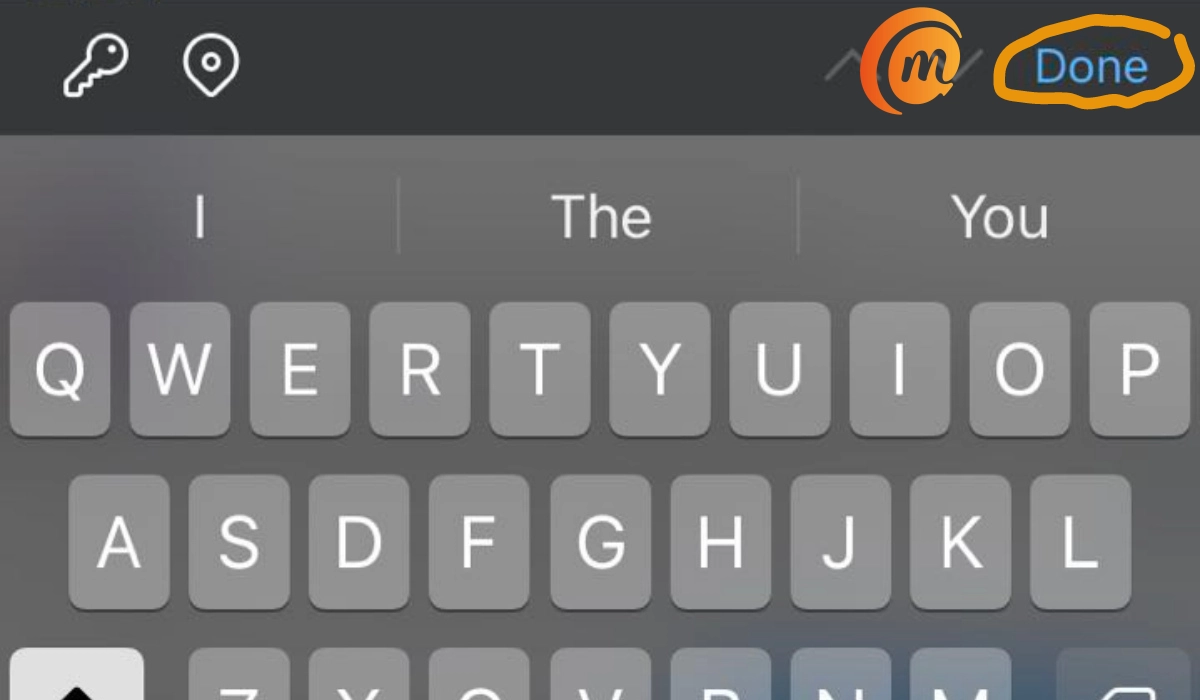
I use this feature on my iPhone SE 2022 all the time. I love the SE 2022 for its compact size, but its tiny screen often means that I need to maximize the view as much as possible.
Author:Mister Mobility
Digital Skills and Communication Coach | Mobile Phone Connoisseur since 2001 | Tech Blogging since 2004
Add MobilityArena as a preferred source on Google
What is the “Application Not Installed” Error on Android and why are you getting it on your smartphone? It is an error that sometimes pops up on the screen of Android smartphones when you try to install an app.
I have experienced this error a few times and know how frustrating it can be when you so desperately want to install an app you need or want for work or fun. Below, I list some of the reasons why this error shows up and then walk you through a number of easy, non-technical fixes for it.
- Reasons for “Application Not Installed” Error”
- Quick Fixes for “Application Not Installed” Error Solution 1: Install the app to the phone’s internal memory Solution 2: Choose the correct app file or download from another source Solution 3: Check Storage Space Solution 4: Reboot Your Device Solution 5: Update the Operating System
Reasons for “Application Not Installed” Error”
- Corrupted APK file: A damaged or incomplete APK file may trigger the “Application Not Installed” error.
- Insufficient storage space: Your device may not have enough free space to accommodate the new app.
- SD card issues: If the app is being installed on an SD card, problems with the card could cause the error.
- Incorrect app installation location: Some apps require installation on the device’s internal storage rather than an SD card.
- Incompatible app version: The app you are trying to install may not be compatible with your device’s Android version.
- App signature conflict: If a version of the app with a different signature is already installed, this error may occur.
Quick Fixes for “Application Not Installed” Error
Having seen why this error happens on your smartphone, here is a step-by-step guide to help you solve the problem and install your app without issues.
Solution 1: Install the app to the phone’s internal memory
Some apps require installation on the device’s internal storage rather than an SD card. As a rule, even when you have an SD card, install apps on the phone. Use your memory card for media files and downloads.
Solution 2: Choose the correct app file or download from another source
If the “Application Not Installed” error is triggered by a corrupted APK file, you have two options: go back to where you downloaded it from to see if another version of the app exists and download that, or change your source.
I recommend that you use Google Play Store as your first port of call for getting Android apps. where you are unable or unwilling to use Play Store, you should give APKPure.com a try; it is one of the trusted sources for Android files. Feel free to try other 3rd party Android app stores , as well.
Solution 3: Check Storage Space
To find out if insufficient storage space is the reason why you are getting the error, go to your phone Settings > Storage, to see what it says. If you have run out of storage space, you need to delete unnecessary files and apps to free up space. Media files are usually the biggest culprits when it comes to space. By media files, I mean video and images.
To delete some of those, open your phone’s gallery, locate the ones you no longer need to have on the phone and delete them. I recommend that you have Google Photos backup active to store your media files in the Cloud. That way, even after deleting them from your smartphone, you can still access them in Google Photos should you need to use them later.
To delete apps, go to your phone Settings > Apps > tap on the app you want to delete and tap on the Delete or Uninstall button. Not that the names and paths to do this sometimes differ from one phone brand to another, due to customisations done by each brand.
Solution 4: Reboot Your Device
A simple and quick reboot of your smartphone often clears the device’s cache and is sometimes a fix for a myriad of issues, including this one. Power down your smartphone and then restart it, then try to install the problematic app again. If a reboot fixes the issue, you will not get the “Application Not Installed” error any more.
Solution 5: Update the Operating System
One last thing you can do to fix the “Application Not Installed” error on an android smartphone is to check if there is a software update available for the phone. Why? Some apps require a certain version of Android OS to be able to run. Dive into your smartphone settings > System > Software update, and your phone should run a check to see if there is a software update available for it.
Note that the names and paths to this differ from one phone brand to another, so don’t get worried if you don’t see the exact phrases I have used. Where you can’t find it, type “Software update” in the search bar at the top of your phone Settings and it should appear in the results. Run your update and if the “Application Not Installed” error is because of a version incompatibility, it should go away.
Author:Mister Mobility
Digital Skills and Communication Coach | Mobile Phone Connoisseur since 2001 | Tech Blogging since 2004
