Add MobilityArena as a preferred source on Google
Google’s Pixel range of phones have not been known for exemplary battery life, and that is no surprise, seeing that they break the very first law of good battery life – include adequate battery capacity. Like Apple’s iPhone range, most Google Pixel phones that have been released have small batteries. As such, it is left to you, the user, to find ways to improve the battery life of these models.
Let’s have a quick look at some of these models. The Pixel 3 has a 1915 mAh battery. Horrors. What of the Pixel 4 ? It has an even smaller one with 2800 mAh capacity. The Pixel 3a and Pixel 4a have slightly beefier batteries – 3000 mAh and 3140 mAh respectively. None of these Pixel phones have good battery life. Users regularly run out of power during the day.
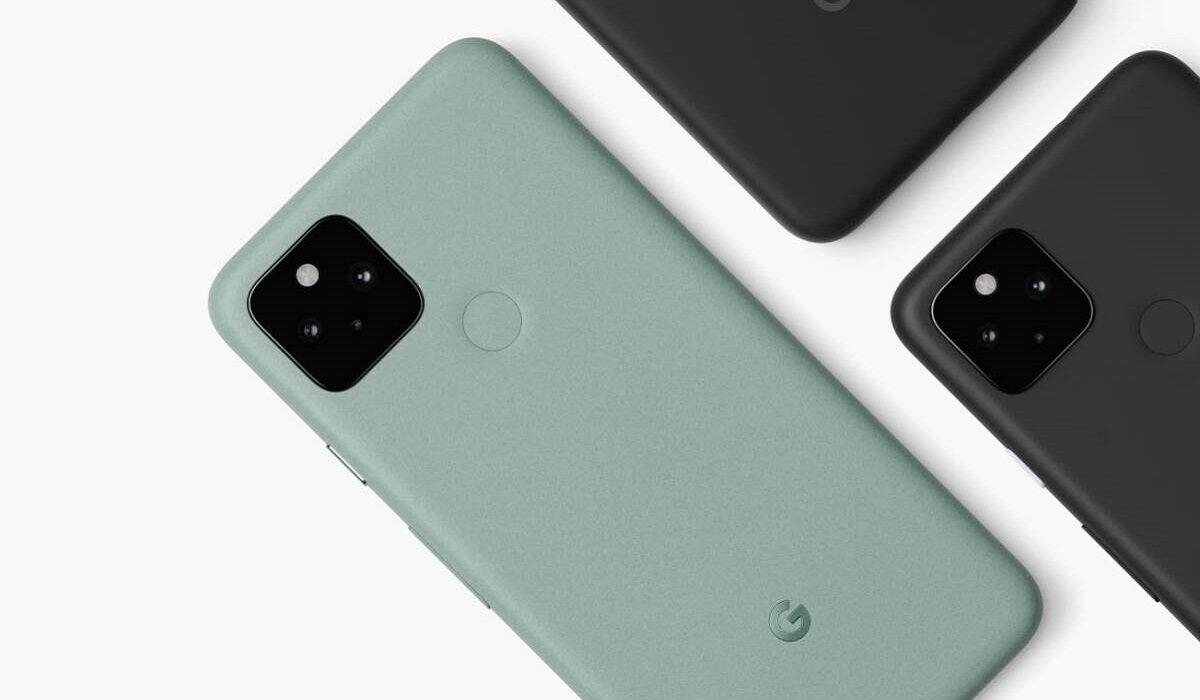
Not everyone wants to carry a power bank around. Not everyone wants to go dashing for a power socket every few hours. Here are some tips that you can use to improve the battery life of Pixel 3, 3a, 4, and 4a.
Disable Always-on Display
Nobody will die if they turned off Always-on Display, also called Ambient Display, and their Pixel smartphones. Anything that is always on in a mobile device is a battery drain. To improve the battery life of your Pixel smartphone, turn Ambient Display off right away. What are you going to miss? A few pesky notifications and no more.
Disable Active Edge
Active Edge is the feature that lets you squeeze the sides of your Pixel smartphone in order to carry out a task, e.g. mute the phone during an incoming call. This is a nifty feature, but the flip side is that it is a power drain too. But do you really need it? Is it that important on the scale of your needs, especially when compared to battery life? If not, go ahead and disable it too.
Disable Screen saver
Manually Reduce Screen brightness
You already probably know that Pixel phones have an Adaptive Brightness feature built in. It helps to adjust the screen brightness depending on current lighting conditions. However, many times, it does not do a good job of it and leaves the display brighter than you really need it to be. You can turn off Adaptive Brightness and manually set your screen brightness. Anything around 45% is good for most lighting conditions.
Reduce Screen Timeout
Screen Timeout is the length of time the display is idle before it goes off. Set this to anything from 15 seconds to 1 minute.
Leave GPS and Bluetooth Turned Off By Default
GPS and Bluetooth drain some power, the former more than the latter. Leaving both of them disabled by default is a good way to conserve some battery life of your Pixel smartphone. You can turn them on whenever you need to use them, but don’t forget to turn them off again when done.
If you have Wi-Fi, turn off 4G LTE
4G LTE is a huge battery drain on modern smartphones. If you have Wi-Fi at home and at work, you can leave turn off the LTE radio on your phone, so it stays connected to 3G, EDGE, or GPRS by default. This will result in great battery power conservation.
Enable Adaptive Battery
One other way to improve the battery life of your Pixel smartphone is to use Adaptive Battery. This is an automated feature that works to extend your phone’s battery life behind the scenes. Google says it may reduce performance and background activity to do this. I recommend that you keep this enabled.
Enable Battery Saver Mode by default
When enabled, Battery Saver limits or turns off some background activity, some visual effects, some features, and some network connections. Many people turn this on only when their battery power is low. How about you turn it on by default? There is a setting there to set a schedule based on percentage. For example, you can have Battery Saver automatically kick in when your battery level drops to 75%. That way, your Pixel’s battery lasts much longer, no? Give it a try.
Turn Off Google Notifications
The Google Pane on your phone’s home screen displays news items and notifications. These are a drain on the battery. Fortunately, they can be turned off too. Slide into the Google pane and fiddle with the settings to disable Google Notifications.
The above tips are helpful for the Pixel 3 and 4 series. Thankfully, for the first time, Google got serious about battery capacity with the Pixel 5 and Pixel 6 series , but should you need to conserve battery power on those and any other future Pixel phones, feel free to apply any of these tips.
You are reading Mobility Arena .
- Don’t miss our reviews .
- Join our WhatsApp Group , to be notified of the most important articles and deals,
- Follow us on Instagram , Facebook , Twitter , and YouTube .
Author:Mister Mobility
Digital Skills and Communication Coach | Mobile Phone Connoisseur since 2001 | Tech Blogging since 2004
Add MobilityArena as a preferred source on Google

Netflix logo
A Netflix Streaming Guide? Yes. The long awaited Money heist season 5 is out on Netflix, maybe you also waited for this movie, a lot of people did (here is the Netflix streaming link ).
Streaming services have become a norm to most people around the world today. The feeling of being among the first people in the world to get to see a movie or show is just amazing. Knowing that you have tons of movies and series at your disposal at little cost is out of this world. But all of this poses a certain level of difficulty to lost people and these issues of concern to most people will be talked on in this article.
Netflix Streaming Guide!
Streaming is amazing yet burdensome, finding the right movie to watch, curving your streaming habits, saving extra data while streaming, poor network connection and so much more. You might personally have faced on of the challenges mentioned earlier and you might have wondered how to solve it. We got you covered with a few Netflix Streaming Guides.
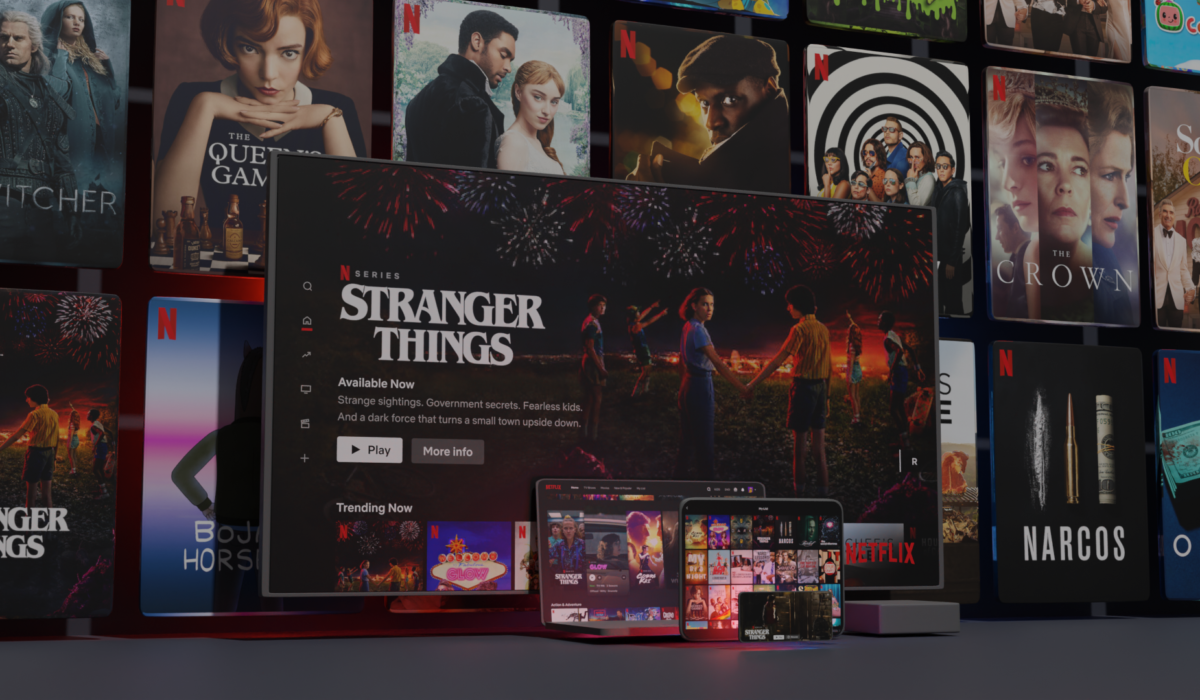
Netflix Streaming Guide.
A few problems with Netflix streaming will be touched and solutions to each will be given for streaming from your smartphone.
• Do Away With Geo-blocking : It can be quite stressful to find movies and series while using Netflix as some of this movies are not available in every region. For example the series “The Office” is not available to be streamed here in Nigeria, so if you are looking out to watch this movie you might just be disappointed. But we have a fix for that. Simply use a VPN (check out what a VPN is here ) and then access your Netflix account and then search for that movie that is not available in your region and you will be able to see the movie
• Save Yourself Some Data : Streaming requires a lot of data to see movies online and you might just tap into data you intended to use for other purposes, this can be so painful. But you need to see your series and movies, then try saving some data, how, you may ask. You can set aside data specifically for streaming or use a WiFi. If none of none of these seem to work for you then head over to your Netflix app settings and navigate to cellular data usage now toggle on the data saving mode. You can also try streaming movies in at a lower quality to save you extra data.
• Split The Bills : Netflix has a lot of payment plans that might be a bit too much considering what your budget is, but there is a way to make your streaming less of a burden to you.
• Watch That Movie At Your Own Time : We all lead busy lives, whether it is work, school or running errands around the house we all are preoccupied every now and then, so adding streaming to our busy schedule is not an ideal thing to do. Netflix understands this issue and there is a fix to help you take control of your streaming habits and not the other way round. You can natively download your favourite movies, shows or series.
Type in the item desired when it comes up hit the download icon note that the downloaded item expires after 48 hours counting from when you hit the play button. There is also Smart downloads for our series lovers, go to you Netflix app settings and toggle on smart download. This feature downloads new episodes of a particular series and delete the current one the moment we are done with the previous as long as WiFi or data connection is active.
• Stay Aware Of Who Has Access To Your Account : It can be frustrating to notice that you cannot access your Netflix account because someone is currently using it, even more frustrating when that person is an unwanted user. Stay up to date with information on everyone who has access to your Netflix account, this way you will be aware all those using the account. Ensure that you are using the latest version of the Netflix application and as long as you are the head account Netflix will inform you of who or which device is using your account at a given time.
• Use Audio Descriptions : Well this feature works for some people, if you are comfortable with just hearing what is going on in the screen and not seeing the action. It serves as a narrator telling you every single action taking place on the screen at the time. Setting this up is quite different on iOS than the very direct approach on Android. On Android you need to download the movie then while it is playing select the Audio & Subtitle on the players settings then toggle on Audio Description.
• Lock Your Screen: Reduce the interuption from accidental swipes on your screen that can distract your attention from the movie. This feature is live on Android and we complied a guide here .
• Use Do Not Disturb: Define your streaming time and reduce distraction by turning on your do not disturb mode on your iPhone or Android device it will help you retain your focus and Netflix better.
Author:KittysTech
Tech analyst, Collins Eshiet, writes about technology. Follow me on Twitter @KittysTech.
