Add MobilityArena as a preferred source on Google
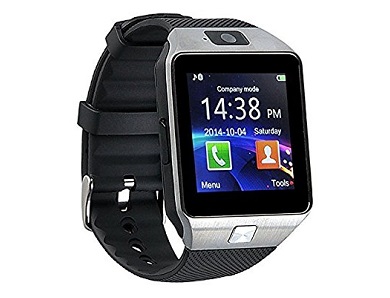
If you own an Android smartwatch, then you would now that the battery life is pretty poor. It does not last a day, according to some. Therefore, you might want to know a thing or two about saving battery on your smartwatch. Here are tips to increase Android smartwatch battery life:
MANAGE APP NOTIFICATIONS
Notifications tend to deplete your smartwatch battery fast. Some are quite necessary, but not al of them, as some apps will simply besiege you with notifications. The Block App Notifications manager will allow you to add or delete apps, thus blocking notifications from them. to manage app notifications, launch the Android Wear app on your phone, click on Settings, then open the Block App Notifications option.
DISABLE THE AUTOMATIC BRIGHTNESS SETTING
As with all other mobile operating systems, you have the option to automatically manage the brightness of the screen according to your environment. This really drains your battery by constantly testing the surrounding environment and adjusting the brightness. To disable it, go to the app menu, open the watch settings then go to Adjust Brightness. There you can choose your preferred brightness level, and also disable the Auto option.
ENABLE CINEMA MODE
This mode stops the watch from disturbing you by putting it into semi-hibernation mode. This turns off the screen, and you can only switch it back on by using the power button. To activate it, pull the panel from the top down, then click on the watch icon. Since the watch remains off during this hibernation period, it saves your battery.
LIMIT CONNECTIVITY
Limiting WiFi, NFC or location services also saves battery on your smartwatch. To disable the option, simply enter the app menu, open the watch settings then click on connectivity menu. There you can disable the connectivity option.
DISABLE WRIST GESTURES
This can help increase Android smartwatch battery life. Wrist gestures allow you t scroll through Google Now cards, which requires use of the motion sensor, which in turn requires more power. To disable the option, pull the right drawer on the smartwatch, then open the watch settings. After that, go to Wrist gestures, then turn it off.
Author:EmmyCN
Add MobilityArena as a preferred source on Google
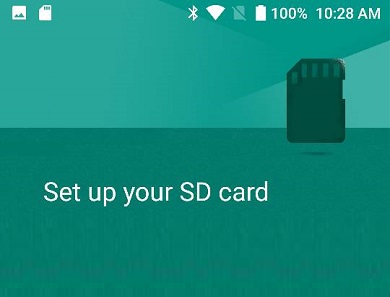
A common complaint among smartphone users is that of running out of internal storage and getting an error message that says, SD card apps not installed . This means you need to change storage location to memory card. That is to make sure that you are able to install apps on memory card instead of your phone memory.
Two Ways to Change SD card apps Location
There are two approaches to changing storage location on your device, depending on your current situation. Here they are:
- You have a new phone and are yet to start installing any apps. In this case, you want to the apps to install to the memory card from the get go.
- You have already installed apps and need to move them from the internal storage to the memory card.
In the sections below, we address both scenarios and how to change storage location in your phone.
SD card apps not installed
How to change storage location to memory card in a new phone
This applies to you if you have a new smartphone and want to install apps on memory card from the get go. This also sets your memory card as the phone’s default storage for everything. Follow the steps below for Android smartphones running Marshmallow and newer:
- Insert a memory card into your smartphone. The phone should prompt you to set it up.
- Select Use as Internal Storage and tap Next
- The phone will require you to format the card at this point. Note that this will erase all data stored on the card, so a backup is a good idea. Note also that the card will only work with that phone after formatting it.
Once the formatting is completed, all apps installations, file downloads and savings will be automatically done to the memory card. You should not have to face an SD card apps not installed error again.
Move Already Installed Apps To Memory Card
If you already have your apps installed in the phone’s internal memory, the first thing to do is to make sure that your memory card is inserted into the phone. Once you have done that, dive into your phone Settings and follow these steps:
- Tap Applications
- Select an app you want to move
- Tap Storage
- If the app can be moved, a Change button will be present
- Tap Change -> SD Card , then follow the prompts.
You have to manually repeat the above process for each app that you want to move from the phone storage to memory card. If you do this, the SD card apps not installed error will go away.
- Don’t miss our reviews .
- Join our WhatsApp Group , to be notified of the most important articles and deals,
- Follow us on Instagram , Facebook , Twitter , and YouTube .
Author:Mister Mobility
Digital Skills and Communication Coach | Mobile Phone Connoisseur since 2001 | Tech Blogging since 2004
