Add MobilityArena as a preferred source on Google
Pixel users know the joy of two things: incredible cameras and those timely updates that keep the phone feeling brand new. The September 2025 OTA Update for the Pixel 9 series has officially landed, and it’s not just about fixing little glitches — it’s bringing along some exciting upgrades too. From performance improvements to fresh features, this update is designed to make your Pixel run smoother and smarter. If you’ve been waiting for the September 2025 OTA Update, now’s the perfect time to dive in. Installing it is simple, and once it’s done, you’ll notice the difference right away. Think faster performance, fewer bugs, and a more polished experience overall. So don’t put it off — grab the September 2025 OTA Update , get it on your Pixel, and enjoy that satisfying feeling of running the latest and greatest software Google has to offer.

- How to Install the September 2025 OTA Update on Pixel 9
- What’s New and Why You Should Care
- Tips to Maximize Your Update Experience
- Conclusion

How to Install the September 2025 OTA Update on Pixel 9
- Connect to Wi-Fi or a strong cellular network. A shaky connection is like trying to herd cats — it won’t end well.
- Ensure your battery is above 50% or plug in your charger. Updates love a fully energized Pixel.
- Swipe down from the top and tap the Settings gear icon.
- Scroll down and tap System → System Update.
- Tap Check for update. If the September OTA is ready, you’ll see the option to download and install.
- Tap Download and let your Pixel do the heavy lifting.
- After the download, tap Restart to install. Feel free to grab a snack — this part takes a few minutes.
What’s New and Why You Should Care
Security Patch: The update delivers the latest Android security patch for September 2025. Think of it as your Pixel’s digital armor, protecting against sneaky cyber nasties.
Audio Improvements: No more random call audio dropouts or static. Your calls just got clearer; your conversations, smoother. Finally, say goodbye to “Can you hear me now?” moments.
Battery Health Fixes: Previously, some users saw weird battery health stats. The update fixes that — your battery meter now tells the truthful tale.
Fingerprint Recognition: Improved accuracy and responsiveness. Your thumbprint unlocking is smarter and speedier, so no more awkward second swipes.
Bluetooth and Connectivity: Stability is up, making your wireless earbuds and accessories friendlier than ever.
Camera Improvements: Your Pixel’s camera app gets a boost in stability and performance. More reliable snaps and videos, especially when capturing those spontaneous moments.
Bug Squashing & Performance: Many sneaky bugs got zapped, improving overall system responsiveness, fixing crashes related to gestures, keyboards, and launcher crashes. Your Pixel feels like it just had a shot of espresso.
Tips to Maximize Your Update Experience
- Backup your important data before updating. It’s like buying insurance — better safe than sorry.
- After the update, give the phone a fresh reboot if you notice any lag. Sometimes new updates need a little nudge to settle in.
- Explore the new camera fixes by shooting in different modes; notice any sharper images or quicker focus? Yep, that’s the update flexing.
- Dive into the improved Bluetooth experience and test paired devices for fewer disconnects or audio dropouts.
- Keep an eye on battery stats post-update; see if your device feels zippier with better battery life.
Conclusion
Updating your Pixel 9 series with the September 2025 OTA Update is one of the simplest ways to keep your phone running at its best. This update brings improved security, smoother performance, and smarter features that make everyday use even more effortless. By installing the September 2025 OTA Update, you’re not just fixing bugs — you’re future-proofing your device. Don’t wait too long; download the September 2025 OTA Update today and enjoy a Pixel experience that feels faster, safer, and more reliable.
Author:Ifeoluwa Adeleke
Side-mounted fingerprint
Why Side-mounted Fingerprint Scanners Are Poor For Usability
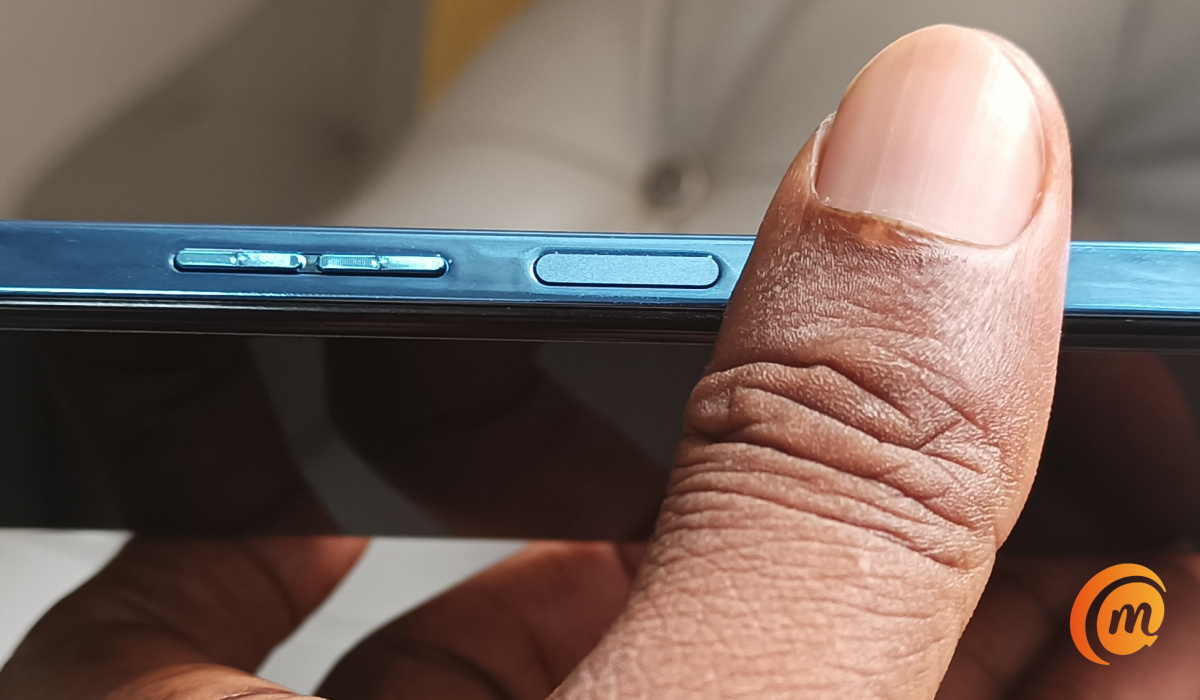
Side-mounted fingerprint scanners are not great for usability, if we are being honest. When are we getting rid of them?
Add MobilityArena as a preferred source on Google
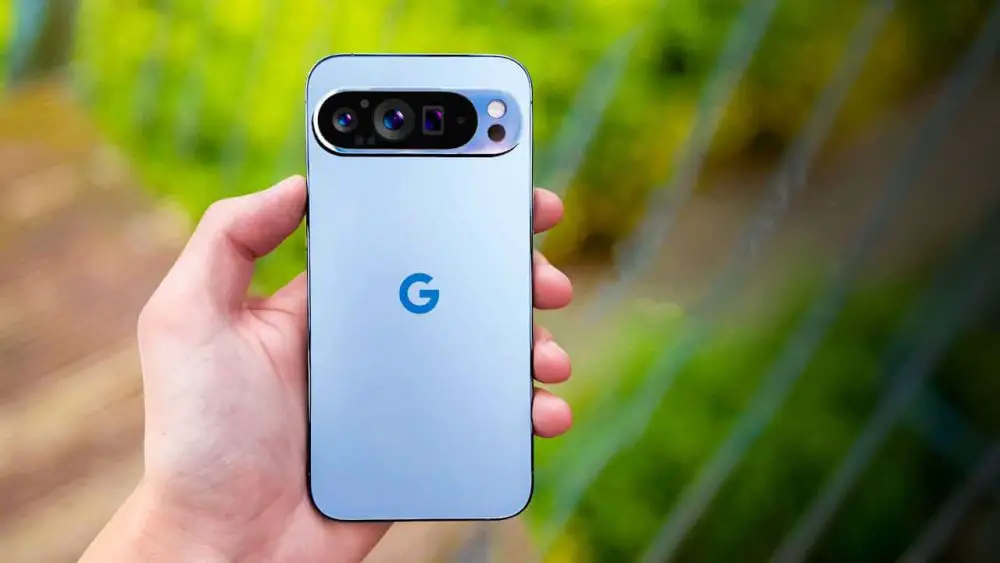
Few things are more annoying than watching your Pixel screen suddenly go dark right when you need it most. If your Pixel 9 has been hit with Display Blackout Issues, you’re not alone — and thankfully, Google has rolled out an update to tackle the problem. In this guide, we’ll walk you through simple steps to fix those Display Blackout Issues and bring your screen back to life. No need to stress — with a quick update and a few easy checks, you’ll have your phone shining bright again in no time. So, if you’re ready to put an end to the frustrating Display Blackout Issues once and for all, let’s dive in and get your Pixel glowing perfectly again.
- What Causes the Pixel 9 Display Blackout Issues?
- Step 1: Update to the Latest Software Patch
- Step 2: Disable/Reset Problematic App Settings
- Step 3: Adjust Adaptive Brightness and Dark Theme
- Step 4: Boot in Safe Mode to Troubleshoot
- Step 5: Factory Reset as a Last Resort
- Why This Fix Matters
- Conclusion

What Causes the Pixel 9 Display Blackout Issues?
Before jumping into fixes, know that this blackout is usually a software hiccup triggered by certain app interactions or display settings conflicts. Think of it as your Pixel needing a quick coffee break to reboot its brain — not a sign of doom!
Step 1: Update to the Latest Software Patch
Google quickly rolled out an OTA update designed specifically to kick this blackout bug to the curb. To install:
- Connect your Pixel 9 to Wi-Fi (no partial updates, please).
- Charge your phone above 50% or keep it plugged in.
- Head over to Settings → System → System Update.
- Tap Check for update, download, and restart to install.
The update includes bug fixes targeting display stability and ensures smoother, blackout-free usage.
Step 2: Disable/Reset Problematic App Settings
Certain apps may mess with the display, especially those requiring screen overlays or custom brightness controls.
- Identify apps with display permissions in Settings → Apps → Special app access → Display over other apps.
- Temporarily disable this permission for recent or suspicious apps.
- Reboot your Pixel to see if the blackout disappears.
Step 3: Adjust Adaptive Brightness and Dark Theme
Adaptive brightness sometimes miscalculates lighting in certain conditions, causing the screen to go dark unexpectedly.
- Toggle off Adaptive Brightness in Settings → Display → Adaptive Brightness.
- Switch off Dark Theme temporarily for testing at Settings → Display → Theme.
- Experiment with manual brightness settings to see if stability returns.
Step 4: Boot in Safe Mode to Troubleshoot
Safe Mode runs your phone with only essential system apps.
- Hold down the power button until the power menu appears.
- Press and hold Power Off until the Reboot to safe mode prompt appears.
- Tap to reboot into safe mode.
- If the blackout stops, suspect third-party apps causing conflicts. Uninstall recently installed or suspicious apps one by one.
Step 5: Factory Reset as a Last Resort
If blackout issues persist, backup your important data and perform a factory reset.
- Go to Settings → System → Reset options → Erase all data (factory reset).
- Follow the instructions carefully and restore only essential apps after.
Why This Fix Matters
A stable and bright display isn’t just about aesthetics — it’s your interface to the digital world. The blackout bug is a frustrating tripwire, but with these fixes, your Pixel 9 will shine like new, and you’ll avoid those “Why is my screen dark?!” meltdowns.
Conclusion
Dealing with Display Blackout Issues on your Pixel 9 can be frustrating, but you don’t have to let it disrupt your experience. With Google’s latest fixes and a few simple tweaks, you can keep your screen running smoothly and reliably. By staying on top of updates, checking permissions, and adjusting brightness settings, you’ll reduce the chances of Display Blackout Issues getting in your way. Follow these steps, and your Pixel 9 will stay bright, responsive, and free from those pesky Display Blackout Issues.
