Add MobilityArena as a preferred source on Google
A common complaint among smartphone users is that of running out of internal storage and needing to free that up by installing apps to memory card instead. So, how do you install apps in memory card instead of in the phone’s storage?
There are two approaches to this, depending on your current situation:
- You have a new phone and are yet to start installing any apps. In this case, you want to the apps to install to the memory card from the get-go.
- You have already installed apps and need to move them from the internal storage to the memory card
We address both scenarios in this article.
- Set Your Smartphone To Install Apps In Memory Card From The Word Go
- Move Already Installed Apps To Memory Card
Set Your Smartphone To Install Apps In Memory Card From The Word Go
This applies to you if you have a new smartphone and want to install apps on memory card from the get go. This also sets your memory card as the phone’s default storage for everything. Follow the steps below:
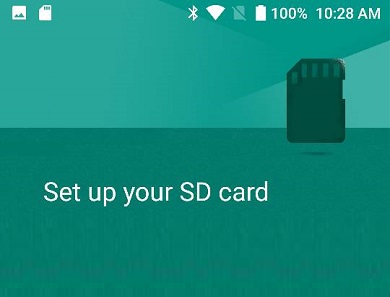
- Insert a memory card into your smartphone. The phone should prompt you to set it up.
- Select Use as Internal Storage and tap Next
- The phone will require you to format the card at this point. Note that this will erase all data stored on the card, so a backup is a good idea. Note also that the card will only work with that phone after formatting it.
Once the formatting is completed, all apps installations, file downloads and savings will be automatically done to the memory card.
Move Already Installed Apps To Memory Card
If you already have your apps installed in the phone’s internal memory, the first thing to do is to make sure that your memory card is inserted into the phone. Once you have done that, dive into your phone Settings and follow these steps:
- Tap Applications
- Select an app you want to move
- Tap Storage
- If the app can be moved, a Change button will be present
- Tap Change -> SD Card , then follow the prompts.
You have to manually repeat the above process for each app that you want to move from the phone storage to memory card.
Author:Mister Mobility
Digital Skills and Communication Coach | Mobile Phone Connoisseur since 2001 | Tech Blogging since 2004
Add MobilityArena as a preferred source on Google
In our iHere Smart Key Finder review , we walk you through how this nifty Bluetooth tracking device helps you find your missing key or smartphone, among other functions. This smart key finder and keyholder is manufactured by Nonda.
Who remembers the popular school lines whenever one misplaces a pen or some other item: “Lost but found; Careless Owner!” That line is followed up with a rather cheeky response, “Foolish Finder!” That response alone was usually enough to cause World War Three, minus the grace of God.
Well, I am always misplacing my smartphones and keys, and Lord knows what I go through to find them whenever it happens. But technology is making things a lot easier for me. There’s an app for that! Finally, I have an app and a tracker that helps me locate my ever missing keys and phones.
How iHere Smart Key Finder Works: A Tracker and An App
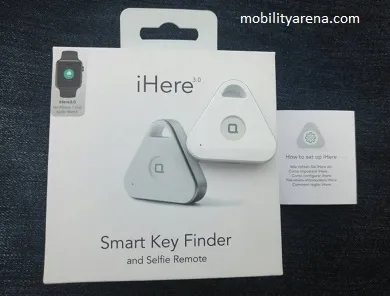
The iHere Smart Key Finder is a rechargeable Bluetooth tracking unit about the size of a keyholder. The whole idea is that you use it as your keyholder. Except that it performs exceptionally well for a keyholder. Used together with the iHere 3 app, this little device can also function as a phone finder, remote selfie shutter button, a car finder and a voice recording trigger for your smartphone.
How to set up the iHere Smart Key Finder
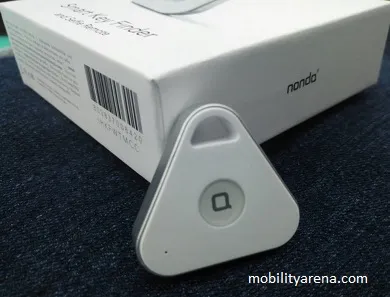
On opening the box, I recommend that the unit be charged full, the indicator changes from red to green to signify a full charge. Then download the iHere 3 app from your App store. Launch the app first and allow to search for the iHere tracker unit. Ensure there is proximity between your smartphone and the iHere tracker, then press on the button on the tracking unit for 5 seconds or more until the red LED light starts to blink.
When the LED light on the iHere Smart Key Finder starts to blink, both devices should connect automatically within seconds, and then you are presented with a dashboard from where you can choose to find your missing keyholder and key ( Find tab at the bottom of the screen), as well as set up the device for one of four other functions ( Click tab at the bottom of the screen). Here is what the Click half of the dashboard looks like:
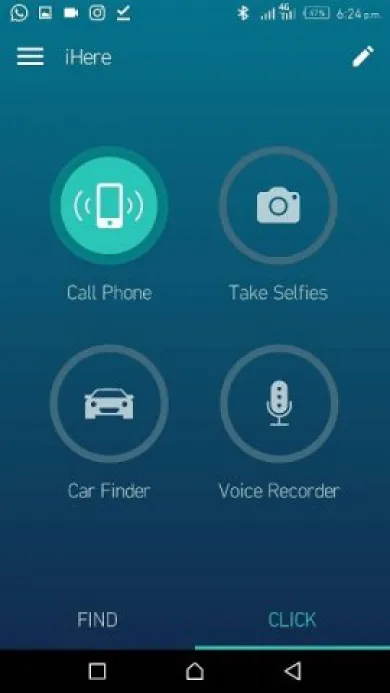
As you can see, you can pick from four (4) available functions. Since I am forever losing my phone, my default is “Call Phone”. When I tap that, it locates my phone and makes it ring out, helping me to pinpoint its location. Selfie freaks will love the iHere and naturally opt to use it as a selfie remote.
Use The iHere Smart Key Finder App To Find Your Missing Key
If your key goes missing, pick up your smartphone, launch the app, select the “ Find ” tab at the bottom of the screen and then tap the circular “Find” button. Your iHere keyholder will ring out, so you can find it.
iHere Smart Key Finder review: Any Snags?
Sometimes, the app crashes or the devices disconnects from the app after a short while. Usually, reconnecting is as simple as launching the app again. But if you experience any unresolved issues, there is a support menu in the app. You can find this under the “Help” menu.
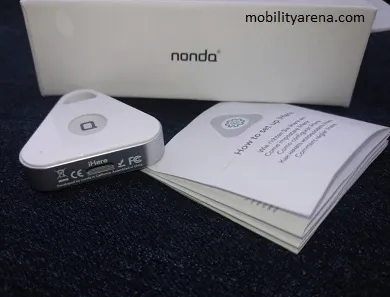
Apart from that, the app is pretty straightforward to use. We do wish there was a way to programme it for more than one function at a time. For example, it would be nice that if I launch my camera and press the button on the tracker, it knows that I want to take a selfie and functions for that automatically. The way it is now, when I have set it to function as a phone finder, it won’t function for any of the other three options.
iHere Smart Key Finder Review: Final words
I find the device particularly useful because I am always losing my smartphone or keys within my flat and this is a sure solution for me. I will update you on how long the battery lasts and if possible come up with a comparison against other portable Bluetooth tracking devices.
- Don’t miss our reviews .
- Follow our news on Google News .
- Join our WhatsApp Group , to be notified of the most important articles and deals,
- Follow us on Instagram , Facebook , Twitter , and YouTube .
Author:Mister Mobility
Digital Skills and Communication Coach | Mobile Phone Connoisseur since 2001 | Tech Blogging since 2004
