Add MobilityArena as a preferred source on Google
People can perform more and more tasks remotely as technology advances. Regardless of the purpose to be achieved, efficient communication is crucial for many different categories of people.
When it comes to phone conversations, a need may arise where you need to talk to more than one person at the same time. Thankfully, it’s possible to make a conference call with several people on the same call. This is pretty easy, as long as you know how to set it up correctly. In this guide, we’ll go over how to make a conference call with an iPhone or Samsung cell phone.

- What is a Conference Call? How to Make a Conference Call with an iPhone How to make a conference call on a Samsung cell phone
What is a Conference Call?
Simply put, a conference call is a phone call with more than two participants at the same time. In essence, in conference calls, you can call someone on a modern smartphone and then add another person to the call. All the parties on the call are typically able to hear and communicate with one another.
Conference calls are an efficient and practical approach to staying in touch in several situations. For instance, you can make a conference call with a team while in your home or office, and it will allow several participants to join the same call at once.
Your carrier will determine how many people you can add to the conversation, however, you should be able to use your phone app to hold a conference call with up to five people. If you don’t already know how to, the instructions in the next section will teach you how to make a conference call on different kinds of smartphones.
How to Make a Conference Call with an iPhone
As long as your network provider allows it, an iPhone conference call can accommodate up to five participants. With just a few touches, it’s easy to set up a conference call.
You can make a conference call with an iPhone by following these instructions:
- Get the Phone app open.
- Dial the number of one of the persons you wish to add to the call.
- Wait until the call connects successfully. The Add Call button will become accessible once this happens. Inform the person already on the call that you will be adding a second caller.
- You can now add another caller from Favorite s, Recents , Contact s, or the Keypad by tapping the Add Call button .
- The Merge Calls button will become accessible once the second call connects.
- To initiate the conference call, press this button. Now everyone on the call will be able to hear and communicate with one another.
- If you want to invite extra participants to the conference call, click the Add Call button once again.
- When the call is complete, just click the Hang Up button to disconnect from all other callers.
As you can see from the instructions, it’s pretty easy to make a conference call on an iPhone.
How to make a conference call on a Samsung cell phone
On a Samsung phone, the procedure to make a conference call is a bit different, but still simple regardless.
The maximum number of participants on a Samsung device is five (you and four others). If you don’t have time to search for a specific internet conferencing platform, simply open a Samsung native app and follow these steps:
- Open the Phone app from the home screen by tapping the Menu icon, then enter the first contact’s number.
- As soon as the active call is on hold, tap Add to place a second call.
- Choose a contact, type the first few letters of their name, and then press Phone .
- Tap Merge to combine two calls.
- Continue doing this until all the participants enter the call.
- Once you’re done, click the End Call icon to end the conversation.
There are some important things to take note of when trying to make a conference call on a Samsung cell phone:
- The Conference button could have the names “Conference” or “ Conf” or perhaps just a three-figure icon.
- If you try to add a third party to the conference call but can’t get through to them, hang up first, then hit the Conference button to resume the prior chat.
- Press the Conference button, then dial the extension or external number to remove a participant from the conference call. Press the Conference once more to resume the discussion.
Also, keep in mind that the procedure for setting up a conference call can differ based on the specific Samsung model being used. We advise visiting Samsung’s official website for further details.
In summary , it’s really easy to make a conference call on an iPhone or Samsung cell phone. All you need to do is follow the instructions and tips we’ve included in this helpful guide.
Author:Joan Agie
Add MobilityArena as a preferred source on Google
If you’re a business owner, you’ll most likely receive phone calls throughout a typical business day, but you won’t always be able to tell where these calls are coming from or the reason you’re receiving them. Caller ID obviously helps, but it won’t always provide you with enough information to help your business flourish.
In such situations, call tracking becomes very useful. If you’re equipped with the right software, such as the one of the best call-tracking apps for Android, you can automate call-tracking even further. This will ensure that you’re up-to-date with all the information you need to grow your business.
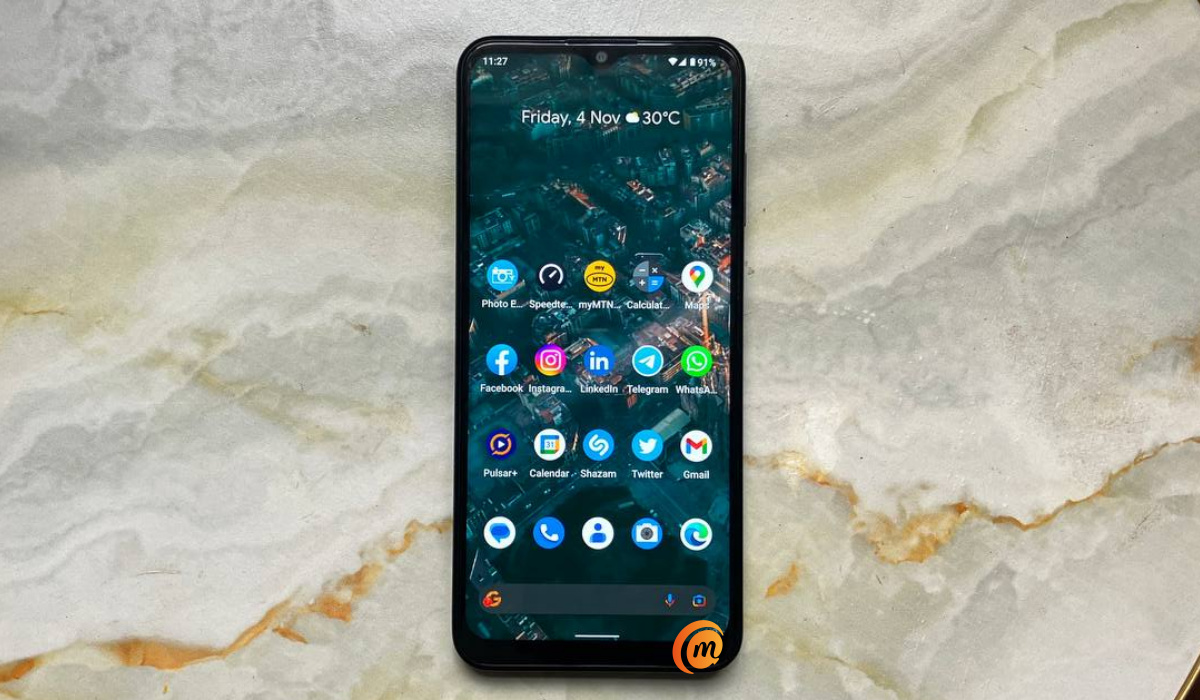
We’ve created this guide to teach you what call tracking is, and to show you the best call-tracking apps for Android. Keep reading to find out what they offer, and how to take advantage of call-tracking apps for better business growth.
What is Call Tracking?
Call tracking allows businesses to know who calls them, when they call, who the callers represent, what they want, where they are located, and even transcripts of what they say.
This means that call tracking allows you to have a database of customer information that you can use to develop your website and business in order to attract more customers.
Call tracking meticulously records various information from each call you receive to your website. It works by installing call-tracking software on your website, linking it to a phone number, and posting that phone number as your method of primary contact. When someone phones you, the software activates immediately and records information such as the caller’s location, company, and address.
Furthermore, you can also establish fresh phone numbers to track each time you launch a new marketing campaign. This enables you to determine which marketing methods are producing the best results for your business.
Everything is made much easier with the right tracking software, so we’ve discussed the best tracking apps for Android in the next section.
What are the Best Call Tracking Apps for Android?
Based on certain features and functionality, there are some options that can be considered to be the best call-tracking apps for Android.
Consider the following options:
CallTrackingMetrics
CallTrackingMetrics is the first SaaS platform that informs contact center automation with call tracking and conversion information, resulting in a more tailored customer experience. Based on the wealth of features it offers to businesses, it has earned its place among the best call-tracking apps for Android.
This software can help you determine which marketing initiatives are generating leads and conversions and then use that information to automate call flows and fuel your contact center. It also helps to successfully unify communications throughout your firm.
CallTrackingMetrics monitors call recordings, transcriptions, and words said on calls to reveal previously unnoticed information about your customers’ preferences and habits. You can level up this data from your discussions to gain an advantage over competitors, customize the user experience, and steer your campaigns using first-party data that only you have access to.
Shape
Shape is another option among the best call-tracking apps for Android. It is a purpose-built sales and marketing automation software that has pre-built capabilities that can be customized for any organization. The simple interface empowers staff members and consolidates all areas of your organization in a single AI platform.
Shape Software offers a collaborative environment for your team members to stay aligned and productive in all their activities. Be it optimization of sales pipeline, interacting with more prospects using marketing sequences and online ads, cultivating customer relationships, connecting seamlessly, or tracking tasks, you’ll find that this call-tracking app offers a lot of useful functionality.
CallCabinet
CallCabinet is a tried-and-true option among the best call-tracking apps for Android, a call recording solution for the most regulated industries. With this solution, you can capture every audio, video, and screen interaction. This tends to make quality assurance and business analytics easier for firms.
Furthermore, CallCabinet strategically offers voice data insights to avoid business risks and assure fundamental compliance. All of these features contribute immensely to business success, so this is a great option to consider if you’re on the lookout for the best call-tracking apps.
In summary , if you’re a business owner looking for the best way to stay on top of caller information, take a cue from our suggestions in this guide about the best call-tracking apps for Android.
- Don’t miss our mobile phone reviews .
- Follow our news on Google News .
- Join our WhatsApp Group , to be notified of the most important articles and deals,
- Follow us on Instagram , Facebook , Twitter , and YouTube .
