Add MobilityArena as a preferred source on Google
If you are like me, finding the best wallpaper for your phone must often be a tall order. I often spend long periods of time hunting down the perfect wallpaper for every new smartphone I review or use. Wallpapers are important to me. They have to be artistic, or tell a story, yet they have to not be too bright, too busy, or intrusive. They certainly must resonate with my person in some way.
Usually, I end up creating the kind of wallpapers that I need. Most times, I make them by tweaking existing wallpapers or random images that I find on the Web. Some times, I create them from scratch. I take a lot of photographs , so I am not exactly lacking content to create wallpapers from. Those photographs usually mean something to me, so I end up with wallpapers that resonate. Mission accomplished.
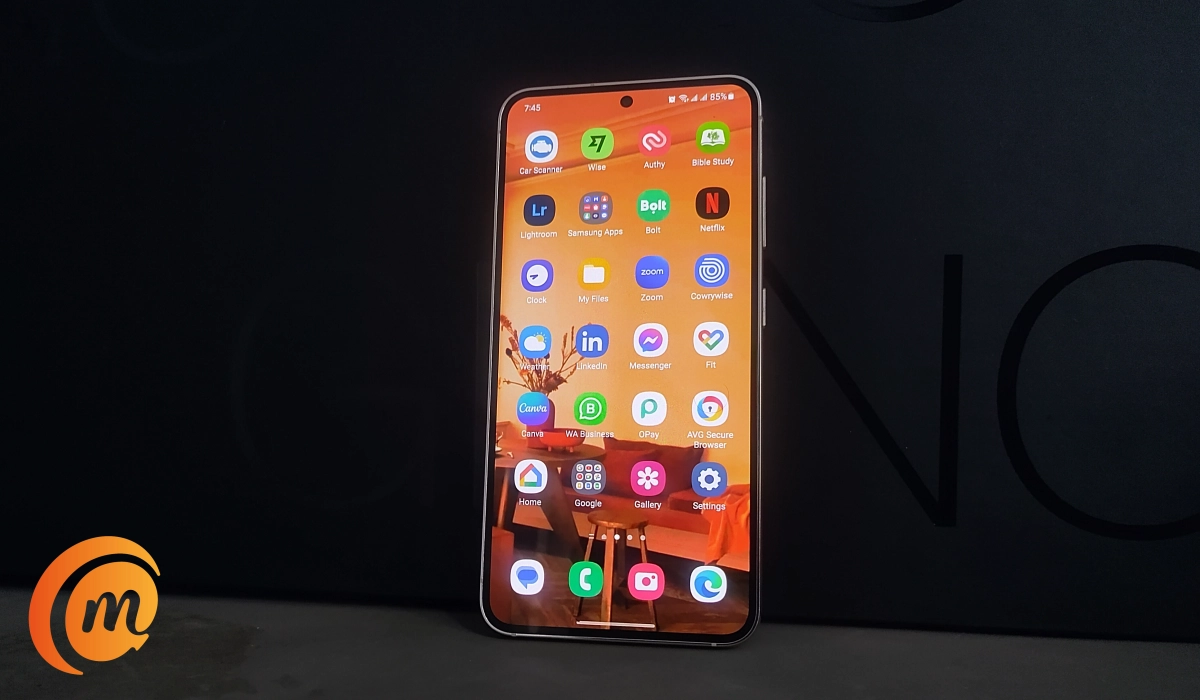
- The best wallpaper for your phone is one that inspires you
- How to create the perfect wallpaper for your phone
- How to set an image as a wallpaper for your phone
The best wallpaper for your phone is one that inspires you
It isn’t just me or a few of us. In the ever-evolving digital landscape, our smartphones have become more than just communication devices – they are extensions of our personalities, fashioning our online identity. A captivating wallpaper can transform your phone into a personal gallery, a statement of style that you carry with you everywhere. If you’re in search of the perfect wallpaper for your phone, ones that reflect your unique taste and flair, you are not alone.
If you find yourself on endless searches, perhaps the best way to get the perfect wallpaper for your phone is to create one. The wallpaper you are looking for is out there; it just is not a wallpaper yet. So, make it into one. No, it isn’t difficult. How many random images have you seen on Twitter or Facebook and you immediately liked? Lots of them; right? Each one is a potential wallpaper for your phone; do not sleep on them.
I am betting that you even have some of them saved on your phone already. See? You are already on the right path. Let me help you complete the journey.
How to create the perfect wallpaper for your phone
There are several easy ways to create a wallpaper for your phone. Here are some steps to follow:
Choose an image : Select an image that you want to use as your phone wallpaper. This can be a photo you took yourself, an image you found online, or a design you created (especially if you use an app like Canva).
Resize the image (optional): Use an image editor to resize the image to fit your phone screen. The size will depend on your phone model, so check the specifications or use a wallpaper size guide to ensure the image is the correct size.
Add text or design elements (optional): If you want to add text or design elements to your wallpaper, you can use an image editor to do so. There are many free image editors available online, such as Canva or Adobe Spark.
Save the image : Once you have finished editing the image, save it to your phone or to a cloud storage service like Google Drive or Dropbox.
Set the image as your wallpaper : On your phone, go to the settings menu and select “Wallpaper”. Choose the image you just created and set it as your wallpaper.
There are many online tools and apps that make it easy to create a wallpaper for your phone, such as Kapwing, Adobe Spark, and Canva. These tools allow you to upload an image, resize it to fit your phone screen, and add text or design elements. Once you have finished creating your custom image, you can download it and set it as the wallpaper for your phone. Check them out in your phone store, or use their official websites.
How to set an image as a wallpaper for your phone
Whether you downloaded the image or created it outright, setting an image from your phone as your wallpaper is a simple and straightforward process. The exact steps might vary slightly depending on your device’s operating system (iOS or Android) and the specific version you’re using, but here are the general steps for both platforms:
For iOS devices (iPhone and iPad):
- Choose the Image: Open the Photos app and select the image you want to set as your wallpaper.
- Tap the Share Button: Tap the share button, which looks like a square with an upward-pointing arrow. It’s usually located at the bottom left or bottom center of the screen.
- Choose “Use as Wallpaper”: Scroll through the options and tap “Use as Wallpaper.”
- Adjust the Image: You’ll have the option to move and scale the image to fit your screen. Adjust it to your liking.
- Set the Wallpaper: Once you’re satisfied with the image’s position, tap “Set” at the bottom of the screen.
- Choose Set for: You can now choose to set the image as your Lock Screen, Home Screen, or Both.
- Done: Your chosen image is now set as your wallpaper.
For Android smartphones:
- Choose the Image: Open the Gallery app or your preferred image viewer and select the image you want to use as a wallpaper.
- Open Image Options: Tap the three dots (menu) icon usually located in the top right corner of the screen.
- Select “Set as Wallpaper”: From the menu that appears, select “Set as wallpaper” or a similar option.
- Choose Set for: Depending on your device and Android version, you might be asked to set the image for the Home screen, Lock screen, or Both.
- Adjust and Set: If prompted, you can adjust the image’s position and scaling. Once you’re satisfied, tap “Set wallpaper.”
- Done: Your selected image is now your wallpaper.
That is it. Now, you know how to create a wallpaper for your phone that resonates with you – your very own custom phone wallpaper that inspires joy (or whatever other emotion you want to inspire).
Author:Mister Mobility
Digital Skills and Communication Coach | Mobile Phone Connoisseur since 2001 | Tech Blogging since 2004
Add MobilityArena as a preferred source on Google
In the modern academic environment, a laptop is more than just a device; it is a tool that, if used properly, can significantly enhance a student’s educational experience. From accessing online resources to organizing study materials, the potential applications of a laptop in the context of student life are extensive. This article will explore five key ways students can maximize the use of their laptops, thus transforming this everyday device into a powerful ally in their academic journey.
- The Value of Laptops For Students
- Way 1: Leveraging Educational Apps and Websites
- Way 2: Using Productivity Tools
- Way 3: Employing Cloud Storage
- Way 4: Mastering Keyboard Shortcuts
- Way 5: Keeping Your Laptop Secure and Maintained
- Conclusion
The Value of Laptops For Students
Laptops play a pivotal role in today’s digital education landscape. As academic institutions increasingly leverage digital technologies to support teaching and learning, students find themselves needing to adapt to these changes. And a laptop, with its versatility and power, is the ideal tool to navigate this digital academic environment.
Whether you’re researching for a project, participating in an online discussion, or even asking a service to write my paper for me , your laptop serves as a gateway to a world of resources and possibilities. It facilitates learning by granting instant access to a vast array of educational material online. Furthermore, it enables efficient organization of study materials and aids in seamless communication with peers and educators. In essence, a laptop, when utilized effectively, becomes an integral part of a student’s academic success toolkit.

Way 1: Leveraging Educational Apps and Websites
With a laptop in hand, you have access to a plethora of educational apps and websites designed to enhance learning and studying. These digital platforms offer a range of resources, from interactive tutorials and educational games to comprehensive study guides.
For instance, websites like Khan Academy provide free courses on a wide range of subjects, while apps like Quizlet offer tools for creating digital flashcards, a proven method for improving memory retention. Other platforms like Coursera and edX allow you to take courses from top universities worldwide right from your laptop.
Learning to leverage these educational platforms can greatly enhance your academic performance. By incorporating them into your study routine, you can complement your classroom learning, delve deeper into topics of interest, and gain a competitive edge in your academic pursuits.
Way 2: Using Productivity Tools
One of the major benefits of using a laptop as a student is access to an assortment of productivity tools. These digital resources can streamline your academic tasks, promote better organization, and foster effective time management.
Applications such as Microsoft OneNote or Evernote serve as powerful note-taking tools, allowing you to compile, organize, and search your lecture notes efficiently. For task management and planning, tools like Trello or Asana can help you break down your academic assignments into manageable tasks, track your progress, and meet deadlines.
Furthermore, software like Grammarly can proofread your assignments, while citation tools like Zotero or Mendeley can simplify the often-complicated process of referencing in academic papers. Mastering these productivity tools can save you considerable time and energy, allowing you to focus more on learning and less on administrative tasks.
Way 3: Employing Cloud Storage
As a student, your laptop is likely filled with a myriad of files – from lecture notes and research papers to presentation slides and eBooks. Managing all these files can be challenging, but this is where cloud storage comes to the rescue.
Cloud storage services like Google Drive, Dropbox, or Microsoft OneDrive offer a reliable and accessible solution for storing your academic files. They not only free up valuable storage space on your laptop but also allow you to access your files from any device with internet access, offering flexibility and convenience.
Moreover, these services often come with features like file sharing and collaborative editing, making group projects and information sharing with peers significantly easier. Adopting cloud storage is a step towards a more organized and efficient academic experience, helping you ensure that your valuable work is safely stored and always within reach.
Way 4: Mastering Keyboard Shortcuts
When used correctly, keyboard shortcuts can be a game-changer for your productivity. They help you perform tasks faster, saving valuable time that you can use for studying or relaxation. Though it might take a while to get used to them, once mastered, these shortcuts can significantly enhance your efficiency.
Common keyboard shortcuts like Ctrl+C for copying, Ctrl+V for pasting, and Ctrl+S for saving are probably already part of your workflow. However, there are many more shortcuts that can prove beneficial. For example, shortcuts for taking screenshots, navigating between browser tabs, and even for advanced formatting in word processors can be real time-savers.
Consider creating a list of the most useful shortcuts for your tasks and practice using them regularly. Over time, they will become second nature and contribute to a smoother, faster workflow.
Way 5: Keeping Your Laptop Secure and Maintained
Keeping your laptop secure and well-maintained is essential for uninterrupted academic work. Regular maintenance keeps your laptop running smoothly, reducing the risk of unexpected breakdowns or slow performance during critical moments, like during an online examination or while availing of the best assignment writing services .
On the digital security front, ensure you have good antivirus software installed and keep your operating system and applications up to date. Regularly backup your important files to avoid loss of data. Remember to protect your personal information and use strong, unique passwords for your accounts.
Physical maintenance matters too. Regular cleaning, using a laptop-friendly surface, and ensuring good ventilation can prolong the lifespan of your device. By taking care of your laptop, you are essentially safeguarding your digital academic life.

Conclusion
Your laptop is one of the most powerful tools in your academic arsenal. By leveraging educational apps and websites, utilizing productivity tools, employing cloud storage, mastering keyboard shortcuts, and keeping your laptop secure and maintained, you can transform your laptop into a comprehensive hub for your academic life. The goal is to not just use your laptop but to use it wisely and efficiently, maximizing its potential to support and enhance your academic journey.
