Add MobilityArena as a preferred source on Google
If you have ever had problems with your mobile network, maybe a low signal or no signal issue, and you had an important call you needed to make, then you know just how frustrating it can leave you feeling. But what several people aren’t aware of is that you can make and receive regular calls using Wi-Fi instead of your cellular network, on your iPhone.
So, it is not the end of the world if you are having one problem or the other with your cellular network. Let’s take a look at exactly how to make calls using Wi-Fi on your iPhone.
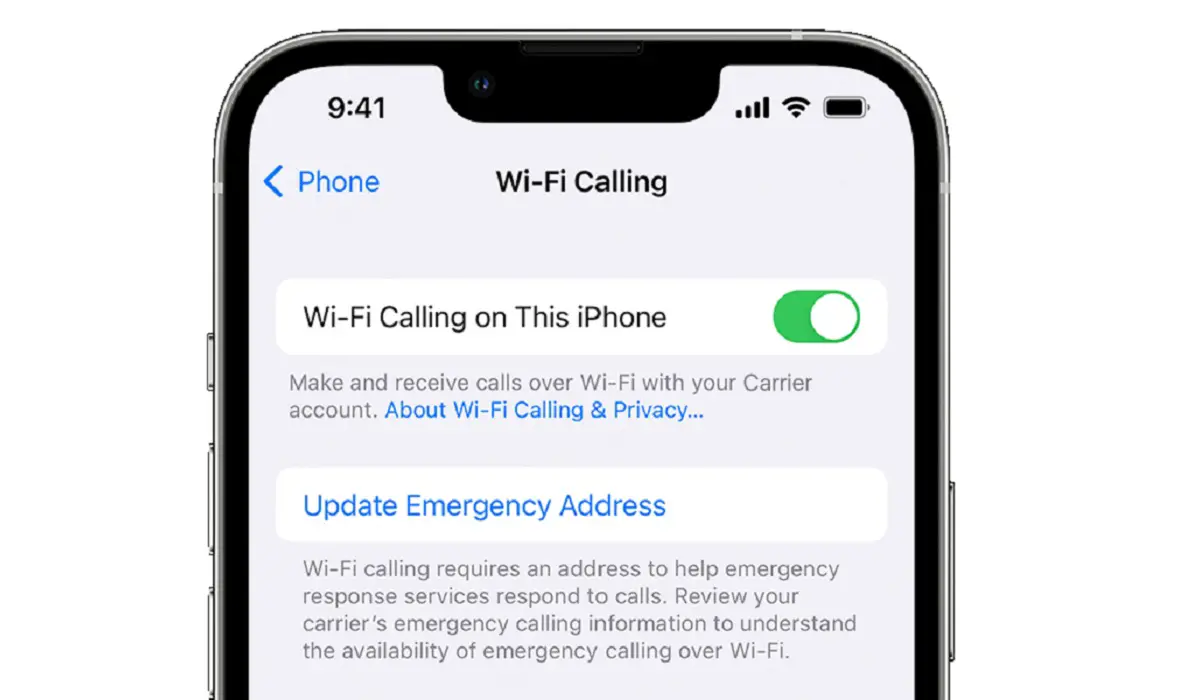
- How to make and receive calls using Wi-Fi on your iPhone
- Make emergency Calls using Wifi on your iPhone
How to make and receive calls using Wi-Fi on your iPhone
To use Wi-Fi to make and receive calls, follow these simple steps;
•Head to settings on your iPhone.
•If your iPhone has Dual SIM, choose a line under “SIMs”.
•Select “Wi-Fi Calling” and turn it on.
•Input your address for emergency services.
And with that, you are pretty much set to go on how to make calls with Wi-Fi on your iPhone. When you have Wi-Fi calling enabled, “Wi-Fi” will be displayed beside your carrier name on your status bar, and you know for certain that you can now make and receive calls through Wi-Fi.
If you lose connection to your Wi-Fi while making calls, the call will automatically switch to your carrier’s cellular network using VoLTE (Voice over LTE) if you have it turned on. You can enable this by heading into your cellular data settings on your iPhone. Just as it switches from Wi-Fi to cellular data when there is no Wi-Fi connection is the same way it switches from the cellular network back to your Wi-Fi when a stable connection has been re-established.
Make emergency Calls using Wifi on your iPhone
Emergency calls on your iPhone are done through cellular service when available. If the said cellular service isn’t available, and you have Wi-Fi Calling enabled, emergency calls will be made through Wi-Fi, and your device’s location information may be used for emergency calls to assist response efforts, regardless of whether you have Location Services enabled. Some carriers may use the address you registered with the carrier when signing up for Wi-Fi Calling as your location. Your iPhone may not necessarily receive emergency alerts when connected to Wi-Fi calling.
Author:Flamez
Flamez loves basketball, art, gadgets and cars.
Add MobilityArena as a preferred source on Google
Data loss is an incredibly stressful and unpleasant event to deal with, whether caused by hardware or software failure, deleting accidentally, or cybercrime. Usually, you’ll find several software options for data backup and disk cloning software that can help you recover data in a relatively simple process. For example, fixing an iPhone stuck on Attempting Data Recovery can be a fairly simple task.
However, if there are no such options, you will need specialized tools for data recovery if your hard drive ever crashes or gets corrupted. If you’ve therefore been looking for the best recovery software for lost data, this guide is for you. Keep reading to discover our helpful tips about the best recovery software so that you can regain lost files and folders with ease.

- What are the Best Recovery Software Options? Disk Drill EaseUS Data Recovery Wizard Stellar Data Recovery
What are the Best Recovery Software Options?
When looking for the best recovery software, there are several things to consider, especially in terms of value and functionality. This might make the choice seem difficult, so we’ve simplified the choice for you by describing some of the best options recommended by experts. Consider the following options if you’re looking for the best recovery software:
Disk Drill
Disk Drill is among the most popular and best data recovery software for macOS, and it’s also currently available for Windows devices. This data recovery software comes in free and premium editions, and it’s made to recover data from HDDs, SDDs, SD/CF cards, USB flash drives, digital cameras, and even cell phones. It will also typically work for any type of lost data file.
Disk Drill can also mount and read previously unmountable USB flash drives and recover data from them in a short time. The PRO edition is priced as a one-time license charge rather than a monthly or yearly fee, at roughly $100 / £100 / AUD$150, which may be the most cost-effective long-term. Based on all these features alongside its cost-effectiveness, it ranks among the best recovery software.
EaseUS Data Recovery Wizard
Another option among the best recovery software is EaseUS Data Recovery Wizard. This software is simple to use, guiding you through the recovery procedure step by step. If you run EaseUS Data Recovery Wizard Pro soon enough after a disaster, it will be able to recover almost all your data, from accidentally lost partitions to virus-damaged files.
Upgrading to a premium license is a little pricey, but the features you gain in return represent excellent value for money. Moreso, when you combine the app’s excellent performance, EaseUS’s prompt customer service, and clean user experience, we’re sure you’ll agree that it is definitely among the best recovery software options.
Stellar Data Recovery
For good reason, Stellar Data Recovery is one of the best recovery software solutions, especially for businesses. This software has a number of scan choices, allowing you to customize the scan to the type of data loss that has happened. This saves time if you accidentally erased a vital file and discovered the mistake immediately, thus eliminating the need for a thorough system scan.
The software also includes advanced search features, making it simple to locate and extract the most important data. Stellar Data Recovery also supports all file formats and disks, which is a significant feature. It is a versatile service that can recover data from internal and external hard drives, flash drives, memory cards, and optical media such as CDs and DVDs.
Note that with this recovery software, a license must be purchased annually rather than monthly, with prices starting around $80 / £80 / AUD$120. Regardless, you’ll find that this tool offers a lot of value, so it maintains its place among the best recovery software currently available.
In summary , when it comes to the best recovery software, it’s obvious that you need to pick carefully so as to achieve data recovery successfully. The options we’ve suggested in this guide have incredible features with affordable pricing. So, feel free to select anyone you prefer for your data recovery.
