Add MobilityArena as a preferred source on Google
The Nokia C2 2nd Edition is one of Nokia’s latest entry-level smartphones that was launched on the 19th of April, 2022. The device has a 5.7″ display. A 5 MP rear camera and a 2 MP selfie camera. It also has 2 GB of RAM and 32 GB of internal storage. The phone has a 2400mAh removable battery. The Quad-core 1.5 GHz is the Nokia C2’s 2nd Edition processor.
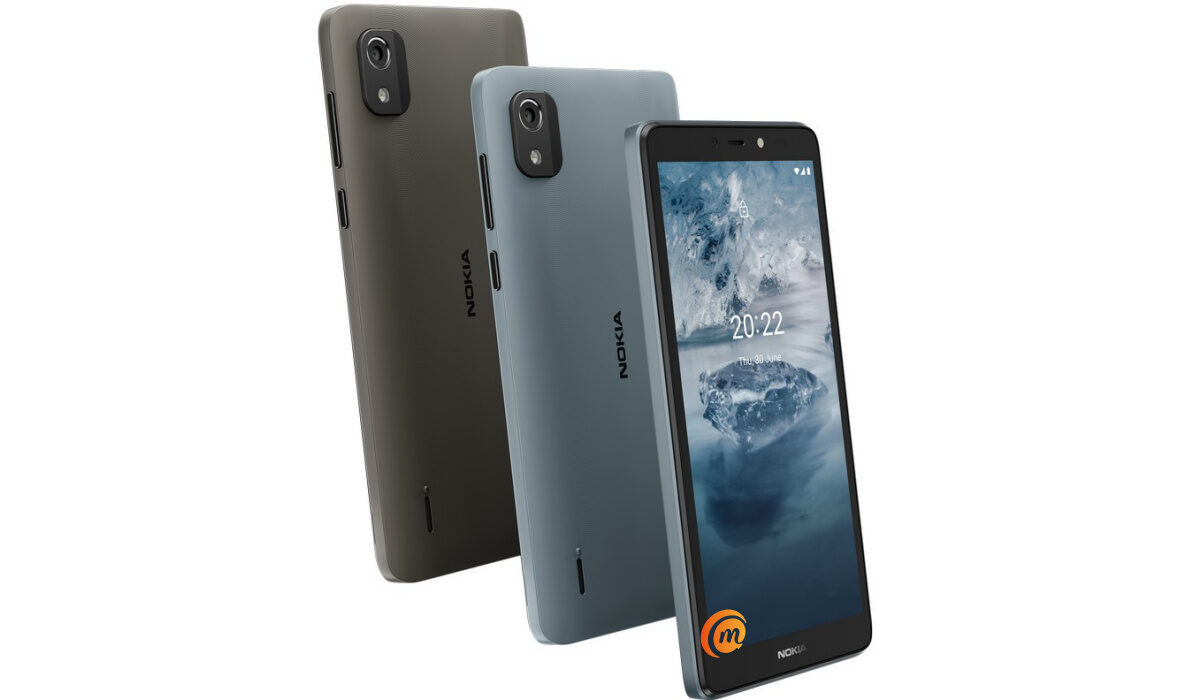
You can make Nokia C2 2nd Edition go faster, with a few simple hacks
Practical steps to make Nokia C2 2nd Edition go faster
Now, if you are looking to make your Nokia C2 2nd Edition run faster and smoother, here are some ways to make that possible.
Delete Unused apps
The benefit of owning a Nokia smartphone, the C2 2nd Edition included, is that they do not come with bloatware and unwanted apps. Any smartphone user would love to have all their desired apps installed. This might lead to large amounts of apps piling up on the device, over time. It is important to form a habit of uninstalling unused apps and games. Having lots of these apps will hinder and slow down the performance of your device.
Especially when you have some of them running in the background. They also become so many and have so much data on each one of them, that there is barely any storage space left for your device to run as smoothly as you may have liked.
Clear App Cache
Cleaning the cache of the app on your Nokia C2 2nd Edition is important in terms of sending up your phone. Clearing the cache of an app can make that particular app run faster and smoother than it did before, and reduce possible lag. Clearing cache is also very important for entry-level devices too to help them improve their performance. As they are not as powerful as high-end devices. You can clear the cache of any app by long pressing the app icon, selecting App info , and then Storage . There will be an option to Clear cache . Select that and you’re good to go.
Updates
It is important to keep your Nokia C2 2nd Edition updated. This is because, with every new update, there might be security enhancements (which are crucial) but there might also be performance improvements added to the update that can make your overall experience, and device speed, better.
Restarting your Device
It is well known that any device can perform faster and better simply off of a restart. The same holds for the Nokia C2 2nd Edition. Doing this should address most of the performance issues, as it deletes temporary files to speed up the phone and clears the phone’s memory.
Use the Lite Version applications
Lite versions of apps are the shortened versions of these said apps. Apps Tit Tok, Facebook, e.t.c. The lite versions are usually limited in comparison to the actual applications and don’t offer as many features. These lightweight apps, that do not work your device as hard as the main ones, are designed for entry-level smartphones and designed for users who want to keep their apps simple or use something simple. They help boost the performance of your device and lower your data and charges.
Hard Reset
If you are looking for a simple method on how to Make Nokia C2 2nd Edition Run Faster, it may be the most effective. If you do a hard reset on your Nokia C2 2nd Edition, then all the phone data will be deleted, and the phone’s storage will be clean. At the same time, the random-access memory of your Nokia C2 2nd Edition will start working like new again. However, you need to back up all the data before performing a hard reset.
The main reason for this is a hard reset because all the data in your Nokia C2’s 2nd Edition storage will erase. This will increase the performance of your Nokia C2 2nd Edition phone compared to its previous state before the reset. But it bears too much of a cost for some. If you are fine with having all your data lost, you can go for this option. It will certainly improve the phone’s performance and feel like you just bought a new phone.
- Don’t miss our mobile phone reviews .
- Follow our news on Google News .
- Follow us on Instagram , Facebook , Twitter , and YouTube .
Author:Flamez
Flamez loves basketball, art, gadgets and cars.
Add MobilityArena as a preferred source on Google
Nowadays, it’s almost impossible to distinguish between business and personal time because of the little computers — cell phones — in our pockets, which keep us constantly connected to work-related chats, emails, to-do lists, and tasks whether we like it or not.
The continual connection can surely be a benefit sometimes, but it can also be a drag at other times and contribute to depleting your energy. This is the blessing and the curse of the modern workplace.
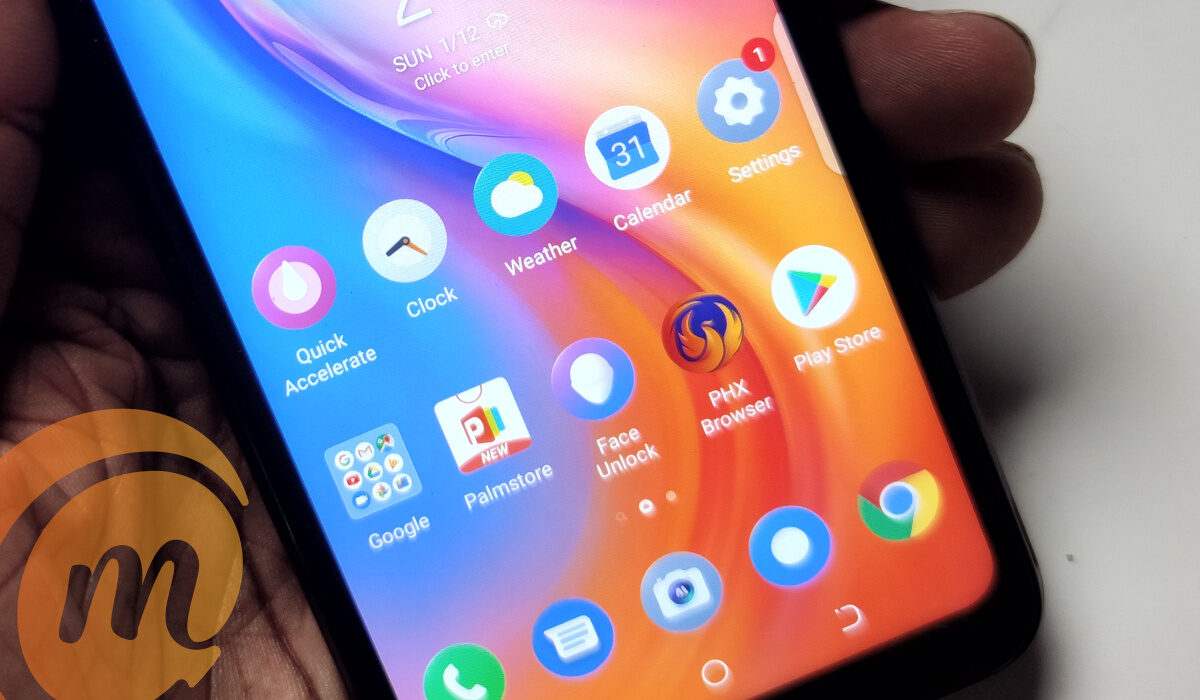
You can separate Work and Personal apps on your Android phone
This is why it’s such a relief that some Android smartphones allow you to set up separate profiles on your device that distinguish your work and personal lives from each other. This is pretty easy to achieve, and we’ve provided the different methods and instructions by which you can do so in this easy guide.
Set up a New User Profile (OEM-Specific)
The ability to create numerous profile accounts on a user’s phone is offered by many Android OEMs (original equipment manufacturers), including Samsung, Pixel, and OnePlus. As a result, when you move to a new account, you will also have a different lock screen, storage that is partitioned into various sections, notification preferences, and more. It has a similar vibe to setting up an entirely new phone, so you can effectively use this function to establish a work account.
To set this up:
● Open the Settings app > System > Multiple Users . On your phone, try looking for “Users” in the Settings app if you can’t find this option.
● To begin creating a new user account, click Add User here and tap OK in the pop-up.
● Select a profile picture and name for your user account, then press OK.
● You’ve successfully added a new user at this point. To access the Quick Settings panel, scroll down from the top and tap the profile symbol. To open the profile you just made for work, select it.
● Complete the setup procedure, add professional apps, lock the screen, modify your settings, and tailor it to your work environment.
● You can now simply change during business hours to the newly set up work profile. Applications installed on the original/personal profile typically won’t send you any notifications during this period.
Since using a personal and work account in this manner is like using two different accounts, the separate work profile set up for Android works nicely. You should note, however, that there are a few drawbacks as well. For instance, you’ll have to manually switch to the work profile first before accessing it. Additionally, you cannot use your personal profile to access your business apps or notifications and vice versa.
Select the work account under Settings > System > Multiple users to remove a user. To remove the user from this screen, hit the Remove user option. Keep in mind that doing so will remove all installed apps and settings from that specific profile.
Use Android Enterprise Demo
You can officially build a work profile on Android using the aid of Android Enterprise. However, if your employer gives you an activation code, you can use that. To exert control over the apps that their workers install on their work profiles, companies typically use this. However, you can also use the Demo to install work mode for personal use on your Android phone.
Here’s how to do it:
● Scroll down on the Android Enterprise Demo website and select the Work Profile option. You should locate the link under the headline “Begin setup” in the drop-down; tap it to open. Your phone’s Work profile setup page will be opened immediately. To proceed, tap Next .
● As you use the demo, it will then check for the code and automatically proceed. Click Accept and Continue .
● The work profile will afterward be installed on your phone. Then select Next .
● The load time for the work profile is a few minutes, and then it is installed completely. After that, you may discover some standard Google work apps under the launcher’s Work area. To customize the work profile’s ringtone, sound, lock, etc., you may also access Settings .
You must use the default launcher if you must make use of this functionality. Launchers from other companies won’t function. Open Settings > Accounts > Work > Remove Work Profile to disable the work profile. Then select Delete from the pop-up menu to finish.
You also have the option of using a third-party app such as Shelter or Island apps from the Google Play Store. Their setup process is fairly easy and you’re able to effectively distinguish your personal apps from your work apps.
In summary , we’re sure you’ll find these instructions beneficial to keep your work separate from your personal life and maintain a semblance of balance. This will help you to stay productive without feeling like work is overwhelming your entire life.
If you found this article helpful, then you should also help others by sharing or recommending it to them.
- Don’t miss our mobile phone reviews .
- Follow our news on Google News .
- Join our WhatsApp Group , to be notified of the most important articles and deals,
- Follow us on Instagram , Facebook , Twitter , and YouTube .
