Add MobilityArena as a preferred source on Google
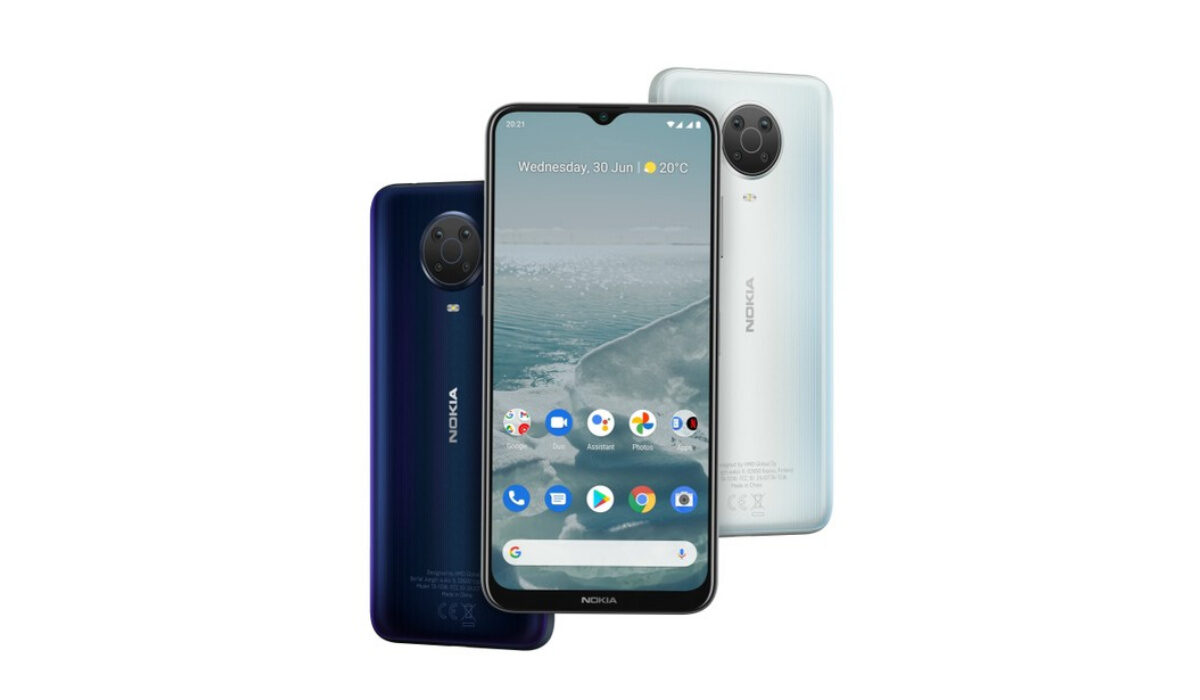
The Nokia G20 is an entry-level smartphone that was launched in July 2021, following the release of its predecessor, the Nokia G10. This smartphone sports 4GB RAM, and 64/128 GB internal storage. It is known to possess one of Nokia’s most durable and long-lasting batteries. According to tests, it can last up to 3 days. It’s pretty impressive, I know. It also has a front camera of 8MP and a rear camera with 48MP main + 5MP Ultrawide + 2MP Macro + MP depth. The Nokia G20 also has a 6.5″ display and an IPX2 rating.
Now, if you are looking to make your Nokia G20 run faster and smoother, here are some ways to make that happen.
Delete Unused apps
The benefit of owning a Nokia smartphone, the G20 included, is that they do not come with bloatware and unwanted apps. Any smartphone user would love to have all their desired apps installed. This might lead to large amounts of apps piling up on the device, over time. It is important to form a habit of uninstalling unused apps and games. Having lots of these apps will hinder and slow down the performance of your device.
Especially when you have some of them running in the background. They also become so many and have so much data on each one of them, that there is barely any storage space left for your device to run as smoothly as you may have liked.
Clear App Cache
Cleaning the cache of the app on your Nokia G20 is important in terms of sending up your phone. Clearing the cache of an app can make that particular app run faster and smoother than it did before, and reduce possible lag. Clearing cache is also very important for entry-level devices too to help them improve their performance. As they are not as powerful as high-end devices. You can clear the cache of any app by long pressing the app icon, selecting App info , and then Storage . There will be an option to Clear cache . Select that and you’re good to go.
Check for Software Updates
It is important to keep your Nokia G20 updated. This is because, with every new software update, there might be security enhancements (which are crucial) but there might also be performance improvements added to the update that can make your overall experience, and device speed, better.
Restartyour Device
It is well known that any device can perform faster and better simply off of a restart. The same holds for the Nokia G20. Doing this should address most of the performance issues, as it deletes temporary files to speed up the phone and clears the phone’s memory.
Use Lite Version of Applications
Lite versions of apps are the shortened versions of these said apps. Apps Tit Tok, Facebook, e.t.c. The lite versions are usually limited in comparison to the actual applications and don’t offer as many features. These lightweight apps, that do not work your device as hard as the main ones, are designed for entry-level smartphones and designed for users who want to keep their apps simple or use something simple. They help boost the performance of your device and lower your data and charges.
Hard Reset
If you are looking for a simple method on how to Make Nokia G20 Run Faster, it may be the most effective. If you do a hard reset on your Nokia G20, then all the phone data will be deleted, and the phone’s storage will be clean. At the same time, the random-access memory of your Nokia G20 will start working like new again. However, you need to back up all the data before performing a hard reset.
The main reason for this is a hard reset because all the data in your Nokia G20 storage will erase. This will increase the performance of your Nokia G20 phone compared to its previous state before the reset. But it bears too much of a cost for some. If you are fine with having all your data lost, you can go for this option. It will certainly improve the phone’s performance and feel like you just bought a new phone.
- Don’t miss our mobile phone reviews .
- Follow our news on Google News .
- Follow us on Instagram , Facebook , Twitter , and YouTube .
Author:Flamez
Flamez loves basketball, art, gadgets and cars.
Add MobilityArena as a preferred source on Google
Android users can be considered lucky in the smartphone world in the sense that they frequently have a wide range of alternatives, especially when selecting the hardware and software additions that truly personalize and distinguish smartphones.
However, messaging and video conferencing with their pals who are Apple fans has been a sore spot. These people still like using FaceTime and iMessage despite the fact that there are many excellent alternatives.
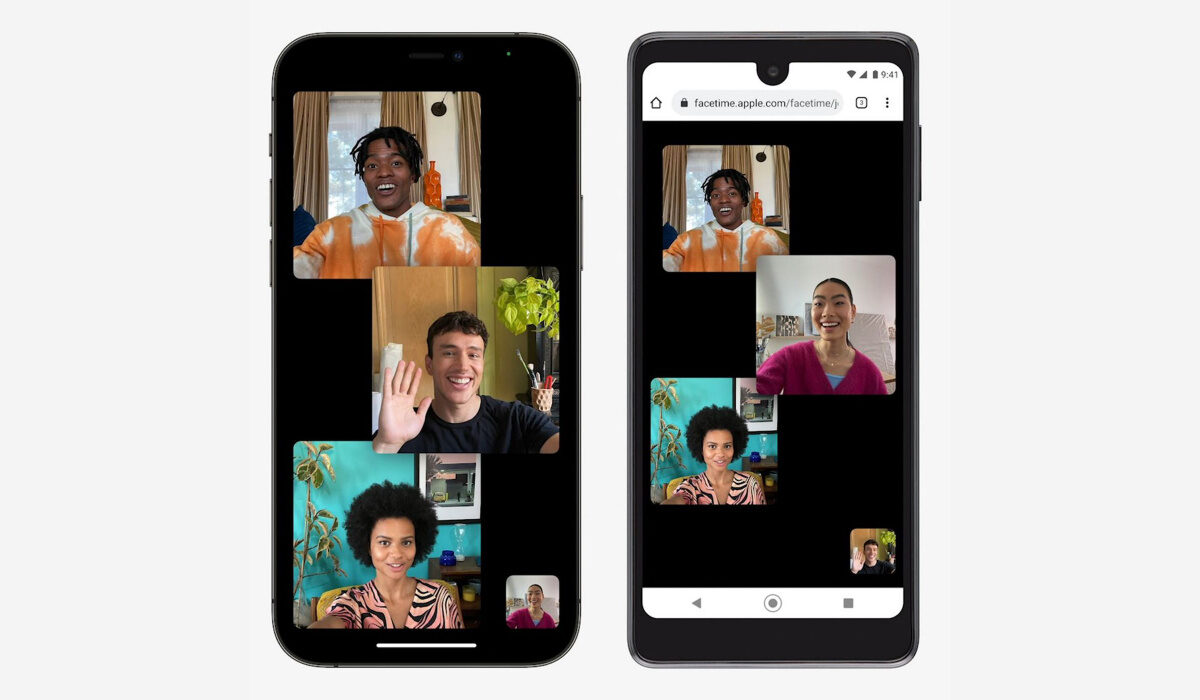
The good news is that Android users will no longer be excluded from FaceTime calls. If you don’t already know how to participate in FaceTime calls as an Android user, we’ve created this article for you. So, follow this guide to learn how to initiate a FaceTime call on an Apple device and how to join the call on an Android phone.
Since when can Android devices use FaceTime?
FaceTime was introduced for iOS users as a dependable way of video chatting. It’s not unusual to see owners of iPhone, iPad, or Mac devices using FaceTime without limitations, so when you own any of these devices, you can sometimes take the FaceTime app for granted. However, users of Android devices don’t have the luxury because of FaceTime’s exclusivity to iOS devices.
Users of Android devices are typically unable to download the FaceTime app or initiate their own FaceTime chats, which is a bummer. However, anyone can join a FaceTime call nowadays, even Android device owners, and we think this is a rather exciting development.
This development is thanks to the release of iOS 15, iPadOS 15, and macOS 12 Monterey, and with the quality of FaceTime calls, it’s superb that Android users are no longer left out totally from participating in FaceTime calls.
Joining FaceTime Calls from Android Devices
FaceTime calls still cannot be initiated by Android users. But you can join calls that others make as long as you have Google Chrome. On the majority of Android smartphones, Google Chrome is pre-installed.
FaceTime calls must first be initiated by an Apple device user. For this, they will require:
- iPhone with iOS 15 or later
- an iPad with at least version 15 of iPadOS
- a Mac with at least macOS Monterey installed.
The steps below should help Android users use FaceTime:
- Open the FaceTime app on the Apple device and click on Create Link from the menu at the top of the app.
- The Apple user must then decide in the pop-up whether they want to share the link using Mail, Messages, AirDrop, Snapchat, or another app. Whichever approach you choose, all the Android user needs is the link.
- The Android user must launch Google Chrome after receiving the link to facetime.apple.com.
- The Android user should type their name and click Continue .
- Once connected, ask the Android user to tap the floating pop-green up’s Join button. Additionally, they might need to grant FaceTime access to their microphone and camera.
- The Apple user must then approve their request to join.
- Once the call has begun, both participants will have the same options, including the ability to mute themselves, reveal or conceal their camera, end the conversation, and more.
Remember that while some FaceTime capabilities will typically not be available for Android devices, the basic features do work. You can use full-screen mode, mute your microphone and turn off your video, and swap between your front- and back-facing cameras with this web version. The configuration of the call participants can also be altered. Advanced features, like SharePlay, which enables you to stream video with peers using FaceTime, are, however, still exclusive to Apple products.
In summary , Apple’s decision to include Android users in the FaceTime experience is undeniably great. Now you can enjoy interesting conversations with your Apple-loving friends as an Android user.
You should also keep in mind that there are several FaceTime alternatives that are excellent for your Android device if this version of FaceTime is insufficient for you or if you’d prefer to use an Android app that is similar to FaceTime.
One of such apps is Google Duo, which is a program that comes closest to FaceTime for Android devices. Although it’s not an all-in-one messenger, some people like its simplicity. If your iPhone-owning pals don’t mind downloading another app, Duo is also accessible on iPhone and the web, making it simple for them to call you.
We’re sure you’ve found this article helpful, so don’t forget to share it with your friends and loved ones so that they can also benefit from it.
- Don’t miss our mobile phone reviews .
- Follow our news on Google News .
- Join our WhatsApp Group , to be notified of the most important articles and deals,
- Follow us on Instagram , Facebook , Twitter , and YouTube .
