Add MobilityArena as a preferred source on Google
The Nokia G21 is a budget smartphone that was launched on the 15th of February 2022. It is the slightly improved version of its younger brother, the Nokia G20. This smartphone comes with 4GB RAM, and 64/128 GB internal storage. It is known to possess one of Nokia’s most durable and long-lasting batteries, just like the G20, with its 5050 mAh Li-Po battery, which has 18W fast charging capabilities. According to tests, it can last up to 3 days. It’s pretty impressive, I know.
It also has a front camera of 8 MP and an impressive rear camera with 50MP main + 2 MP + 2MP. The Nokia G20 also has a 6.5″ display. Unfortunately, It does not have an IP rating (water/dust resistance) like the G20 .
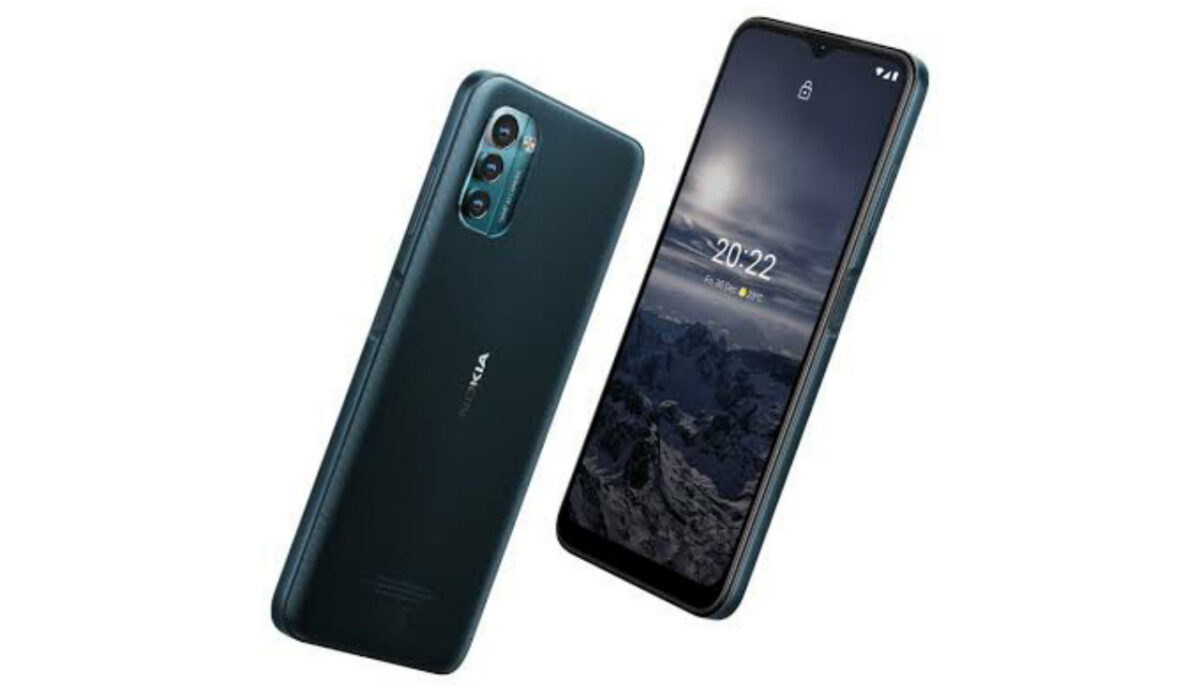
Now, if you are looking to make your Nokia G21 run faster and smoother, here are some ways to make that possible.
- Make Nokia G21 Go Faster By Deleting Unused Apps
- Make Nokia G21 Go Faster: Clear App Cache
- Make Nokia G21 Go Faster: Android Updates
- Make Nokia G21 Go Faster By Restarting your Device
- To Make Nokia G21 Go Faster, Use the Lite Version applications
- Make Nokia G21 Go Faster With A Hard Reset
Make Nokia G21 Go Faster By Deleting Unused Apps
The benefit of owning a Nokia smartphone, the G21 included, is that they do not come with bloatware and unwanted apps. Any smartphone user would love to have all their desired apps installed. This might lead to large amounts of apps piling up on the device, over time. It is important to form a habit of uninstalling unused apps and games. Having lots of these apps will hinder and slow down the performance of your device.
Especially when you have some of them running in the background. They also become so many and have so much data on each one of them, that there is barely any storage space left for your device to run as smoothly as you may have liked.
Make Nokia G21 Go Faster: Clear App Cache
Cleaning the cache of the app on your Nokia G21 is important in terms of sending up your phone. Clearing the cache of an app can make that particular app run faster and smoother than it did before, and reduce possible lag.
Clearing cache is also very important for entry-level devices too to help them improve their performance. As they are not as powerful as high-end devices. You can clear the cache of any app by long pressing the app icon, selecting App info , and then Storage . There will be an option to Clear cache . Select that and you’re good to go.
Make Nokia G21 Go Faster: Android Updates
It is important to keep your Nokia G21 updated. This is because, with every new update, there might be security enhancements (which are crucial) but there might also be performance improvements added to the update that can make your overall experience, and device speed, better.
Make Nokia G21 Go Faster By Restarting your Device
It is well known that any device can perform faster and better simply off of a restart. The same holds for the Nokia G21. Doing this should address most of the performance issues, as it deletes temporary files to speed up the phone and clears the phone’s memory.
To Make Nokia G21 Go Faster, Use the Lite Version applications
Lite versions of apps are the shortened versions of these said apps. Apps Tit Tok, Facebook, e.t.c. The lite versions are usually limited in comparison to the actual applications and don’t offer as many features. These lightweight apps, that do not work your device as hard as the main ones, are designed for entry-level smartphones and designed for users who want to keep their apps simple or use something simple. They help boost the performance of your device and lower your data and charges.
Make Nokia G21 Go Faster With A Hard Reset
If you are looking for a simple way to make Nokia G21 run faster, it may be the most effective. If you do a hard reset on your Nokia G21, then all the phone data will be deleted, and the phone’s storage will be clean. At the same time, the random-access memory of your Nokia G21 will start working like new again. However, you need to back up all the data before performing a hard reset.
The main reason for this is a hard reset because all the data in your Nokia G21 storage will erase. This will increase the performance of your Nokia G21 phone compared to its previous state before the reset. But it bears too much of a cost for some. If you are fine with having all your data lost, you can go for this option. It will certainly improve the phone’s performance and feel like you just bought a new phone.
- Don’t miss our mobile phone reviews .
- Follow our news on Google News .
- Follow us on Instagram , Facebook , Twitter , and YouTube .
Author:Flamez
Flamez loves basketball, art, gadgets and cars.
Add MobilityArena as a preferred source on Google
This simple and easy tutorial shows you how to change the hotspot name on iPhone 13, to make it easier to identify and connect to. If you have ever turned on your iPhone 13’s personal hotspot so you could share your mobile Internet with your PC or other devices, you must have noticed that it has a generic name. Should there be other active iPhone hotspots present, you will have a hard time figuring out which is yours.
Imagine being in a crowded mall or park or some other public space with lots of people. You are likely to find more than one or two others with an active iPhone WiFi hotspot. If all these hotspots have the same generic name, confusion may set in. It makes sense to personalise your iPhone’s mobile hotspot by giving it a unique name. That way, you and whoever else you choose to share it with can identify it. Here is how to change the hotspot name on iPhone 13.

Yes; you can change the hotspot name on iPhone 13
To change the hotspot name on your iPhone 13 is as simple as changing the name of your iPhone in general. The name change will then reflect on your hotspot name.
- Steps To Change The Hotspot Name On iPhone 13
- How to change your iPhone 13’s hotspot password
Steps To Change The Hotspot Name On iPhone 13
Here is how to go about changing the hotspot name on your Apple iPhone 13:
- Open your iPhone 13’s Settings menu.
- Scroll down and select the General option.
- Tap the About button at the top of the screen.
- Tap the Name button at the top of the screen.
- Tap the small x button to the right of the current name, enter a new name, then tap the blue Done button on the keyboard.
Done. From now on, your personal hotspot name on your iPhone 13 is the new name you entered above, making it easy to identify when sharing your mobile Internet with others.
If you also need to set or change your iPhone 13’s personal hotspot password, that is easy to do as well. It is a great idea to secure your mobile hotspot so anyone cannot just connect to it when it is active and use your data subscription. Giving it a password that you can remember is also a convenience that you can enjoy. Have a look below for quick instructions on how to do it.
How to change your iPhone 13’s hotspot password
Here is how to go about changing your mobile hotspot password:
- Open your iPhone Settings menu.
- Tap Personal Hotspot .
- Tap the toggle switch to turn on Personal Hotspot.
- Tap Wi-Fi Password to change the Wi-Fi Password.
- Be sure to enter something that you can remember but that isn’t easy for others to guess.
That’s it. Your wifi hotspot is now properly secured. Again, it is important to spell it out that it is a good idea to have a strong password on your hotspot. If your password is easy to guess, your children, for example, will figure it out and exhaust your subscription. Children are that creative. Some of your colleagues and acquaintances are too.

Change your iPhone 13’s hotspot name and password
So, secure your mobile hotspot with a strong password. Also, make it a password that you don’t mind sharing with others on occasion. Which means, it is a bad idea to use a password that secures your bank account as your hotspot password. Get the idea?
Now you know how to change the hotspot name and password on your iPhone 13. Even if you upgrade your device to a newer model, the above instructions are valid unless Apple changes how it is done somewhere along the line. Your iPhone 13’s personal hotspot has a unique name and a password you can remember.
Being able to share your mobile Internet for use on your PC or other devices can come in handy during trips and when you are out and about for work or relaxation. You will not always find a public hotspot, and even when you do, you have to be wary of most of them, for security reasons. Where you can, use the personal hotspot on your iPhone to connect your laptop and tablet for urgent work.
- Don’t miss our mobile phone reviews .
- Follow our news on Google News .
- Follow us on Instagram , Facebook , Twitter , and YouTube .
