Add MobilityArena as a preferred source on Google
The OnePlus N200 5G is a budget OnePlus smartphone aimed at users who do not want to spend a fortune on much more expensive models. The features that the N200 offer make it one of the best budget phones out there in the market. The device has a 6.5″ Full HD+ display. It has a 13, 2, and 2 MP main camera setup, a 16 MP selfie camera, and a large 5,000mAh battery that gives you lots of battery life.
The processor on the N200 5G is the Qualcomm Snapdragon 480. It also has 4GB of RAM and 64/128GB of internal storage. The chipset on this device is not meant for heavy gaming or multitasking. The N200 5G also offers a 90 Hz display rate as well as up to 18W fast charging. Which is why it is a great idea to know what to do to make the OnePlus N200 5G run faster and perform better.
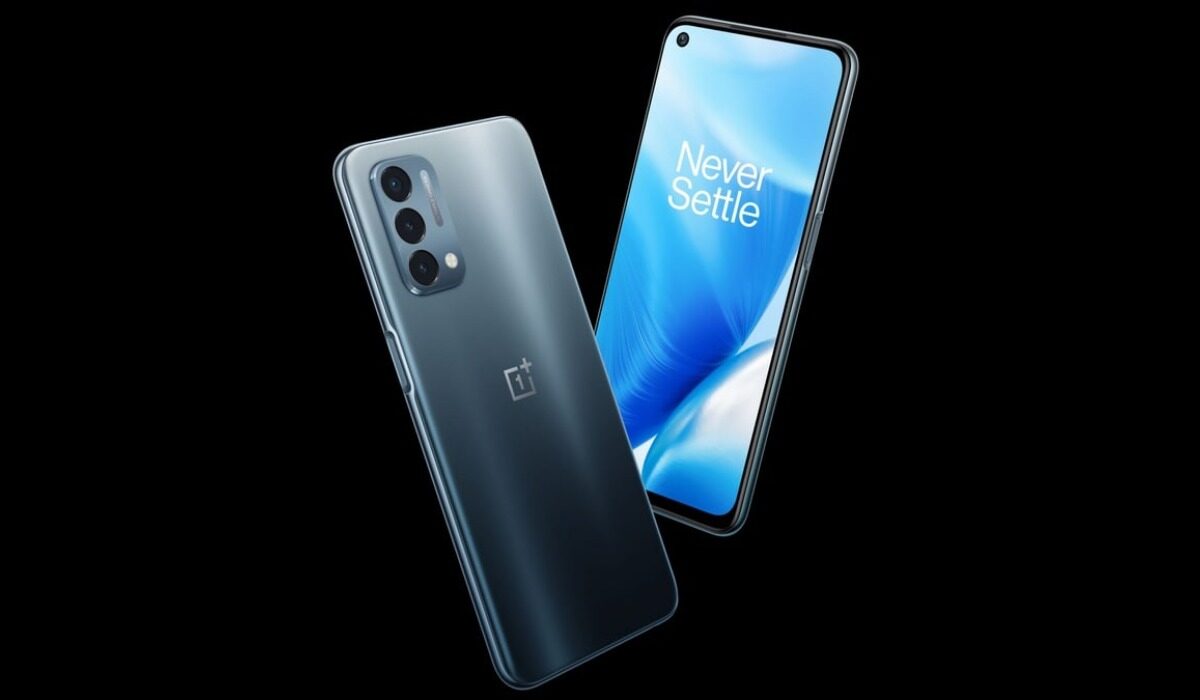
If, for some time, you have been looking to make your OnePlus N200 5G run faster and smoother than it has, or you are having problems with your device lagging, here are some easy steps you can follow to make that possible.
Make OnePlus N200 5G faster: Delete Unused apps
Any smartphone user would love to have all their desired apps installed. This might lead to large amounts of apps piling up on the device, over time. It is important to form a habit of uninstalling unused apps and games. Having lots of these apps will hinder and slow down the performance of your OnePlus N200 5G.
Especially when you have some of them running in the background. They also become so many and have so much data on each one of them, that there is barely any storage space left for your device to run as smoothly as you may have liked.
Make OnePlus N200 5G faster: Clear App Cache
Cleaning the cache of the app on your OnePlus N200 5G is important in terms of sending up your phone. Clearing the cache of an app can make that particular app run faster and smoother than it did before, and reduce possible lag. Clearing cache is also very important for entry-level devices too to help them improve their performance. As they are not as powerful as high-end devices. You can clear the cache of any app by long pressing the app icon, selecting App info , and then Storage . There will be an option to Clear the cache . Select that and you’re good to go.
Make OnePlus N200 5G faster: Install software Updates
It is important to keep your OnePlus N200 5G up to date. This is because, with every new update, there might be security enhancements (which are crucial) but there might also be performance improvements added to the update that can make your overall experience, and device speed, better.
Make OnePlus N200 5G faster: Restart your Device
It is well known that any device can perform faster and better simply off of a restart. The same holds for the OnePlus N200 5G. Doing this should address most of the performance issues, as it deletes temporary files to speed up the phone and clears the phone’s memory.
Make OnePlus N200 5G faster: Use the Lite Version applications
Lite versions of apps are the shortened versions of these said apps. Apps Tit Tok, Facebook, e.t.c. The lite versions are usually limited in comparison to the actual applications and don’t offer as many features. These lightweight apps, that do not work your device as hard as the main ones, are designed for entry-level smartphones and designed for users who want to keep their apps simple or use something simple. They help boost the performance of your device and lower your data and charges.
Make OnePlus N200 5G faster with a Hard Reset
If you are looking for a simple method that will help you to make your OnePlus N200 5G run faster, it may be the most effective. If you do a hard reset on your OnePlus N200 5G, then all the phone data will be deleted, and the phone’s storage will be clean. At the same time, the random-access memory of your OnePlus N200 5G will start working like new again. However, you need to back up all the data before performing a hard reset.
Follow every one of these steps and you just might get the kind of performance that you desire from your smartphone.
- Don’t miss our mobile phone reviews .
- Follow our news on Google News .
- Join our WhatsApp Group , to be notified of the most important articles and deals,
- Follow us on Instagram , Facebook , Twitter , and YouTube .
Author:Flamez
Flamez loves basketball, art, gadgets and cars.
Add MobilityArena as a preferred source on Google
If you use a MacBook Pro, you might occasionally run into screen problems. Your MacBook Pro screen could be operating normally one moment and showing flickering lines the next. Fortunately, there are several actions you may take to remedy this problem unless it is caused by hardware damage.
In this guide, we’ll show you the best ways to fix your Macbook Pro’s screen if it experiences any flickering. So, keep reading this guide to find out.
How Do I Fix the Flickering on My Macbook Pro’s Screen?
You may need to temporarily connect an extra monitor to your MacBook Pro if you can barely see anything on the screen. Here are some quick first steps you should do before we move on to addressing the problems depending on the potential causes of the flickering screen issue:
- Reboot your MacBook Pro.
- Refresh macOS
- Conduct an Apple Diagnostics test.
It might be hard to believe, but rebooting your MacBook Pro or installing the latest version of macOS may be sufficient to restore your screen to normal. Also, run an Apple Diagnostics test to rule out any hardware damage.
If after trying any of these initial steps there’s still no change, keep reading to find out our other suggested fixes.
Switch the Graphics Processor
Actually, many MacBook Pro versions come with two GPUs. One is a separate graphics processor, and the other is a low-power integrated graphics processor. Depending on your current graphical use, the MacBook Pro shifts between the two to provide the best battery life. The name of this feature is “Automatic graphics switching.”
If the display on your MacBook Pro is flickering, a malfunctioning integrated graphics processor is one potential cause. You can permanently switch to the discrete graphics processor, which offers superior performance, by disabling this option, which will resolve the flickering problem. If you’d like to try this fix, here’s how to deactivate the faulty processor:
- You’ll need to first open ‘System Preferences.’ Select the ‘Battery’ tab. Select the ‘Energy Saver’ option in Mac OS and prior versions, and in Catalina 10.15.
- Click the “Battery” tab in the left menu tree of the new window. The “Automatic graphics switching” checkbox should be deselected.
- Check to see whether the flickering screen problem has been resolved by restarting your MacBook Pro.
- Remember that if you use an Apple Silicon MacBook Pro (with M1 or M2 chips), you won’t see this choice because those versions come with an integrated GPU.
Recalibrate the Battery
Your MacBook Pro’s screen may possibly be flickering as a result of a battery problem. If so, adjusting the battery may be able to fix the issue, particularly for older models of MacBook Pro from 2006 to 2012.
Simply drain the battery completely to carry this out, then recharge it. Doing this will refresh the battery and fix a number of issues.
Contact Apple if you’re using an older Macbook Pro Model
If your MacBook Pro was purchased between October 2016 and February 2018, the year that your MacBook Pro was built may be the main reason behind the flickering screen problem. Apple claims that some 13-inch MacBook Pros from the 2016 model year may have odd bright spots at the screen’s bottom.
There’s no need to worry if your MacBook Pro’s flickering screen is caused by this. For this, Apple provides a specific program. Simply contact a licensed repair provider, and they will fix it free of charge for you.
Fix the Screen if It’s Broken
Lastly, your Macbook Pro’s screen could be flickering simply because the screen has been damaged. In addition to the aforementioned problem, it might have been dropped from a height or overly flexed and stressed.
If so, refrain from using your MacBook Pro as doing so could make the problem worse. The best thing to do is instead to contact Apple Support or think about other repair options like approaching a professional.
In summary, there’s no need to worry if you experience any screen flickering when you use your Macbook Pro. Simply follow the instructions and tips we’ve provided to get it fixed and it should work just fine afterward.
If you know any other Macbook Pro users experiencing similar issues, make sure to recommend this guide to them.
- Don’t miss our mobile phone reviews .
- Follow our news on Google News .
- Join our WhatsApp Group , to be notified of the most important articles and deals,
- Follow us on Instagram , Facebook , Twitter , and YouTube .
