Add MobilityArena as a preferred source on Google
If you typically use Samsung phones, particularly those models in the mid-price range, you may have noticed that these devices sometimes over-sharpen and over-saturate photos. In such a case, you may be seeking ways to make photos look more natural on Samsung phones.
These budget Samsung phones are less trustworthy than iPhones in the aspect of picture quality because they tend to produce more variable outcomes, as opposed to the consistent results you can expect from iPhones.
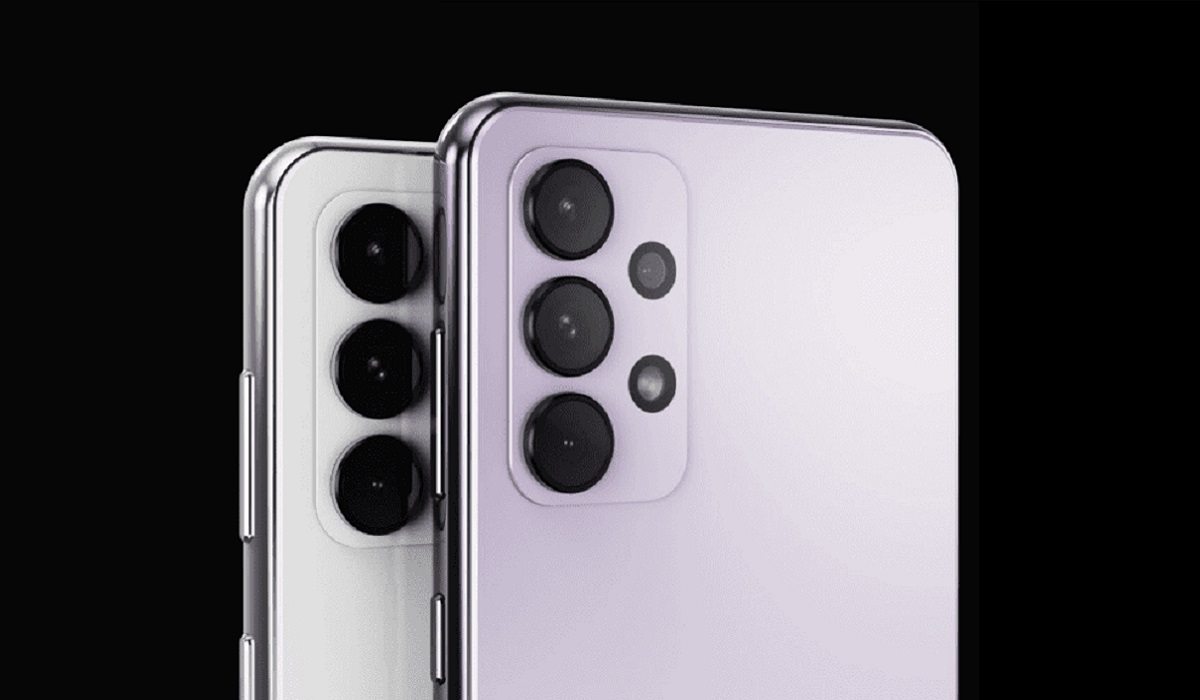
In this guide, we’ll explain why Samsung phones tend to overprocess images and produce unnatural-looking results. We’ll also show you how you can use the original camera app to make photos look more natural on Samsung phones.
- Why Do Samsung Phones Over-Process Photos?
- How to Make Photos Look More Natural on Samsung Phones
Why Do Samsung Phones Over-Process Photos?
To successfully make photos look more natural on Samsung phones, you should first understand why these devices typically overprocess images.
It may already be common knowledge to you that every smartphone manufacturer creates their own algorithms for image processing that influence how your photos turn out eventually. Now, even though camera hardware matters, smartphone photography is becoming more and more focused on how these algorithms edit your photographs after you’ve already taken them.
As a result, the finished product is rarely similar to what you observe in the viewfinder before capturing the image. For instance, experts that compared the Galaxy S22 Ultra camera to that of the iPhone 13 Pro Max reported that iPhones don’t have this issue because they favor realism to editing photos after taking them. However, this is not the case for Samsung phones and other Android brands.
Android OEMs seem more interested in making images appear as “finished” as possible so that you can share them immediately without editing. While this calibration might be beneficial, the disadvantage is that it’s hard to know the results to expect when you take pictures with your camera.
It’s important to note here that aggressive processing is not always undesirable. For instance, consider the fact that many users appreciate the way images on Pixel phones look. However, Samsung phones in the mid-price range do not receive the same camera treatment as flagships. This in turn results in photographs that appear artificial and over-edited.
With that being said, if you’d rather make photos look more natural on Samsung phones, consider the instructions below.
How to Make Photos Look More Natural on Samsung Phones
Not many people like over-processed effects on photos, so it becomes important to find out how to make photos look more natural on Samsung phones.
To do this, open the camera app, navigate to Camera settings , then disable Scene optimizer and Auto HDR . This action will reduce the amount of processing the phone performs after you take a shot without completely removing the effects.
It’s important to keep in mind that when you opt to turn off Scene Optimizer , you’ll disable the camera app’s ability to recognize and scan documents immediately from the viewfinder. As such, if you’re a Samsung user that tends to scan a lot of documents on your phone, it might be more beneficial to keep this feature turned on.
It should also be noted that this action may have a negative impact on low-light performance. This is because intensive processing on Samsung devices helps to emphasize light and detail in light settings that are not so ideal. You may also notice that daytime images appear flat and lack vibrancy, making them less appealing.
So, these are some things to consider before disabling these features to make photos look more natural on Samsung phones.
In conclusion , despite the drawbacks, following the instructions in this guide is ideal if you’re looking to make photos look more natural on Samsung phones. It’s a good idea to compare your photographs with and without Scene Optimizer and Auto HDR to determine which photo quality you prefer.
If you don’t like editing your own photos, leaving those options on can also be more convenient. Alternatively, you can use the Play Store to download various camera apps that process photographs differently and may be better suited for you to make photos look more natural on Samsung phones.
Author:Joan Agie
Add MobilityArena as a preferred source on Google
Let’s face it, without emojis, messaging just isn’t the same. Instead of just using plain old, boring texts, you get to add flair to your online conversations when you use emojis. Furthermore, since they allow people to express themselves without using words or sentences, emojis also make digital communication more sophisticated and enriched.
Even though emojis get updated and new ones get added on a regular basis. Androids are sometimes the last to get such updates. Naturally, nobody wants to miss out on new emojis so it makes sense to figure out a way to get new emojis on Android phones.

In this guide, we’ve provided some helpful tips to get new emojis on your Android phone and make your conversations more interesting.
How Can I Get New Emojis on Android Phones?
It’s not hard to get new emojis on Android phones, provided you follow the right instructions. Consider the most popular methods below:
Install the most recent Android version
A good way to get new emojis on Android phones is to install Android’s most recent version. They typically release a few new emojis with each new version. As such, when you want to get new emojis on Android phones, you should consider updating especially if you are using an older version.
First check the Android version. The steps to do this are as follows:
- Go to About Phone under Settings in the menu on your phone. You may need to first go through System on some devices. After that, click on the software version to find out which Android update you are using. Go to the next step if you aren’t using the most recent one.
- Refresh the Settings page. To see if an update is available, tap About Phone . Then click Install after tapping the update button. Ensure that you are using Wi-Fi or another mobile internet connection.
- Visit any messenger app to see if the update was successful. When typing, consider looking for any recent emojis on the Android phone
Note that the above-advised procedures may vary significantly depending on the type of device.
Install a New Keyboard
Installing a third-party Android emoji keyboard is another way to get new emojis on Android phones. Some of these apps also have an icon dictionary so you can quickly look up the meaning of an emoji, similar to the Emoji Keyboard.
On your smartphone, follow these steps to install a third-party keyboard:
- On your device, go to the Play Store .
- Use the Search bar to look up the keyboard app you wish to install.
- Select the desired app from the list that has now appeared.
- For the download, select Install.
- Await the download and installation of the keyboard app.
- Once installed, search the freshly downloaded keyboard for the new emojis.
Some of the top third-party keyboard applications include Microsoft SwiftKey, Ginger, Chrooma, and Fleksy.
Use the Emoji Kitchen
The software with all the intriguing characteristics that anyone would want in a keyboard is Google’s virtual keyboard, also known as Gboard . Gboard is the standard keyboard that comes pre-installed on the majority of Android devices. If not, it can be readily downloaded from the Play Store to any Android smartphone.
Here’s how to get new emojis on Android phones with Gboard:
- Open the Messenger app .
- To initiate a conversation, choose a contact.
- Next, begin typing by clicking on the Text box .
- After that, activate your emoji kitchen by clicking the Emoji icon and selecting your favorite emoji.
- Now, you can see the potential emoji combinations related to the particular emoji you selected at the top of the keyboard.
- Pick your preferred emoji to send by scrolling through the available options.
Create Your Own Custom Emoji to Add
Another way to get new emojis on Android phones is to customize yours by yourself. Emojis can be personalized to reflect your personality and preferences if you want to give them a more unique touch.
Emoji creator apps are available for download from Play Store. To customize emojis, there are dozens of programs available. Memoji, Bitmoji, and other well-known emoji-creation apps are a few examples.
To use Bitmoji (for instance) to add new emojis to Android, follow these steps :
- Launch the Play Store , then download the Bitmoji app (you can also use the other examples listed above).
- Open the Bitmoji app and create an account using your email.
- Choose a Gender for your Bitmoji avatar next, as well as other personal customization options
- To save your changes, click the Save button in the top right corner of the app screen.
- Click the Keyboard in the bottom right corner of the webpage.
- Next, select Enable Settings from the selection that appears.
Finally, waiting for Google to add new emojis is perhaps the simplest way to get new emojis on Android phones. Additionally, you can download and install the beta version of the Gboard app if you can’t help yourself and really need to be among the first to get new emojis on an Android phone.
In summary, regardless of the technique you choose to adopt, it’s not difficult to get new emojis on Android phones. Just be sure to follow the instructions we’ve provided correctly.
- Don’t miss our mobile phone reviews .
- Follow our news on Google News .
- Join our WhatsApp Group , to be notified of the most important articles and deals,
- Follow us on Instagram , Facebook , Twitter , and YouTube .
