Add MobilityArena as a preferred source on Google
If you have been looking for how to make your Android phone run faster and smoother than it has been, or you are having problems with your device lagging, you are not alone. Many other users of Android cell phones (especially the entry-level and budget models) experience the same and are looking for solutions for a more enjoyable experience.
Most Android cell phones are entry-level and budget smartphones. Whether it is a Samsung, Motorola, Nokia, TCL, Alcatel, or more budget Android phones exist than premium models. There is a good reason for that. Android OS is the mobile operating system that democratized smartphone ownership. Thanks to Android being available at every price point – from cheap to premium flagship, billions of people around the world can afford a smartphone.
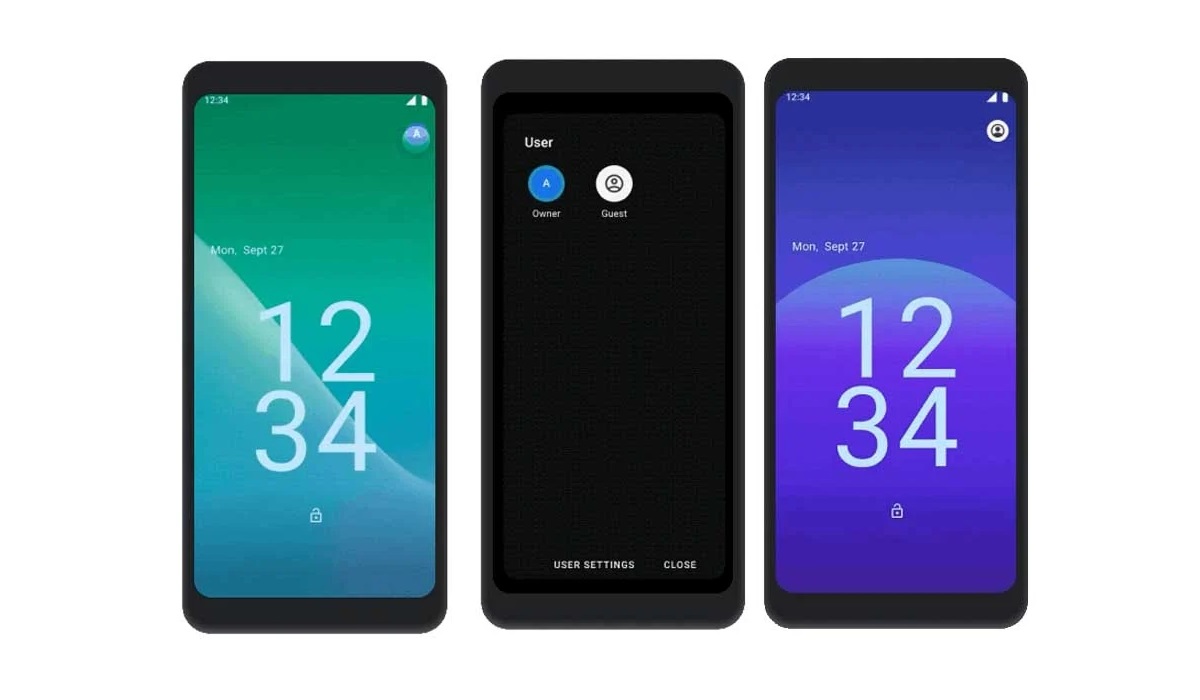
There are a few things you can do to make your Android phone run faster
The snag there is that owners of cheaper Android smartphones often have less than ideal experiences with those phones, because they are equipped with basic processors and limited system resources – limited memory, storage, battery, etc. Cheap and affordable Android phones equipped with entry-level processors, RAM, and storage tend to run slow and even often stutter and freeze or hang when in use. They are like small city cars; do not expect the performance of a Benz or BMW or Ferarri from them.
But there are a few things you can do to make your Android phone run faster and perform better, and we spell them out below.
- How to make your Android phone run faster by deleting unused apps
- How to make your Android phone run faster by clearing the app cache
- How to make your Android phone run faster by installing Software Updates
- How to make your Android phone run faster by restarting it
- How to make your Android phone run faster by using Lite Versions of apps
- How to make your Android phone run faster with a hard reset
How to make your Android phone run faster by deleting unused apps
Any smartphone user would love to have all their desired apps installed. This might lead to large amounts of apps piling up on the device, over time. It is important to form a habit of uninstalling unused apps and games. Having lots of these apps will hinder and slow down the performance of your Android cell phone.
This happens especially when you have some of them running in the background. They also become so many and have so much data on each one of them, that there is barely any assigned memory left for your device to run as smoothly as you may have liked.
How to make your Android phone run faster by clearing the app cache
Cleaning the cache of the app on your Android cell phone is important in terms of sending up your phone. Clearing the cache of an app can make that particular app run faster and smoother than it did before, and reduce possible lag. Clearing cache is also very important for entry-level devices too to help them improve their performance. As they are not as powerful as high-end devices. You can clear the cache of any app by long-pressing the app icon, selecting App info , and then Storage . There will be an option to Clear the cache . Select that and you’re good to go.
How to make your Android phone run faster by installing Software Updates
It is important to keep your Android smartphone up to date. This is because, with every new update, there might be security enhancements (which are crucial) but there might also be performance improvements added to the update that can make your overall experience, and device speed, better.
Some phone brands are better at software updates than others, and some are just terrible. Samsung has had a track record of speedy updates in recent years. Nokia and OnePlus are also known for updating their products, though not as fast as Samsung has done it. Xiaomi updates their top models and some others below them. With the other Android brands, software updates are often a hit-and-miss affair.
How to make your Android phone run faster by restarting it
It is well known that any device can perform faster and better simply off of a restart. This is true for all kinds of smartphones. Doing this should address most of the performance issues, as it deletes temporary files to speed up the phone and clears the phone’s memory. I recommend that you restart your smartphone at a fixed interval, perhaps once a week, or once in two weeks, depending on your usage.
How to make your Android phone run faster by using Lite Versions of apps
Lite versions of apps are the shortened versions of these said apps. Apps Tit Tok, Facebook, e.t.c. The lite versions are usually limited in comparison to the actual applications and don’t offer as many features. These lightweight apps, which do not work your device as hard as the main ones, are designed for entry-level smartphones and designed for users who want to keep their apps simple or use something simple. They help boost the performance of your device and lower your data and charges.
How to make your Android phone run faster with a hard reset
If you are looking for a simple method that will help you to make your Android phone run faster, it may be the most effective. If you do a hard reset on any kind of cell phone, then all the phone data will be deleted, and the phone’s storage will be clean, so you need to back up all the data before proceeding. A hard reset will restore your cell phone to factory state – as good as new, and the random-access memory (RAM) of your device will start working like new again.
If you want a top performing Android smartphone, be ready to spend on an upper mid-range, budget flagship, or premium flagship model. Examples of those include Samsung Galaxy S series, Google Pixel phones, Motorola S and X series, and current foldable or folding phones from any brand, among others. You will hardly ever encounter a slowness or stutter on those bad boys. They have the most powerful processors and more than adequate RAM, among other performance features. If you are unable to afford one of those, then you may have to settle for the more affordable, entry-level and budget smartphone models. In which case, you will find handy the above tips on how to make your Android phone run faster.
- Don’t miss our mobile phone reviews .
- Follow our news on Google News .
- Follow us on Instagram , Facebook , Twitter , and YouTube .
Author:MobileChic
That motivated, gadget-loving geeky chic who tries to stay on top of things. Unapologetic iFan.
Add MobilityArena as a preferred source on Google
Before we start things off and dive into the steps required to activate eSIM on your iPhone, we need to know what an eSIM is. What is an eSIM? You might already have a pretty good idea about what it is from the name itself. An eSIM is a digital SIM that gives you the ability to activate or use a cellular plan from a carrier without the need for a physical SIM card of any kind.
The eSIM is a great feature to use. It makes it easier for you to switch to different networks. Instead of having to physically acquire a new one you can do it with an eSIM from the comfort of your home. It also means you do not have to search the universe for an Ejector pin to remove a physical Nano SIM ever again.
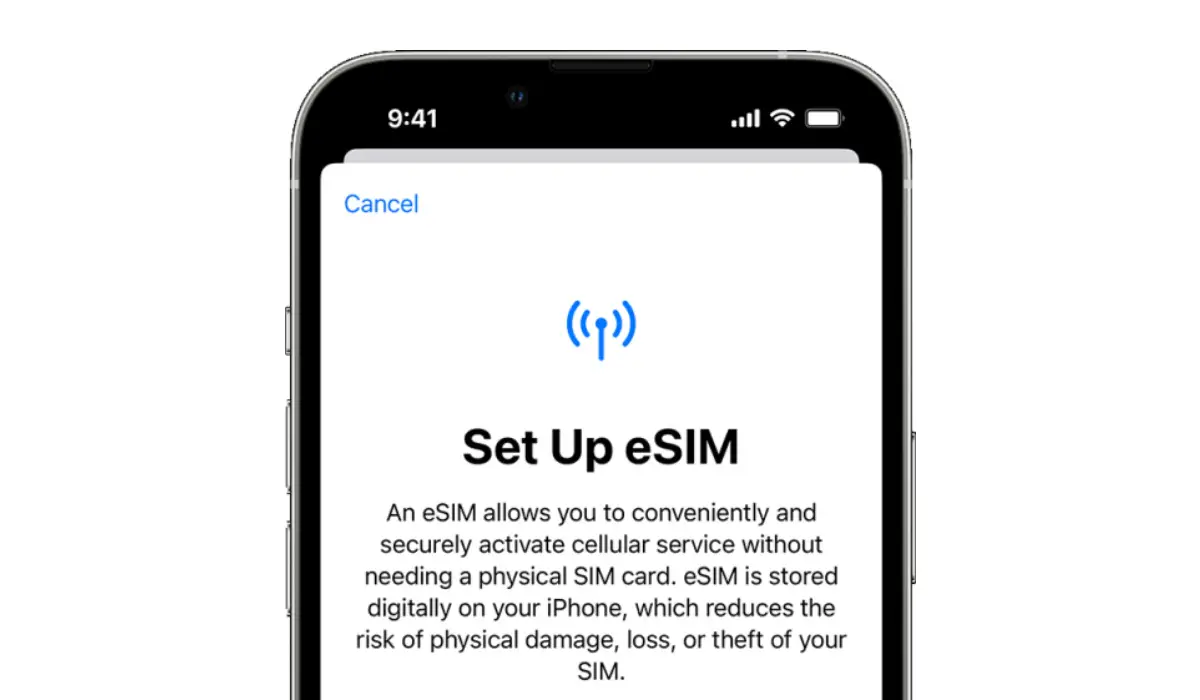
How to Set Up and Activate eSIM on your iPhone
To use the eSIM feature, you need to be using the iPhone XS version or later. Any iPhone model/version older than that does not support the eSIM feature. So, how do you activate eSIM on your iPhone?
It is usually quite easy to set up if you have recently acquired a new iPhone. When you newly turn it on, you will eventually see details about setting up an eSIM, as this will be displayed to you. Simply follow the instructions from there; they are rather easy. You can only do this if your carrier supports eSIM Carrier Activation or eSIM Quick Transfer.
How to activate eSIM on your iPhone using eSIM Carrier Activation
Several carriers and worldwide service providers can assign a new eSIM to your iPhone. This makes setting it up easier if you have an eSIM assigned to your device upon purchase. Simply turn your device on and follow the instructions displayed to activate your eSIM.
In the case of switching from an Android phone to an iPhone, contact your carrier to transfer your phone number to your iPhone through eSIM Carrier Activation or by scanning a QR code from your carrier. If and when you have contacted your carrier for an eSIM after setting up your iPhone, and they do set up an eSIM carrier Activation, follow these steps:
•A notification that says “Carrier Cellular Plan Ready to Be Installed” will appear, tap on it, and you can also access this in your settings.
•At the bottom of your screen, tap continue.
•Attempt a call on your device to check its cellular connectivity. If the call does not go through, contact your carrier.
•If the plan that you activated successfully replaces the plan on your physical SIM, you are clear to remove the physical SIM. When that is done, restart your iPhone.
How to activate eSIM on your iPhone using eSIM Quick Transfer
Some Carriers support SIM transfers from your former iPhone model to your new one without the need to contact them. Under Quick Transfer, you can also convert your physical SIM card to an eSIM. Although, you have to contact your carrier if you do not have access to your former iPhone.
While setting up your new iPhone, you might be asked to transfer your physical SIM or eSIM. If you need to transfer more than one SIM to your new iPhone, transfer your additional SIMs by following the steps below.
How to Transfer a physical SIM or eSIM on your previous iPhone to an eSIM on your new iPhone after setup
On your new iPhone:
•Head to Settings Cellular
•Add a Cellular Plan.
•Choose a cellular plan to transfer from another device. If you do not see a list of numbers, select “Transfer From Another Device”. This requires both devices to have iOS 16 or later.
•Check for instructions on your previous iPhone to confirm the transfer.
•To confirm, tap Transfer or, if asked for a verification code, enter the code that’s displayed on your new iPhone.
•Wait for the cellular plan to activate on your new iPhone. Your previous SIM is deactivated when the cellular plan on your new iPhone activates.
•When a banner appears on your new iPhone that says “Finish Setting Up Your Carrier’s Cellular Plan”, tap on it. You will be redirected to your carrier’s webpage to transfer your eSIM. If you need help, make sure to contact your carrier.
Convert a physical SIM to an eSIM on the same iPhone
Converting a physical SIM to an eSIM on the same iPhone is possible if your carrier supports it. Follow these steps:
•On your iPhone, head to your Settings app, and tap om Cellular.
•Tap on “Convert to eSIM”.
•If you don’t see Convert to eSIM, it means your carrier does not support this option. Contact your carrier to move your phone number from your physical SIM to an eSIM using eSIM Carrier Activation or by scanning a QR code.
•Select Convert Cellular Plan.
•Select Convert to eSIM.
•Wait for your eSIM to activate. Your previous SIM card is deactivated automatically when the cellular plan on your iPhone activates.
•Remove the physical SIM from your iPhone and then restart your iPhone.
How to Scan a QR code or use a carrier appto activate eSIM on your iPhone
If your carrier doesn’t support eSIM Carrier Activation or eSIM Quick Transfer, you can scan a QR code sent to you by your carrier instead.
To activate your eSIM while setting up your iPhone; When you get to the “Set Up Cellular” section, select “Use QR Code”. After that follow the onscreen steps. To activate your eSIM after setting up your iPhone. Contact your carrier to get a QR code. Follow these steps:
•Open the Camera app and scan your QR code.
•When the Cellular Plan Detected notification appears, tap it.
•select Continue, at the bottom of the screen.
•Tap on “Add Cellular Plan”.
•When you’re asked to enter a confirmation code to activate the eSIM, enter the number sent to you by your carrier.
•If your carrier supports activating eSIM using an app, download your carrier’s app from the App Store and follow the instructions.
Author:Flamez
Flamez loves basketball, art, gadgets and cars.
