Add MobilityArena as a preferred source on Google
The Motorola Moto G22 is one of Motorola’s latest entry-level smartphones that was released on the 13th of March 2022. The processor in the Moto G22 is the Helio G37 SoC. It also has 4GB of RAM and 64GB of internal storage. This device is not meant for heavy gaming or multitasking. It might have great features but it remains a basic, budget device. As such, sometimes its resources are stretched thin and it begins to run slower than usual, maybe even enough to annoy you, which is why you are reading this article. Below, I share a few things you can do to make your Motorola Moto G22 faster.
The key thing you need to know are the two factors affecting your phone’s performance: the processor and RAM. The processor determines how powerful your device is, while the RAM determines how smoothly apps launch and run on the phone. RAM (Random Access Memory) is a temporary storage for running apps. We can’t do anything about the processor, but RAM usage can be managed. Now, if you are looking to make your Motorola Moto G22 faster and smoother, here are some ways to make that possible.
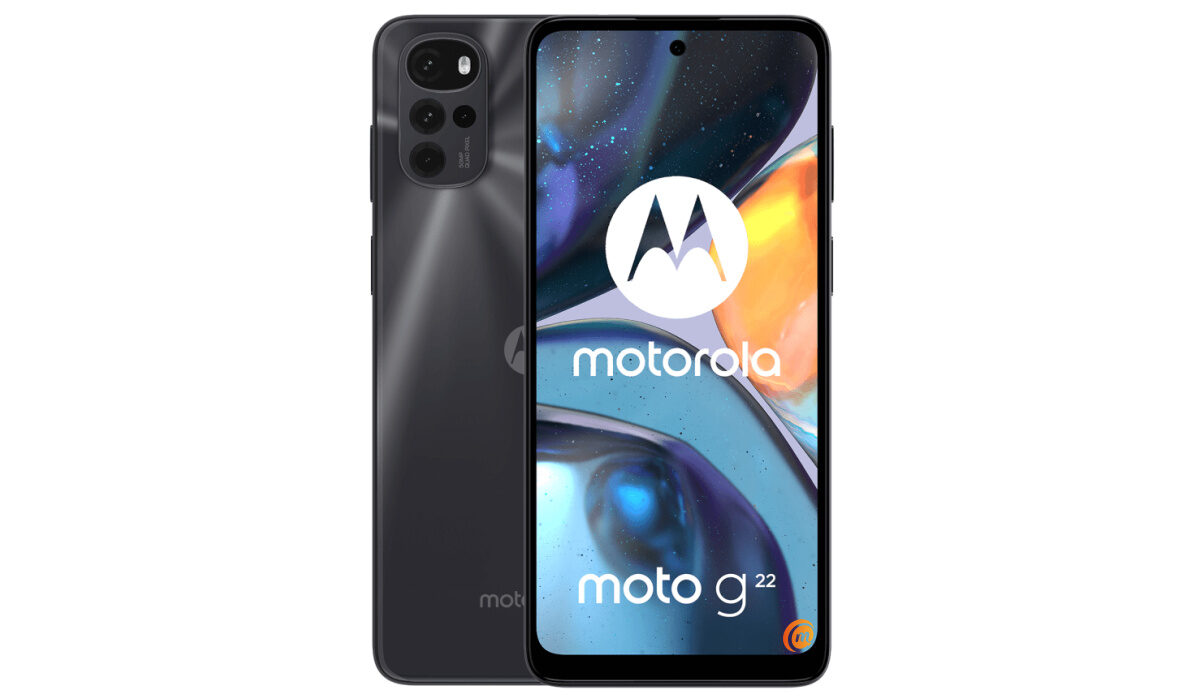
- Make your Motorola Moto G22 faster by deleting unused apps
- Make your Motorola Moto G22 faster by clearing the app cache
- Make your Motorola Moto G22 faster by installing any software updates
- Make your Motorola Moto G22 faster by restarting your device
- Make your Motorola Moto G22 faster by using Lite Version applications
- Make your Motorola Moto G22 faster with a Hard Reset
Make your Motorola Moto G22 faster by deleting unused apps
Any smartphone user would love to have all their desired apps installed. This might lead to large amounts of apps piling up on the device, over time. It is important to form a habit of uninstalling unused apps and games. Having lots of these apps will hinder and slow down the performance of your Moto G22.
Especially when you have some of them running in the background. They also become so many and have so much data on each one of them, that there is barely any storage space left for your device to run as smoothly as you may have liked.
Make your Motorola Moto G22 faster by clearing the app cache
Cleaning the cache of the app on your Moto G22 is important in terms of sending up your phone. Clearing the cache of an app can make that particular app run faster and smoother than it did before, and reduce possible lag. Clearing cache is also very important for entry-level devices too to help them improve their performance. As they are not as powerful as high-end devices. You can clear the cache of any app by long pressing the app icon, selecting App info , and then Storage . There will be an option to Clear the cache . Select that and you’re good to go.
Make your Motorola Moto G22 faster by installing any software updates
It is important to keep your Moto G22 up to date. This is because, with every new update, there might be security enhancements (which are crucial) but there might also be performance improvements added to the update that can make your overall experience, and device speed, better.
Make your Motorola Moto G22 faster by restarting your device
It is well known that any device can perform faster and better simply off of a restart. The same holds for the Moto G22. Doing this should address most of the performance issues, as it deletes temporary files to speed up the phone and clears the phone’s memory.
Make your Motorola Moto G22 faster by using Lite Version applications
Lite versions of apps are the shortened versions of these said apps, including Tit Tok, Facebook, e.t.c. The lite versions are usually limited in comparison to the actual applications and don’t offer as many features. These lightweight apps, that do not work your device as hard as the main ones, are designed for entry-level smartphones and designed for users who want to keep their basic Android phones running smoothly. They help lower the processing demand on your device and lower your data consumption and charges.
Make your Motorola Moto G22 faster with a Hard Reset
If you are looking for a simple method on how to make your Motorola Moto G22 faster, this last resort may be the most effective. If you do a hard reset on your Moto G22, then all the phone data will be deleted, and the phone’s storage will be clean. At the same time, the random-access memory of your Moto G22 will start working like new again. However, you need to back up all the data before performing a hard reset.
- Don’t miss our mobile phone reviews .
- Follow our news on Google News .
- Follow us on Instagram , Facebook , Twitter , and YouTube .
Author:Flamez
Flamez loves basketball, art, gadgets and cars.
Add MobilityArena as a preferred source on Google
WhatsApp stickers are those graphic items that you can add to any conversation to add a sense of humour. It is interesting to note that you can go a step further an create WhatsApp stickers using your photos, photos from friends, photos from family, or memes.
Creating WhatsApp stickers is a simple process. We explained the steps involved in creating WhatsApp stickers in this guide, and we also recommended some free applications you can use to create these stickers. Fascinated by some funny Whatsapp sticker packs? You too can create yours, read on to learn how.
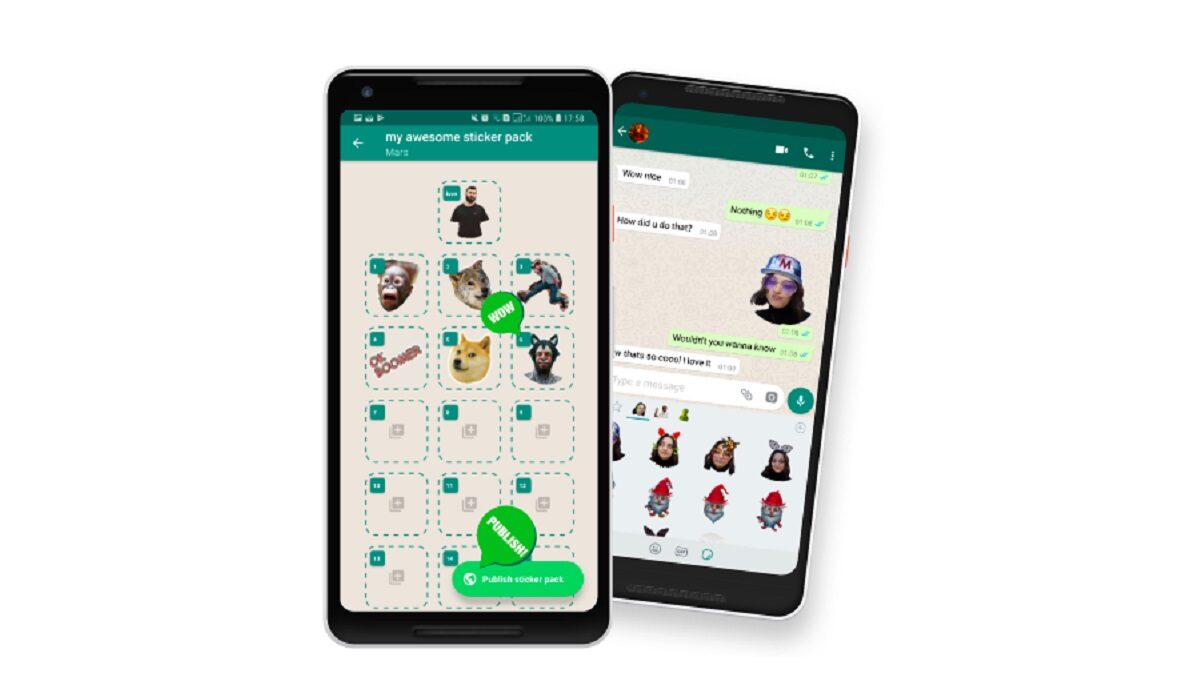
You can create WhatsApp Stickers, for your personal use, or for the public to download and use, too
Simple Steps To Create WhatsApp Stickers
To create the stickers, we need an application that allows us to create packs. We have opted for Sticker Maker. Sticker Maker is a free application and very easy to use. Follow these simple steps to create your stickers with the app:
- Open Sticker Maker.
- Tap on Create a new sticker pack.
- Name and author the package of stickers that you are going to create. Once both fields have been entered, click on Create.
- On the home page of the app, the package you just created will appear. Click on it to start adding your custom designs.
- As you can see, your package is empty. In Sticker Maker, you can create an icon, which appears first, so it’s the sticker that will give the package its image.
- The icon and the rest of the stickers in the package are all created in the same manner. Start the process by tapping on the square icon. To begin, you must decide whether you will use a photo taken at the same time (Take photo), an image previously saved in your gallery (Open gallery), a file from your mobile (Select file), other stickers (Stickers library), or Text Only.
- You will be taken to the sticker editing screen after taking or selecting the photo. First and foremost, decide which part of the image you want to turn into a sticker. You can choose to select the entire photo or a portion of it using smart or manual selection (custom cut -Freehand-, square cut, or circular cut).
- Once you’ve selected the sticker, you can retry the design by clicking Retry or save it to your sticker gallery by clicking Save. Our design isn’t perfect, but it will suffice for our WhatsApp conversations.
- You can also add text and frames to your stickers. You can write on the sticker by clicking Add text in the upper right corner. To change the font and add a background to the text, use the two buttons in the lower left corner.
- If you want to add a frame to your sticker, use the Outline tool. You can customize both the width and color of the frame. When you’re finished with the sticker, click Save to confirm the design and add it to your sticker pack.
- Finally, when you have finished with your personalized package of stickers, click on the Add to WhatsApp button. A new window will open and confirm the action by selecting Add.
Following these steps, you will be able to create any number of WhatsApp packages. You can organize them into topics, people, or whatever categories you want. Keep in mind that each time you add a sticker to the package, you must click “Add to WhatsApp” again to use it in your conversations.
3 Free Apps For Creating WhatsApp Stickers on Android Phone
1. Sticker Maker
Sticker Maker, which we used in the tutorial, is a free Android application. It includes all of the necessary tools for creating stickers as well as some interesting extras like intelligent cropping and the ability to add a colored frame. You can also share your packages with friends via WhatsApp and other social networks.
2. Wemoji
Wemoji, which is also available for free in the Google Play Store, is another good option for creating WhatsApp stickers. We should point out that this tool has a large library of text fonts and that it saves the image cuts you’ve already made so that you can reuse them in future stickers.
3. Sticker.ly
Finally, the last free application we recommend is Sticker.ly, which can also be used to easily create stickers. On this occasion, in addition to creating your stickers and sharing them with other users, you can download thousands of free packages from the app. The creation of WhatsApp stickers with your images and pictures is simple and quick. It’s a great way to have even more fun with the app!
- Don’t miss our mobile phone reviews .
- Follow our news on Google News .
- Join our WhatsApp Group , to be notified of the most important articles and deals,
- Follow us on Instagram , Facebook , Twitter , and YouTube .
Author:Moses Udah
Creative, teacher, web content writer, copywriter, and student.
