Add MobilityArena as a preferred source on Google
Samsung Galaxy A12 has proven popular for a good reason – it is affordable and generally gets the job done without much fuss. But it isn’t the most powerful smartphone on the block. Because it is a mid-range cellphone, sometimes its resources are stretched thin and it begins to run slower than usual, maybe even enough to annoy you, which is why you are reading this article. Below, I share a few things you can do to make your Samsung A12 faster.
The key thing you need to know are the two factors affecting your phone’s performance: the processor and RAM. The processor determines how powerful your device is, while the RAM determines how smoothly apps launch and run on the phone. RAM (Random Access Memory) is a temporary storage for running apps. We can’t do anything about the processor, but RAM usage can be managed. Bear this in mind, as we provide ways to make your Samsung A12 faster.
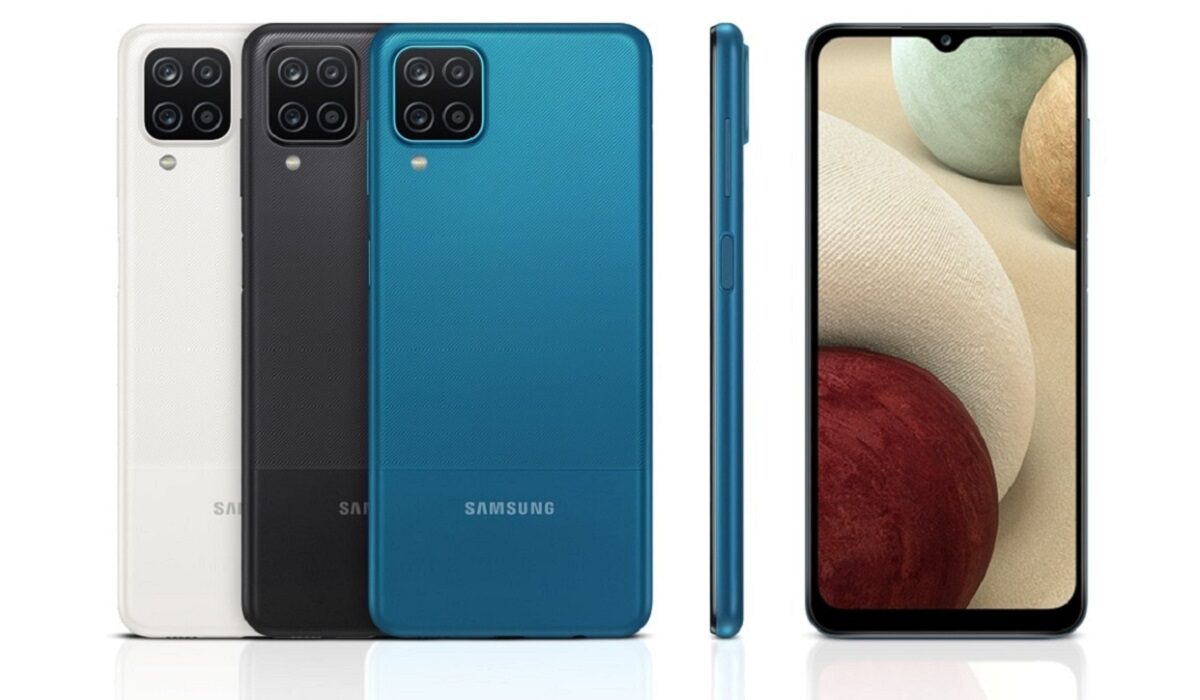
How to make your Samsung A12 faster
Make your Samsung A12 faster by not using many apps at the same time
Whether you own the vanilla version, the Nacho variant, or the Indian variant, your Galaxy A12 is equipped with 2 GB, 3 GB, or 4 GB RAM, depending on the variant you purchased. The lower the RAM, the easier you need to go on your phone. This is because it has less resources for apps to run with. If you switch between a lot of apps on it, the RAM gets used up and the phone begins to slow down.
The same way you shouldn’t attempt to drive a city car like a Formula 1 race car, don’t push your Samsung A12 too hard. It isn’t designed to handle the heaviest pressure. Switching lots of apps means they keep running in the background, using up precious resources. If you have used a lot of apps on the phone, you need to shut down those apps to keep things running smoothly. To do this, open the running apps menu, then slide up on the app you want to close. Repeat this for as many apps as you need to shut down.
Make your Samsung A12 faster by using Device Care auto-optimisation
Device Care is a feature that you can use to auto-optimise your Samsung A12 for better performance. How it works is that when you are not using your phone and the screen is off, the feature closes any background apps (it doesn’t touch your most recently used apps). It is a good idea to set Device Care to auto-optimise your Samsung A12 at night when you are asleep.
- To do this, go to Settings > Battery and Device Care .
- Tap the Options icon.
- Tap Automation .
- Tap Auto optimise daily .
- Tap Time .
- Set the clock to the time you would like Auto optimise to run, e.g. 2am
- Tap Done .
- Tap the switch next to Close apps to free up memory .
That is it; you now have auto-optimisation helping you to free up memory while you sleep. You wake up to your Samsung A12 ready to perform at its best for the day.
Make your Samsung A12 faster by restarting your phone
Restarting your cellphone on a regular basis, say weekly, is an easy way of clearing its memory of junk. This is low hanging fruit. You will be amazed how much smoother or faster your Samsung A12 runs just because you do this. Restart your Samsung A12 at least once a week to make it faster.
Make your Samsung A12 faster by not clogging it up with app updates
Every time you run app updates, your cellphone storage gets clogged up with extra baggage. Each updated app takes up more system space – even those apps that you do not use, especially those pre-installed by Samsung. What to do? Do not turn on automatic app updates. Instead, make it a duty to manually update only the apps that you use or need.
Make your Samsung A12 faster by keeping it from getting hot
You already know that overheating is a bad thing for any kind of electronic or machinery. If your phone heats up significantly, that impacts its performance, and it will slow down if you do not let it cool off. Keep your cellphone away from hot environments. If while using your Samsung A12, it begins to heat up, put it down and let it cool off for a while. It will serve you better if you treat it right this way.
With these few tips, you should see your Samsung A12 perform better, and run faster and smoother. All the best.
- Don’t miss our reviews .
- Follow our news on Google News .
- Join our WhatsApp Group , to be notified of the most important articles and deals,
- Follow us on Instagram , Facebook , Twitter , and YouTube .
Author:Mister Mobility
Digital Skills and Communication Coach | Mobile Phone Connoisseur since 2001 | Tech Blogging since 2004
Add MobilityArena as a preferred source on Google
In this comprehensive guide, we’ll show you how to find out if your iPhone has a virus, as well as what you can do to get rid of or remove viruses from your iPhone.
You’re probably worried about a cyberattack if you’re currently seeking online guidance about iPhone viruses. Maybe you were browsing online when your iPhone’s screen flashed a suspicious pop-up message informing you that you had a virus. Is this message reliable? How can you tell if your iPhone is indeed infected with a virus and what should you do if it is?
How to Remove Viruses from your iPhone or iPad
Does my iPhone have a Virus?
In reality, it is highly unlikely for iPhone devices to have a virus, but it does happen. So, before we dive into the steps you need to take to remove viruses from your iPhone, let’s look at how to even tell that it has been infected in the first place. Below, we’ve described a few ways you can tell if your device has been corrupted with a virus:
You have a jailbroken device : One of the major reasons for jailbreaking your device is wanting to install an app from a source other than the official App Store. While the rationale is understandable, with a jailbroken device, you should be aware that the likelihood is increased that you may (at some point) have unintentionally allowed a piece of malicious software known as a worm onto your device.
If you notice strange activity on your iPhone, such as apps rerouting you to suspicious-looking web pages, the presence of a worm is noticeably more likely.
Your device is using up too much cellular data : Are you concerned that your iPhone may contain dangerous software? Watch out for an unexpected increase in your cellular data consumption that cannot be attributed to normal iPhone usage.
Your phone overheats : Again, a malfunctioning battery is typically the culprit when your iPhone overheats, but in certain rare instances, it may be a symptom of a virus.
How do you get rid of or remove viruses from your iPhone?
If at this point, you’re sure your iPhone does have a virus, there’s no need to fret. Thankfully, there are some steps you can take to get rid of it:
Delete any apps that look suspicious
The most basic action to take to remove viruses from your iPhone is to delete any suspicious-looking apps, especially any that you do not remember installing. Since any virus was most likely introduced by an unauthorized app on your device, it’s smart to immediately get rid of any suspicious-looking apps that could be causing your device to exhibit signs of malware.
Erase and Reset all Contents and Settings
You might attempt erasing every piece of data on your iPhone if the above solution doesn’t resolve your problems. Go to Settings and then General to accomplish this. After that, select Reset and Erase All Content and Settings .
You should keep in mind, however, that by selecting this option, you will completely delete all of the data on your iPhone. If you don’t back up all of your essential iPhone data, you run the danger of losing your contacts, images, and other data.
Restore your phone using an earlier backup point
Restoring your iPhone from a previous backup is one approach to getting rid of a virus. Note that you’ll need to take this action after first performing a factory reset. You can either use a backup on your computer or a prior version saved to iCloud to restore your data. It’s easy to recover your phone using iTunes if you have backups stored on your PC.
Simply navigate to Settings, pick iCloud, and then check to see if iCloud Backup is enabled. You won’t be able to restore from a prior version without a virus, though, if this option is grayed off.
Keep in mind that this action may or may not work. It depends on whether you got the virus before or after the backup version you’re restoring. Restoring your phone to a previous backup version won’t work if you got the virus on your phone before the backup was restored. In this case, you need to continue testing earlier backup versions until you locate one that is malware-free.
Preventing Viruses in the Future
It is one thing to successfully remove viruses from your iPhone; it is another to make sure it stays virus-free. You’ll undoubtedly want to make sure your gadget remains virus-free after eradicating the malware. You must take some safety precautions to ensure that viruses cannot readily infect your device.
Here are two easy ways you can protect your iPhone from viruses:
- Don’t try to jailbreak your device just because you want to download unauthorized applications. When you bypass the built-in security measures with the help of jailbroken apps, viruses and other malicious software can now directly access your iPhone.
- As soon as an update is available, download it to keep your iOS current. Head to your Settings app, click on General , and then select Software Update to do this.
Summarily, we’re sure you’ll agree that prevention is better than cure when it comes to tackling viruses on your iPhone device. Take all the necessary steps you need to keep viruses from corrupting your device. If, despite your efforts, malware still manages to get onto your device, simply follow our suggestions to get rid of it.
- Don’t miss our reviews .
- Follow our news on Google News .
- Join our WhatsApp Group , to be notified of the most important articles and deals,
- Follow us on Instagram , Facebook , Twitter , and YouTube .
