Add MobilityArena as a preferred source on Google

Gmail Logo
Sending emails have become a core form of communication in our modern world, whether it is related to school, work or just for random purposes. In other to send emails we need to have an active email account but for the sake of this article we will be focusing on one of the most popular emails service providers Google.
Setting up a Gmail (Google Mail) account is very easy and can be done by anyone including those will little tech understanding,. We all need to have active Gmail accounts as it has become the core on which a lot of core Google services run, due to this fact virtually everyone has a working Gmail account. Gmail is the biggest email platform in the world with an estimate of 1.8 billion users worldwide, so almost every one in five persons have a Gmail account.
Sometimes we open more than one Gmail account on the same device or even on different devices and it can become stressful to run these accounts at the same time if they are important to you. Most persons have two or more Gmail accounts one for school and personal use then the other for work or some other important activities. If you find yourself in this kind of situation you will agree that sending mails to other people is stressing as you constantly need to pick between the preferred account, messages get saved in different locations so sorting becomes an issue and you get a more clogged up inbox. It is time to let all of that go and ease the multiple account burden.
Merge Gmail Accounts!
Just as the word “merge” means bringing together of two or more items to make them one “Gmail accounts merging” does just that. But how can you merge your Gmail accounts? What happens when you merge your Gmail account? What will happen to your contacts on the second Gmail account? All of this will be addressed in this article. Currently Google has not yet offered a straight setting that merges Gmail accounts but we have a little work around for you.
First How Can You Merge Your Gmail Accounts?
If you are facing the problem of multiple Gmail accounts on your mobile device you will need to get the solution away from the mobile application, but if you are using the web version of Gmail on your laptop or desktop you do not need to look far.
On your mobile device sign into your Gmail account via your chrome browser (I will advice that you turn on desktop mode on your browser). Once you are signed into the web the following steps can be carried out on both a smartphone and a desktop (or laptop):
• Sign in with the account you want to serve as the main account
• Tap on the settings icon at the top right hand corner of the interface.
• Tap on see all settings.
• Now select the Forwarding and POP/IMAP drop down.
• A pop up window will appear, there you will fill in the email address that you want to merge. A notification will be sent to the Gmail account to be imported or fowarded, click proceed.
• Ensure that you keep the copy of the fowarded Gmail or “mark as read” the copy so as not to lose your important mails on the fowarded account.
• Click save changes at bottom when done and allow Google do the work.
By following the steps above you will have successfully imported one Gmail account into another making them operate together as one. But if you still want to send emails via one address and not the other head back to your settings for your new (merged) Gmail “accounts” and click on the see all settings then proceed to the “Account and Imports” drop down then click on the “send email as” section and add the imported Gmail address. Be sure to verify your action but do not uncheck the already checked box on the pop up window while imputing your second Gmail account.
You might be concerned about your contacts on your imported Gmail account well you can also import them as well. Head over to the settings tab and navigate to the “Account and Imports” drop down and select the “import mail and contact” section, fill in your imported Gmail account. You will then be directed to sign in to your imported Gmail account, do this and afterwards you will be given a list of options to import choose the ones you want, then start the import. This may take longer than any of the previous actions explained, so be patient. After this step is completed by Google there will be a distinct difference between your imported mails and already existing mails for easy identification.
With these easy steps you will have eliminated the stress of juggling multiple Gmail accounts and cleared the clutter in your Gmail account.
Author:KittysTech
Tech analyst, Collins Eshiet, writes about technology. Follow me on Twitter @KittysTech.
Add MobilityArena as a preferred source on Google

In the light of events surrounding us today it is even more important to keep our children and wards protected from harmful content on the internet. The need to protect children from harmful content on the internet is ever growing, this is because the world we find ourselves today is becoming even more digitalised than it was as little as ten years back.
Hence to keep up with this rapid growth of digitalization children are introduced to the gadget world at very tender ages, at these ages it is very difficult for them to first differentiate between good and harmful content, second know the limits to screen time daily and third balance their gadget life with their everyday life. So as a parent it is wise that you keep track of your child’s device usage while not seeming to be bugging into them at ever given time.
This article highlights ways that parents can keep track of their children’s device usage and at the same time set limits if necessary. The steps that will be highlighted in this article are all focused on the Android ecosystem and are very easy to apply.
Why Parental Control On Android Devices?
When getting a device for a child, the most common option is Android. It is no longer news that the percentage of Android devices in the world totally outweighs that of iOS. So how can parents keep check of what their children are doing on their Android devices? How can we use these Parental Control on Android features?
To children, the Internet can be a very dangerous place to be in, but it is essential that young ones are introduced into these early enough. Knowing this, parents need to be at alert and guide their children hence helping them navigate the internet safely.
When you first buy an Android device for your child, it is advised that you activate parental control on the device as soon as possible. In order to do this follow the steps below.
Step By Step GuideTo Implement Parental Control On Android
Google family link.
- First on your own device (as a parent) download the Family link app on your device from the Google Play Store using this link right here . Then proceed to set it up, select the Google account that will supervise the child’s device, check for updates on your device (that happens automatically).
- Second on your child’s device open a Gmail account for him/her.
- Now link your child’s Google account to your own by using the Family link app and register the device as belonging to a child.
- Now set up app and filters for your child’s device.
After taking the following steps you can now:
- Monitor your child’s screen time and set limits where necessary, set bed time on their devices.
- Add restrictions and filters to the Google services.
- Check on your children’s location when necessary.
Why Are These Features Important?
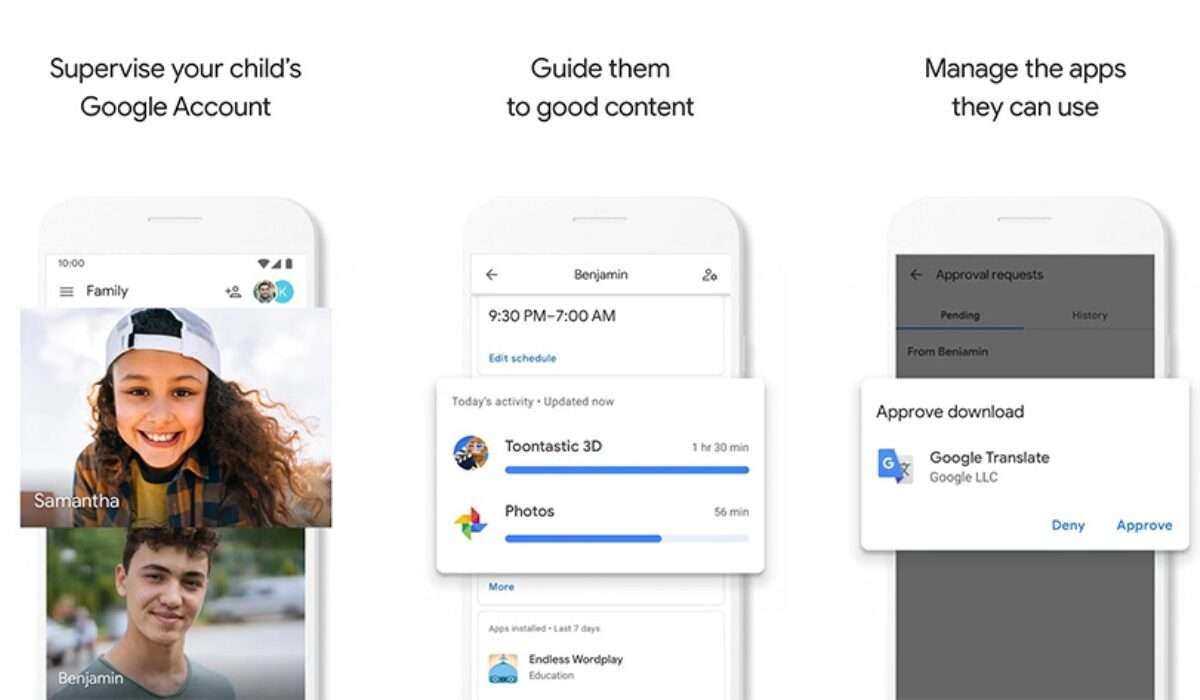
These features are very important at the early stages of a child’s life because they stand as a guide to help children develop good and healthy device habits. It does not only benefit the children but also the parents.
- It helps block certain features that might be harmful to your children
- It helps you to track down your child location
- It helps you to monitor your child’s device and also manage what they find while surfing the net
- It helps inculcate proper gadget usage into your child at an early age.
- It helps you to see what exact application your child is using at the moment, how long your child has been using that application and so on.
- It helps teach your child cyber etiquette.
They are a bunch of applications out there that offer Parental Control Features, but I will recommend that you stick to the on provided by the Google LLC apps, because of how simple they are to use and manage across a lot of devices (as long as all your children have smartphones you can control all from your smartphone). There are some solid options out there like the Norton Parental Control which does all the the Google Family link app does but the only difference is that you pay for its services while with Google you get those same services at no cost.
These control features provided by Google on Android devices can help parents or guardians to support their child or ward to better and more responsible gadget foundation for your wards.
- Don’t miss our reviews .
- Follow our news on Google News .
- Join our WhatsApp Group , to be notified of the most important articles and deals,
- Follow us on Instagram , Facebook , Twitter , and YouTube .
Author:KittysTech
Tech analyst, Collins Eshiet, writes about technology. Follow me on Twitter @KittysTech.
