Add MobilityArena as a preferred source on Google
My daughter has an entry-level smartphone with only 8GB internal storage. Having used up 7.78GB of that, she began to get an error message saying that she had run out of storage. So she decided to get a microSD card to augment the storage. She would also need to learn how to move apps to the SD card.
She purchased a 32GB card. After installing it, she had to first format it as a portable storage. There is a built-in menu in the phone’s Settings that allows her to do it (See the photo below), and she promptly did that.
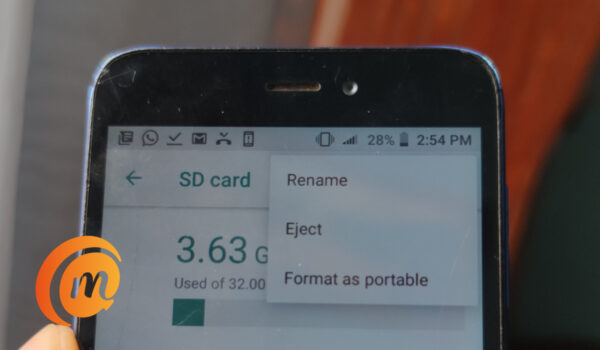
But after selecting the “Format as portable” option shown above and restarting the phone, she was still unable to move her installed apps to the card. And whenever she tried to instal a new app, the phone always showed that it had run out of memory – the very same reason why she needed to get a memory card in the first place.
- How to Convert the SD card into internal memory
- How to move apps to an SD card on Android
How to Convert the SD card into internal memory
As such, she came to me with the problem. What I did was instal a 3rd party app called Activity Launcher from Google Play Store. Of course, since the phone had run out of space, in order to install the app, we had to first free up some space by uninstalling a few apps. We uninstalled WhatsApp, and Instagram.
After uninstalling those apps to free up space, we installed Activity Launcher, and executed the following steps:
- Open Activity Launcher and scroll down to find “ Files ” and tap on it.
- This displays a list of options, look for the one that says “ ViewDownloadsActivity “, and tap on it.
- This takes you to a menu/page labelled “Downloads”.
- Tap on the upper options (three dots) in the top left corner
- Select SD Card;
- Select the three dots in the top right corner
- Pick/tap on “Format the microSD as internal storage”. That’s it.
In our case, we stopped at step 6, because step 7 wasn’t available. But for some reason, it worked. The phone now recognized the memory card as a portable storage.
The next step was to move existing installed apps to the SD card.
How to move apps to an SD card on Android
- Open the Settings app.
- Go into Apps & notifications .
- Tap on the app you want to move to the SD card.
- Tap on Storage .
- If the app supports a move, you will see an option to change where the app is stored. Follow through to change it to the SD card. See images below.
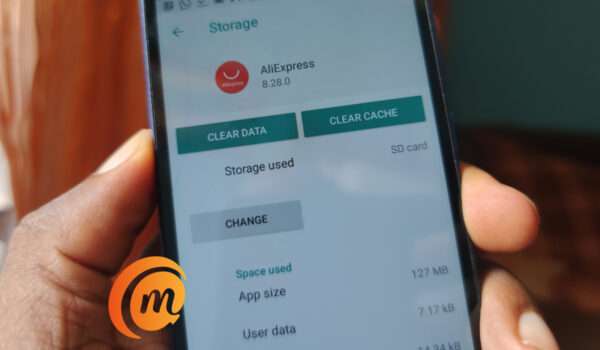
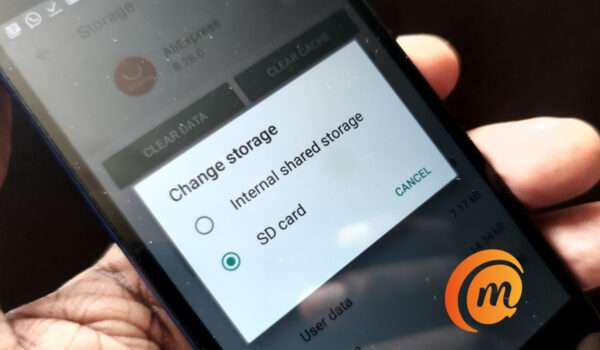
Final step to move apps to an SD card on Android
That is it; you now know how to move apps to an SD card. Once the process is completed, any apps that you download from the Play Store will be automatically installed on the SD card. Not only does your smartphone now have extra storage, but you also will enjoy the convenience of apps installing directly to the card, thereby keeping your phone’s internal storage free.
The phone we did this on is Redmi Go , but the same principles of installing the card as portable storage and moving the apps should hold for most other Android phones, regardless of manufacturer. The same process should work to move apps to an SD card for Android phones by Samsung, Huawei, Nokia, TECNO, Infinix, itel, UMIDIGI, and others.
Author:Mister Mobility
Digital Skills and Communication Coach | Mobile Phone Connoisseur since 2001 | Tech Blogging since 2004
Add MobilityArena as a preferred source on Google
Unlike the international model, the US version has 64GB storage only, and it is available in only one colour – black. It is available prepaid and unlocked, and so can be used on any supported carrier. Note that the G30 is not a 5G smartphone.
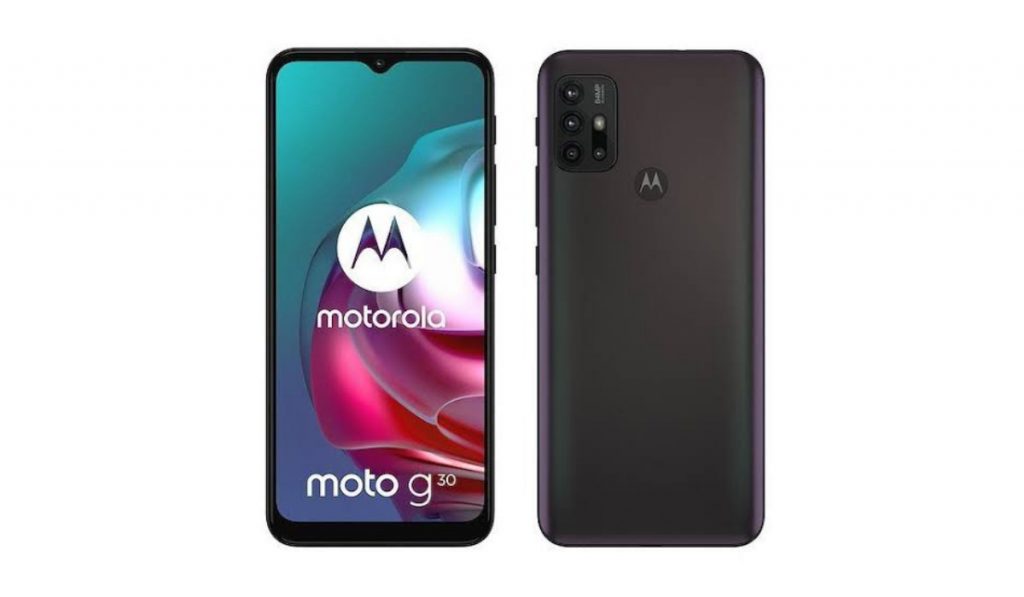
Motorola Moto G30 Specs
- OS: Android 11
- Materials: Plastic frame and back, with water-repellent design
- Colours: Black.
- Display: 6.5 inches, 720x 1600 pixels, 90Hz refresh rate, IPS LCD
- Network Support: 2G. 3G. 4G. Hybrid Dual SIM.
- NFC: No.
- Bluetooth: 5.0
- Fingerprint Scanner: yes; rear-mounted.
- Processor: Qualcomm Snapdragon 662
- RAM: 4GB
- Internal Storage (ROM): 64GB
- Expandable Memory: microSDXC (shared slot)
- Main Camera: 64 MP wide angle lens + 8 MP ultrawide angle lens + 2 MP macro lens + 2 MP depth sensor, LED flash, 1080p video recording
- Front Camera: 13 MP wide angle lens, 1080p video recording
- USB: USB Type-C 2.0, USB On-The-Go
- Battery Type: Li-Poly 5000mah
- Charging: 15W fast charging
Motorola Moto G30 Price and Availability
The US version of the Motorola G30 starts shipping on July 30, 2021, and is sold prepaid and unlocked for all US carriers. Pre-order took off on May 25 at a price of $299.99 only.
Author:MobileChic
That motivated, gadget-loving geeky chic who tries to stay on top of things. Unapologetic iFan.
