Add MobilityArena as a preferred source on Google
In this article, I’ll walk you through how to offload apps on iPhones. If you’re an iPhone user, you’re probably familiar with the rather common issue of running out of storage space. With so many apps, photos, and videos, it’s easy to fill up your device’s memory.
One solution to this problem is to offload unused apps. Offloading apps frees up space on your iPhone by removing the app while still keeping its data and settings. So, in this guide, you’ll learn how to manage this action to regain useful storage space. You’ll also learn how to reinstall offloaded apps if you ever need to use them again.
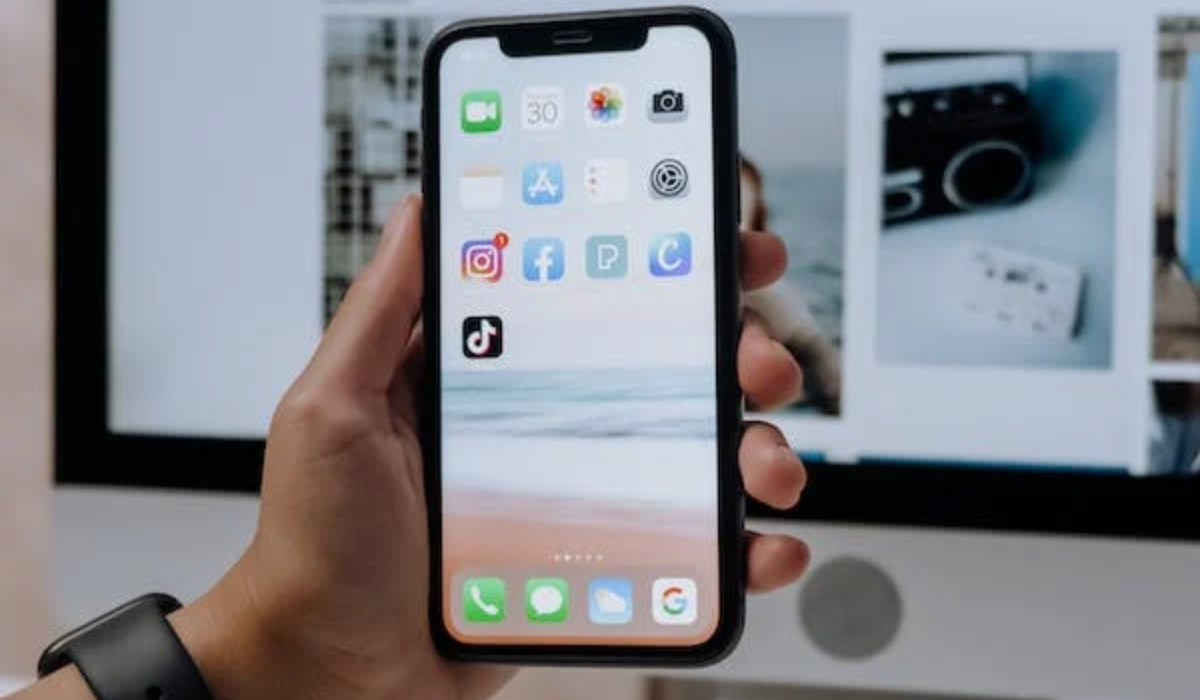
What Does It Mean to Offload an App?
When iOS first came out, there were only two options for managing apps: you either keep them or delete them entirely. If you chose to keep an app you didn’t need, it would take up valuable iPhone local storage space. If you deleted it, the app and all of its local data would be gone.
However, with the release of iOS 11, Apple introduced a new alternative — offloading apps. This option provides a balance between keeping and deleting an app. The feature removes the app while retaining its data on the iPhone. So, if you decide to reinstall the offloaded app later, you can continue using it just as before, with all your data and settings intact.
Please note that offloading an app is different from deleting it because when you delete an app, it wipes out all data and files. While offloading ensures that app data, user settings, and documents remain on your device. Now that you’re all caught up, here’s how to offload an app on your iPhone.
How to Offload Apps on iPhones Manually
You can offload an app manually whenever you want by following the instructions provided below:
- Go to Settings and select General .
- Click on iPhone Storage and wait for it to load.
- Tap the app you wish to offload from the list of apps.
- Next, click the option to Offload App and then click Confirm .
It’s a pretty easy and seamless process, but there’s also an automatic alternative which I’ve explained below.
How to Offload Unused Apps Automatically on Your iPhone
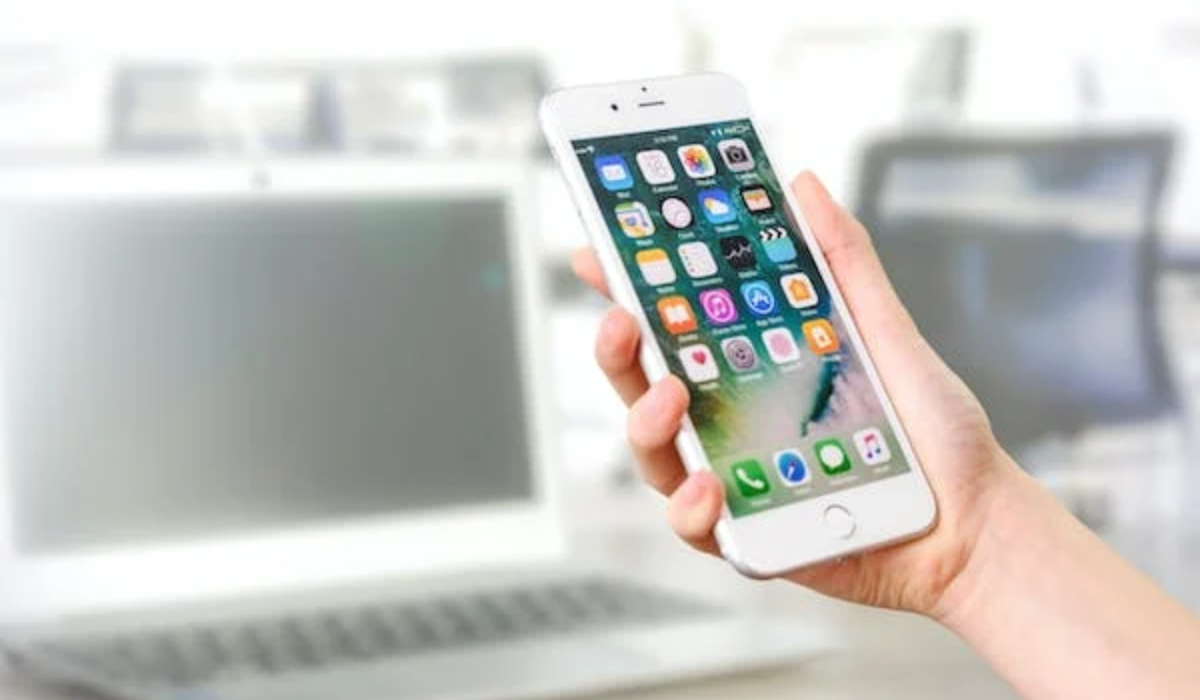
It’s easy to get bogged down in the tediousness of manually searching for and offloading apps on your iPhone. Setting your iPhone to automatically offload apps will optimize storage, especially if you struggle to keep local storage free. When you enable it, your iPhone will automatically offload apps that you haven’t used in an extended period of time.
To enable automatic app offloading on the iPhone, follow these simple steps:
- Navigate to Settings , then select General .
- Select iPhone Storage .
- Tap Enable next to Offload Unused Apps under Recommendations .
This process, like the manual method, is also easy to complete. It also has the added advantage of being easy to turn off whenever you wish.
How to Reinstall or Redownload an Offloaded App
Even after you unload an app, its icon remains on the Home Screen and in the App Library of your iPhone device. You’ll notice a download arrow before the app’s name, indicating that the app in question has been offloaded. Now, if you ever need to redownload the app for use, simply tap the icon again. Since (as previously stated) the app data remains on the device, it’s pretty much easy to carry on from there.
An alternative option is to go to Settings > General > iPhone Storage > Name of the App > Reinstall App . You can also use the App Store’s search function to find the app and then click the download button . It will download within a few minutes, depending on the speed of your internet connection.
To sum up, offloading apps on your iPhone can be a simple and effective way to free up space on your device. With the option to do it manually or automatically, you can choose the method that works best for you. By following the steps outlined in this guide, I’m certain that you’ll find the process easy so you can keep your iPhone device running smoothly. If you’d like other useful troubleshooting tips, ensure to check out this category .
Author:Joan Agie
Add MobilityArena as a preferred source on Google
As phone brands ditch the 3.5mm headphone jack, more and more smartphone users are developing interest in advanced Bluetooth aptX codecs like aptX Adaptive , aptX HD, and aptX Lossless Bluetooth because these codecs deliver sound quality that is comparable to what is obtainable via wired headphones.
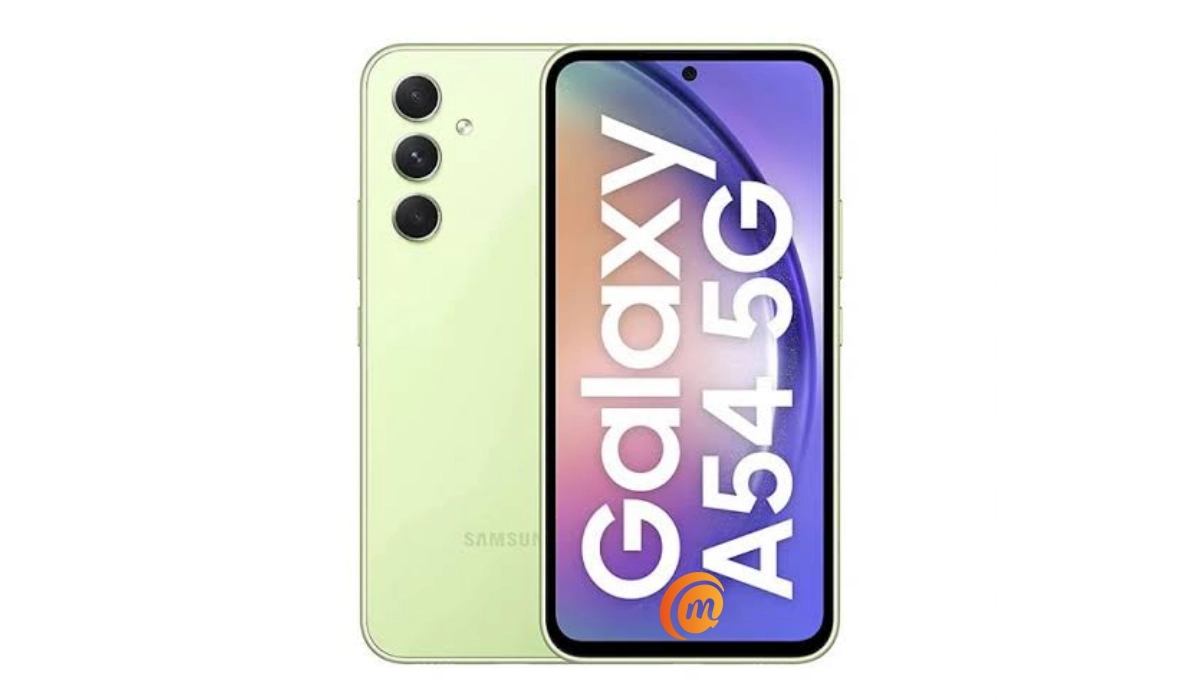
The Samsung Galaxy A54 is an impressive mid-ranger that offers as close to premium flagship features and performance as possible for about half the price of said flagships. Right from the build to the internals, it is an impressive device. Sadly, despite abandoning the 3.5mm headphone jack, the Galaxy A54 lacks support for these Bluetooth codecs , among others.
- Advanced Bluetooth Codecs Missing in Samsung Galaxy A54
- Why Did Samsung Not Include These Codecs in the Galaxy A54?
- How To Confirm The Samsung Galaxy A54’s Bluetooth Codec Support
- A Missed Opportunity
Advanced Bluetooth Codecs Missing in Samsung Galaxy A54
Unfortunately, the Samsung A54, and its siblings, A34 5G and A24, all lack support for aptX Adaptive, aptX HD, aptX Lossless Bluetooth, or Bluetooth LE Audio codecs. This omission leaves users with a limited selection of high-definition wireless headphones compatible with these devices.
Which is no surprise, considering that even premium flagship models like the Galaxy S23 series and Galaxy Folds and Flips also do not support these Bluetooth codecs. But in addition to lacking these, the Galaxy A54 also lacks LDAC. LDAC is a Bluetooth audio codec developed by Sony for delivering high bitrate and high resolution audio. The total list of Bluetooth codecs missing in this phone are:
- aptX Adaptive
- aptX HD
- aptX Lossless Bluetooth
- Bluetooth LE Audio
- LDAC
Why Did Samsung Not Include These Codecs in the Galaxy A54?
It is difficult to speak for Samsung. AptX and AptX HD are now open to public without a license fee, so it would not have cost them any fees to include these two. We could argue that because aptX Adaptive attracts a licensing fee, Samsung excluded it to save costs. The Galaxy A54 is a budget smartphone, after all.
It is also likely that Samsung wants to push its own proprietary codec, SSC (Samsung Seamless Codec), which was introduced in 2022 with the Galaxy Buds 2 Pro. That would make sense for the company; right? But it doesn’t help users who are looking for the best Bluetooth audio. aptX HD and Adaptive are proven and widely known for their quality; the jury is still out on Samsung’s SSC.
How To Confirm The Samsung Galaxy A54’s Bluetooth Codec Support
To check the Bluetooth audio codecs supported by your Samsung A54 phone, you need to access Developer Options. Follow these steps:
- Go to “Settings.”
- Tap “About device” or “About phone.”
- Tap “Software information.”
- Tap “Build number” seven times.
- Enter your pattern, PIN, or password to enable the Developer options menu.
- The “Developer options” menu will now appear in your Settings.
- Go back to Settings; Developer Options will be the last item at the bottom of the screen.
- To check the list of supported Bluetooth codecs, go to Settings > Developer Options > Bluetooth Audio Codec.
You will be presented with a drop-down menu of available Bluetooth audio codecs that might include SBC, AAC, and SSC. Everything that is greyed out is not supported.
A Missed Opportunity
While Samsung Galaxy A54 remains an exceptional mid-ranger, the absence of these advanced Bluetooth aptX codecs may be disappointing for audiophiles seeking top-notch wireless audio experiences. If you prioritize advanced Bluetooth features, consider exploring mid-range and high-end models from other brands like Nokia, Google Pixel, Motorola, Sony, or OnePlus, which often provide the desired support for aptX HD, aptX Adaptive, aptX Lossless Bluetooth, and Bluetooth LE Audio codecs.
Author:Mister Mobility
Digital Skills and Communication Coach | Mobile Phone Connoisseur since 2001 | Tech Blogging since 2004
