Add MobilityArena as a preferred source on Google
We all love the speed and power that comes with this sleek device, but even the best phones need a little help to make it through long days of gaming, streaming, and multitasking. The good news? Your Pixel 9 comes loaded with smart features designed to help you optimize battery life without slowing you down. From clever settings to performance tweaks, you’ve got all the tools you need to keep going strong. In this guide, we’ll show you how to optimize battery life the easy way — no boring tech talk, just practical tips (with a little humor sprinkled in). So, if you’re ready to squeeze every drop of power out of your phone, let’s dive in and optimize battery life like a pro!

- Understand the Pixel 9’s Basics to Optimize Battery Life
- Step 1: Activate Extreme Battery Saver Mode
- Step 2: Optimize Adaptive Brightness
- Step 3: Manage Background Apps and Battery Usage
- Step 4: Turn on Dark Theme
- Step 5: Customize Refresh Rate for Battery Efficiency
- Step 6: Utilize Battery Saver Mode for Everyday Citadel Defense
- Step 7: Keep Your Software Updated
- Bonus Tip: Turn Off Haptics When Possible
- Conclusion
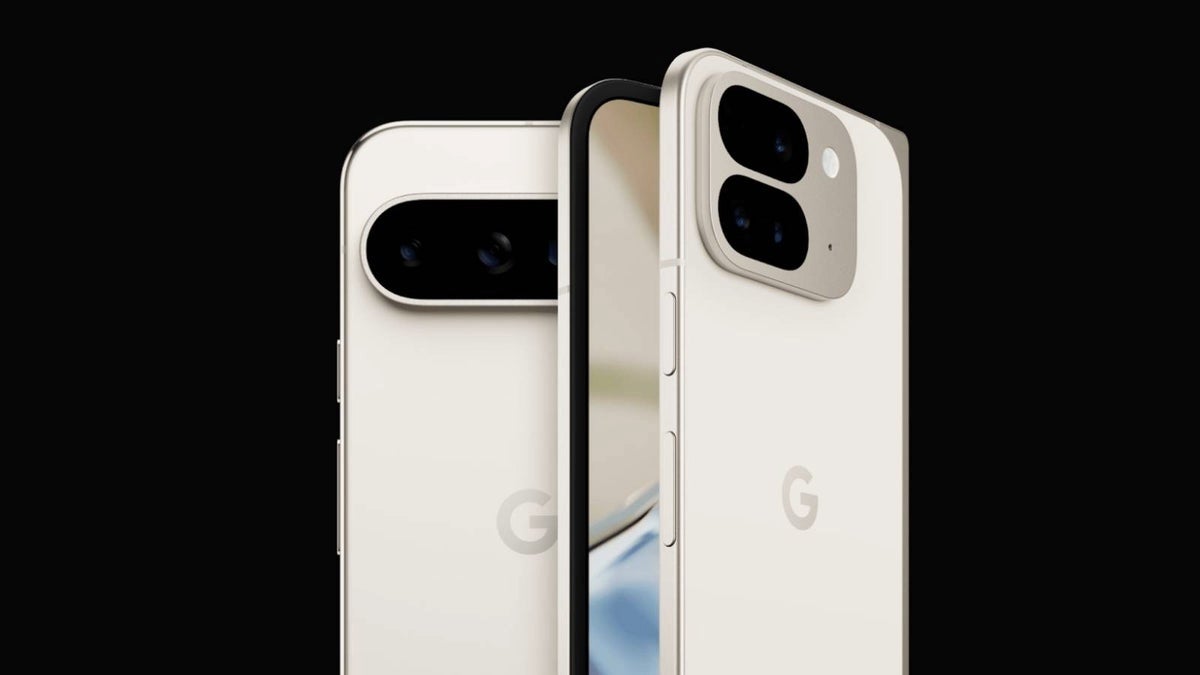
Understand the Pixel 9’s Basics to Optimize Battery Life
First up, the Pixel 9 sports a robust battery complemented by Google’s Adaptive Battery AI. This clever system learns your app usage patterns and restricts background activities for apps you rarely use. But you can help it by tweaking a few settings.
Step 1: Activate Extreme Battery Saver Mode
When your Pixel 9 is gasping for juice, Extreme Battery Saver turns into your phone’s superhero cape.
- Go to Settings → Battery → Extreme Battery Saver.
- Toggle it on to restrict all non-essential apps and services — your phone goes into survival mode but keeps the core stuff alive (hello, calls and texts!).
- Bonus: Schedule it to auto-activate at a certain battery percentage so you never get caught off guard.
Step 2: Optimize Adaptive Brightness
Pixel’s Adaptive Brightness learns how you like your screen brightness based on your environment — magic, right?
- Enable it in Settings → Display → Adaptive Brightness.
- But don’t forget to occasionally adjust the brightness manually so the AI gets smarter about your preferences (that’s teamwork!).
- Lower brightness whenever you can; your eyes — and battery — will thank you.
Step 3: Manage Background Apps and Battery Usage
- Head over to Settings → Battery → Battery Usage and check which apps are munching on your battery snacks.
- Tap on any hungry app and select Optimize battery usage to restrict unnecessary background activity.
- Uninstall or disable apps you rarely use (guilty apps: the ones you installed to “try out”).
Step 4: Turn on Dark Theme
Thanks to the Pixel 9’s OLED screen, enabling Dark Theme means fewer pixels lighting up, saving energy.
- Activate it in Settings → Display → Dark Theme.
- Schedule it to kick in automatically at sunset for an elegant, battery-friendly look all evening.
Step 5: Customize Refresh Rate for Battery Efficiency
The Pixel 9 supports a smooth 120Hz refresh rate, but sometimes we don’t need that level of buttery smoothness.
- Go to Settings → Display → Screen refresh rate.
- Switch to adaptive or 60Hz for longer battery life — your scrolling apps won’t really mind.
Step 6: Utilize Battery Saver Mode for Everyday Citadel Defense
When you want your phone to last a bit longer but still be usable:
- Go to Settings → Battery → Battery Saver.
- Turn it on manually or automate it to activate at a specific battery threshold.
- This mode dims your screen slightly, disables background syncing, and keeps things running smoothly.
Step 7: Keep Your Software Updated
Google’s updates frequently bring battery optimizations and bug fixes.
- Check Settings → System → System Update regularly.
- Install updates promptly — the newest software equals better performance and battery life.
Bonus Tip: Turn Off Haptics When Possible
Those satisfying little vibrations consume power, too.
- Head to Settings → Sound & vibration → Vibration pattern and consider turning some off or lowering vibration intensity.
- Your fingers will survive, promise!
Conclusion
In the end, keeping your Pixel 9 running longer comes down to a few smart habits. When you optimize battery life with features like Extreme Battery Saver, Adaptive Brightness, and refresh rate controls, you’ll notice a big difference in daily performance. Even simple changes like switching on Dark Theme can help you optimize battery life without sacrificing your phone’s smooth experience. If you want your Pixel 9 to stay powered through the day, learning how to optimize battery life is one of the best upgrades you can make.
Author:Ifeoluwa Adeleke
Add MobilityArena as a preferred source on Google
Ever wanted to let your friends or family know exactly where you are — without sending a long text or dealing with confusing directions? That’s where the Add Me Feature on the Google Pixel 9 comes in. It makes sharing your location quick, clear, and effortless. Whether you’re lost in a crowd, navigating a busy festival, or just trying to meet a friend for coffee, the Add Me Feature cuts out the guesswork. With just a couple of taps, you can instantly share your spot and skip the back-and-forth. It’s simple, smart, and built to make staying connected a whole lot easier. Once you try the Add Me Feature, you’ll wonder how you ever got by without it.
- What Is the Add Me Feature?
- How to Enable ‘Add Me’ and Share Your Location
- Why ‘Add Me’ Beats Saying “Where Are You?”
- Pro Tips to Get the Most Out of ‘Add Me’
- Conclusion
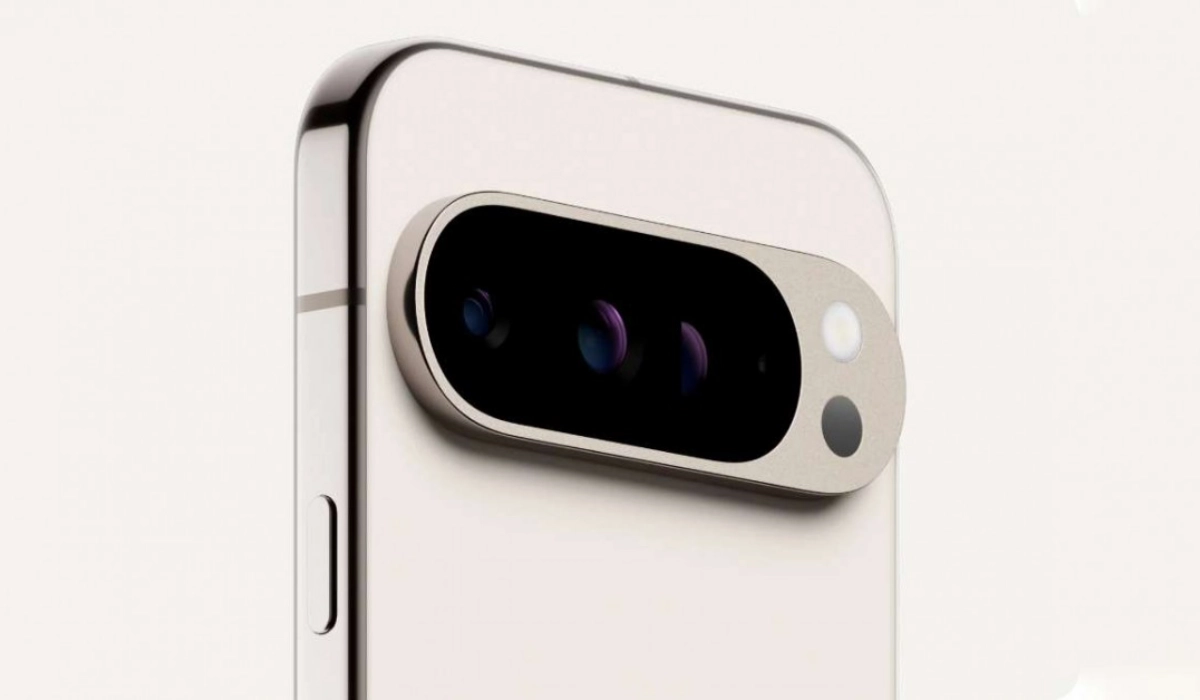
What Is the Add Me Feature?
‘Add Me’ lets you effortlessly share your real-time location with contacts right from your Pixel 9. It’s built to reduce the awkward phone calls, endless texts, and “Where are you exactly?” questions. Plus, it integrates seamlessly with Google Maps to show exactly where you are on a live map, keeping everyone in the loop without the fuss.
How to Enable ‘Add Me’ and Share Your Location
- Open Google Maps on your Pixel 9.
- Tap your profile picture or initial in the top-right corner.
- Select Location Sharing from the menu.
- Hit New share to start a fresh session.
- Choose how long you want to share your location (minimum 1 hour, or until you turn it off).
- Select the contacts you want to share with from your Google contacts or share a link via messaging apps.
- Tap Share, and voilà — your location is now visible to your chosen people.
Why ‘Add Me’ Beats Saying “Where Are You?”
- No more “I’m near that big statue” confusion because you’re literally showing your exact spot on a map.
- Real-time updates mean your friends will know if you’re stuck in traffic or just taking the scenic route to the coffee shop.
- Sharing duration control means you’re not broadcasting your location 24/7, keeping things secure and private.
- It works cross-platform, so even friends with non-Pixel phones are in on the action.
Pro Tips to Get the Most Out of ‘Add Me’
- Pair ‘Add Me’ with Google Assistant by saying, “Hey Google, share my location with [contact name].” Convenience overload!
- Use ‘Add Me’ before events or meet-ups to minimize the “I’m five minutes away” guesswork.
- Combine with Pixel’s other sharing features like Add Me photos (which let you add yourself seamlessly into group shots).
- Turn off location sharing when done — privacy first!
Conclusion
With the Add Me Feature , sharing your location no longer feels like a hassle — it’s fast, accurate, and stress-free. Whether you’re trying to find friends at a concert, link up at a busy event, or meet in a massive mall, the Add Me Feature makes it simple to stay connected. So next time you’re out and about, let the Add Me Feature do the work — no more confusion, just easy meetups and more time to enjoy the moment.
