Add MobilityArena as a preferred source on Google
This article provides useful tips to manage and organize bookmarks in Safari on iPhone and iPad devices.
Bookmarks allow you to access specific web pages rapidly instead of having to browse or conduct a fresh search for them. In essence, a quick tap will take you to your desired web page rather than having to open a browser and type in the URL.
When you bookmark frequently and correctly, not only do you save valuable time, it also makes browsing faster. Safari, Apple’s designated browser for iOS devices, is quite effective at adding and managing bookmarks, and is complete with a ton of cool extensions.
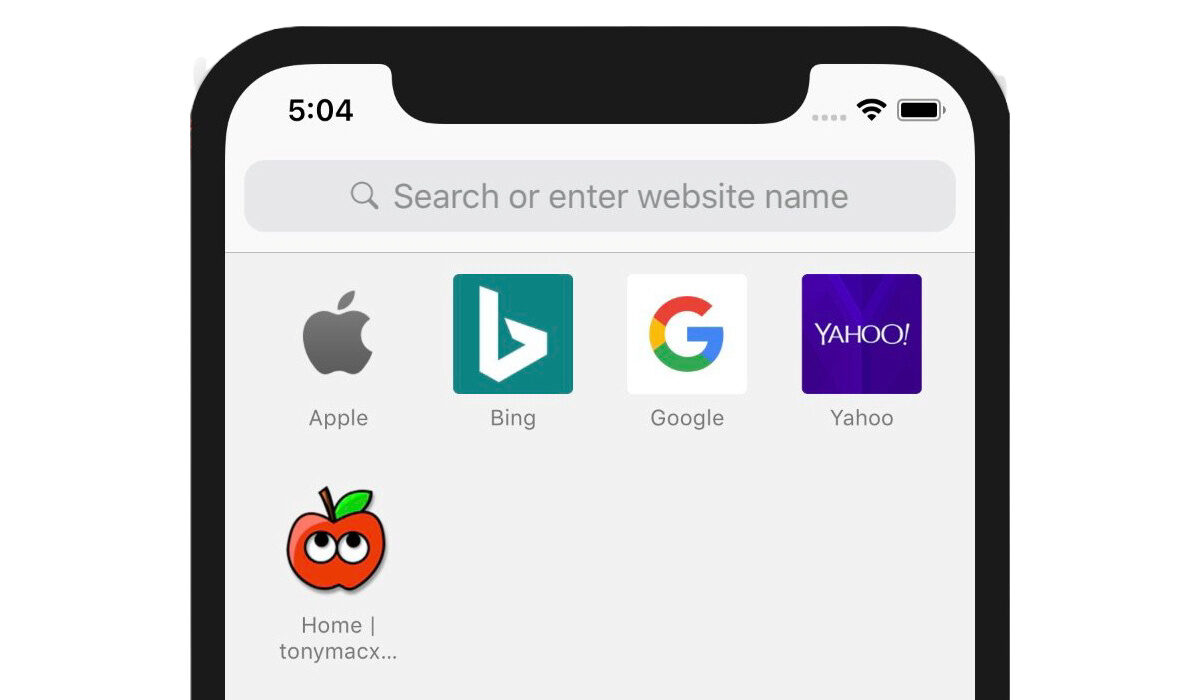
- Organize Bookmarks in Safari Browser
- How to Add Bookmarks in Safari browser
- How to Favourite Bookmarks in Safari
- How to Access Saved Bookmarks in Safari
- How to Add your Favourite Bookmarks to a Reading List
- How to Organize Safari Bookmarks into Folders
- How to Sync Bookmarks Across Devices
- How to Add Website Shortcuts
Organize Bookmarks in Safari Browser
Safari includes a powerful bookmark manager that gives you the necessary control to organize bookmarks. Interestingly, you can also add website shortcuts to the iPhone’s home screen using the standard web browser so you can reach your favorite sites right from your home screen.
Additionally, to make sure your bookmarks are accessible everywhere, you may sync them across all of your devices using iCloud.
We’ve provided individual instructions to achieve all these below.
How to Add Bookmarks in Safari browser
Adding bookmarks in Safari is easy on iOS devices. Follow these instructions to do it successfully on your device:
- Open Safari on your iPad or iPhone. After that, go to the website you want to bookmark and click on the Share symbol there.
- In the share sheet, click Add Bookmark now.
- Next, give the bookmark a fitting name. Select the folder where you wish to keep the bookmark after tapping on Location . To finish, be sure to tap Save in the top right corner of the screen.
How to Favourite Bookmarks in Safari
You can also choose to favorite essential bookmarks for quicker access. You’ll be able to see the favorites right away on the home page.
To do this:
- Open Safari, then go to the website you wish to add to your favorites. Next, click the Share icon.
- Click Add to Favorites in the sharing sheet to continue. Then, if necessary, change the details and click Save in the top right corner.
How to Access Saved Bookmarks in Safari
All of your bookmarks which you’ve saved using the steps we described above are easily accessible in Safari. You may therefore easily navigate across them and rapidly retrieve stored websites.
To do this:
- On your iOS or iPadOS device, launch Safari, and then tap the tiny bookmark symbol (it’s shaped like an open book) near the bottom.
- You ought to now see a lengthy list of bookmarks. You can search through the bookmark folders for particular websites and click on the one you want to visit.
How to Add your Favourite Bookmarks to a Reading List
You can add a bookmark to Safari Reading List to read your favorite articles or stories anytime you want with total peace of mind.
To accomplish this:
- Launch Safari on your iPadOS/iOS device and hit the bookmark symbol at the bottom of the window.
- To add a bookmark to your reading list, tap it, then select the “Add to Reading List” option from the share sheet by tapping the bookmark’s Share button at the bottom.
- Go to Safari, click the bookmark symbol, and then select the Reading List (looks like old-fashioned spectacles) tab at the top to see everything on your reading list.
How to Organize Safari Bookmarks into Folders
Using folders, you can manage your Safari bookmarks flawlessly. It will not only make it easier for you to access specific web pages, but it will also keep Safari well organized.
- On your smartphone, launch Safari, then tap the bookmark symbol at the bottom of the screen.
- In the lower left corner of the screen, tap the New Folder button. Give your bookmark folder a name after that, and then click Done .
As an alternative, you can also make a new Safari bookmarks folder when adding bookmarks.
To do this:
- Visit the website you wish to bookmark, click the Share button, then the Add Bookmark , Location , and New Folder buttons at the bottom, then give your folder a name and save it.
How to Sync Bookmarks Across Devices
You can also use iCloud to sync your Safari bookmarks for a consistent user experience across devices.
To do this:
- Go to the Settings section of the app on your iPhone or iPad. Next, tap the top-center portion of your profile.
- Tap iCloud next. After that, scroll down until you find Safari and click the toggle switch next to it to make it active.
How to Add Website Shortcuts
You should consider adding a shortcut to a website on your iPhone’s home screen if you frequently visit it. This clever time-saving trick can also serve as a useful way to skip installing particular apps.
To do this:
- Open Safari on your iPhone or iPad, then go to the website you wish to add as a shortcut on your home screen. Afterward, click the share icon located at the bottom of the screen.
- Select “Add to Home Screen” from the share sheet at this point. Give the shortcut a suitable name, then click Add to complete .
Summarily, the Safari browser on iOS devices is designed for utmost convenience when browsing. As such, it’s important to make sure you’re taking advantage of this properly to improve your browsing experience. The tips we’ve provided in this guide should help you do just that.
- Don’t miss our mobile phone reviews .
- Follow our news on Google News .
- Follow us on Instagram , Facebook , Twitter , and YouTube .
Author:Joan Agie
Add MobilityArena as a preferred source on Google
The Samsung Galaxy A52 has had a lot of positive feedback since its release and very few problems to go with it. We are going to be focusing on these problems today, and how you can fix them. Let’s dive right into it.
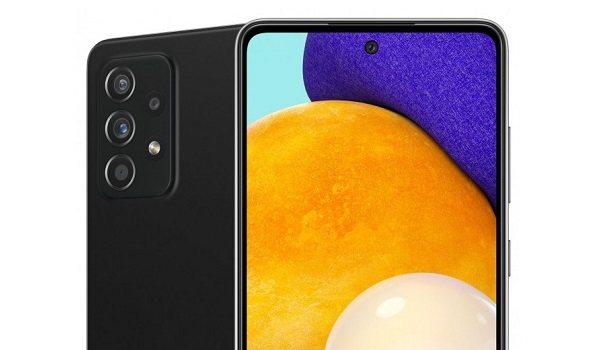
Samsung Galaxy A52 problem: Fast Battery Drain
Some users have observed the battery life of the Samsung Galaxy A52 drains faster than it formerly did before the latest software update (the July update). Some say it is a mild difference and some say that the life span is now terrible. Here are a few ways you can solve this problem.
•Clearing the cache of apps on your device can help to somewhat restore it to its former life span.
•Repairing apps in the recovery menu is another effective way to solve this problem. It is important to do this after installing new updates.
•If you just installed a new software update, you need to give your device time to adjust and adapt to the update, so your battery’s lifespan might be a little less than it used to be.
•Apps running in the background could also contribute to how fast your battery is draining. Close them or blacklist them in settings and you should be fine.
•If your phone is overheating while charging and you have fast charging enabled, that might be the problem. You can disable its settings.
•Making use of your phone while it is charging will also cause overheating, try as much as possible to wait till it has charged fully.
Samsung Galaxy A52 problem: Overheating
There have been reports of the Samsung Galaxy A52 overheating from users. A particular user even recorded the phone heating up to 55 degrees.
•Close all unused apps running in the background, they are overworking your device’s processor unnecessarily while you are carrying out some other activity.
•Lower your screen brightness. Using your Samsung Galaxy A52 on high brightness volumes will make it overheat.
•Be careful not to overcharge the device. Not only will it make it overheat, but it can also mess up your phone’s battery life span.
Samsung Galaxy A52 problem: Mobile data issues
An issue with the mobile data option has surfaced after the latest July update. Being unable to access mobile data properly is a serious issue because it is a feature we use every single day. And it is worse for those who do not have a Wi-Fi connection as a substitute. Here are some things to do if you have this problem.
•Try to wipe the cache partition and repair apps in the recovery menu and see if it solves this problem.
•Force restarting is also a good option for fixing this problem. To do this, simply press the power button and the volume up or volume down for about 6-10 seconds and it just doesn’t might fix it.
•Resetting the network settings on your phone will probably solve this issue. This will return the network services to their default configuration. Although doing this will also reset connections you had made on different connectivity options like Bluetooth, Wi-Fi, e.t.c.
Samsung Galaxy A52 problem: Camera Quality Issues
One of the problems that some users encountered after the July Update, was a reduction in the phone camera’s quality. Unfortunately, you are going to have to wait for Samsung’s next update to see if they eventually resolve this issue.
So, follow these guides and you just might be problem free as you probably once were. If you have any problems that were not mentioned, comment down below and we will get back to you with feedback.
- Don’t miss our mobile phone reviews .
- Follow our news on Google News .
- Follow us on Instagram , Facebook , Twitter , and YouTube .
Author:Flamez
Flamez loves basketball, art, gadgets and cars.
